A browser download is only one of several save actions. Identify the deliverable, use its authorized source, choose a destination, and verify the finished file before opening it.
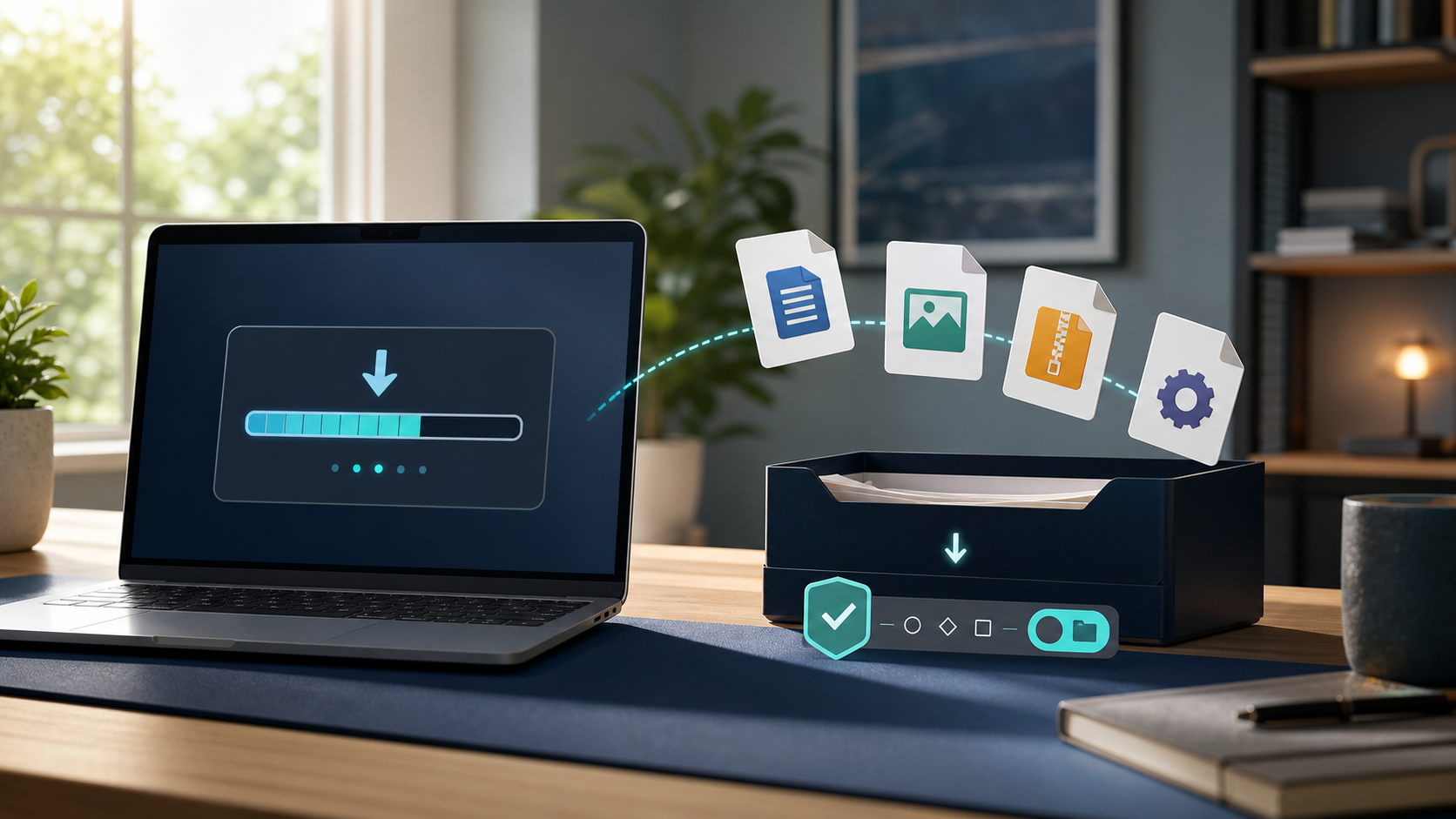
What are you trying to download: a PDF you can keep, an editable copy of a cloud document, an app to install, a webpage for offline reference, or music that remains inside a streaming app? The correct action changes with the intended result.
To download a file, open the page or service that is authorized to provide it, choose its Download, Save as, or Export action, select a destination if prompted, wait for the transfer to finish, and locate the result in the browser’s download list or your device’s Downloads folder. Before opening it, confirm the source, expected filename and extension, file size, security warnings, and—when the publisher provides one—the cryptographic hash.
First decide what kind of save you need
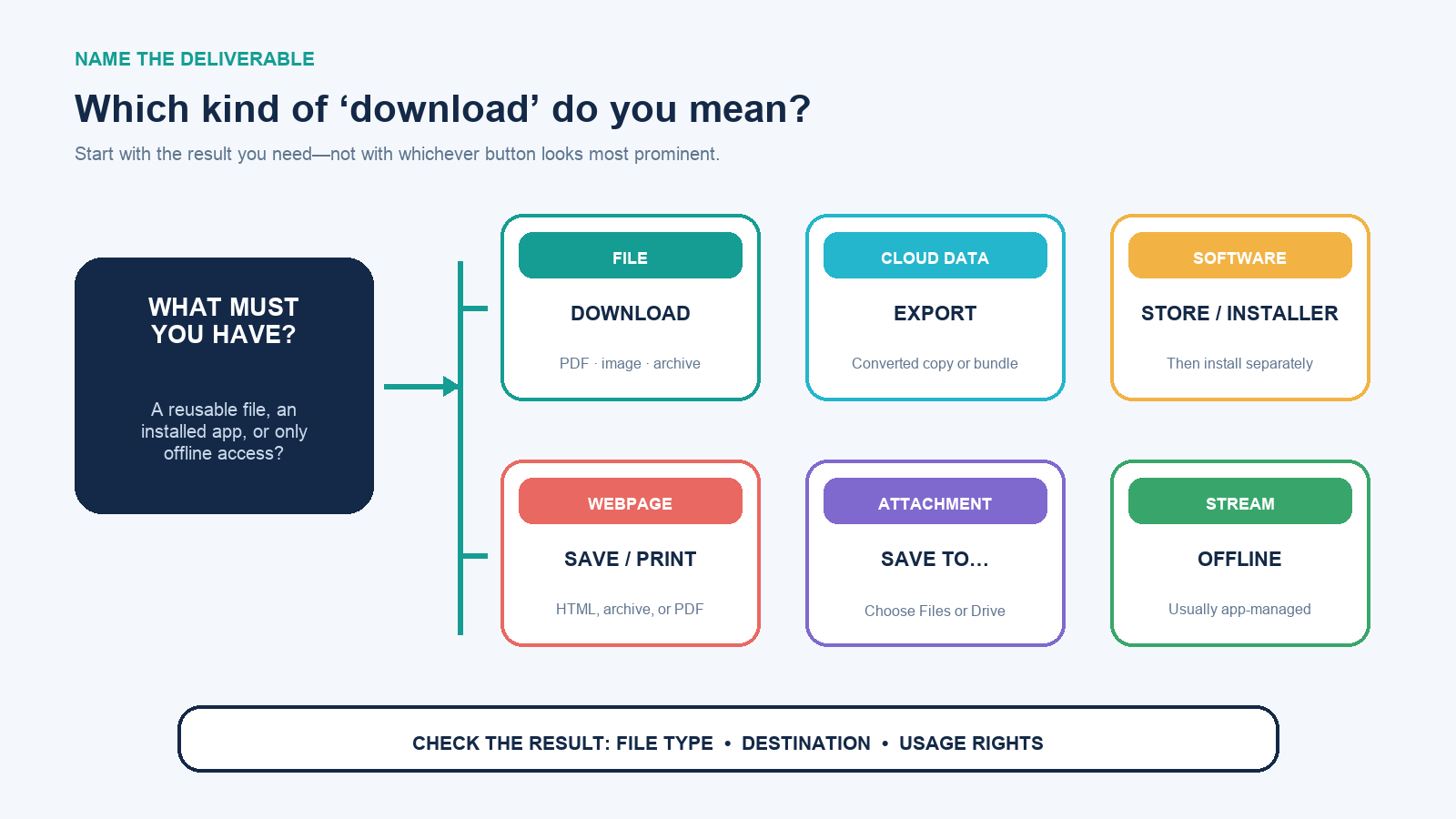
| Goal | Look for | What you should receive |
|---|---|---|
| Keep a file already offered by a site | Download, Save link as, or a file-format button | A local PDF, image, archive, document, or other named file |
| Take data out of a cloud app | Export, Download a copy, or Takeout | A converted document, spreadsheet, archive, or data bundle |
| Install software | Official app store or publisher download page | An app package or installer followed by a separate install step |
| Read a webpage offline | Save page, reading list, or Print to PDF | A page package, browser-managed copy, or PDF with different capabilities |
| Save an email attachment | Download attachment or Save to Files/Drive | The sender-provided attachment at a chosen destination |
| Use streaming media offline | The service’s offline control | Usually an app-managed copy—not a general-purpose media file |
If a video, audio, image, book, or course has no authorized download control, a public viewing page is not automatically permission to create a copy. Check the service terms and the rights holder’s license. The separate guide to authorized YouTube-to-audio workflows explains why access, copying permission, and exportability are different questions.
Use a source that is authorized to provide the file
For software, begin at the operating system’s app store or the publisher’s verified domain. For a document, use the issuing organization, author, library, customer portal, or collaboration service that controls access. For a shared file, confirm the sender through a separate channel when the attachment or link is unexpected, urgent, password-protected, or asks you to disable protection.
Inspect the full domain, not only the logo or page design. Sponsored search results, look-alike domains, shortened links, and cloned download pages can lead to repackaged installers. A secure HTTPS connection protects the transfer to the site you reached; it does not prove that the operator or file is trustworthy.
Use the platform’s normal control. A page that insists on installing a browser extension, entering an account password into an unrelated converter, calling “support,” or downloading a special “update” before the promised file is available has changed the task. Stop and return to the official provider.
Download the file on a computer
- Open the intended page and confirm the account, item, version, format, and license.
- Choose the page’s Download or Export control. For a direct link, a desktop browser may also offer Save link as.
- Read the save dialog. Confirm the filename, extension, and destination instead of pressing Save automatically.
- Watch the browser’s download panel until it says the transfer is complete. Do not open a partial file.
- Use Show in folder or the browser’s Downloads history to locate the exact result.
Chrome documents a download tray beside the address bar and a Downloads page for recent transfers. It can either use a default folder or ask where to save every file. Edge similarly provides a configurable location and an “ask where to save” setting. Safari on Mac exposes its own file-download location under Safari settings and may automatically decompress some archives, so inspect the resulting item rather than assuming the original archive is still present.
A page that opens a PDF in a viewer has not necessarily saved it. Use the viewer’s download control or the browser’s save action. Conversely, saving a webpage can produce an HTML file plus an asset folder, a single web archive, or a PDF; these are not interchangeable backups of a functioning web application.
Download on iPhone, iPad, or Android
On iPhone or iPad, Safari shows a Downloads control near the search field after a transfer. Apple’s current instructions route downloaded files through Files → Browse → iCloud Drive → Downloads under the documented default. Your device can use a different configured location, so the Safari download list is the fastest route when the file appears missing.
On Android in Chrome, tap a download link or touch and hold eligible content, then choose Download link or Download image. Chrome’s Downloads view can pause, resume, rename, share, or delete downloaded items; the device’s Files app provides the broader file view. An app installation should normally begin in Google Play rather than from a random web package.
Mobile share sheets can make “save” ambiguous. Save to Files creates a file at a selected location; Add to reading list creates browser-managed offline access; Open in… may pass a temporary copy to another app; Save image may place an image in Photos rather than Files. Read the action and verify the destination.
Choose a destination you can find again
Use the default Downloads folder for short-lived transfers and a named project folder for records you must retain. Turn on “ask where to save” when files from different clients or projects must not mix. Before a large download, check free space on the destination—not merely on a different synced drive.
Rename only after recording the original filename and version. Keep meaningful extensions visible. A file named invoice.pdf.exe is an executable, not a PDF; a renamed extension does not convert contents. Archives such as ZIP or RAR can contain many items, scripts, shortcuts, or installers, so extraction is not equivalent to opening a harmless document.
For work or school data, follow retention and approved-storage policy. A personal Downloads folder, consumer cloud drive, or phone photo library may be the wrong destination even when the transfer succeeds technically.
Verify before you open
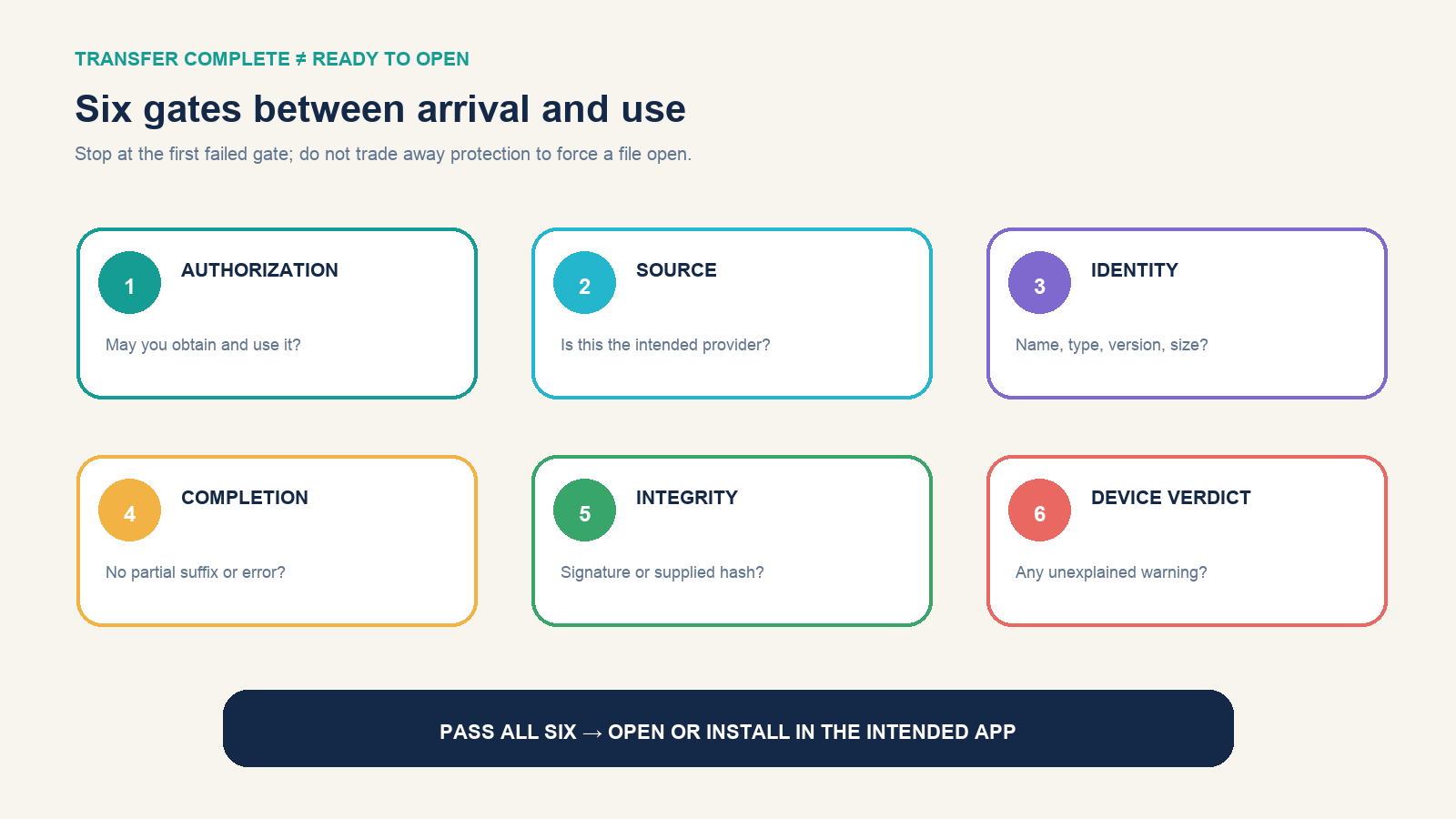
- Authorization: you have permission to obtain and use the copy.
- Source: the domain, account, or sender is the intended provider.
- Identity: filename, version, extension, platform, architecture, language, and size are plausible.
- Completion: the transfer ended normally and no partial-download suffix remains.
- Integrity: a publisher-supplied signature or hash matches when one is available.
- Platform verdict: the browser and operating system do not show an unexplained security warning.
Do not disable Safe Browsing, SmartScreen, Gatekeeper, antivirus, or company policy because a page tells you to. Chrome distinguishes dangerous, suspicious, unverified, and insecure downloads; Microsoft documents reputation-based checks and potentially unwanted app blocking; macOS Gatekeeper checks identified developers, notarization, and alteration for downloaded software. No one layer proves safety, but an unexpected warning increases the evidence required to proceed.
If the file is sensitive or risky, follow the dedicated malware-scanning workflow. Uploading a confidential file to a public scanning service can disclose it, so use an approved local or organizational process.
Compare a publisher-provided checksum
A cryptographic hash can show that your file’s bytes match the publisher’s published value. It is useful for large installers, disk images, archives, and releases. It is not a reputation score: a malicious publisher can publish the hash of a malicious file, and a hash copied from the same compromised page may not provide independent assurance.
On Windows PowerShell, calculate SHA-256 with:
Get-FileHash -Algorithm SHA256 "$env:USERPROFILEDownloadsfilename.iso"Microsoft documents that Get-FileHash defaults to SHA-256 and that changing file content changes the resulting value even if the filename stays the same. On macOS or Linux systems that include shasum, use:
shasum -a 256 "~/Downloads/filename.iso"Compare the full hexadecimal result with the value published for the exact file, version, platform, and algorithm. Ignore capitalization but not missing or different characters. If the values differ, do not install or use the file; re-check the selected release and download again from the official source.
Diagnose a failed or missing download
| Symptom | Likely boundary | Next check |
|---|---|---|
| Network failed or transfer stalls | Connection, server, VPN, proxy, or expiring session | Resume once, verify connectivity, sign in again, or try later from the official page |
| Forbidden or needs authorization | The account lacks access or the signed link expired | Return to the host page, confirm the correct account, and request permission |
| Disk full or insufficient permission | The chosen destination cannot accept the file | Check free space and choose a folder the account may write to |
| Browser blocks the item | Security reputation, dangerous type, insecure delivery, or policy | Read the exact warning and obtain the item through an approved source; do not reflexively bypass it |
| Nothing appears after clicking | Popup, automatic-download permission, script failure, or viewer behavior | Check the download panel, page instructions, and whether the file opened in a new tab |
| File opens as corrupt | Incomplete transfer, wrong format, server error, or bad conversion | Compare size/hash, redownload, and ask the provider to verify the source file |
Do not repeatedly download renamed copies while guessing. Preserve the first error message, expected size, source URL, timestamp, and browser. That evidence tells the provider whether the failure occurred at authorization, generation, transfer, storage, security review, or opening.
Finish the transfer with a usable record
For an important download, record the original page URL, access date, publisher or sender, product or document version, original filename, final filename, byte size, expected and calculated hash, license or use restriction, destination, and whether the file opened in the intended application. Keep installers separate from documents and delete obsolete duplicates after the correct copy is backed up.
Your next action is not automatically “open.” Look at the finished file in its folder and answer three questions: Is this the object I intended to obtain? Can I trace it to an authorized source? Does the risk of opening or installing it match the evidence I have? Only then move from download to use.