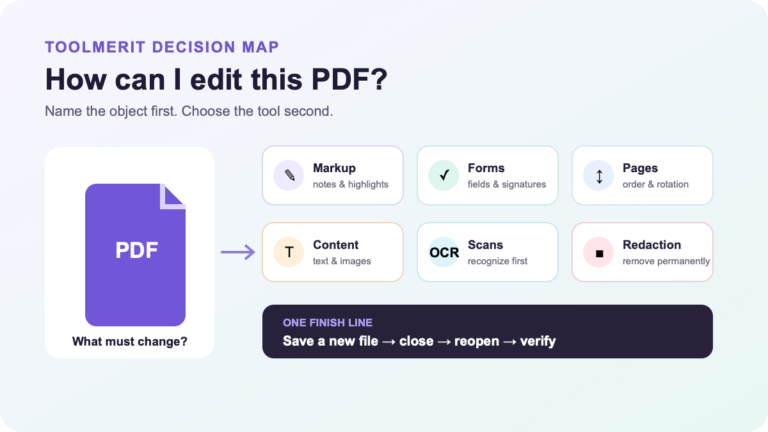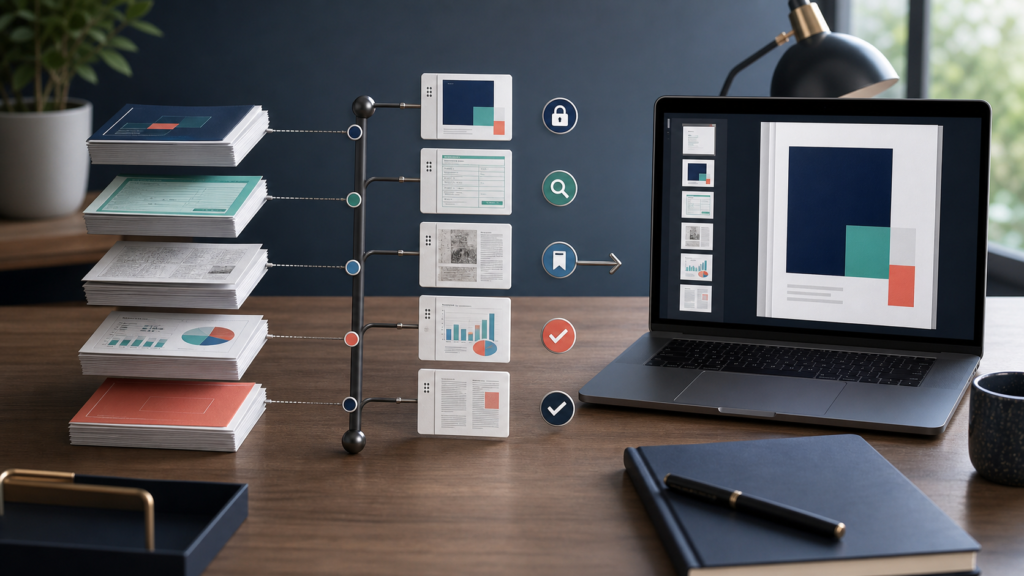
Merging pages is easy; proving the resulting PDF is complete, correctly ordered, searchable, accessible, and safe to share takes a deliberate workflow.
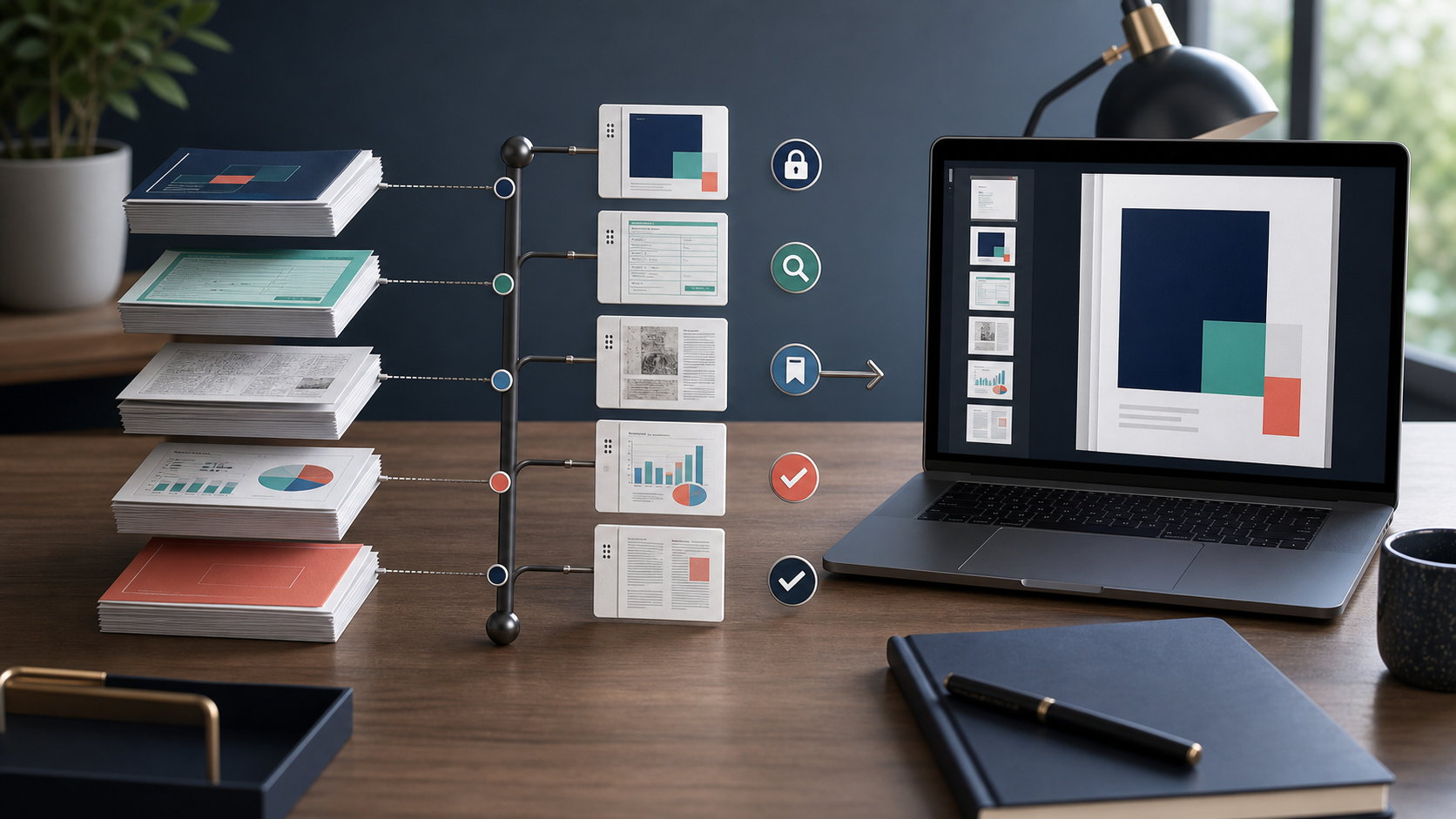
The common error is to drop several PDFs into a merger, see that the output opens, and send it. Pages can be complete but misplaced; scans can look correct but be unsearchable; bookmarks and form behavior can disappear; a signature can no longer represent the delivered object.
To combine PDF files, duplicate the originals, list the files and expected page ranges in final order, then merge them with a trusted local tool such as Preview on Mac or PDFsam Basic on Windows, macOS, or Linux; Acrobat and approved web or mobile services are alternatives when cloud processing is acceptable. Save to a new filename, then verify total pages, sequence, orientation, searchability, bookmarks, links, forms, accessibility, permissions, and any digital signatures before sharing.
Make a merge manifest before opening a tool
Put all authorized source files in one working folder, but preserve the originals separately. Rename working copies with an order prefix—01-cover.pdf, 02-report.pdf, 03-appendix.pdf—only after recording their original names. Open every source in a real PDF reader, not just a file preview.
Create a small manifest:
| Order | Source | Source pages | Include | Expected output | Special features |
|---|---|---|---|---|---|
| 1 | cover.pdf | 2 | 1–2 | 1–2 | Links |
| 2 | report.pdf | 18 | 1–18 | 3–20 | Bookmarks, tagged text |
| 3 | scan.pdf | 5 | 2–5 | 21–24 | OCR text, mixed rotation |
| 4 | appendix.pdf | 9 | 1–9 | 25–33 | Fillable fields |
The expected total is the sum of included pages, not the sum of all source pages. Also record blank separator pages, duplex-print requirements, front matter, page labels, and whether existing printed page numbers should continue or restart. This catches the off-by-one mistakes thumbnails conceal.
Choose a method by document risk—not convenience alone
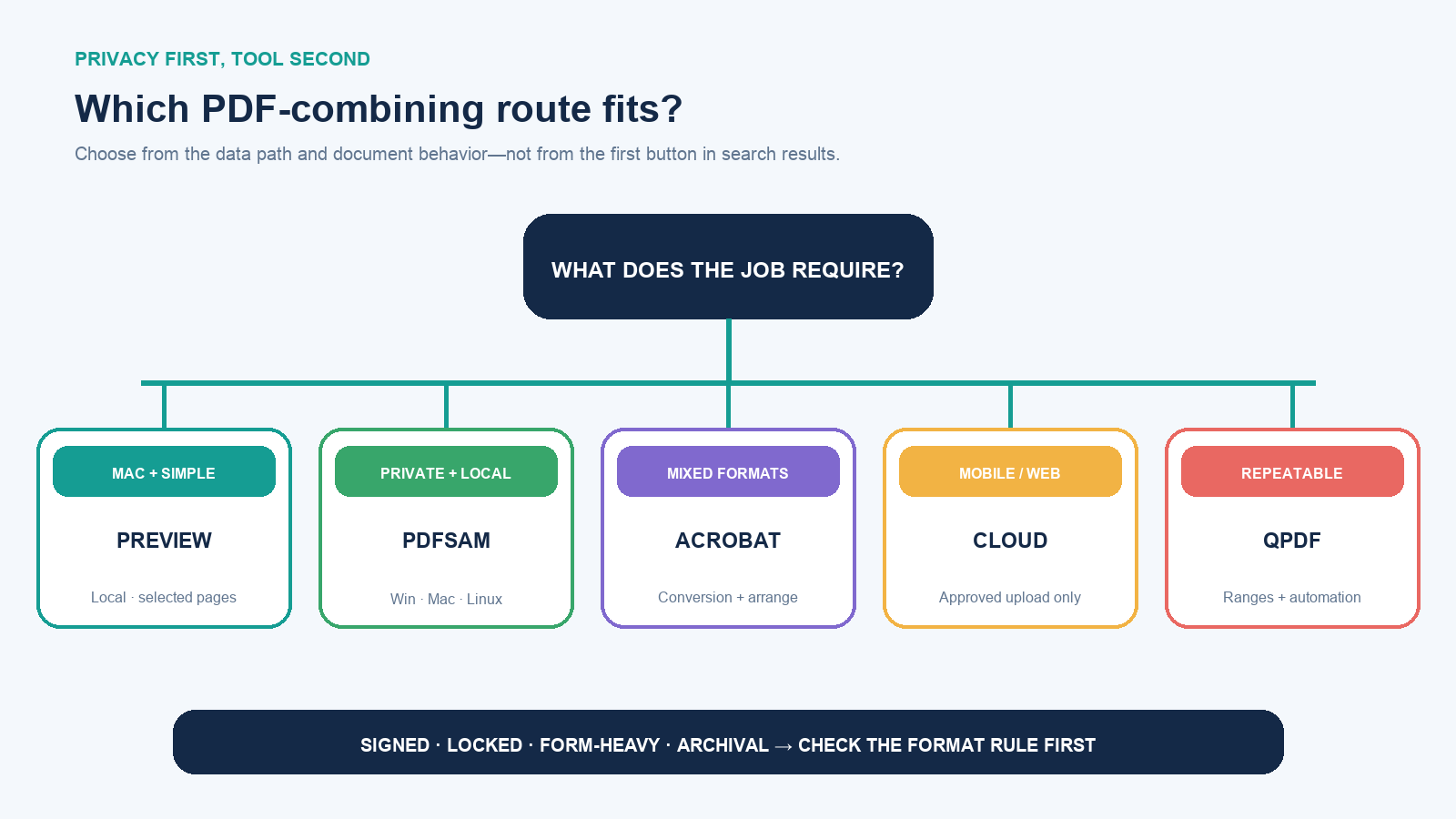
| Situation | Practical route | Important limit |
|---|---|---|
| Simple PDFs on a Mac | Preview, included with macOS | Apple warns edits save automatically; duplicate originals first |
| Private PDFs on Windows, macOS, or Linux | PDFsam Basic or an approved local tool | Obtain it from the official source and verify required structural features |
| Mixed Office, image, web, and PDF sources | Acrobat desktop when licensed | Conversion settings affect size and quality; review each converted item |
| Quick mobile or browser workflow | Approved service such as Acrobat web/mobile | Files are uploaded and the combined result may be saved to cloud storage |
| Repeatable batch or exact page ranges | qpdf or another reviewed command-line tool |
Page concatenation does not by itself prove bookmarks, tags, metadata, or forms survived |
For contracts, personnel records, health information, unreleased financials, student data, legal exhibits, credentials, or client-confidential material, do not upload merely because an online merger is free. Use an approved local or organizational workflow and the applicable retention policy. Check where temporary and output files go, who can access them, how deletion works, and whether the service creates a public or forwardable link.
Stop before merging signed or structurally special PDFs
A digitally signed PDF is not just an image of a signature. The signature relates to a specific document revision and can restrict later editing. Preserve the signed original exactly. If the recipient needs several signed files in one submission, ask whether they accept a cover sheet plus separate signed attachments, a PDF Portfolio, or another container instead of altering the signed documents.
Pause and identify the required outcome when a source is:
- digitally signed, certified, locked, encrypted, or password-protected;
- a fillable or scripted form whose fields must remain usable;
- part of a PDF Portfolio with embedded native files;
- tagged for accessibility or governed by a PDF/A archival requirement;
- using attachments, layers, multimedia, comments, named destinations, page labels, or complex bookmarks;
- subject to a court, school, grant, portal, or records rule that specifies exact format, size, order, or signature validity.
If the job is actually to edit content, convert a scan, or change a source document, merging is the wrong operation. The guide to PDF structure explains why visible pages, searchable text, tags, permissions, and signatures are separate layers; the Mac PDF editing guide routes annotation, page organization, and real content edits differently.
Combine the files with the route you chose
Mac: Preview
- Duplicate each original or work only on copies. Apple notes that Preview saves changes automatically.
- Open the PDFs in Preview and choose View → Thumbnails for each document.
- Drag selected thumbnails from one sidebar into the destination document. Command-click to select nonadjacent pages. To add a whole PDF, Apple also supports dragging its Finder icon into the sidebar.
- Place the pages between the correct thumbnails, then drag to repair order.
- Save or export the destination under a new name. Close and reopen that new file before verification.
Windows, macOS, or Linux: PDFsam Basic
- Obtain PDFsam Basic from its official download page and install it under your organization’s software policy.
- Open Merge, add the working copies, and arrange them in manifest order.
- Set the output filename and location. Review optional table-of-contents, page normalization, form handling, or footer settings only if the job requires them.
- Run the merge. Keep the output separate from the sources and review the application log or errors.
Acrobat desktop, web, or mobile
In Acrobat desktop, choose Menu → Combine files on Windows or File → Combine files on macOS, add files, expand multi-page items when needed, arrange or remove pages, and select Combine. Review the size setting: Adobe documents that a smaller-file option can reduce large images with lower-quality JPEG, while other presets retain more quality.
On Acrobat web or mobile, select the Combine workflow, add files, confirm order, combine, and name the result. Adobe’s current mobile instructions require an active subscription, sign-in, internet access, and cloud storage. Its web documentation also notes restrictions for secure, password-protected, 3D, and Portfolio files. That is a reason to select the route before uploading, not after failure.
Command line: qpdf
For a repeatable whole-file merge:
qpdf --empty --pages cover.pdf 1-z report.pdf 1-z appendix.pdf 1-z -- combined.pdfFor selected and reversed ranges:
qpdf --empty --pages report.pdf 1-12 scan.pdf 4-1 appendix.pdf 2,5-9 -- combined.pdfqpdf documents --pages for splitting, merging, page ranges, and collation. Quote filenames that contain spaces. Use passwords only when you are authorized to open the protected source, avoid exposing them in shell history, and never overwrite the originals. Because document-level information follows special rules in page-selection operations, treat the result as a page assembly that still requires structural validation.
Run a ten-part post-merge check
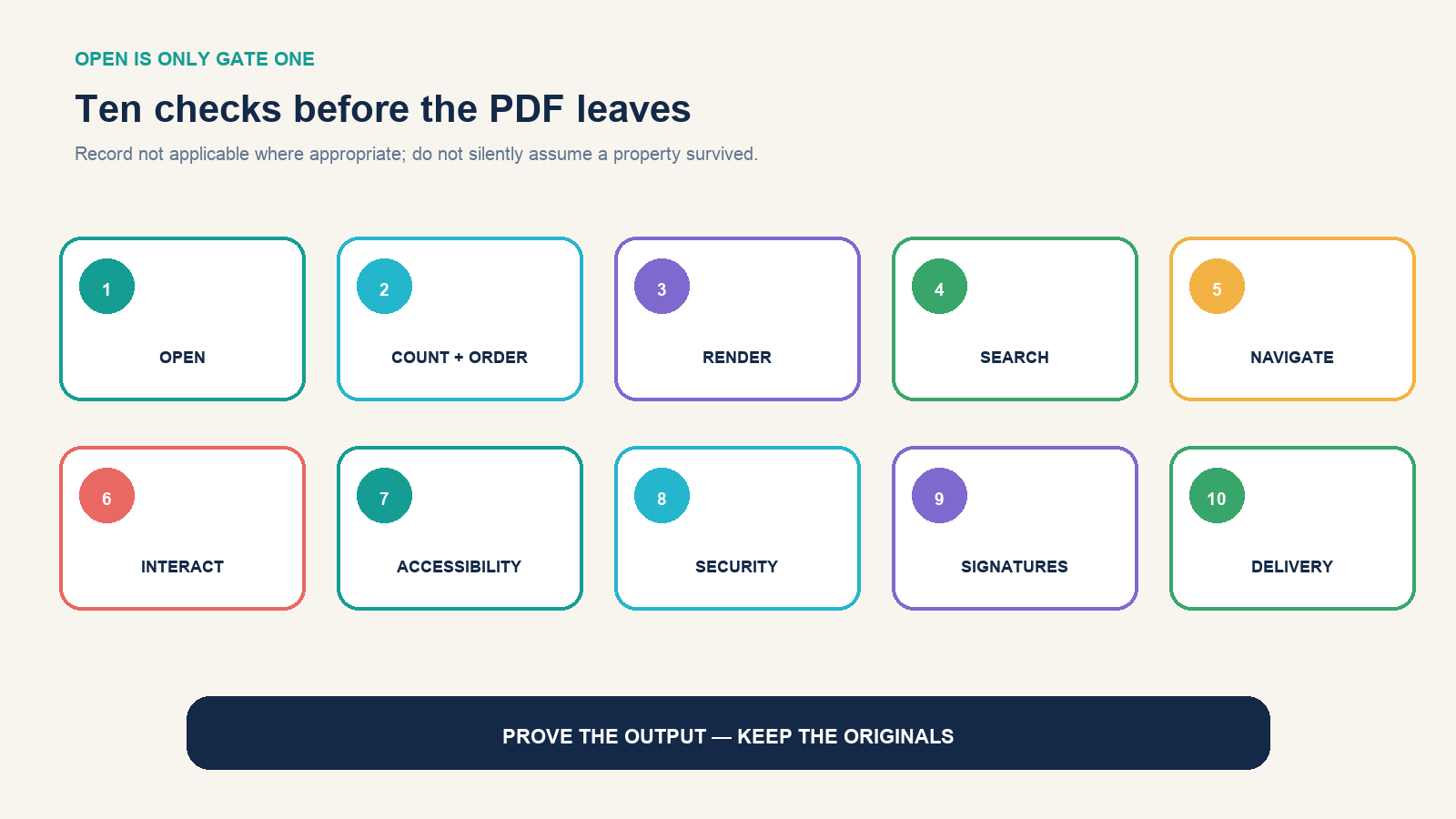
- Open: close the merger, open the saved output in a separate current reader, and confirm there is no repair warning.
- Count and order: compare total pages and every source transition with the manifest; check blank backs and dividers.
- Render: inspect the first, last, and representative pages at high zoom; check rotation, crop, fonts, images, transparency, and mixed sizes.
- Search and copy: search for known text from each section and copy a sample. A visible scan may have no OCR text, or its hidden text may be wrong.
- Navigate: test bookmarks, table-of-contents links, internal destinations, external links, page labels, and open-at-page behavior.
- Interact: test form fields, buttons, comments, attachments, layers, and scripts only in a trusted environment. Check for duplicate field names affecting more than one section.
- Accessibility: confirm tags exist when required; review logical reading order, headings, language, alternate text, form labels, and tab order. Appearance alone cannot prove this.
- Security: check permissions, encryption, metadata, hidden attachments, redaction status, and whether the output now exposes information a source kept restricted.
- Signatures: verify every required digital signature in the intended reader. Do not accept an image of a signature or a green-looking icon as equivalent to certificate validation.
- Delivery: check file size and portal rules, upload a copy to the actual destination if authorized, download it again, and open the delivered copy.
Adobe’s accessibility documentation explains why tagged structure and logical reading order matter to assistive technology. If the combined file is required to be accessible, use the appropriate checker and manually review the reading order; an automated pass is evidence, not the whole acceptance test.
Repair the common failures without damaging the originals
| Failure | Likely cause | Safer repair |
|---|---|---|
| Wrong page sequence | Filename sorting, reversed scans, or unnoticed blank pages | Return to the manifest and rebuild from working copies |
| Huge output | High-resolution scans or image recompression choices | Identify the heavy source; optimize a copy for the destination and compare legibility |
| Text cannot be searched | Image-only scans or missing OCR layer | OCR the authorized source copy, proof the recognized text, then merge again |
| Bookmarks or tags are incomplete | The method copied pages but did not rebuild document structure | Use a structure-aware tool or repair the final navigation and tag tree |
| Form fields behave together | Different forms reused the same field names | Return to source forms and rename or flatten only under the workflow’s requirements |
| Signature is invalid or missing | The signed revision was modified or pages were reconstructed | Preserve the signed original and use the recipient-approved container or signing sequence |
Do not solve a size problem by converting every page to an image. That can remove selectable text, links, form behavior, tags, fine vector content, and useful metadata. Likewise, converting through Word is not a neutral merge technique; use the PDF-to-Word workflow only when editable reconstruction is the actual goal.
Deliver the combined PDF without losing provenance
Name the output with project, document purpose, version, and date rather than “combined-final-final.pdf.” Store the manifest, source filenames, included ranges, tool and version, processing date, output page count, exclusions, reviewer, validation result, and delivery location. For controlled records, calculate and retain a SHA-256 hash according to policy.
Keep the output, originals, and working copies under the right retention rules. A combined convenience copy should not replace signed originals, archival masters, editable source files, or independently governed records unless the records owner explicitly approves that change.
The final test is simple to state: another person should be able to use the combined PDF for its intended task without needing the source folder—and the organization should still be able to prove where every page came from. When both conditions are true, the merge is complete.