A detection-first guide to choosing scan scope, using trusted platform tools, preserving a useful log, and interpreting what a clean or flagged result proves.
To scan for malware, first decide whether you are checking one file, an entire device, or a website; update the operating system and trusted scanner; disconnect backup drives; run the smallest scan that answers the concern, then increase to a full or offline scan when the exposure or symptoms justify it; review the detailed log and quarantine record; and verify the result with behavior, persistence, and account evidence. A scan that finds nothing means “nothing detected within this scan’s coverage,” not “this system is proven clean.”
If files are being encrypted, a ransom note appears, several devices show the same problem, an administrator account is compromised, or a work system holds regulated or client data, stop routine scanning. Isolate the affected device from networks and contact the responsible security or incident-response team. Scanning can alter files, logs, memory, and timestamps that an investigation may need.
Identify what you are actually scanning
The word scan hides several different tasks:
| Target | Useful question | Wrong assumption |
|---|---|---|
| One downloaded file | Does the current trusted engine flag this unopened file? | A clean result proves the file is safe to execute |
| Windows or Linux computer | Do files, memory-access paths, startup areas, or known persistence artifacts match detection logic? | A quick scan covers every file and hidden state |
| Mac | Are built-in protections current, and is a suspicious app being blocked or remediated? | macOS provides a Windows-style manual full-scan button |
| Android phone | Does Play Protect identify a harmful installed app? | A scan diagnoses every browser, account, or network problem |
| iPhone or iPad | Are software, apps, profiles, sharing, and accounts in an expected state? | A third-party app can scan all other apps and system files |
| Website or server | Do files differ from trusted releases, contain known signatures, or show suspicious changes? | An external URL scanner can inspect databases, cron jobs, private files, and server processes |
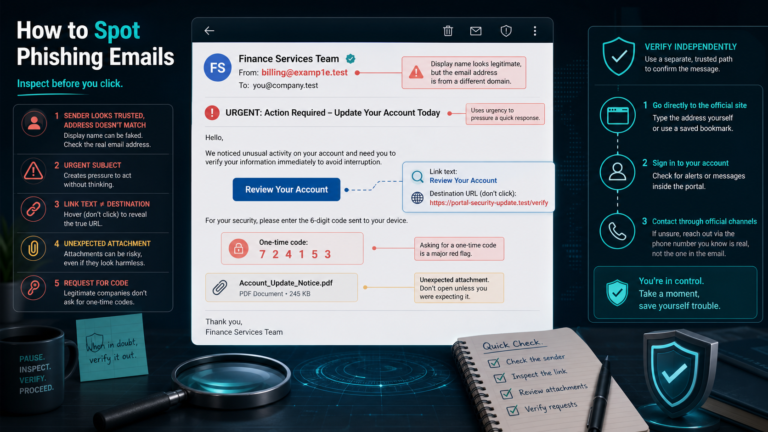
A fake browser alert saying “five viruses found” has not scanned the device. Close the tab without clicking its buttons, downloads, phone number, or notification request. Use the operating system’s own security interface or a tool obtained directly from its documented publisher.
Preserve context before the scan changes it
For a personal device with a low-risk suspicion, write down:
- the first symptom and exact time you noticed it
- the file, link, app, extension, or event that preceded it
- unexpected logins, browser changes, security alerts, or disabled controls
- which accounts were used after the suspected exposure
- the current security product and whether real-time protection is active
Disconnect external backup drives and do not connect a clean backup just to scan it from a suspected host. Take screenshots of alerts and preserve their exact wording. Do not run the suspected file “to see what happens,” and do not upload a confidential document to a public multi-engine scanning service unless its data-handling terms have been reviewed and the organization authorizes the disclosure.
On a managed device, use the organization’s procedure. An endpoint agent may already have isolated the machine, collected evidence, or assigned an incident identifier; installing a second real-time antivirus can interfere with both protection and investigation.
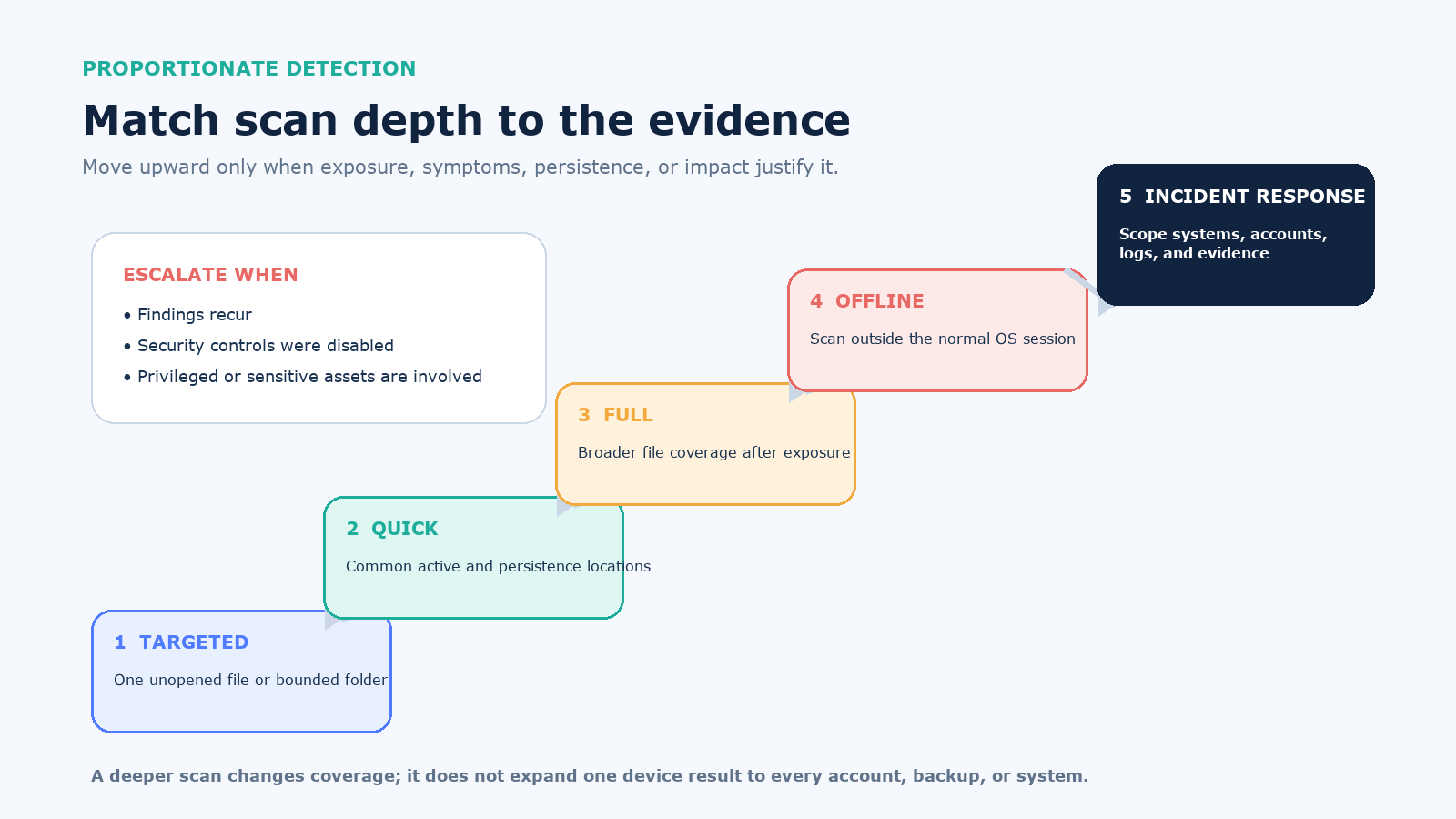
Choose the scan depth that matches the evidence
| Level | Use it when | What it does not establish |
|---|---|---|
| Targeted file or folder | You have a specific unopened download, attachment, or directory | The rest of the device is clean |
| Quick scan | You want a fast check of common active and persistence locations | Every file and archive was inspected |
| Full scan | A file ran, protection was off, or symptoms remain unexplained | Boot-time or well-concealed code could not interfere |
| Offline or recovery scan | Detections recur, startup behavior is suspicious, or malware may defend itself while the OS runs | Accounts, other devices, cloud data, or the wider network are unaffected |
| Incident-response analysis | Impact is high, several assets are involved, or privileged access may be lost | A consumer scan is an adequate substitute for scoping and forensics |
Before any scan, update the scanner’s detection data and record the update time. Read the completion summary for skipped files, password-protected archives, size limits, errors, and excluded paths. “Scan completed” and “all intended objects were scanned” are different claims.
Scan a Windows 10 or Windows 11 computer
- Open Windows Security, then Virus & threat protection.
- Under protection updates, check for current security intelligence. Confirm the page identifies the active security provider.
- For a specific unopened item, right-click it in File Explorer. On Windows 11, choose Show more options if needed, then Scan with Microsoft Defender.
- For a device check, start with Quick scan. Open Scan options to select a full or custom scan.
- If persistence or interference is plausible, save open work and choose Microsoft Defender Antivirus (offline scan). The computer restarts into the Windows Recovery Environment, scans, and restarts again.
- Open Protection history. Record the threat name, affected path, detection time, action, and whether an item was blocked, quarantined, removed, allowed, or unresolved.
Microsoft documents the quick, full, custom, and offline options. It also notes that Defender Offline runs outside the normal Windows session so persistent malware has a harder time hiding or defending itself. Do not restore an item merely because an app stopped working; verify the file’s publisher and expected path first.
Run one real-time antivirus provider at a time. Microsoft’s antivirus FAQ warns that multiple real-time security products can cause performance and update problems. An authorized on-demand scanner is different, but its result still needs interpretation.
Check a Mac without inventing a scan button
macOS uses Gatekeeper, notarization, and XProtect rather than exposing a general manual XProtect full-scan interface. Apple’s platform security documentation says XProtect checks known malicious content when an app first launches, when the app changes, and when signatures update; its remediation engine also checks periodically.
- Install the latest compatible macOS and security updates. Keep automatic security responses and system data files enabled.
- Check Finder’s Applications folder, browser extensions, login items, and device-management profiles for software you do not recognize. Do not delete a work or school profile without the administrator.
- If macOS displays an XProtect or Gatekeeper alert, record the app name and location. Leave it blocked or quarantined while you verify the publisher and source.
- If you need a manual second opinion, use a current, notarized scanner obtained from the vendor’s official site or the App Store. Update its definitions, grant only the access its documented scan requires, and retain its report.
- If symptoms persist after clean results, stop adding scanners. Review processes, network activity, persistence, and accounts with qualified support, or restore from a known-good state.
A pop-up claiming that a web page scanned the Mac is not XProtect. Do not install a “cleaner” from that alert or bypass Gatekeeper because the alert tells you to.
Scan Android; inspect iPhone and iPad differently
On Android, open the Google Play Store, tap the profile icon, choose Play Protect, and run a scan. Keep Scan apps with Play Protect enabled. If you install apps outside Google Play, Google’s malware guidance recommends enabling improved harmful-app detection, then checking Android, security, and Google Play system updates.
Review the result by app and action. An intrusive website notification is usually a browser-permission problem, not proof of a malicious Android app. Conversely, removing a flagged app does not recover a password entered after the app gained access.
On iPhone and iPad, third-party apps are sandboxed and cannot crawl all other apps and system files as a desktop antivirus does. Apple’s app-security overview describes code signing and strict sandboxing as core protections. Update iOS or iPadOS, remove apps you do not trust, review account sign-ins and sharing, and check Settings > General > VPN & Device Management for an unexpected profile. Ask the administrator before changing a managed device.
Run a recorded file scan on Linux
On a Linux workstation or server where ClamAV is an approved tool, update its official signature database, scan a bounded path, and save the report. Exact installation and service commands vary by distribution. A non-destructive one-time scan may look like:
freshclam
clamscan --recursive --infected --log=clamav-scan.log /path/to/check
The ClamAV scanning documentation explains that clamscan loads the database, scans the supplied files or directories, writes a summary, and exits. It also documents size, archive, cross-filesystem, and other limits. Review the log before taking action; do not add an automatic delete option to the first scan. Exclude mounted backups or remote filesystems deliberately rather than discovering that the scan crossed into them.
A file-signature scanner is only one source of server evidence. Authentication logs, new services, scheduled jobs, unexpected listeners, changed permissions, package integrity, web logs, and cloud control-plane events may reveal activity a file scan misses.
Scan a WordPress site from the server side
A remote URL check sees only what the public site returns. For an authorized WordPress installation, start by preserving a snapshot and recording the WordPress version, active plugins, administrators, and recent changes. Then compare official files with published checksums:
wp core verify-checksums --include-root
wp plugin verify-checksums --all --strict
The official core command runs before WordPress loads and compares core files with WordPress.org checksums. The plugin command performs a similar check for plugins hosted on WordPress.org.
A checksum mismatch is an integrity finding, not automatically malware. A missing checksum for a premium or custom plugin is not a clean result or an infection; it means that this comparison cannot verify it. Checksums also do not cover all uploads, database content, must-use plugins, custom code, hosting configuration, cron tasks, or processes. Review unexpected PHP in upload directories, new administrator accounts, scheduled tasks, redirects, and outbound traffic with the host or incident responder.
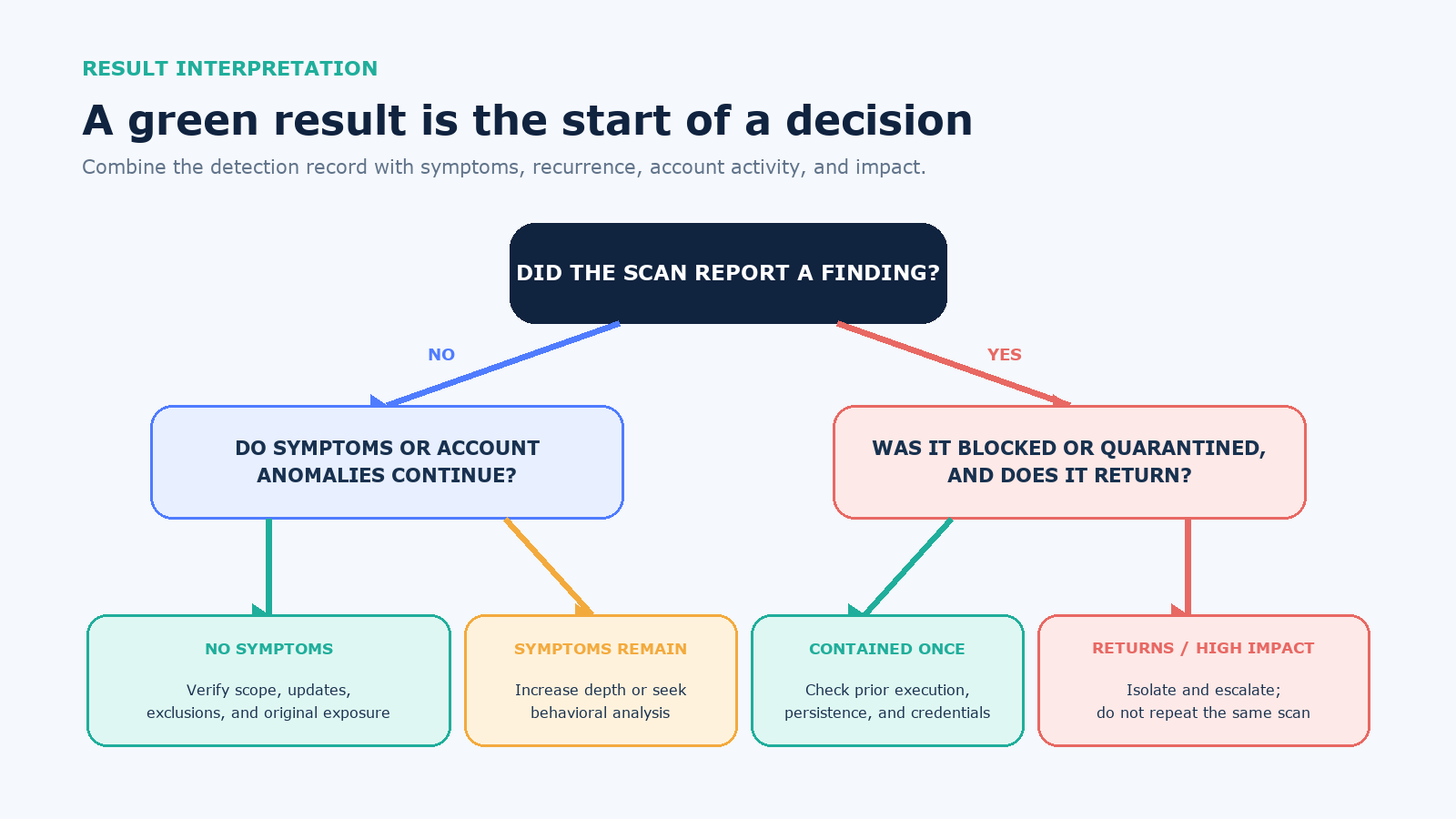
Interpret the result before you click Allow or Delete
| Result | Meaning | Next check |
|---|---|---|
| No detection, no symptom | The selected scan found nothing in its coverage | Verify updates, scope, exclusions, and the original exposure |
| No detection, symptoms persist | The cause may be undetected malware, unwanted software, an account issue, a browser setting, or a non-security fault | Increase scan depth or escalate for behavioral analysis |
| Potentially unwanted app | Behavior or distribution is undesirable but classification may differ from malware | Verify publisher, business need, policy, and installed source |
| Blocked or quarantined | Execution may have been prevented or the item isolated | Check whether it ran earlier and whether persistence or credentials were affected |
| Detection returns | A source, persistence method, synchronization path, or another device may be restoring it | Isolate and investigate instead of repeating the same scan |
| Scan error or skipped object | Coverage is incomplete | Resolve permissions, corruption, password protection, size limit, or unsupported format |
Record the scanner name and version, definition date, scan type, target, start and finish time, objects scanned and skipped, exact detections, affected paths, and actions. Keep that record outside the suspect system when the risk warrants it.
Know when a scan is no longer the right tool
Move from self-service scanning to incident response when ransomware is active, sensitive data may have left the system, administrator or identity-provider access is affected, several devices or accounts show related activity, the detection returns after quarantine, security controls were disabled, or the device is managed by an employer, school, or client.
CISA’s ransomware response guidance prioritizes identifying and immediately isolating impacted systems, preserving evidence where applicable, and examining detection systems and logs to determine the scope. Those goals are broader than finding one malicious file.
The boundary is simple: a scan is a measurement with a defined target and coverage; it is not a certificate of trust. If the detailed report, observed behavior, persistence checks, and account history do not tell the same story, keep the system isolated and escalate rather than accepting the most reassuring screen.