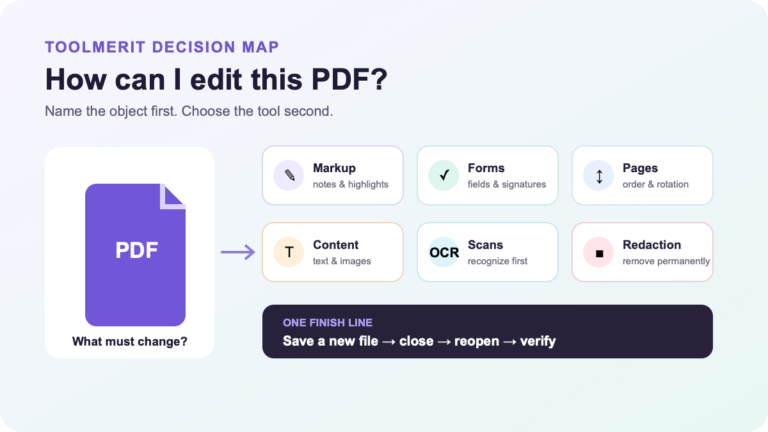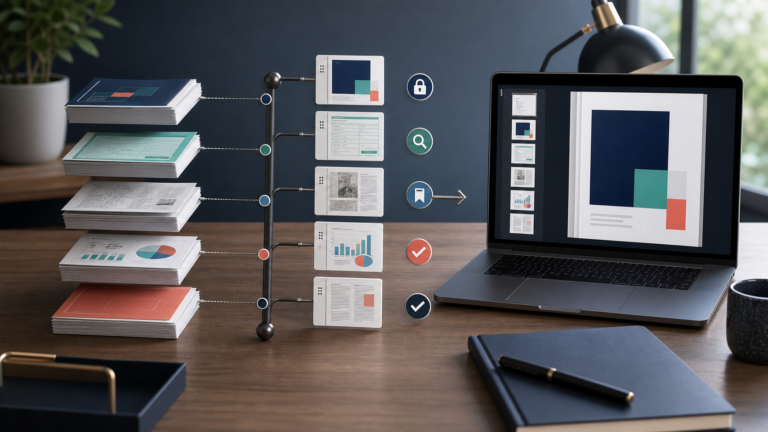
The right free PDF method depends on whether you are adding markup, changing pages, rewriting existing content, reading a scan, or removing sensitive text.
Click the sentence you want to change. Can you place a text cursor inside it, or can you only select the whole page? That one test tells you more than the label “PDF editor.” On a Mac, you can edit many PDF tasks for free with Preview: highlight, comment, sign, fill forms, rearrange pages, combine files, and redact selected text. But Apple explicitly says Preview cannot edit the existing text of a PDF.
For an existing paragraph, edit the source document if you have it. If you do not, a free desktop tool such as LibreOffice Draw can handle some limited changes, but its exported layout must be checked page by page. A scanned page needs text recognition before its words become editable. Start by naming the result, preserve the original, and verify a reopened delivery copy.
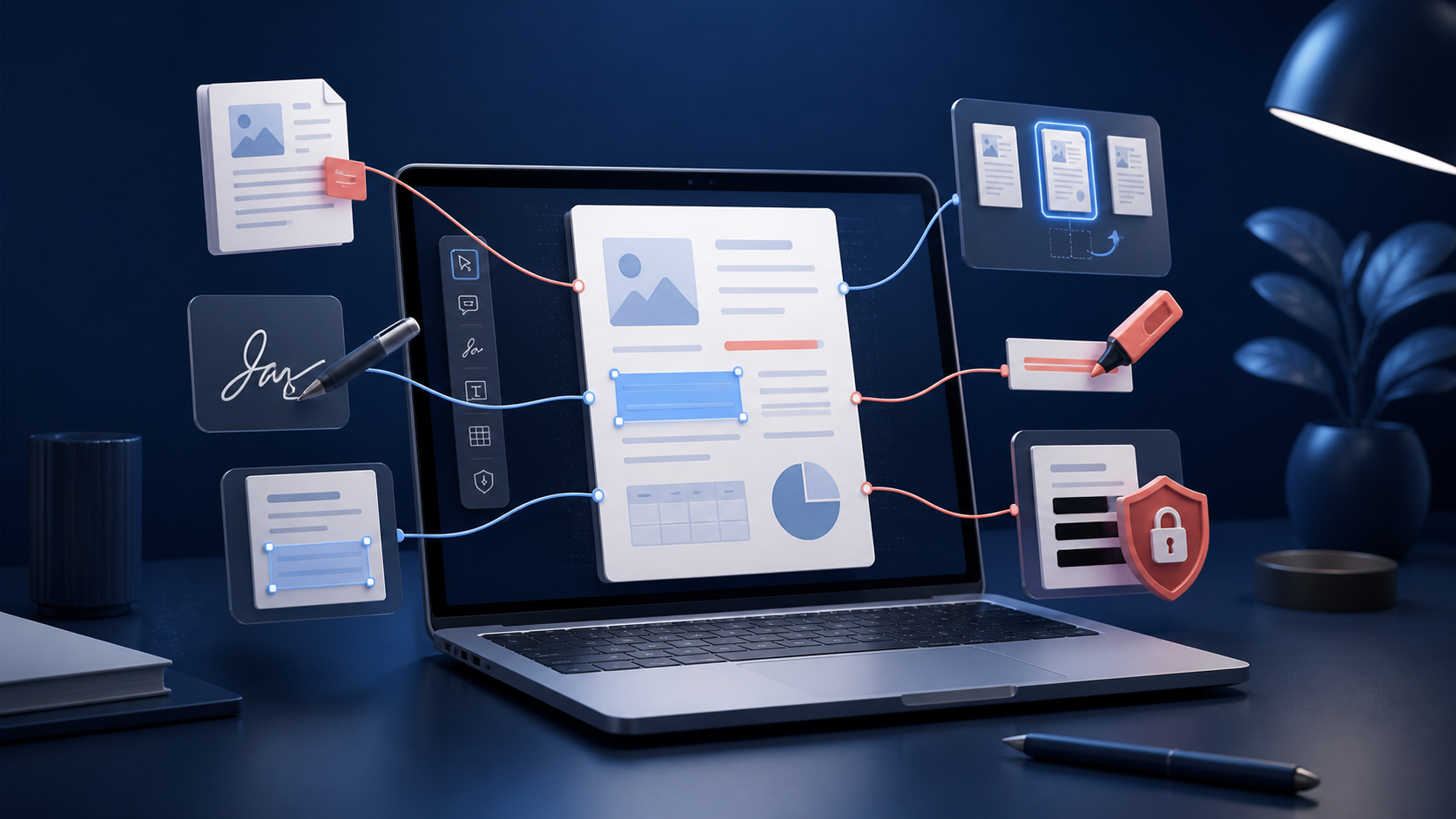
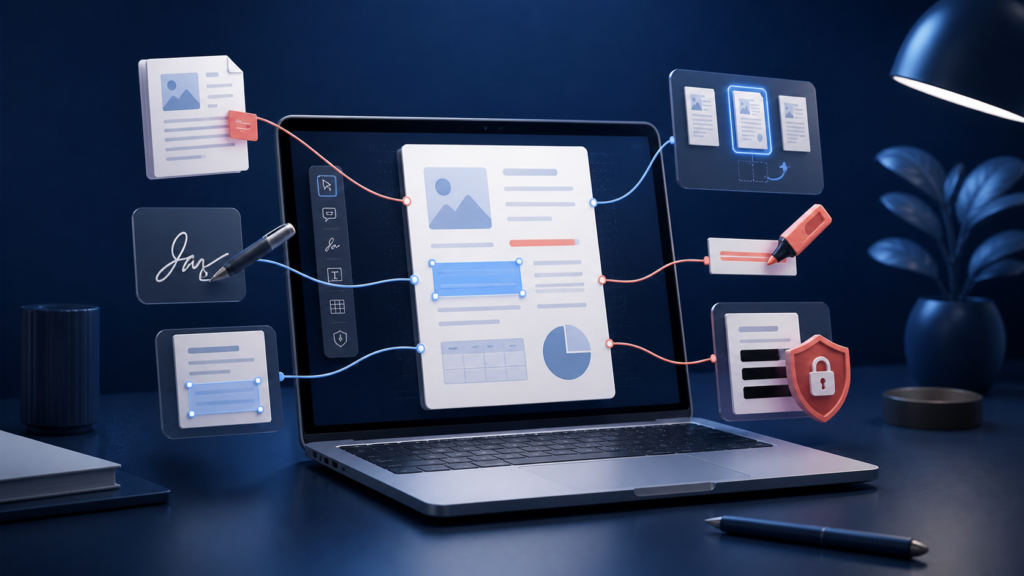
First identify what kind of PDF edit you need
A PDF is a delivery format designed to preserve a page’s appearance. It may contain selectable text, embedded images, form fields, comments, separate page objects, or one flat image of a scanned sheet. Our PDF format guide explains why two files that look identical can behave differently when edited.
Open a duplicate of the file in Preview, choose View > Thumbnails, and run three quick checks:
- Select a sentence. If individual words highlight, the file contains a text layer. Selection does not mean Preview can rewrite it, but search and redaction can work on that text.
- Click a form field. A real field accepts typing and may have checkboxes or controls. If nothing activates, you may need to place a text box over a visual blank.
- Drag a page thumbnail slightly, then undo. This confirms you are working with page objects rather than a single image representing several pages.
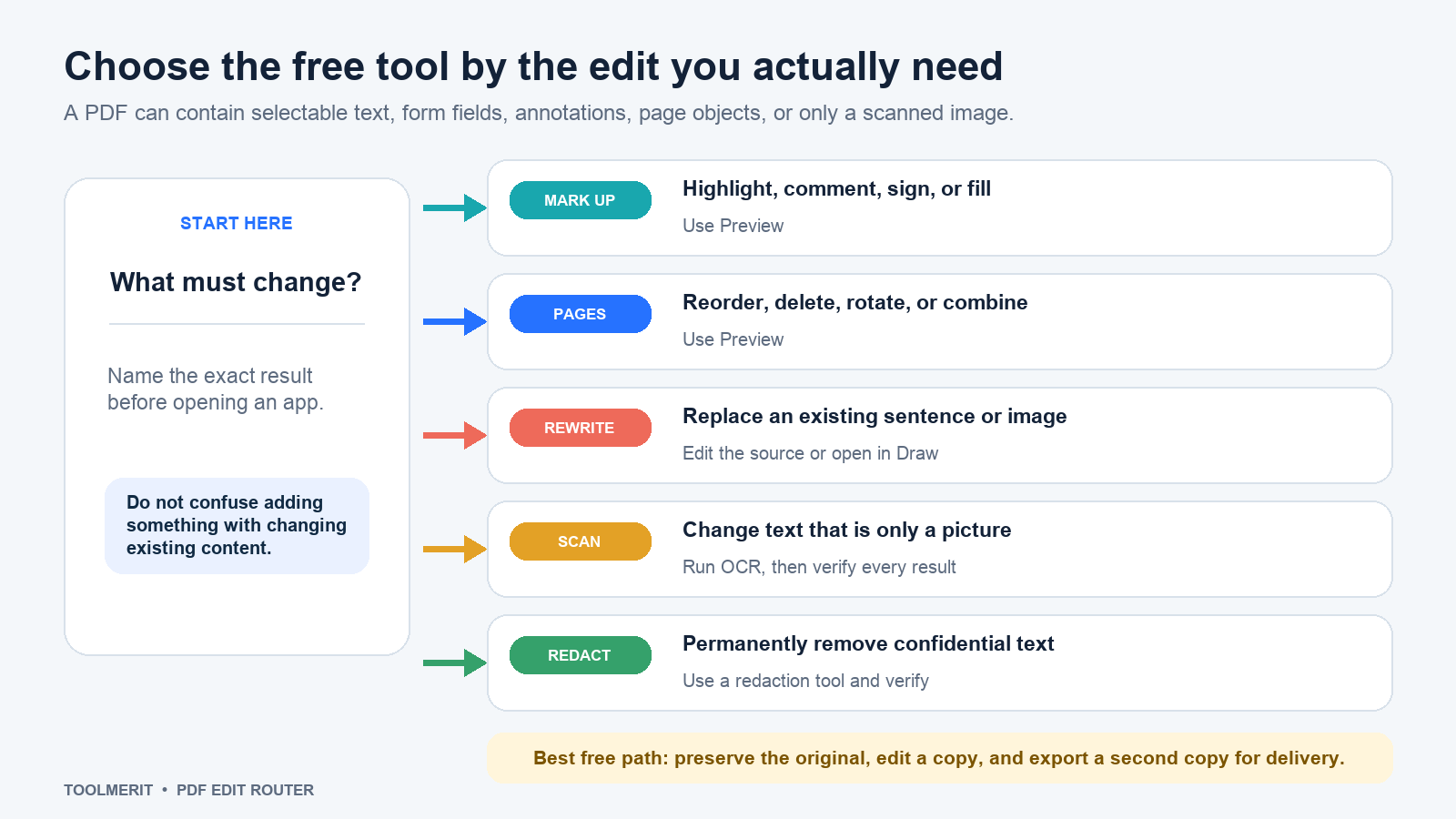
Make a copy before editing. Apple warns in its Preview instructions for combining PDFs that changes save automatically. A protected original gives you a known-good reference when pages, fonts, links, or form behavior change.
Use Preview for annotations, forms, and signatures
Open the duplicate with Control-click > Open With > Preview. If the Markup toolbar is hidden, choose View > Show Markup Toolbar. Preview is the right free tool when the original page should stay intact and your contribution belongs on top of it.
| Task | Preview method | Success test |
|---|---|---|
| Highlight or review | Select text, then use highlight, underline, strikethrough, note, shape, or text tools. | Reopen the saved copy and confirm every mark is placed on the intended sentence or object. |
| Fill a form | Click an active field and type. If the PDF has no working field, add a text box with the form-filling toolbar. | Print or export a copy and check that text is visible, aligned, and not clipped. |
| Add a signature | Open the Sign tool, create or choose a signature, place it, and resize it. | Confirm the correct signature appears on the correct page and does not cover required wording. |
| Make marks non-editable | Choose File > Print, then save as PDF to flatten annotations. | Open the flattened copy and confirm the annotations can no longer be selected as annotation objects. |
Apple’s current form and signature guide confirms that Preview can type into supported fields, add a text box when a form does not accept typing, and create signatures with a trackpad, camera, iPhone, or iPad. Enhanced AutoFill requires macOS 14.2 or later and does not work with every PDF, so treat it as a convenience rather than a required step.
Saving and flattening solve different problems. A normal save preserves editable annotations. Apple’s annotation guide says the Print-to-PDF route flattens them. Flattening can prevent a recipient from accidentally moving your text box, but it does not turn a cosmetic rectangle into secure redaction and may reduce future editability. Keep both an editable working copy and a flattened delivery copy when the document matters.
Reorder, remove, or combine pages in Preview
Page surgery does not require a paid editor. In Preview, choose View > Thumbnails, then work in the sidebar:
- Reorder: drag a thumbnail to a new position.
- Delete: select one or more thumbnails and press Delete.
- Rotate: select the intended page or pages before choosing the rotate command; otherwise you may rotate only the visible page.
- Insert: use Edit > Insert to add a blank page, a page from a file, or a scanner input when available.
- Combine selected pages: open both PDFs with thumbnail sidebars visible, then drag thumbnails from one sidebar into the other.
Apple documents these operations in its guides for adding, deleting, and moving PDF pages and combining PDFs. After any multi-page change, do not check only the first page. Compare the thumbnail count, page order, orientation, and final page against the original request.
Rewrite existing PDF text with a source-first workflow
If the correction is “change 2025 to 2026 inside this sentence,” Preview is the wrong tool. A white text box over the old date is an annotation layered above the page. It may look acceptable on screen, but search, copying, accessibility tools, printing, and later edits can reveal the old content or misalign the patch.
Use this order of preference:
- Edit the source document. Open the original Word, Pages, presentation, design, or publishing file, make the change, and export a new PDF. This preserves reading order, fonts, links, and layout better than reverse-engineering the PDF.
- Convert a copy to an editable document. For a mostly textual report, follow the controlled workflow in our PDF-to-Word guide. Expect tables, columns, footnotes, and unusual fonts to move.
- Use LibreOffice Draw for a modest local repair. Install LibreOffice from its official site, open a copy of the PDF in Draw, select the imported text object, make the smallest possible correction, and export a new PDF.
Draw often imports PDF text as many separate boxes rather than one flowing paragraph. LibreOffice’s current Consolidate Text Boxes help says the command is especially useful for editing PDF documents, but also warns that paragraphing, lists, and layout may need manual repair. That makes Draw a practical free fallback for a name, date, or short line—not a promise that a complex brochure will become a clean source file.
After export, compare at 100% zoom and again in thumbnail view. Check line breaks, font substitutions, text that moved behind images, cropped objects, hyperlinks, page size, page count, and selectable reading order. If several pages drift, stop patching the imported PDF and rebuild from the source or a clean converted document.
Handle a scanned or flattened PDF before editing its words
If dragging over a sentence selects a rectangular area or nothing at all, the words may exist only as pixels. Adding a text box does not correct the scan; it writes new content above the image. You need optical character recognition (OCR) or a manual transcription into a new document.
For one short page, try opening the page as an image in Preview and use Live Text if your Mac supports it. Apple’s Live Text instructions show how compatible images can expose recognized text for copying. That is a capture step, not a faithful document reconstruction. Paste the recognized words into a new editable document, restore formatting deliberately, then export a new PDF.
For a long scan, a dedicated OCR tool is more efficient. Before uploading a tax form, medical record, contract, ID, or client file to a free online service, check its data-retention, model-training, deletion, storage-location, and account terms. A local tool or an organization-approved service is the safer default for sensitive material.
OCR is a draft. Verify names, account numbers, dates, decimal points, minus signs, page headers, footnotes, and any character that can change meaning. Compare every critical value against the scan; do not rely on a global spellcheck to catch a valid but wrong number.
Redact confidential information instead of covering it
Drawing a black rectangle, placing a white shape, changing text color, or cropping the visible page is not reliable redaction. Those actions can leave the underlying text searchable, selectable, or recoverable in another layer or version.
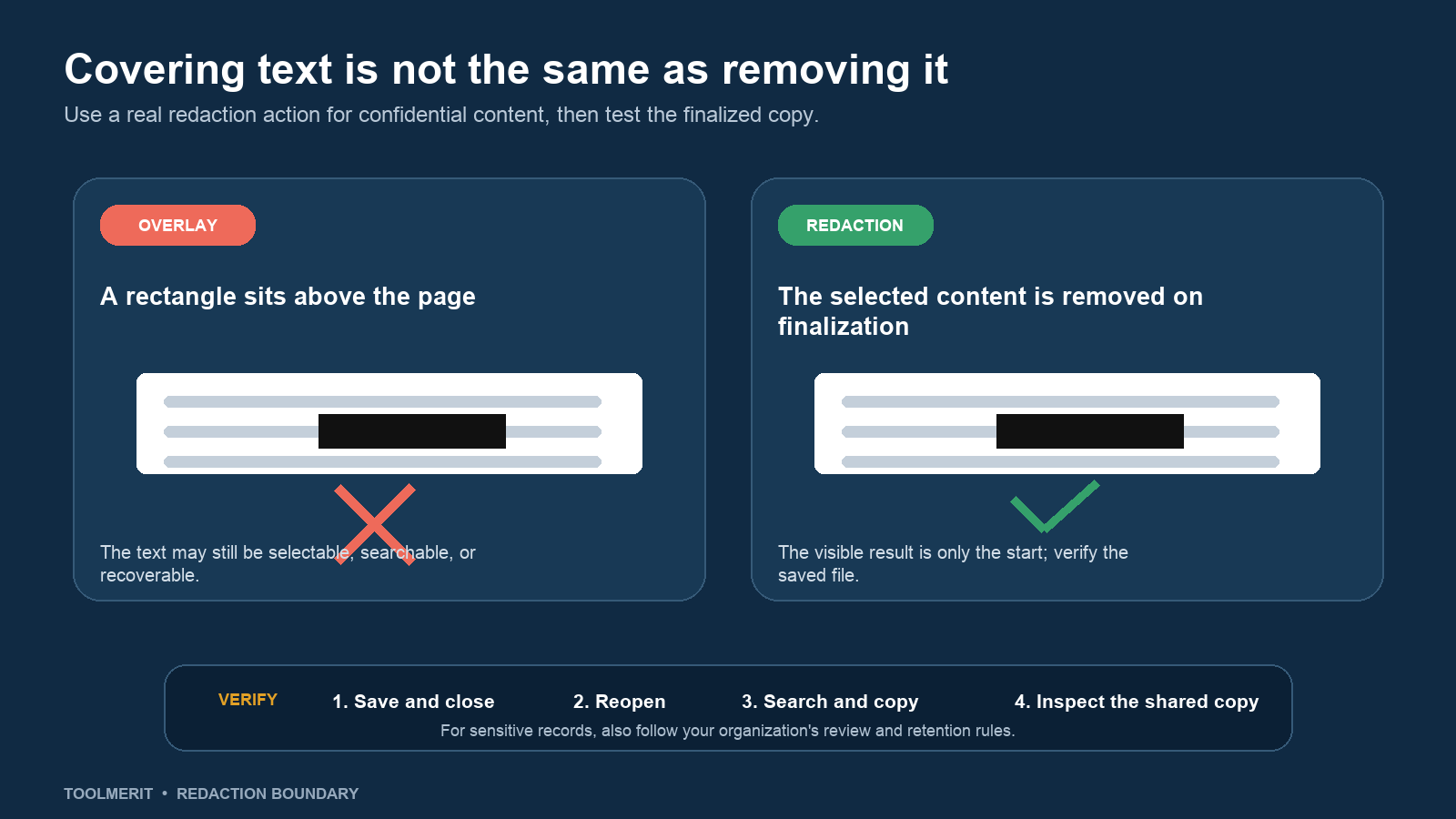
For selectable text in Preview, make a duplicate, show the Markup toolbar, choose Redaction Selection, and select only the content that must go. Apple states that a redaction remains adjustable while you edit but becomes permanent after you close the document. Work slowly: once finalized, the removed text cannot be recovered from that copy.
Then verify the delivery file:
- Save the redacted copy under a new name and close it.
- Reopen that exact copy, not the working file still open in memory.
- Search for a distinctive removed phrase, drag across the redacted area, and attempt to copy and paste its surrounding text into a plain-text document.
- Inspect every page of the file you will actually share, including attachments, comments, visible metadata, and repeated occurrences of the same confidential value.
This is a practical verification, not a forensic certification. For regulated, legal, government, health, financial, or litigation material, use the redaction software and review procedure approved by the responsible organization. Preview’s redaction feature does not replace a policy covering metadata, hidden objects, attachments, retention, or a second-person review.
Export a delivery copy and test the result
A successful edit is the file the recipient can open, search, print, and use—not the appearance in your current window. Keep three files when the stakes justify it: the untouched original, an editable working copy, and a clearly named delivery copy.
- Open the delivery copy after closing the editor.
- Confirm page count, order, orientation, and page dimensions.
- Search for one unchanged phrase and any text that was supposed to be removed.
- Zoom into edited lines and scan the document in thumbnail view for layout drift.
- Click important links, inspect form values, and print one representative page to PDF or paper if printing matters.
- Check file size and accessibility behavior if the recipient has limits or relies on selectable text and reading order.
The free route is usually enough when the task fits the tool: Preview for additions and page operations, a source document or guarded Draw workflow for existing text, OCR for scans, and true redaction for confidential content. The risk boundary is simple: if you cannot explain what object changed and prove the saved copy behaves correctly, the PDF is not finished—even if it looks right on your screen.