Choose the right PDF-to-Word workflow for text files, scans, and complex layouts, then check the DOCX before sharing.
To convert a PDF to Word, open the PDF in desktop Microsoft Word, approve the conversion, and save the result as a .docx file. This works best for documents that are mostly selectable text. Use OCR for scans and a layout-focused exporter for complex tables or multi-column pages.
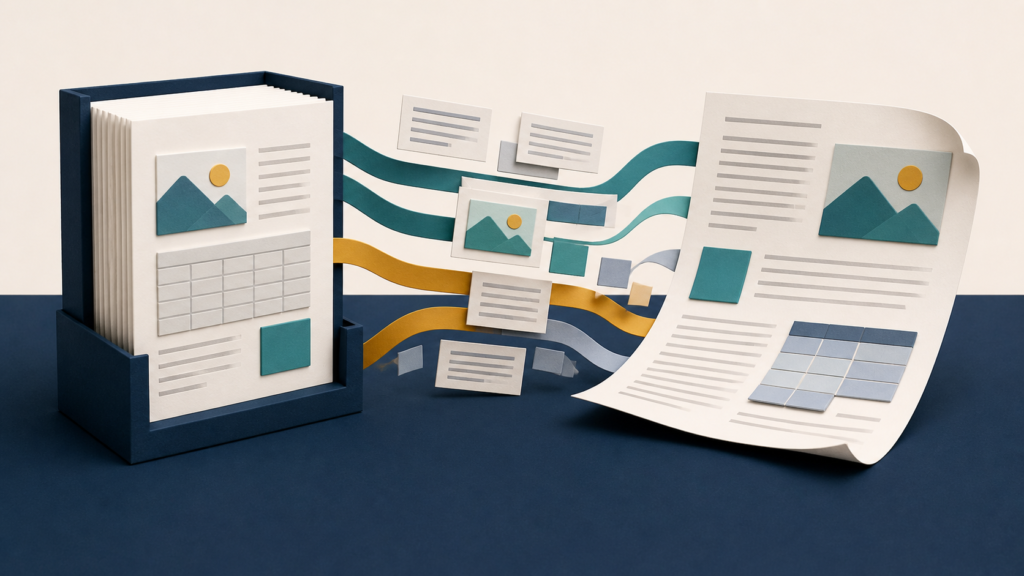
The conversion itself may take less than a minute; choosing the wrong method can create an hour of cleanup. Before you begin, keep an untouched copy of the PDF, confirm that you are allowed to edit it, and decide whether you need editable words or a pixel-close reproduction of the page. A DOCX is an editable reconstruction, not a guaranteed clone of a fixed PDF.
Pick a route by inspecting the PDF
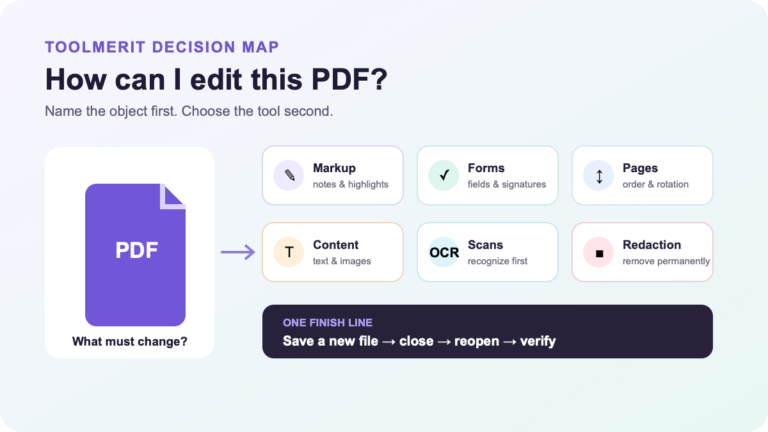
Start with a ten-second test: drag across one sentence in the PDF. If individual words highlight and copy normally, the file probably contains real text. If the entire page behaves like one picture, it is a scan and needs optical character recognition (OCR). If text is selectable but the page has several columns, floating graphics, forms, or tightly designed tables, expect layout repair even after a successful conversion.
| What you see | Likely PDF type | Best starting route | Expected cleanup |
|---|---|---|---|
| Selectable paragraphs in a simple single-column document | Digitally generated, mostly text | Open directly in Microsoft Word | Line breaks, headings, and page breaks |
| A full page selects as one image, or text cannot be searched | Scan or photographed page | Run OCR before or during export | Recognition errors and lost structure |
| Multiple columns, intricate tables, text boxes, or positioned graphics | Complex fixed layout | Use a layout-focused PDF exporter | Reading order, tables, images, and spacing |
| A password prompt or an editing/export restriction | Protected document | Request an authorized unlocked copy | Do not attempt to bypass the restriction |
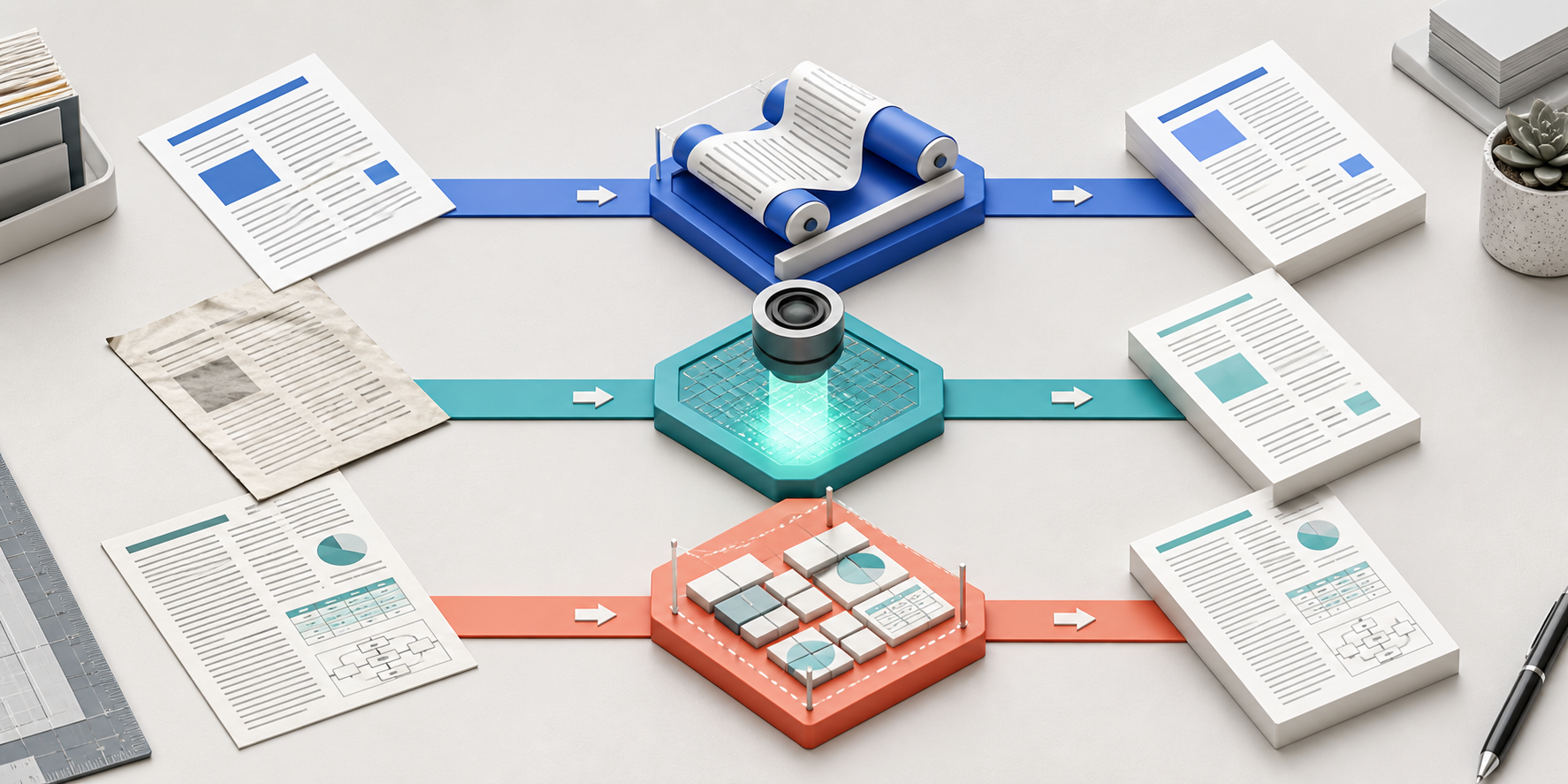
This diagnosis matters because a PDF usually stores where page elements appear, while Word needs editable objects such as paragraphs, lists, and tables. Microsoft explains that Word uses reconstruction rules—often called PDF reflow—to infer those objects from the fixed page. Browse ToolMerit’s editing and repurposing tools when you need to compare other document-handling workflows, but choose the route from the file type rather than from a converter’s marketing promise.
How to convert a PDF to Word in Microsoft Word
Use this method first for reports, letters, policies, papers, and other text-heavy PDFs. Microsoft’s current guidance says Word makes a copy of the PDF, converts that copy, and leaves the original file intact. It also warns that the result may not match the PDF exactly.
- Duplicate the source PDF. Give the copy a working name so the original remains available for comparison.
- Open desktop Microsoft Word. Choose File > Open, browse to the PDF, and select it. Opening the file from Word is different from inserting it as a non-editable object.
- Approve the conversion. Word displays a message explaining that it will convert the PDF into an editable document. Continue and let the reflow process finish.
- Save immediately as DOCX. Choose File > Save As, select Word Document (.docx), and use a new filename.
- Compare representative pages. Check the first page, one page with a table or image, and the final page before doing detailed edits.
Microsoft says this route works best with PDFs that are mostly text. A page made largely of charts or graphics may arrive as a single image, so its visible words will not be editable. Tables with cell spacing, multi-page footnotes, comments, bookmarks, some font effects, and other specialized elements can also convert poorly. If several of those features are central to the document, switch methods instead of repeatedly converting the same file in Word. See Microsoft’s PDF conversion explanation for its current compatibility notes.
Use Adobe Acrobat when layout matters more
Acrobat is a practical second route when the PDF contains positioned images, tables, or page structures that Word’s direct reflow does not reconstruct well. Availability can depend on the Acrobat product and plan you use, so check the controls visible in your licensed version rather than assuming every Reader installation includes export.
- Open the PDF in Acrobat and select Convert from the main toolbar.
- Select Microsoft Word in the format options.
- Choose DOCX for a modern Word document. Use the older DOC format only when a recipient explicitly requires it.
- Select the conversion command, choose a destination, and save with a new name.
- Open the DOCX in Word and run the same page comparison used for direct conversion.
These steps follow Adobe’s current PDF-to-Word export guide. A dedicated exporter can provide a better starting structure, but it cannot restore information the PDF never contained. A group of drawn lines may look like a table to a person while remaining unrelated shapes to conversion software.
Turn a scanned PDF into editable Word text
A scan contains page images rather than normal text. OCR analyzes those images and creates characters that can be selected, searched, and edited. It is a recognition step, not merely a format change, so names, numbers, punctuation, and low-contrast text must be proofread.
Route A: run OCR in Acrobat
- Open a backup copy of the scanned PDF.
- Select All tools > Scan & OCR, then choose recognition for the current file.
- Select the correct page range and document language. The language setting helps the recognizer interpret the right character set.
- Run Recognize Text, then test whether a sentence can be selected and searched.
- Export the recognized PDF to DOCX and proofread the Word file against the scan.
Adobe recommends keeping a backup, choosing the page range and language, and reviewing the OCR result for accuracy. Its scanned-document OCR instructions describe the current controls.
Route B: use Google Drive for a small, non-sensitive scan
- Upload the PDF to Google Drive only if your privacy and organizational rules allow that service to process the document.
- Right-click the file and choose Open with > Google Docs.
- Review the extracted text and correct recognition errors.
- In Google Docs, choose File > Download > Microsoft Word (.docx).
Google’s OCR guidance recommends sharp, upright pages with clear contrast and says a file should be 2 MB or smaller for best results. It also warns that lists, tables, columns, footnotes, and endnotes are unlikely to be detected reliably. Google separately documents downloading a document as DOCX. This route is useful for recovering plain text, not preserving a designed page.
Repair the converted Word file in the right order
Do not start by adjusting fonts on page one. Fix structural problems first; otherwise later repairs can move the text and undo cosmetic work. Use this order: reading order, paragraph boundaries, tables, images, headings, page geometry, and only then typography.
| Symptom in Word | Probable cause | Efficient repair |
|---|---|---|
| Every visual line is a separate paragraph | The converter treated line positions as paragraph endings | Show formatting marks and replace manual breaks only in the affected selection |
| Two columns read in the wrong order | The PDF did not preserve an unambiguous reading sequence | Move complete sections into a single column before styling them |
| A table became tabs, spaces, or floating boxes | Visible grid lines were not stored as table relationships | Rebuild a real Word table; do not align data with repeated spaces |
| An image is missing, cropped, or behind text | Positioning or clipping did not translate | Reinsert the authorized source image and set an intentional wrap option |
| Characters or numbers are wrong | OCR language, scan quality, or contrast was unsuitable | Rerun OCR with the correct language, then compare critical values character by character |
| Footnote text appears inside the body | The converter did not reconstruct the note relationship | Create Word footnotes and move the note text manually |
For large cleanup jobs, repair one representative section before applying changes to the whole document. Use Word styles for headings and body text so a single style change remains consistent. ToolMerit’s tool tutorials collect other task-focused software workflows when the conversion is only one step in a larger process.
Handle sensitive or locked PDFs safely
Uploading a PDF to an online converter sends a copy to another service. For contracts, personnel records, financial documents, client files, unreleased work, or regulated data, use only a tool and account approved by the document owner or your organization. If local processing is required, do not substitute a convenient public uploader. The ToolMerit directory for performance and privacy tools can help frame broader vendor checks, but your organization’s policy remains the deciding rule.
A password or export restriction is not a conversion problem to work around. Confirm ownership and request the password or an unlocked source from an authorized person. Keep the original PDF, use a clearly named working copy, and delete temporary uploads or exports according to the applicable retention policy. Never overwrite the only source file.
Verify the DOCX before you share it
The conversion is complete only when the Word file is editable, accurate enough for its purpose, and usable by the recipient. Run this acceptance check:
- Text: search for three known phrases from the beginning, middle, and end; confirm that names, dates, totals, and identifiers match the PDF.
- Reading order: read across every multi-column or text-box section and confirm that sentences are not interleaved.
- Structure: open Word’s Navigation pane and confirm that real heading styles—not enlarged body text—form the outline.
- Tables: inspect row and column boundaries, merged cells, totals, and repeating headers.
- Images: check crop, resolution, captions, and text wrapping.
- Page furniture: verify headers, footers, page numbers, footnotes, hyperlinks, and section breaks.
- File behavior: close and reopen the DOCX, confirm that it is not read-only, and make one harmless edit to prove the content is editable.
If visual fidelity matters, export the repaired DOCX back to PDF and compare representative pages side by side with the source. Keep three separate files: the untouched source PDF, the editable working DOCX, and the approved delivery copy. That separation makes later corrections safer and gives the recipient the format that matches the actual job.