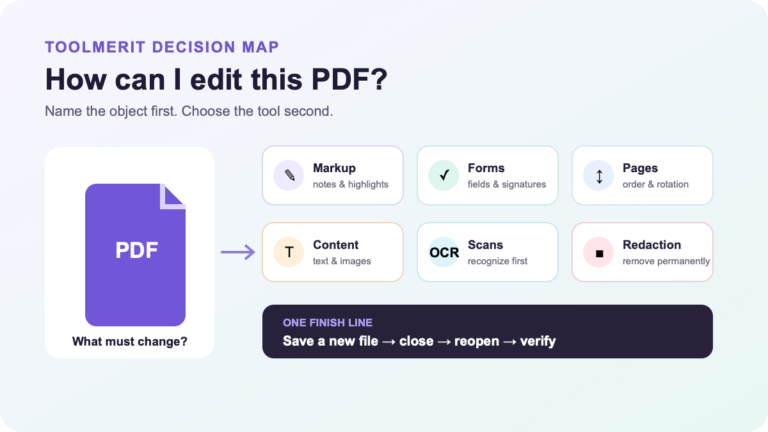
A practical explanation of how PDF readers render files, which interactions they support, and when the task requires an editor, signing tool, or OCR instead.
If a PDF opens in Chrome, Edge, Firefox, or Safari, you are already using a PDF reader. The reader happens to be built into the browser rather than installed as a separate document app.
A PDF reader is software that parses a PDF file, renders its pages, and provides controls for viewing, navigation, search, printing, and sometimes comments, forms, or signatures. “PDF viewer” usually means the same thing. The important boundary is that a reader presents and interacts with the document; a PDF editor changes its page content or structure.
A reader turns stored objects into a usable page
A PDF is not a photograph of a page, even though it can contain photographs. It is a structured container that may hold text, fonts, vector paths, raster images, color instructions, links, form fields, comments, metadata, accessibility tags, and other objects. A reader must interpret those objects and place them in the correct coordinates.
The ISO 32000-1 specification describes PDF as a digital representation that lets people exchange and view electronic documents independently of the environment in which they were created, displayed, or printed. The standard distinguishes software that writes PDF files from software that reads and interprets them for display and interaction.
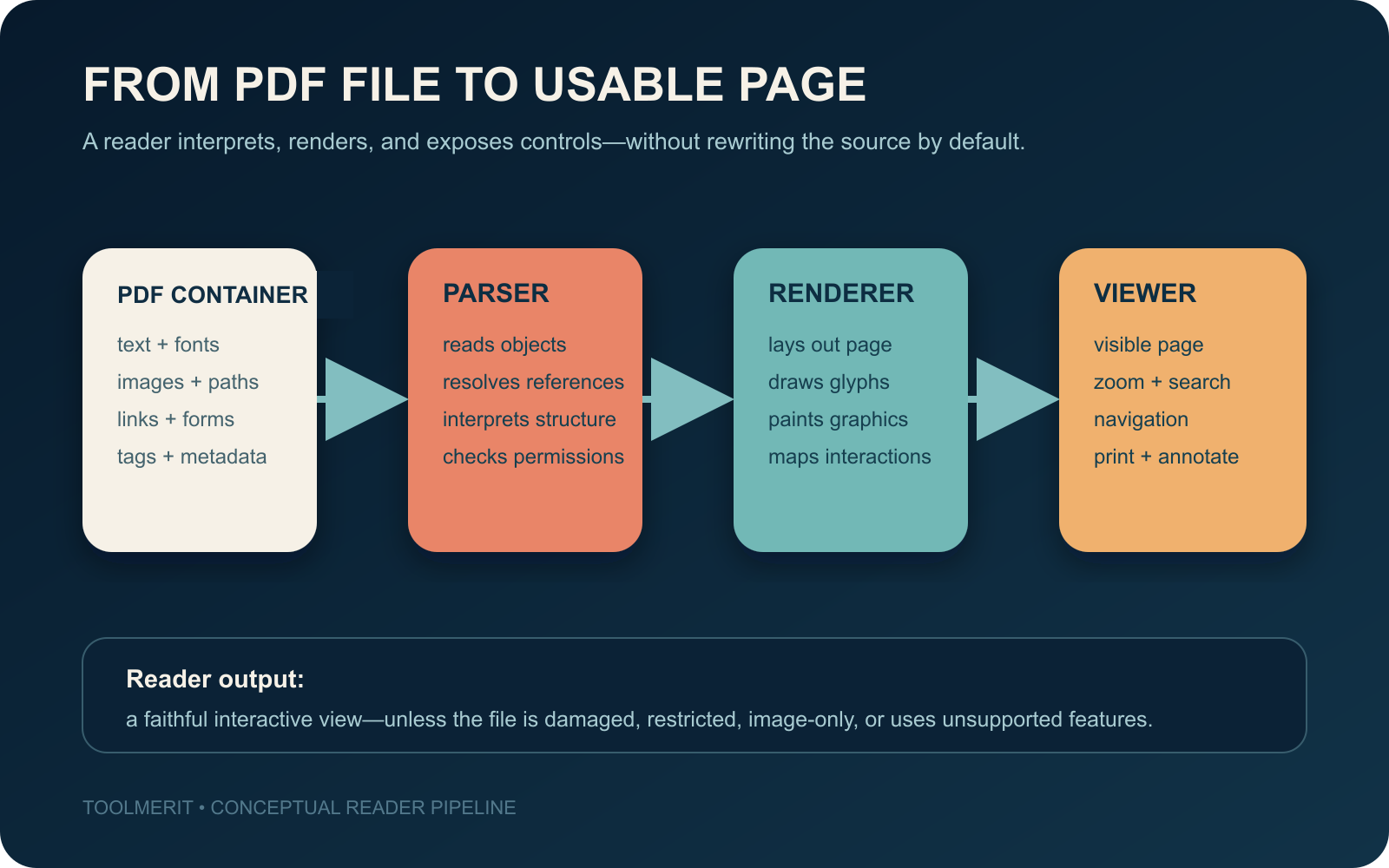
Mozilla’s PDF.js documentation makes this division especially clear: its core layer parses and interprets the binary PDF, its display layer exposes rendering operations, and its viewer layer supplies the interface used in Firefox and other integrations. Other readers use different code, but the parse–render–interact model is a useful explanation of the job.
Reading a PDF involves more than looking at it
Every reader should display pages, but the surrounding features vary. A practical reader may also provide:
- Navigation: page numbers, thumbnails, bookmarks, a table of contents, rotation, fit-to-width, and zoom.
- Text interaction: search, selection, copying, read-aloud support, and links.
- Output: printing, saving a copy, or sharing through another service.
- Review: highlighting, notes, drawing, stamps, or other annotations.
- Document actions: filling supported form fields, adding a simple signature, or validating certain digital signatures.
These are capabilities, not guarantees. Microsoft documents Edge’s built-in PDF reader as supporting local, online, and embedded PDFs plus viewing, printing, search, navigation, inking, highlighting, and basic forms; the same documentation notes that some form types, including XFA, are not supported. Adobe describes Acrobat Reader as primarily suited to viewing, printing, light annotation, form filling, and signing. Two products can both be legitimate PDF readers while supporting different edges of the format.
A PDF reader is not a PDF editor
| Action | Reader | Editor or specialist tool |
|---|---|---|
| View, zoom, search, and print | Core job | Usually available too |
| Highlight or attach a comment | Common, but not universal | Usually available |
| Fill an existing field or add a simple signature | Often available; form support varies | Available in many editors and signing tools |
| Correct existing text or replace an image | Outside the reader’s normal role | PDF editor |
| Combine files, delete pages, or rearrange pages | Not a basic reading function | PDF editor or organizer |
| Recognize text in a page scan | May display the scan but not recognize it | OCR-capable app |
A highlight is an annotation layered onto the page; it is not the same as rewriting the sentence beneath it. Typing into an existing form field is not the same as creating or redesigning the form. Adobe’s current Reader editing guidance draws the same boundary: Reader can view PDFs, while advanced changes such as editing text, combining files, scanning to PDF, and creating forms require editing tools.
Route the task before choosing the software
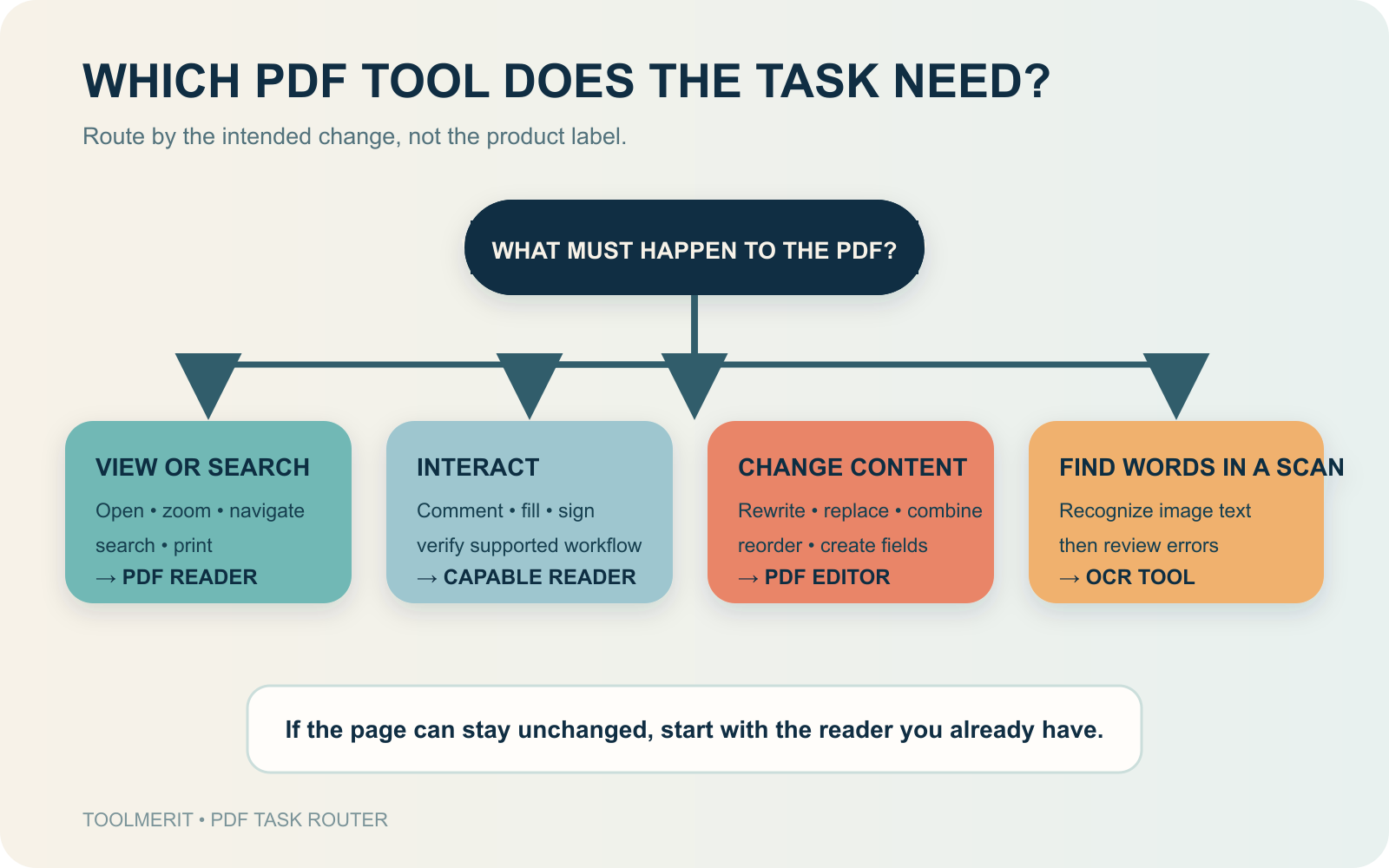
Use this route:
- You only need to view, search, navigate, or print: use the reader already in your browser or operating system unless the file renders incorrectly.
- You need to comment, fill, or sign: first check whether the current reader supports that particular form or signature workflow. Move to a dedicated app only when the capability is missing.
- You need to change existing words, images, pages, or document structure: use a PDF editor. A reader cannot become an editor merely because you can place a text box over the page.
- The page is a scan and search finds nothing: run optical character recognition (OCR), then review the recognized text. Displaying pixels and recognizing characters are separate jobs.
- You need to prove who signed or whether content changed: use a viewer or signature tool that supports the document’s certificate-based digital-signature workflow. A drawn signature image alone does not provide that verification.
Why the same PDF can behave differently
When a PDF looks normal but one feature fails, the reader is not always the cause. Use the symptom to identify the missing layer:
- Search and text selection fail: the page may contain only scanned images. OCR must add a text layer before search or assistive reading can work reliably.
- A form appears but fields do not work: the document may use a form technology or script the current reader does not support. Try a reader named by the form issuer before assuming the file is empty.
- Printing, copying, or editing controls are unavailable: the document may have permissions or signature restrictions. Switching readers does not necessarily remove them.
- A screen reader announces content in the wrong order: the PDF may lack correct structure tags and reading order.
The accessibility limit matters: a capable reader cannot fully recover structure that the document never stored. Adobe’s Reader accessibility documentation explains that document structure supports screen-reader output and mobile reflow. The W3C’s PDF reading-order technique explains that tagged elements determine the logical order used by keyboard and assistive-technology users. A scanned image generally needs OCR; an untagged or badly tagged document may need accessibility repair in an authoring or editing tool.
Security is part of the reader’s job
A PDF can contain more than passive page marks. Interactive forms, scripts, attachments, links, and multimedia increase what the file may attempt to do. Use an actively updated reader and keep its sandbox or protected mode enabled.
Adobe’s Protected View documentation describes opening PDFs from unsafe locations with most features disabled, while Microsoft documents process isolation as part of its browser reader’s security design. Do not disable protection merely because an unknown file asks for more access. Confirm the sender and purpose first; enable extra functions only when the document is trusted and the task requires them.
Choose the lightest reader that completes the task
A browser reader is usually enough for routine viewing, search, navigation, and printing. A dedicated desktop reader becomes useful when you need stronger annotation, offline workflows, broader form or signature support, accessibility preferences, or organization-controlled security. Move to an editor only when you must change page content or structure, and move to OCR when the missing feature is searchable text.
The decision rule is simple: if the intended page can stay unchanged, begin with a reader; if the page itself must change, use an editor; if the page contains only images but you need words, add OCR.