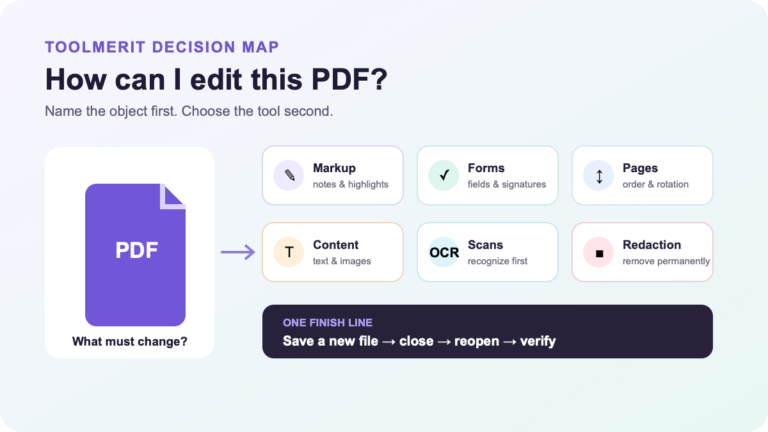
Understand what a PDF contains, identify the format, and choose a reader, editor, or converter for text, scans, forms, and signatures.
A PDF is a Portable Document Format file: a standardized, page-oriented package that describes how pages should look and can also carry text, fonts, vector graphics, images, links, forms, annotations, metadata, attachments, permissions, and digital signatures. A PDF is not automatically a scan, an editable source file, an accessible document, or proof that a signature is valid. Inspect its contents before choosing whether to read, edit, OCR, sign, archive, or publish it.
That distinction is the practical answer to “what is a PDF?” The same .pdf extension can identify a searchable report, a stack of scanned photographs, a fillable application, a print-ready brochure, or a signed contract. They may look equally stable in a viewer while behaving very differently when you search, copy, tab, edit, validate, or preserve them.
What does PDF mean in practice?
PDF stands for Portable Document Format. “Portable” does not mean the file is small or easy to edit. It means a PDF writer can describe an electronic document so a compatible reader can reproduce it outside the application, operating system, or printer setup that created it. The ISO 32000-2 standard defines that exchange-and-viewing purpose for PDF 2.0.
The format is page-oriented. A creator places text, lines, images, and other objects into a page coordinate system, and a reader renders those instructions. This makes PDF useful for delivery copies whose page breaks, proportions, and placement matter. The Library of Congress format description calls PDF a general document representation language for formatted pages and notes that it can include text, graphics, multimedia, annotations, metadata, links, and bookmarks.
PDF is therefore better understood as a delivery container and page description than as a document editor. The original Word, InDesign, spreadsheet, drawing, or publishing file may still be the better master when future rewriting is expected. A PDF can be edited with suitable software, but visible paragraphs do not guarantee that the file contains clean paragraph objects, styles, tables, or the original image layers.
Adobe introduced the format, and Adobe’s PDF overview also expands the name as Portable Document Format. Today, the base format is standardized; Adobe Acrobat is one family of PDF tools, not the meaning of PDF itself.
Recognize a PDF by its name and technical labels
The name explains the intended handoff: Portable means the presentation can travel beyond the app that created it; Document means composed pages; Format means shared rules for representing those pages. It does not promise a small file or an editable original.
.pdffilename extension- A label that helps an operating system choose an application. Renaming a different file with this extension does not convert it.
application/pdfmedia type- The registered internet type used to identify PDF data in a web response or message.
%PDF-header marker- A file-identification marker followed by a version number. It is a clue for software, not a guarantee that every page is intact or safe.
The PDF media-type registration documents these identifiers and the format’s security considerations. Use a parser or validator for a conformance check; a filename or matching header alone is not that check.
PDF is the format, while Acrobat and other readers are applications. The PDF reader guide distinguishes reading and annotation from editing. If the recipient needs to rewrite the content, keep the editable source or follow the PDF-to-Word workflow on a copy.
What is a PDF made of?
A useful mental model is a six-layer stack. Not every file contains every layer, and a viewer may hide several of them behind a page that appears complete.
| Layer | What it can contain | What can fail | Fast signal |
|---|---|---|---|
| 1. Page geometry | Page size, boundaries, rotation, coordinates, and object placement | Clipped marks, unexpected rotation, wrong print size, or content outside a crop boundary | Inspect representative pages at fit-page and high zoom |
| 2. Visible content | Text glyphs, vector paths, raster images, color, transparency, and masks | A page may be one image; visible letters may copy as scrambled characters; low-resolution images may pixelate | Select a sentence, search a phrase, and zoom into one line and one image |
| 3. Resources | Fonts, color profiles, reusable graphics, and other objects referenced by pages | Missing or substituted fonts, inconsistent color, or a resource a different reader handles poorly | Open document properties and test in the recipient’s expected reader |
| 4. Semantic structure | Tags, headings, lists, tables, language, alternative descriptions, and logical reading order | A visually correct page can be confusing or unusable to a screen reader; columns may be read in the wrong sequence | Run an accessibility check, inspect tags, and listen to or expose the reading order |
| 5. Interaction | Links, bookmarks, annotations, form fields, buttons, attachments, and media | Controls may flatten into artwork, tab order may be wrong, or a viewer may not support the interaction | Tab through the page, follow a link, and test a copy rather than the only file |
| 6. Trust and controls | Encryption, passwords, usage permissions, certificates, digital signatures, and timestamps | A signature can be only a picture; a certificate can be untrusted or expired; permitted changes can differ | Use the reader’s security and signature panels, then inspect validation details |
The visible-content layer explains two common surprises. First, vector art and raster images can coexist on one page: the logo may stay sharp at any zoom while a nearby photo becomes blocky. Second, text appearance and text meaning are separate. PDF commonly positions glyphs from fonts; without a usable mapping to characters, a word can look correct yet copy or search incorrectly. An embedded or subset font can help preserve appearance, but it does not recreate the editable source document.
Run a quick PDF triage

Do this before uploading a PDF to a converter, forwarding a contract, promising accessibility, or treating the file as an archival record. Use a duplicate when a test might change form fields or annotations.
- Identify it. Confirm the expected sender, filename, page count, and file size. A
.pdfextension is a useful signifier, not proof that the content is trustworthy. Open untrusted files only under your organization’s security process and in updated, approved software. - Test the text. Select one sentence and copy it into a plain-text field, then search for a distinctive word from the page. If the entire page selects as one block or no words are found, it may be image-only. If copied text is scrambled, the text mapping is defective even though the page looks normal.
- Inspect representative pages. Zoom into text, a line, and a photograph. Check the first, middle, and last page for clipping, blank areas, substitutions, unexpected rotation, and broken transparency.
- Test interaction. Press Tab to visit links or form fields, type disposable data into a copy, and inspect bookmarks or attachments if the file is supposed to include them. A box that looks like a field may be ordinary artwork.
- Inspect structure. Look for a tag tree or run the viewer’s accessibility checker. Confirm the document title and language, then test reading order on a multicolumn page. Searchable text alone does not establish accessible structure.
- Inspect trust. Open document properties, security settings, and the signatures panel. Record whether the file is encrypted, what operations are restricted, whether signatures are certificate-based, and whether the reader reports a valid trust chain or later changes.
A scan often fails only the text and structure tests, while a born-digital report may fail structure despite passing search. A fillable form can pass text selection and still omit a field from the tab order. The inspection is diagnostic: it tells you which deeper test to run, not whether every page is correct.
Route the job by what the PDF contains
Choose the next action from the file’s construction and destination. Do not begin with whichever PDF tool happens to be open.
| Observed file and real goal | Best starting action | Keep or verify | Stop condition |
|---|---|---|---|
| Searchable, text-heavy report; recipient only needs to read or print | Keep the PDF and share the approved delivery copy | Page count, fonts, links, navigation, and permissions | Do not convert merely to make a second format |
| Image-only scan; reader needs search, copy, or assistive access | Run OCR on a working copy, using the correct language | Original scan, recognized text, names, numbers, and reading order | Do not treat successful OCR as error-free transcription or accessibility |
| Text must be substantially revised | Request the original authoring file; reconstruct only when no usable source exists | Untouched PDF as the visual reference and a separate editable master | Do not overwrite the only authoritative copy |
| Application or questionnaire must be completed electronically | Test actual fields, field labels, required states, saving, and keyboard order | Blank master and a completed test copy with no sensitive data | Do not assume drawn boxes are form controls |
| Signed agreement must be relied on | Validate the certificate-based signature and inspect permitted or later changes | Original signed bytes, validation details, certificate information, and timestamp status | Do not rely on a visible signature image or green-looking symbol alone |
| Record must remain usable for long-term preservation | Follow the organization’s archival profile and validate the required PDF/A conformance | Validation report, metadata, embedded resources, and preservation copy | Do not assume “Save as PDF” creates PDF/A |
| Content is primarily for phones, search engines, or frequent updates | Publish structured HTML as the primary version and offer an accessible PDF when a stable download is useful | Equivalent information, descriptive links, metadata, and revision ownership | Do not force a wide fixed page to serve as a responsive website |
When a paper scan becomes PDF, Adobe’s current OCR guidance says the initial file contains image data rather than searchable text. OCR creates a searchable text layer, but Adobe also tells users to review the result for accuracy and completeness. Keep the scan so a reviewer can resolve uncertain characters instead of accepting the hidden text layer on faith.
If the job really is conversion or repair, ToolMerit’s tool tutorials cover action-focused workflows. The distinction matters: format diagnosis ends with a chosen route; a conversion tutorial begins only after that route is justified.
Separate appearance, permission, and proof
PDF preserves a convincing surface, which makes several weak signals feel stronger than they are. Use this claim-and-proof table before accepting them.
| Visible claim | What it actually proves | Evidence still needed |
|---|---|---|
| “The PDF opens.” | One reader rendered enough of the file to show pages. | Expected provenance, complete page count, safe handling, and representative rendering in the destination environment |
| “I can search it.” | At least some character mapping or OCR text is searchable. | Extraction accuracy, complete coverage, structure, language, and logical reading order |
| “It looks accessible.” | The visual layout is readable to the person looking at it. | Tags, semantic roles, alternative descriptions, keyboard access, field labels, tab order, and assistive-technology testing |
| “There is a signature on the last page.” | A visible mark exists. | Whether it is a certificate-based digital signature, who the certificate identifies, its trust status, timestamp status, and whether content changed afterward |
| “Printing and copying are disabled.” | The file declares restrictions that the current reader is honoring. | Ownership, authorization, encryption details, and the governing policy; restrictions are not a confidentiality conclusion |
| “It says PDF/A in the filename.” | Only that someone chose a label. | A validator result for the required PDF/A part and conformance level, plus the organization’s acceptance criteria |
A typed name, pen stroke, or scanned signature can communicate intent in a process, but it is not the same object as a certificate-based digital signature. Adobe’s signature-validation instructions direct the reader to inspect the signature status, signer certificate, and timestamp information. A viewer may also report whether signed content changed. The legal effect of a signing method depends on the transaction, jurisdiction, agreement, identity process, and applicable policy; file appearance alone cannot decide it.
Treat sensitive PDFs with the same care as their contents. An online compressor, OCR service, signer, or converter receives a copy of the file. Confirm authorization, data handling, retention, location, and account controls before upload. ToolMerit’s performance and privacy tools section can help frame vendor research, but the document owner’s policy is the decision rule.
Make the PDF usable beyond viewing
A correct-looking page is only one acceptance criterion. For an accessible PDF, the logical order should match the meaning of the content, and interactive elements should be reachable in a sensible keyboard order. The W3C’s PDF reading-order technique explains that tagged content and the PDF content-tree structure determine reading order, while tab order affects navigation through form fields and links.
Use this accessibility gate before publishing a PDF as an essential document:
- Source structure: create headings, lists, table headers, links, and reading sequence correctly in the authoring file before export whenever possible.
- Document identity: set a meaningful title, language, author or organization metadata when appropriate, and a descriptive filename.
- Text alternatives: provide useful alternative descriptions for informative images and mark decorative content appropriately.
- Navigation: verify bookmarks for long documents, descriptive links, logical tag order, and keyboard tab order through every interactive control.
- Visual use: check contrast, zoom, reflow behavior where supported, page magnification, and that color is not the only carrier of meaning.
- Assistive output: test representative complex pages with the accessibility API or assistive technology used in your environment; an automated checker cannot understand every reading sequence or alternative description.
- Alternative delivery: if a fixed page remains difficult on small screens or is frequently updated, publish structured HTML and keep the PDF as a stable companion rather than the only route.
Preservation has a separate gate. PDF/A is a family of purpose-specific archival profiles; PDF/UA addresses accessibility; PDF/X supports prepress exchange. The Library of Congress format record lists these as distinct PDF subtypes. Choose one because a recipient, repository, or production workflow requires it, then validate that conformance. A standard profile does not replace content review: a technically conforming archive can still contain the wrong pages, and an accessible structure can still describe incorrect information.
Diagnose one mixed PDF from start to finish
Imagine a five-page employee-onboarding packet delivered as one PDF:
- Page 1: a clean welcome letter with selectable text and an embedded logo.
- Page 2: a scanned identity checklist with no searchable text.
- Page 3: a policy in two columns whose copied text jumps between columns.
- Page 4: a personal-details form with visible boxes, only some of which accept keyboard input.
- Page 5: an approval page with a handwritten-looking mark and a signature-panel entry.
Calling the packet “a PDF” is correct but operationally incomplete. The page layer is stable across all five pages; the other layers differ. Keep Page 1 as the visual benchmark. OCR a working copy of Page 2 and proofread names, codes, and checkbox labels against the scan. Repair Page 3’s tag and content order from the source if available. Rebuild and label the controls on Page 4, then test required states, saving, and Tab navigation. On Page 5, ignore the drawing as proof and validate the certificate-based signature entry, certificate trust, timestamp, and post-sign changes in a supporting reader.
The final deliverable may still be one PDF, but its acceptance record should name the tests: five pages present, text search verified, OCR exceptions resolved, reading order checked, form fields operable, signature status reviewed, and an untouched received copy preserved. If the packet will live on a website, add an accessible HTML route for the instructions and explain how users can request another format.
That is the durable answer to what a PDF is: one standardized page container with several optional functional layers. The extension tells you the family. The initial inspection tells you which member of that family you actually received—and which action is safe, proportionate, and useful next.