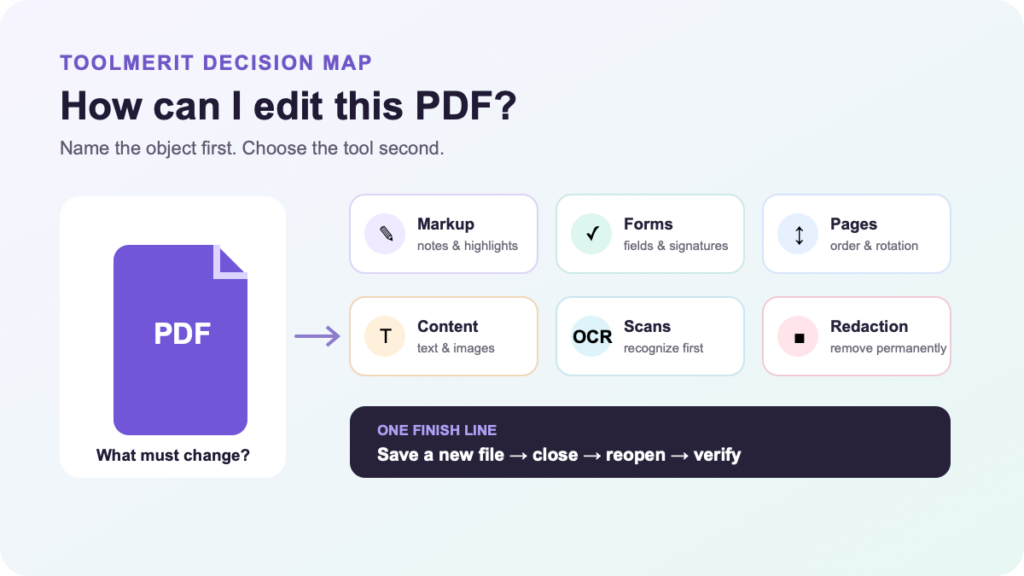
A platform-neutral PDF editing route from file inspection to a verified delivery copy.
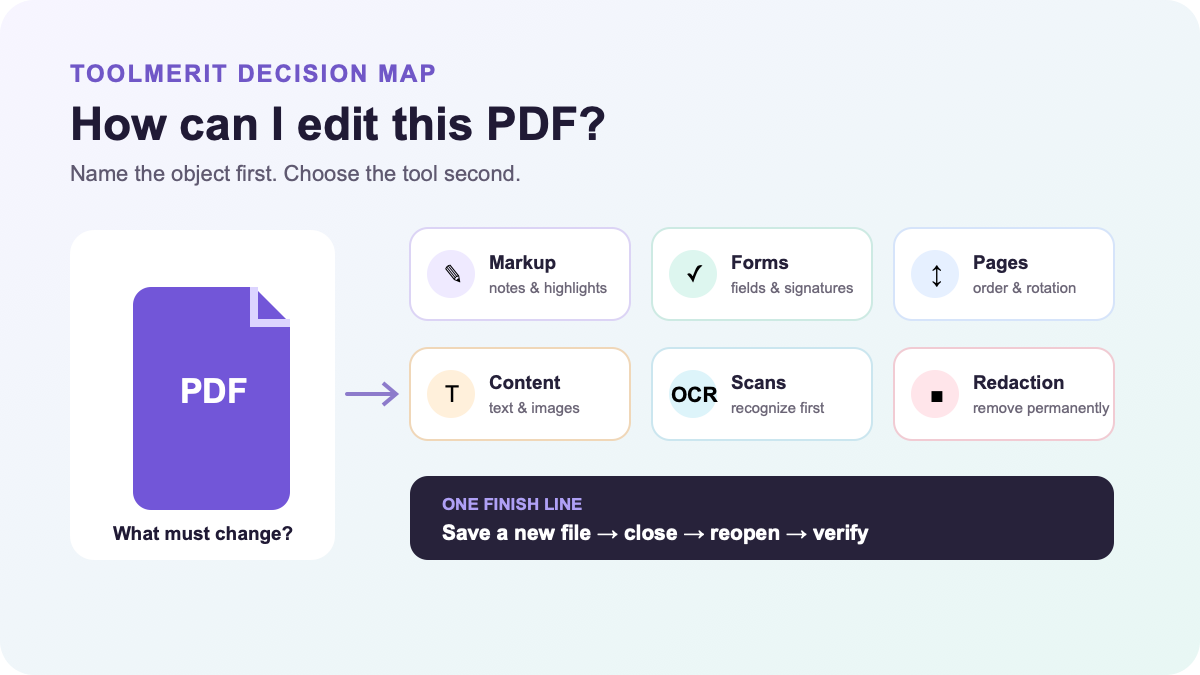
Make a copy of the PDF, identify what must change, and use the tool class that matches the edit: a reader or markup tool for comments, forms, and signatures; a page organizer for page order; the original source or a full PDF editor for existing text and images; OCR for scanned pages; and a real redaction tool for confidential content. Save to a new file, reopen it, and verify both appearance and behavior before sharing.
The misleading part of “How can I edit a PDF?” is the word edit. Highlighting a sentence, correcting that sentence, moving its page, and permanently removing it are four different operations. A simple reader may handle the first, but using it for the other three can leave the file unchanged, damaged, or falsely safe.
Route the request before opening an editor
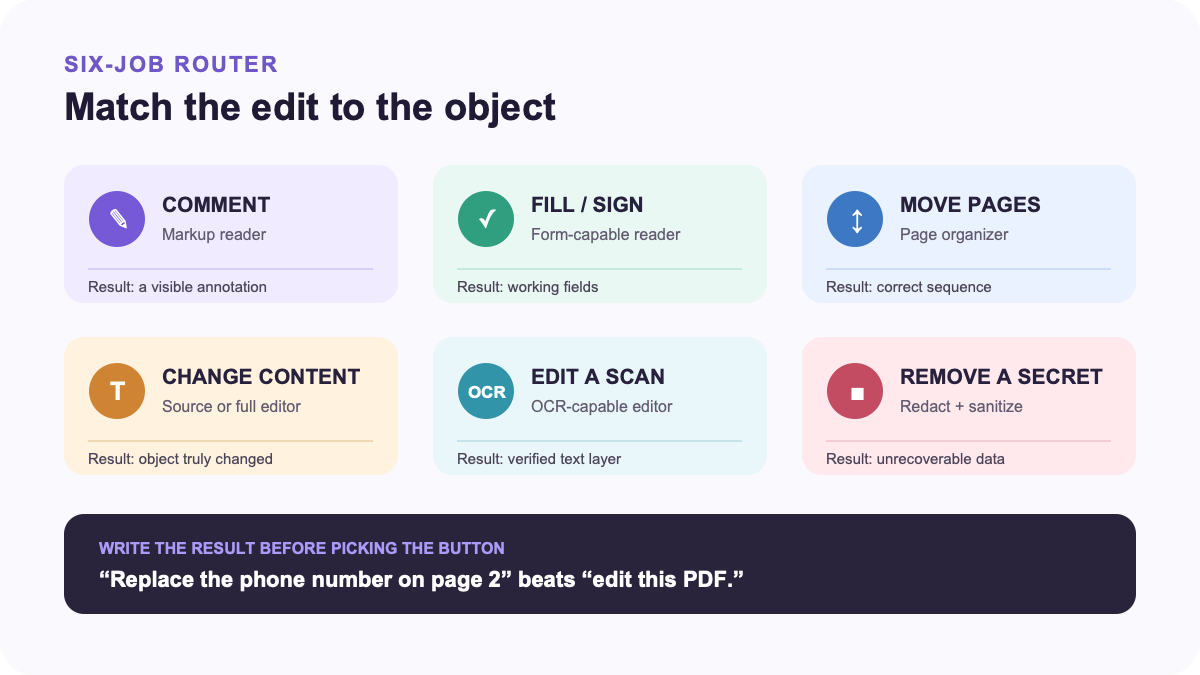
If the format itself is unfamiliar, first understand what a PDF preserves. A PDF can contain page instructions, selectable text, images, form fields, links, annotations, and signatures. Those layers can look like one flat page even though different tools control them. You can also check the boundary between a PDF reader and an editor before paying for features you do not need.
| You need to… | Use this tool class | Success means… |
|---|---|---|
| Highlight, comment, draw, or add a note | PDF reader with markup tools | The annotation is visible and either remains editable or is deliberately flattened |
| Complete a form or add an approved signature | Form-capable reader or signing workflow | Fields retain their values and the recipient can validate the intended signature |
| Reorder, rotate, delete, extract, or insert pages | Page organizer | Page order, orientation, dimensions, and bookmarks still work |
| Correct existing words, replace an image, or change layout | Original source application or full PDF editor | The actual content object changed without collateral reflow |
| Edit words that behave like a photograph | OCR-capable editor | Text is recognized, corrected, and verified against the scan |
| Permanently remove confidential information | Redaction plus sanitization tools | The visible content and relevant hidden traces cannot be recovered from the delivery file |
Write the request as an observable result: “replace the old phone number on page 2,” “remove page 7,” or “make the account number unrecoverable.” That sentence prevents the common mistake of choosing a convenient button that changes only the appearance.
Inspect the PDF in 45 seconds
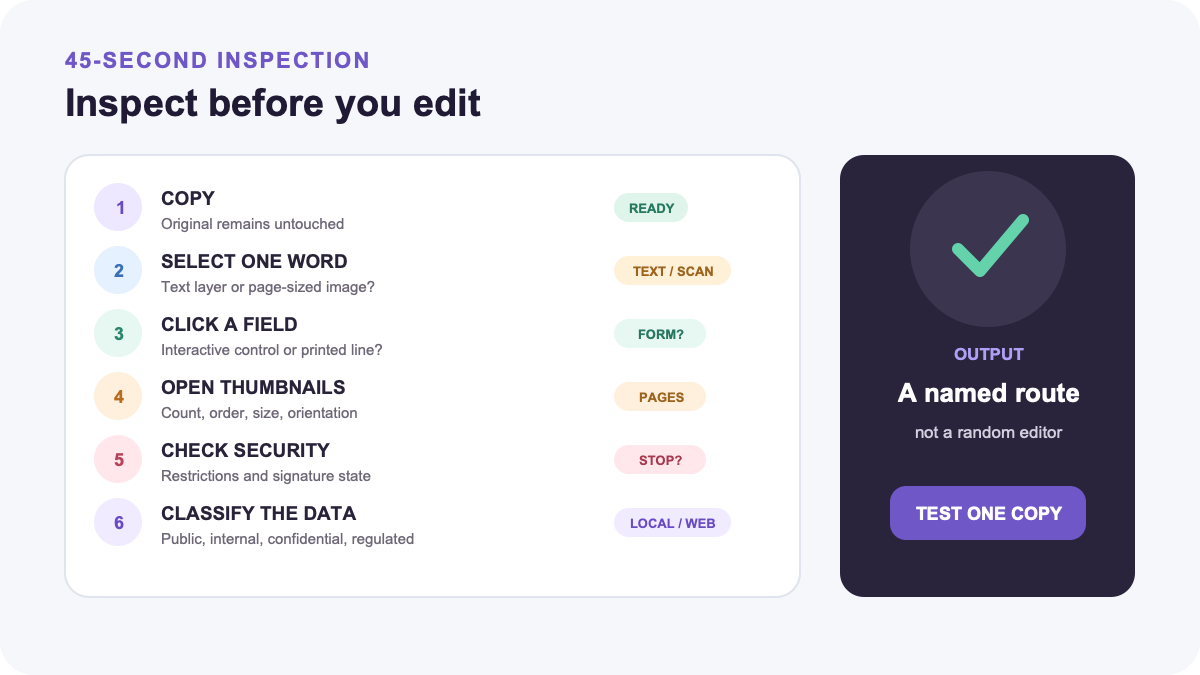
- Duplicate the file. Keep the received original unchanged. For an important document, make a restorable backup before changing the working copy.
- Try to select one word. A clean selection suggests a text layer. Selecting the whole page as one rectangle usually suggests an image or scan.
- Click a likely field. A fillable form shows interactive fields; a printed blank line may only be page artwork.
- Open page thumbnails. Confirm the page count, orientation, and whether you need to change pages rather than their contents.
- Check document properties and security. Look for editing, copying, printing, or accessibility restrictions. Do not try to bypass controls you are not authorized to change.
- Look for signature status. A digital signature can make later changes visible or lock the file entirely.
- Classify the data. Decide whether the file contains personal, financial, legal, medical, employment, client, or unreleased business information before uploading it anywhere.
This inspection does not prove that every object is editable. It tells you which route deserves a controlled test on the copy.
Add comments, fill forms, sign, or move pages
For markup, form filling, or a simple signature, begin with the PDF reader already trusted on the device. Add the smallest change, save under a new name, close the application, and reopen that new file. If collaborators must continue editing annotations, keep them live. If the recipient only needs a final visual copy, flattening may be appropriate—but preserve a version with editable annotations first.
Apple states that Preview can annotate PDFs but cannot edit their existing text. Its markup tools can add text boxes, shapes, notes, highlights, and signatures; its page tools can also move, delete, rotate, or insert pages. Mac users can follow the free Mac-specific PDF workflow for those boundaries and export checks.
Page operations need their own acceptance test. After inserting, deleting, or rotating pages, check page size, portrait/landscape orientation, bookmarks, links, headers, and printed order. A visually correct thumbnail strip can still hide a broken bookmark or an unexpectedly large page.
Change existing text or images with a source-first ladder
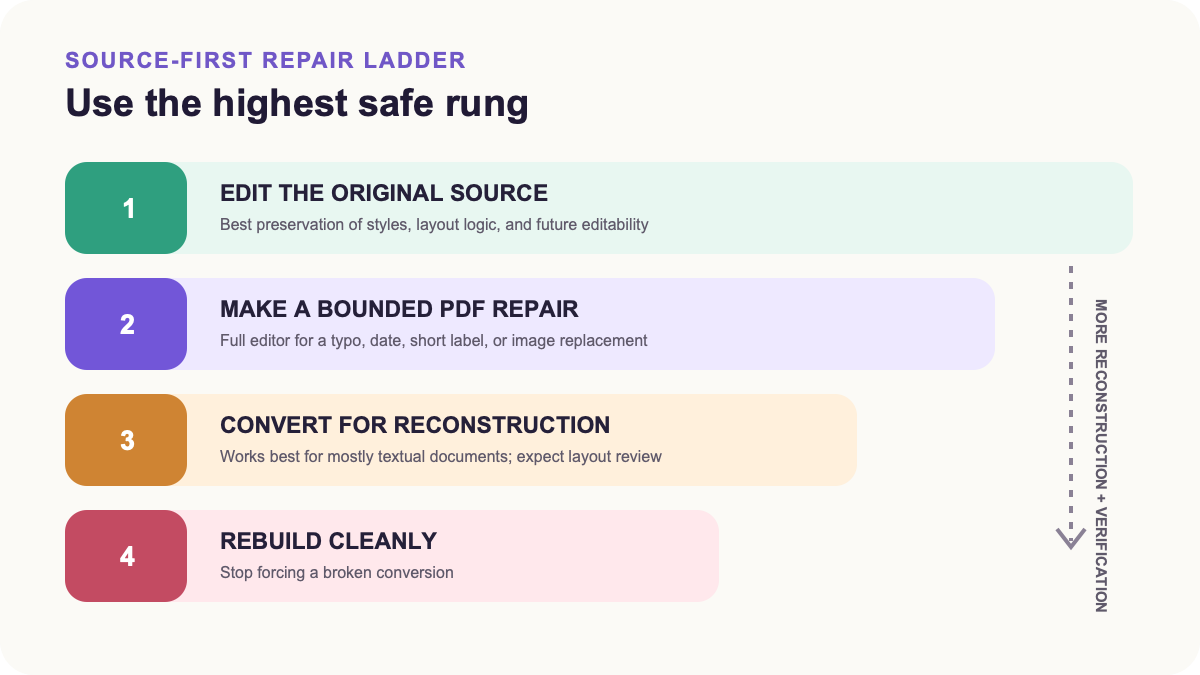
- Edit the original source. If the PDF came from Word, PowerPoint, a design file, or publishing software, change that source and export a fresh PDF. This preserves the document’s styles, layout logic, and future editability.
- Use a full PDF editor for a bounded repair. This is reasonable for a typo, date, short label, or image replacement when the source is unavailable. Work on a copy and inspect every affected line.
- Convert only when reconstruction is acceptable. For a mostly textual document that needs substantial rewriting, use the controlled PDF-to-Word route, edit the converted copy, and export a new PDF.
- Rebuild instead of forcing a broken conversion. A complex brochure, form, mathematical document, or multi-column report may cost less to reconstruct from clean assets than to repair after conversion.
Adobe’s current Acrobat guidance says its Edit tool can add, replace, delete, and format text. It also warns that a missing font can limit editing or trigger substitution, and that PDF text boxes do not automatically reflow into adjacent boxes or pages. Microsoft similarly says Word converts a PDF into a copy and works best on documents that are mostly text; graphics-heavy pages may arrive as images and the layout may not match the original.
For image replacements, check whether an image is vector or raster. Replacing a sharp logo with a low-resolution screenshot can make an otherwise successful edit fail in print.
Run OCR before editing a scanned page
If individual words cannot be selected and the page behaves like one image, treat it as a scan. OCR creates a text layer or editable content by recognizing shapes as characters; it does not recover the author’s original document structure.
- Keep the unmodified scan as evidence.
- Run OCR with the correct document language and page orientation.
- Review low-confidence words, names, dates, amounts, punctuation, tables, and headers against the image.
- Make the content change only after recognition errors are corrected.
- Search for a few distinctive words and copy them into plain text to test the result.
Adobe’s scanned-PDF workflow applies OCR before editing and provides a review process for uncertain recognized words. That uncertainty matters: a page can look unchanged while its searchable or copied text contains a wrong account number, name, or decimal point.
Choose local, desktop, or web processing deliberately
A browser editor can be useful for a low-sensitivity, one-off page operation. It is not automatically the right place for a tax form, contract, personnel record, health document, customer list, or unreleased report. Adobe’s current web organizer, for example, uploads the PDF and automatically saves it to Adobe cloud storage. That is a processing decision, not merely a different interface.
| Question | Prefer local or approved desktop processing when… | Web processing may fit when… |
|---|---|---|
| Data sensitivity | The file contains regulated, contractual, personal, or confidential information | The file is public or low sensitivity |
| Authorization | Your organization requires approved storage, identity, and retention controls | You are authorized to use the provider and its terms fit the document |
| Complexity | Fonts, forms, signatures, OCR, color, accessibility, or print fidelity matter | The operation is simple and the output is easy to verify |
| Collaboration | A local evidence trail or controlled shared drive is required | Cloud review and sharing are intentional requirements |
If you still need software, browse the editing and repurposing tool category for the appropriate class rather than searching for a generic “PDF editor.” For a non-sensitive one-off task, you can also compare the available free tools. Before uploading, read the provider’s current privacy, retention, account, and deletion terms yourself; this article does not certify a service for regulated data.
Stop before editing signed, restricted, or special PDFs
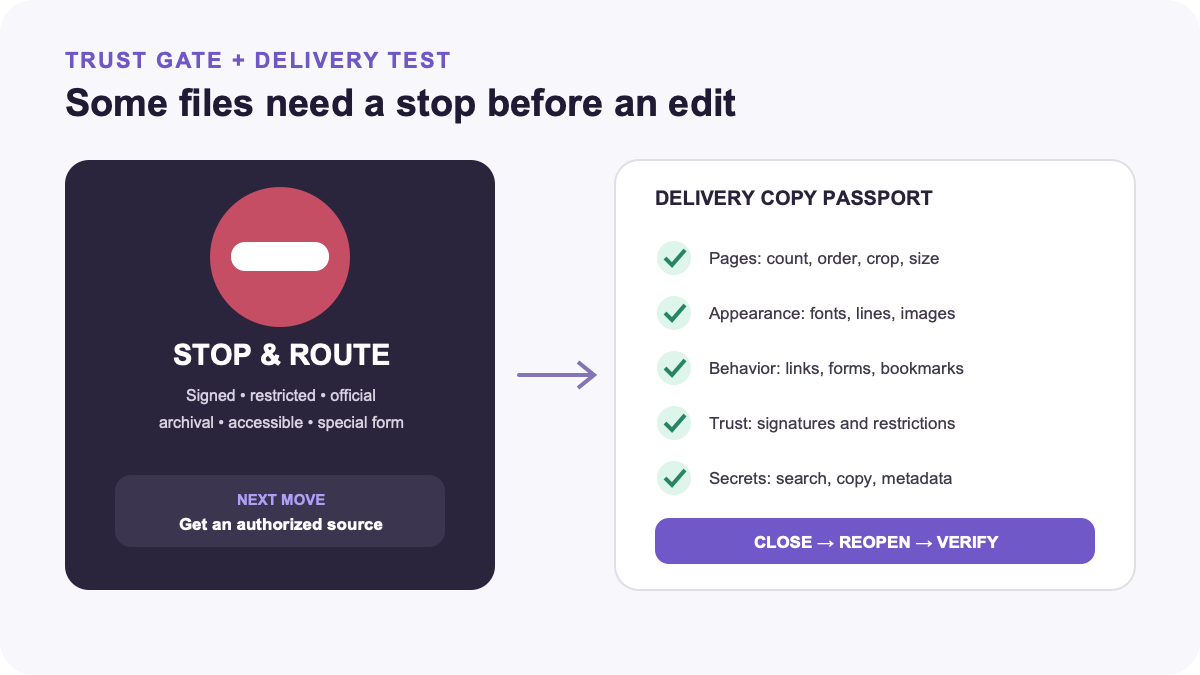
Pause when the file is digitally signed, password-restricted, rights-managed, an official record, a regulated form, intended for archival compliance, or required to remain accessible. First learn what a digital signature is actually proving: it is trust evidence tied to document state, not just a picture of a handwritten name. Adobe notes that signed PDFs may be locked; if another person signed the file, the practical route may be an unsigned original or cooperation from the signer.
Do not remove a restriction or invalidate a signature merely because software makes it technically possible. Ask the owner for the source or a version authorized for editing. For an important fillable form, preserve field names, calculation logic, tab order, and accessibility—not just the printed appearance.
Redaction is also a stop-and-route job. Drawing a black rectangle over text can leave the underlying text searchable, copyable, or recoverable. Adobe distinguishes applying redactions, which permanently removes marked visible content after saving, from sanitization, which removes hidden information such as metadata, embedded content, and scripts. Use both as the document requires, then test a copy. If the consequence of disclosure is serious, obtain a qualified review rather than relying on visual inspection alone.
Test the delivery copy, not the open editor
Export or save to a new filename, close the editor, and test the exact file you plan to send. Use a second viewer when practical.
- Pages: correct count, order, orientation, crop, size, and margins.
- Appearance: no substituted fonts, clipped lines, shifted images, blank pages, or changed colors.
- Text: search, copy, and paste a sample; compare names, numbers, dates, and punctuation with the source.
- Behavior: open links, fill fields, calculate forms, test tab order, and inspect bookmarks.
- Trust: check signature status and confirm that the edit did not make a verified document misleading.
- Redaction: search and copy around every removed item; inspect metadata and hidden content under the approved process.
- Delivery: confirm filename, file size, permissions, and that the recipient can open the attachment.
For a text-heavy change, run a deliberate proofreading pass after the technical checks. Keep the original, editable working file, exported delivery PDF, and a short change note as separate artifacts.
Your next action is simple: write one sentence naming the object that must change and the result that must survive reopening. Then choose the matching row in the six-route table and test one copied page before processing the whole document. If this PDF is part of a wider content workflow, continue through the creator guide library after the delivery copy passes.