In-depth guide
How to Screenshot on Mac and MacBook: Shortcuts & Saving
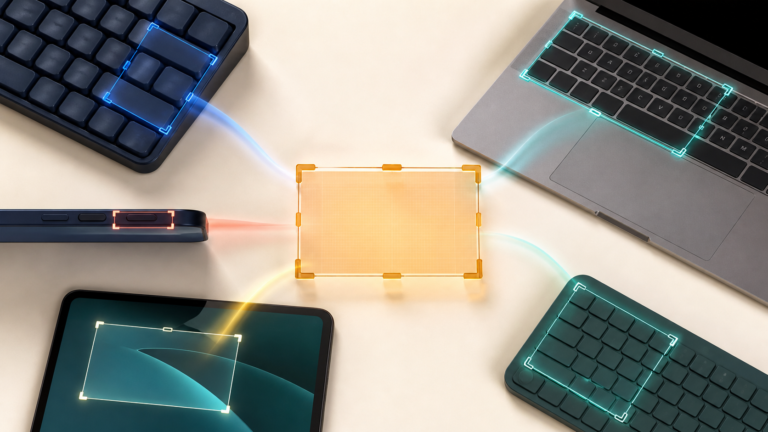
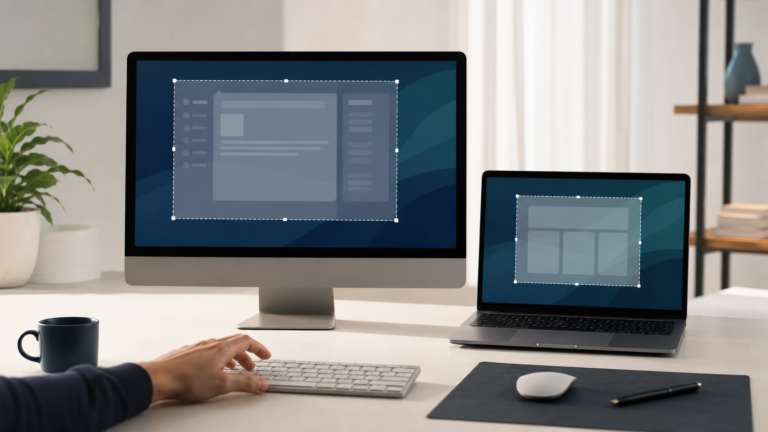
Take a full-screen, window, or region screenshot on Mac or MacBook. Choose a file or Clipboard, find missing captures, and prepare a readable attachment.
Read articleIndependent software guidance for creators and small teams.
 ToolMerit
TOPIC COLLECTION
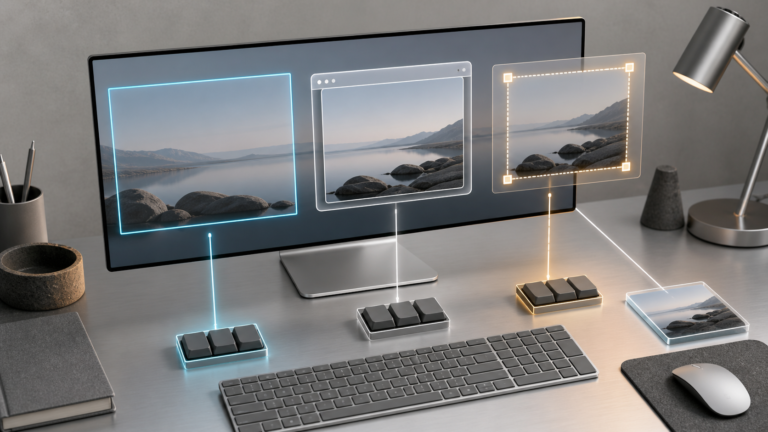
Capture a screen, choose the right device controls, locate the output, crop it, and record with the right audio settings.
ARTICLES IN THIS COLLECTION
Take a full-screen, window, or region screenshot on Mac or MacBook. Choose a file or Clipboard, find missing captures, and prepare a readable attachment.
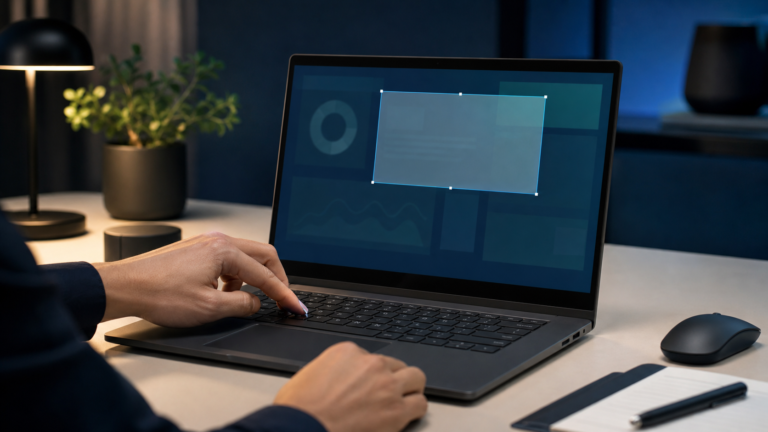
Read articleCapture a Windows PC screen with Snipping Tool or Print Screen. Check auto-save, find the file, handle laptop keys, and review the image before sharing.
Read articleUse the right screenshot command on a computer, phone, or tablet, choose the useful capture boundary, find the image, and prepare it to share.
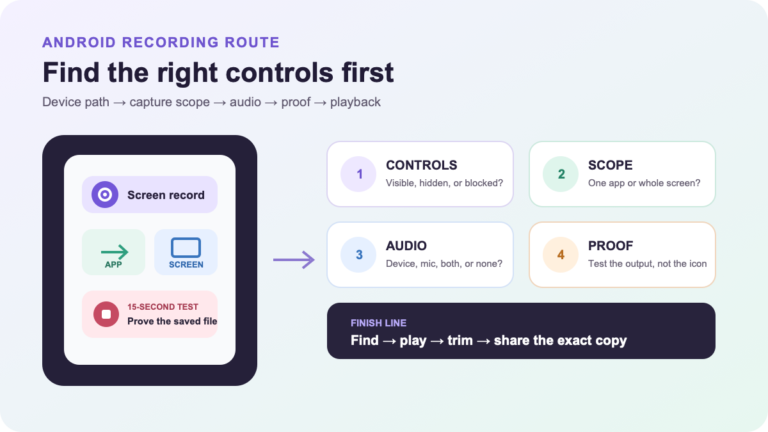
Read articleA device-aware Android screen-recording route from Quick Settings to a verified, shareable clip.
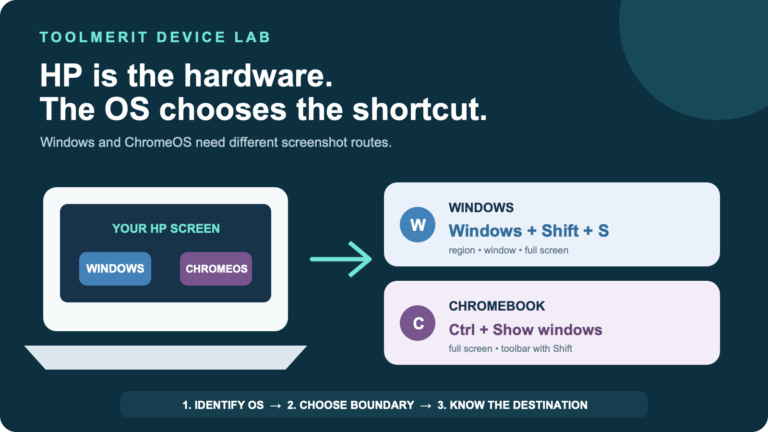
Read articleAn operating-system-first HP screenshot guide with shortcut selection, key-label decoding, save locations, and a recovery path when Print Screen does nothing.
Read articleA Dell-specific guide to Windows screenshot shortcuts, saved-file locations, compact keyboard layouts, Snipping Tool options and practical troubleshooting.
Read articleA cross-platform screenshot guide organized by operating system, capture scope and destination, with built-in shortcuts, save locations and privacy checks.
Read articleUse built-in tools to crop an existing screenshot—or capture only the region you need—with context and privacy checks before sharing.
Read articleStart an iPhone screen recording in seconds, choose the correct audio mode, protect private information, and fix the failures that waste a take.
Read articleA Chromebook-specific screenshot guide for every keyboard type, capture boundary, save location, tablet route, stylus option, and policy failure.
Read articleSet the right Mac recording boundary and sound source, capture a clean take, fix common failures, then trim and verify the delivered movie.
Read articleBROWSE BY TOPIC