An operating-system-first HP screenshot guide with shortcut selection, key-label decoding, save locations, and a recovery path when Print Screen does nothing.
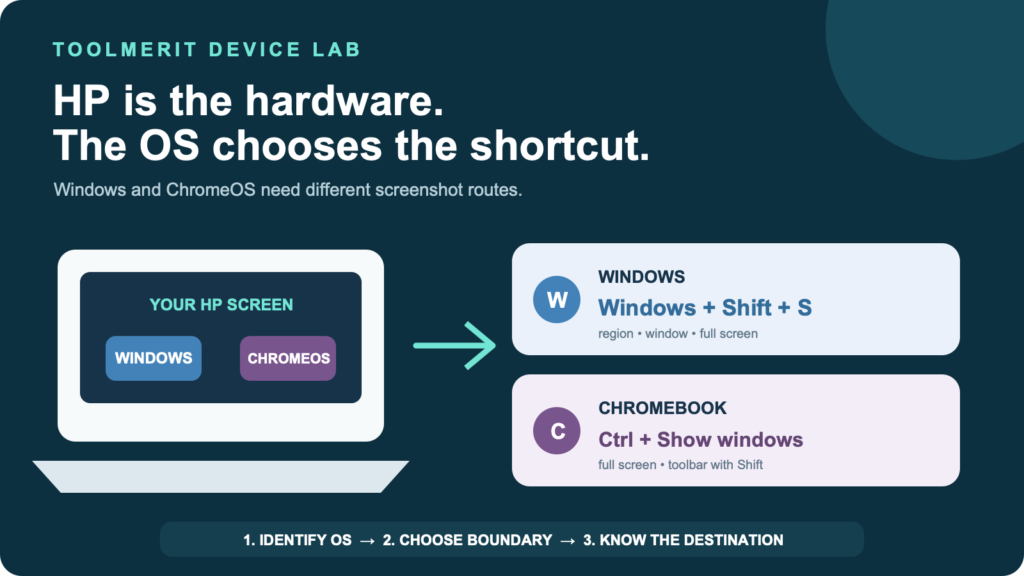
“HP” tells you who made the computer, not which screenshot system it uses. Most HP laptops, desktops, and all-in-ones run Windows; HP Chromebooks run ChromeOS. The first shortcut to try depends on that distinction, then on whether you want a full screen, one window, or a selected region.
On an HP Windows PC, press Windows + Shift + S, choose a rectangular, window, or full-screen snip, and select the notification to edit or save it. For an automatic full-screen file, press Windows + PrtSc; some HP laptops require Fn + Windows + PrtSc. On an HP Chromebook, press Ctrl + Show windows for the full screen or Shift + Ctrl + Show windows for the capture toolbar.
If you only need one reliable starting point on Windows, use Windows + Shift + S. It does not depend on finding a tiny Print Screen label, and it lets you choose the capture boundary before taking the image.
Identify your HP route before using a shortcut
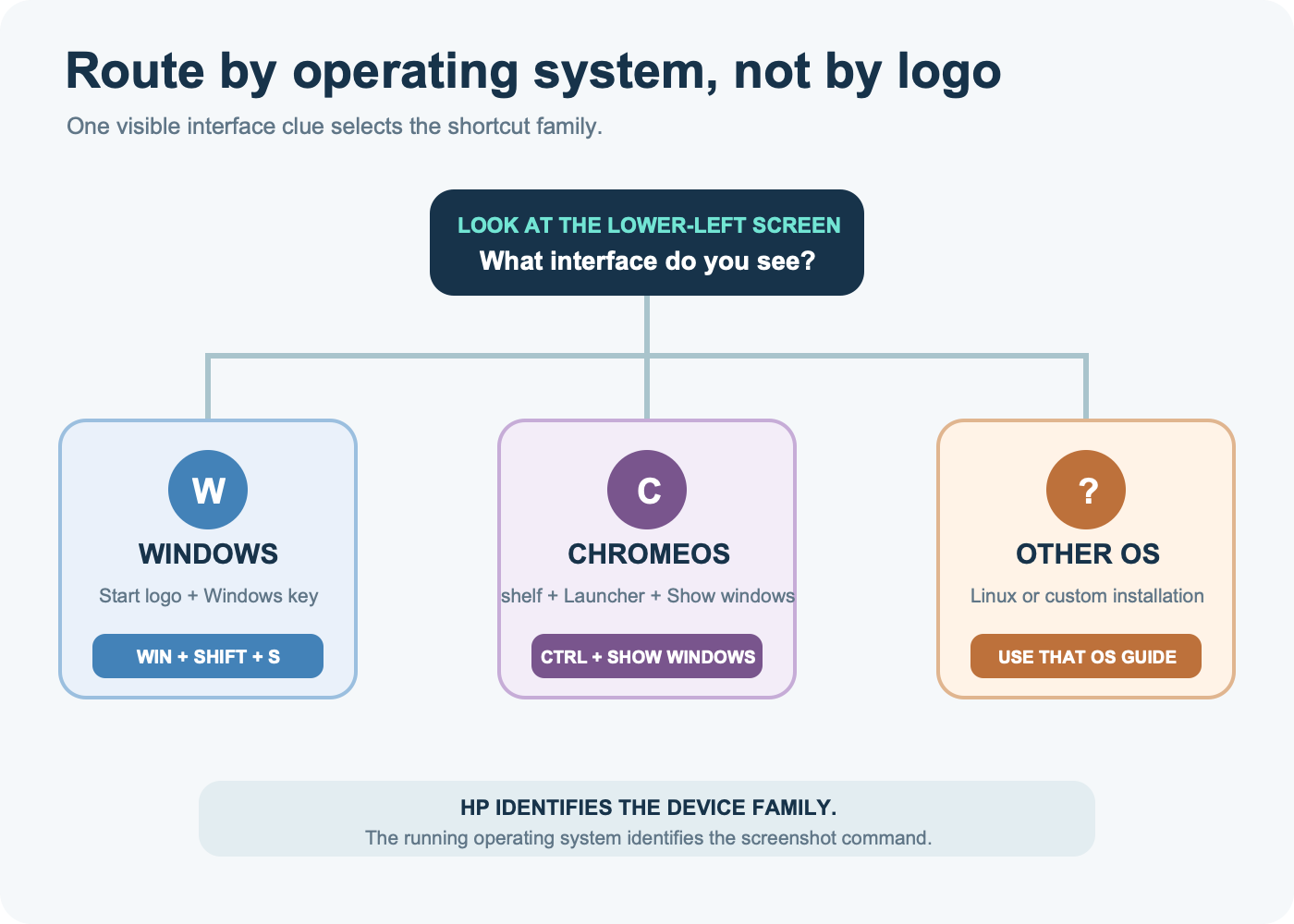
Look at the lower-left area of the screen and the keyboard:
- Windows route: you see a Windows Start logo, a Windows key, or Windows Settings. Continue with Snipping Tool and Print Screen methods.
- Chromebook route: you see the ChromeOS shelf and Launcher, and the top row includes a Show windows key—usually a rectangle with two vertical marks beside it. Use ChromeOS capture controls.
- Another operating system: if someone installed Linux or another OS on the HP hardware, use that operating system’s method. The factory brand no longer predicts the shortcut.
For the complete Windows branch, ToolMerit’s Windows screenshot guide covers shortcuts, save paths, multi-display choices, editing, and verification. For the ChromeOS branch, use the more detailed Chromebook capture guide, including tablet, stylus, and managed-device cases.
Choose the Windows capture by boundary and destination
On an HP Windows PC, decide two things before pressing a key: what should be inside the image, and whether you need a file immediately or only a clipboard copy.
| Desired result | Shortcut | Immediate destination |
|---|---|---|
| Select a region, window, or full screen | Windows + Shift + S |
Copied to the clipboard and available through Snipping Tool; select the notification to edit or save |
| Save the full screen automatically | Windows + PrtSc |
A PNG file in the Pictures Screenshots folder; add Fn on an HP keyboard that requires it |
| Copy the full screen | PrtSc |
Clipboard, or the Snipping Tool overlay if that Windows setting is enabled |
| Copy only the active window | Alt + PrtSc |
Clipboard; paste with Ctrl + V into Paint, a document, chat, or email |
| No Print Screen key exists | Fn + Windows + Space |
A screenshot file that you can locate through Pictures Screenshots |
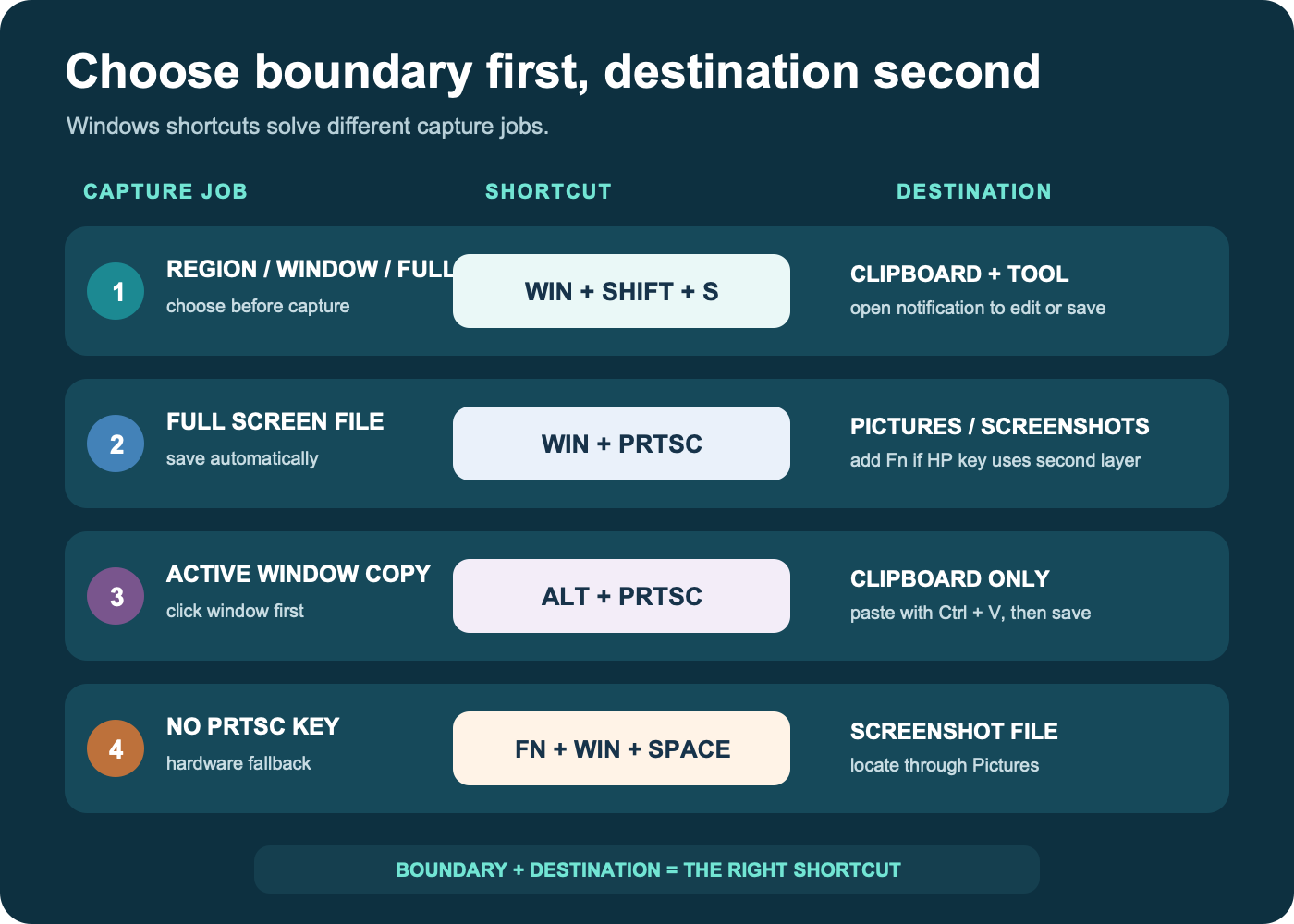
Microsoft’s current Snipping Tool instructions list rectangle, freeform, window, and full-screen modes under Windows + Shift + S. Microsoft also confirms that Alt + Print Screen copies only the active window. Click the intended window first; otherwise a different app may be the active one.
For Windows + PrtSc, HP’s Windows keyboard-shortcut reference states that the capture is saved as a PNG in the Screenshots folder under Pictures. A brief screen dim is a useful sign that Windows created the file.
For a standard Windows keyboard and a quick capture, the PC screenshot shortcut guide provides the shorter branch without HP function-key diagnosis.
Find the Print Screen function on an HP keyboard
The label is usually near the upper-right corner, but it is not standardized. Microsoft documents labels including PrtSc, PrtScn, and PrntScrn; HP keyboards may also use prt scr or place the function as smaller text on another key.
Read the physical key before assuming it is broken:
- If Print Screen is the main label, try
Windows + PrtSc. - If Print Screen is a smaller secondary label, try
Fn + Windows + PrtSc. - If plain
PrtScproduces another function, holdFnwhile pressing it. - If no Print Screen label exists, use
Windows + Shift + S, or Microsoft’s hardware fallbackFn + Windows + Space.
If the device in front of you does not match either HP route above, use ToolMerit’s cross-device screenshot router to identify the correct platform shortcut before changing keyboard or firmware settings.
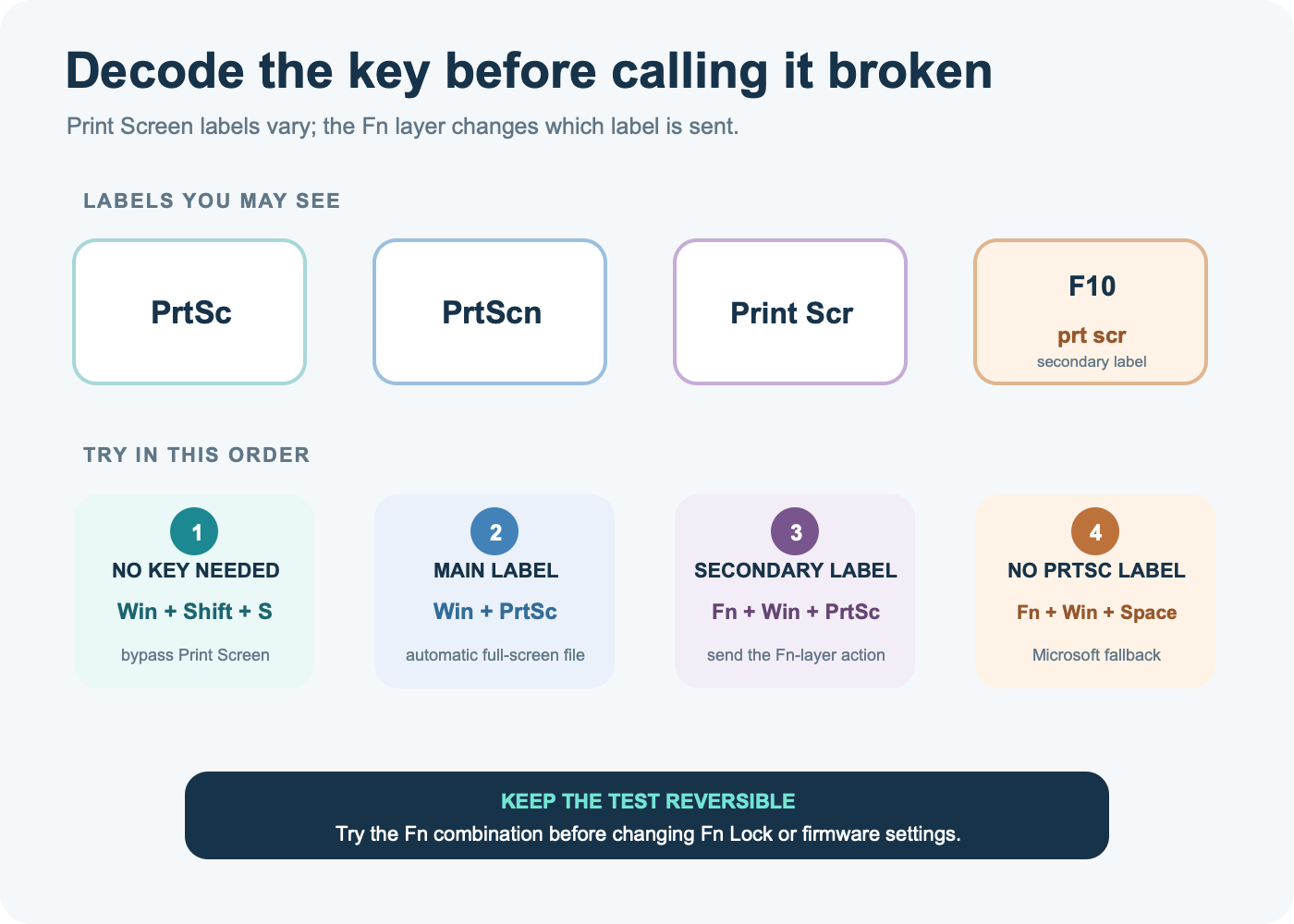
HP explains that some laptops require holding Fn before PrtSc. Action Key mode and Fn Lock can change which label is primary, so the same printed keyboard may behave differently after a firmware or keyboard-setting change. You do not need to change Fn Lock just to finish the task; Windows + Shift + S remains the safer bypass.
Take a screenshot on an HP Chromebook
Do not use Windows shortcuts on an HP Chromebook. Google documents these ChromeOS routes:
- Full screen: press
Ctrl + Show windows. - Region, window, or capture toolbar: press
Shift + Ctrl + Show windows, then choose the screenshot mode. - Dedicated Screenshot key: press it when the keyboard includes one.
- External keyboard without Show windows: press
Ctrl + Shift + F5. - Tablet mode: press the physical Power and Volume Down buttons together.
Google’s official Chromebook screen-capture guide also says captures are copied to the clipboard and saved to Downloads by default; the capture toolbar can assign another folder. Its keyboard-shortcut reference confirms the full-screen and partial-screen combinations.
Find the screenshot after you take it
The most common “missing screenshot” is not missing—it was copied to the clipboard instead of saved as a file.
| Method used | Where to look | What to do next |
|---|---|---|
PrtSc or Alt + PrtSc |
Clipboard only | Open Paint or another destination, press Ctrl + V, then save |
Windows + Shift + S |
Clipboard and Snipping Tool notification | Select the notification to annotate and save, or paste directly |
Windows + PrtSc |
File Explorer → Pictures → Screenshots | Sort by Date modified and open the newest PNG |
| ChromeOS capture | Files → Downloads, unless a different folder was selected | Check the capture notification or the recent-files view |
If OneDrive backs up the Windows Pictures folder, the Screenshots folder can appear under OneDrive’s Pictures location instead of a purely local Pictures path. Microsoft notes that its former separate “Save screenshots to OneDrive” switch is gone; screenshot backup now depends on whether the Pictures folder is included in OneDrive backup. In File Explorer, select Pictures and read the address bar rather than guessing the path.
Before sharing, use the screenshot cropping workflow to remove unrelated or sensitive regions without cutting away the evidence the recipient needs.
Fix an HP screenshot shortcut that does nothing
- Confirm the operating system. A Windows-key recipe cannot work on ChromeOS, and a Show windows recipe cannot work on Windows.
- Try the no-PrtSc route. On Windows, press
Windows + Shift + S. If the screen darkens and the toolbar appears, Windows capture works; the remaining issue is the physical Print Screen key or its Fn layer. - Add Fn once. Try
Fn + Windows + PrtSc. Do not repeatedly change firmware settings before testing this reversible combination. - Check the clipboard. After
PrtScorAlt + PrtSc, open Paint and pressCtrl + V. No file is expected until you save one. - Open the app directly. Search Start for “Snipping Tool,” open it, choose a mode, and select New. This separates an app problem from a keyboard-shortcut problem.
- Use the missing-key fallback. Press
Fn + Windows + Spaceif the keyboard has no Print Screen function. - Check device policy. On a school or work computer, capture features or clipboard history may be restricted. If the direct app also fails, ask the administrator rather than bypassing policy.
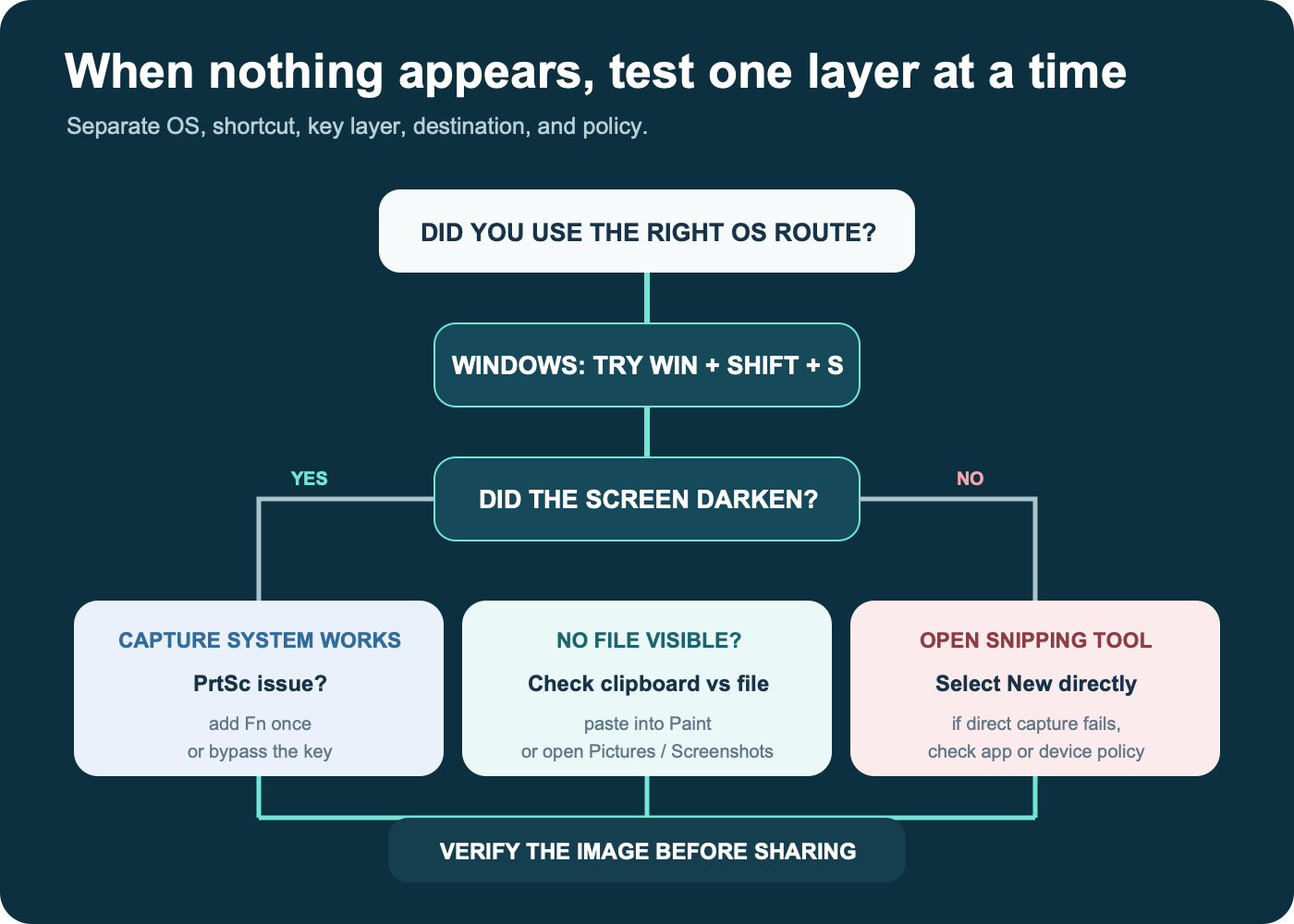
If the shortcut worked but the image is blank only inside a protected app, do not treat repeated capture attempts as a repair. Some services intentionally restrict capture. Use the app’s permitted download, export, or sharing method.
Prepare the image before sharing it
Open the result and inspect all four edges. Crop unrelated tabs, notifications, filenames, account names, messages, and background windows. If the image contains a password, recovery code, private customer record, payment detail, or personal address, retake the capture with that information closed rather than relying on a weak blur.
For arrows, labels, and deliberate cropping, ToolMerit’s design and graphics tools collection can help you choose an editor. A screenshot is a raster image made of pixels; if you actually need a logo or diagram that remains sharp at any size, start from a real vector source and use the vector-image verification guide instead of enlarging a screenshot.
If the purpose is to demonstrate a changing process rather than preserve one state, a static image may be the wrong deliverable. Use a screen recording or, for a live walkthrough, follow the Zoom screen-sharing workflow.