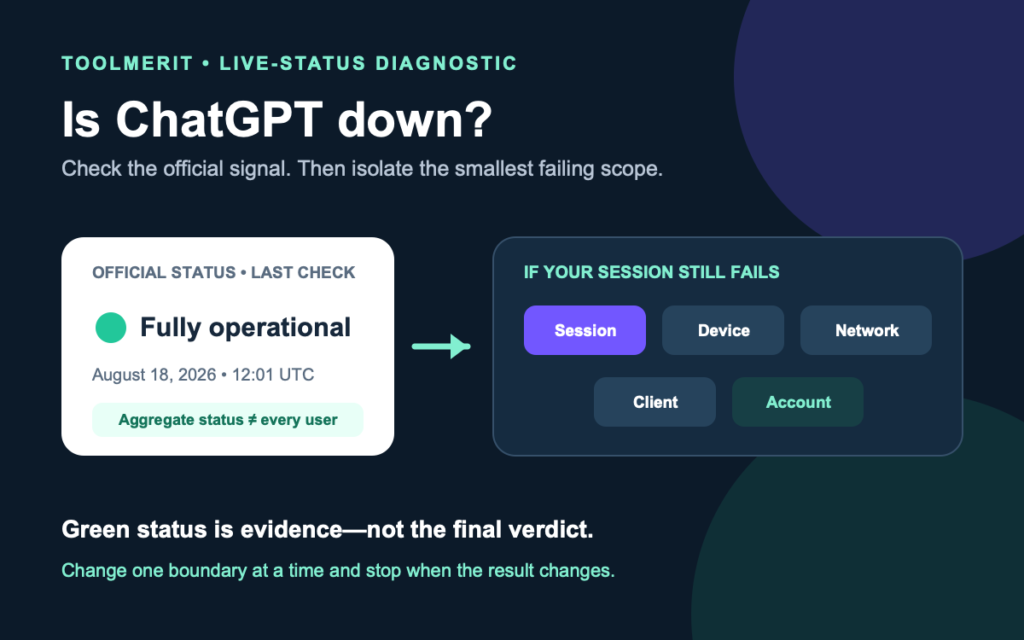
A status-first diagnostic route that separates a real ChatGPT outage from browser, account, network, app, model, and conversation-specific failures.
At 12:01 UTC on August 18, 2026, OpenAI’s official status page reported that its systems were fully operational and that it was not aware of any system-wide issues. That snapshot can change, and aggregate green status does not rule out a regional, account, model, feature, network, browser, or app-specific failure.
The counterintuitive part is that “ChatGPT is down for me” and “ChatGPT is down” are different diagnoses. The first is an observation. The second claims a service-wide cause. Use the official status page as your first piece of evidence, then run a few reversible tests to find the smallest scope that actually fails.
Read the official status page correctly
Open status.openai.com directly. At the check recorded above, it displayed “fully operational” and no known system-wide issues. The page also warns that availability metrics are aggregated across tiers, models, and error types, and that an individual customer’s availability may differ by subscription, model, or API feature.
Interpret the page in three layers:
- Active incident: the incident name, affected product, current phase, and latest update are stronger evidence than a generic error on your screen.
- Degraded component: ChatGPT may open while a narrower feature—login, files, voice, search, or a model route—has trouble.
- All systems operational: no known aggregate incident is posted; continue with local and account isolation instead of declaring the status page wrong.
Do not enter credentials through a “status” link in an unsolicited message. Open the official domain yourself, and recognize a fake outage or account-warning message before following recovery instructions.
Run the 60-second scope test
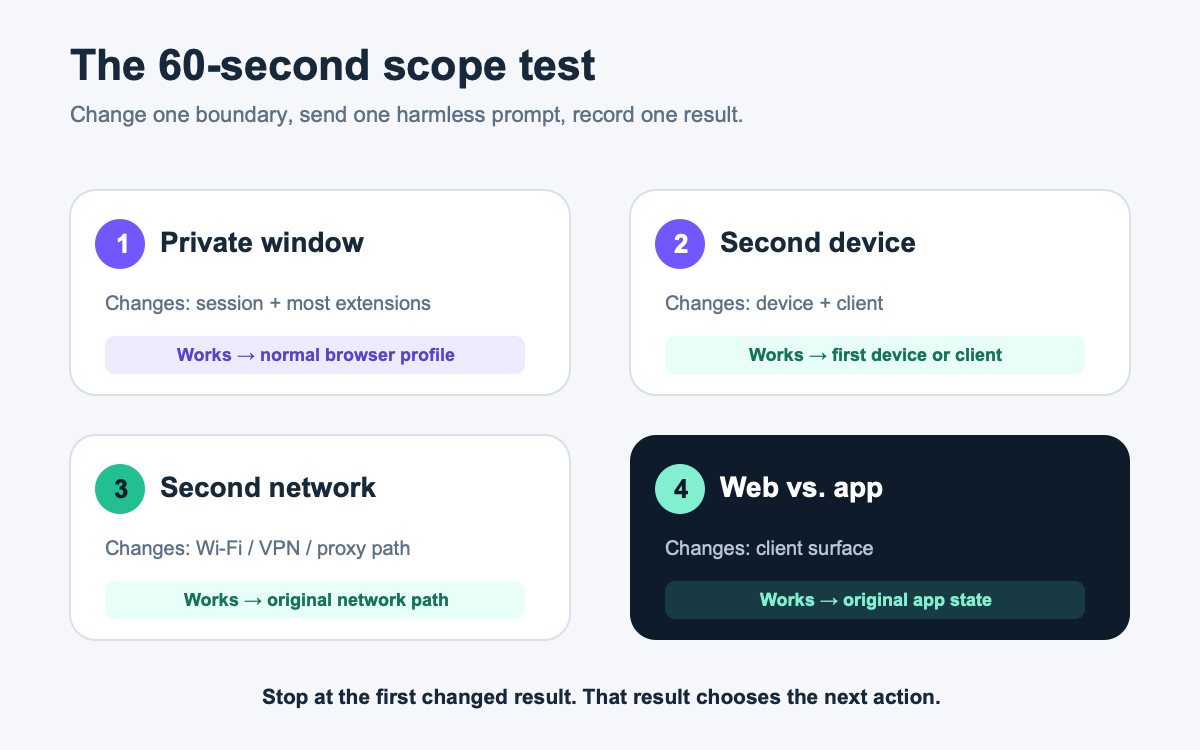
The fastest diagnosis comes from changing one boundary at a time. Use a harmless prompt such as “Reply with OK” and do not upload private material while testing.
| Test | What changes | What a successful result suggests |
|---|---|---|
| Private window on the same device | Session data and most extensions | The normal browser profile or session is involved |
| Second device on the same network | Device and client | The first device, browser, or app is involved |
| Same device on a mobile hotspot | Network path | The original Wi-Fi, VPN, proxy, DNS, or filter is involved |
| Web instead of the desktop or mobile app | Client surface | The original app or its local state is involved |
Do not run every test at once. If a private window works, stop and repair the normal profile. If every device on one company network fails but a phone hotspot works, hand the network evidence to IT. If every route and device fails while an official incident is active, repeated local changes are unlikely to help.
A slow answer is not necessarily downtime. Before treating delay as failure, separate latency from a full outage: note whether the page loads, the prompt sends, the response starts, or only one stage stalls.
Route the symptom before changing settings
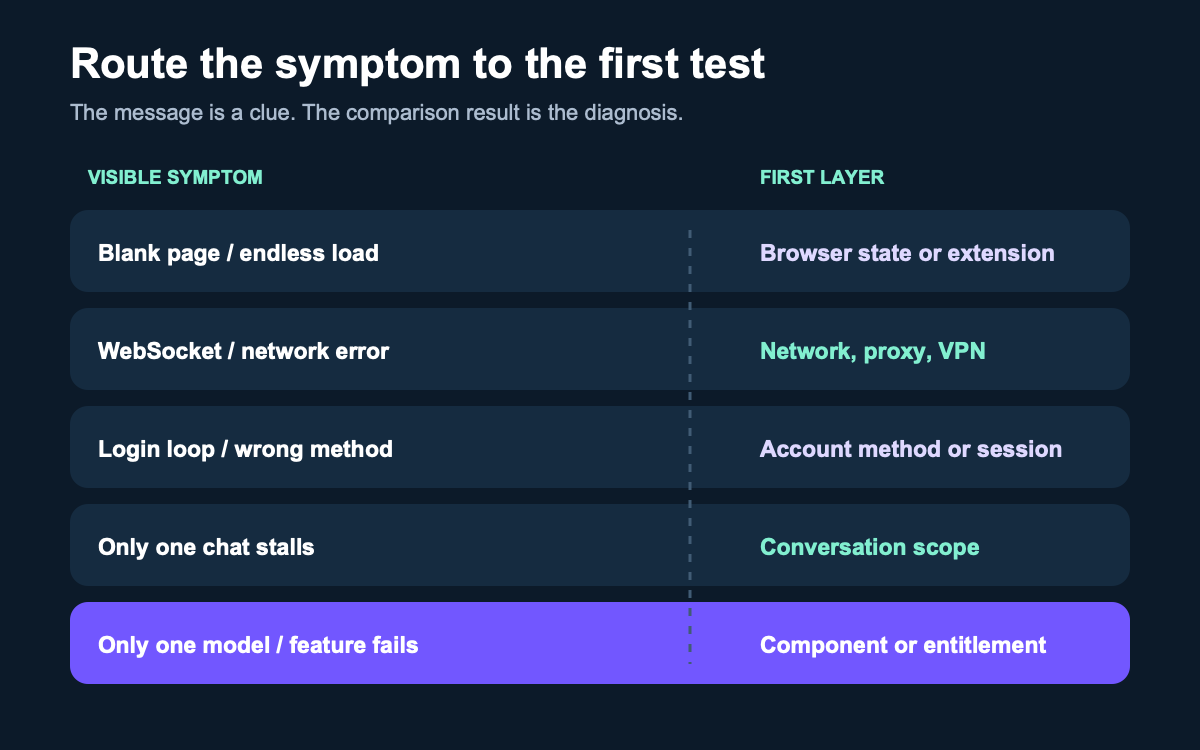
Different symptoms point to different first tests. Treat this as routing, not proof:
| Symptom | First layer to test | First action |
|---|---|---|
| “Something went wrong” across many chats | Service or local client | Check official status, then retry in a private window |
| Blank page or endless loading | Browser state or extension | Hard refresh, then compare a private window |
| WebSocket or network error | VPN, proxy, filter, or network | Compare an approved second network |
| Login loop or wrong-authentication-method message | Account method or session | Use the same Google, Microsoft, Apple, SSO, or password method used at signup |
| Only one long conversation stalls | Conversation scope | Start a new chat with a short harmless prompt |
| Only one feature, model, or file action fails | Feature scope, entitlement, or network path | Check the affected component and compare a basic text chat |
| Conversation history looks empty | Account, workspace, archive, or incident | Confirm the account and workspace before assuming deletion |
A login loop can be caused by stale or blocked browser state, but clearing everything without a test removes evidence and signs you out. If the private window changes the result, first understand what a browser session cookie actually controls, then clear only the relevant ChatGPT site data if needed.
For apparently missing history, OpenAI’s chat archive and retention guidance says to confirm the correct account or workspace, check Archived Chats, refresh or sign in again, and check the status page before assuming a conversation was deleted.
Use the five-minute recovery ladder
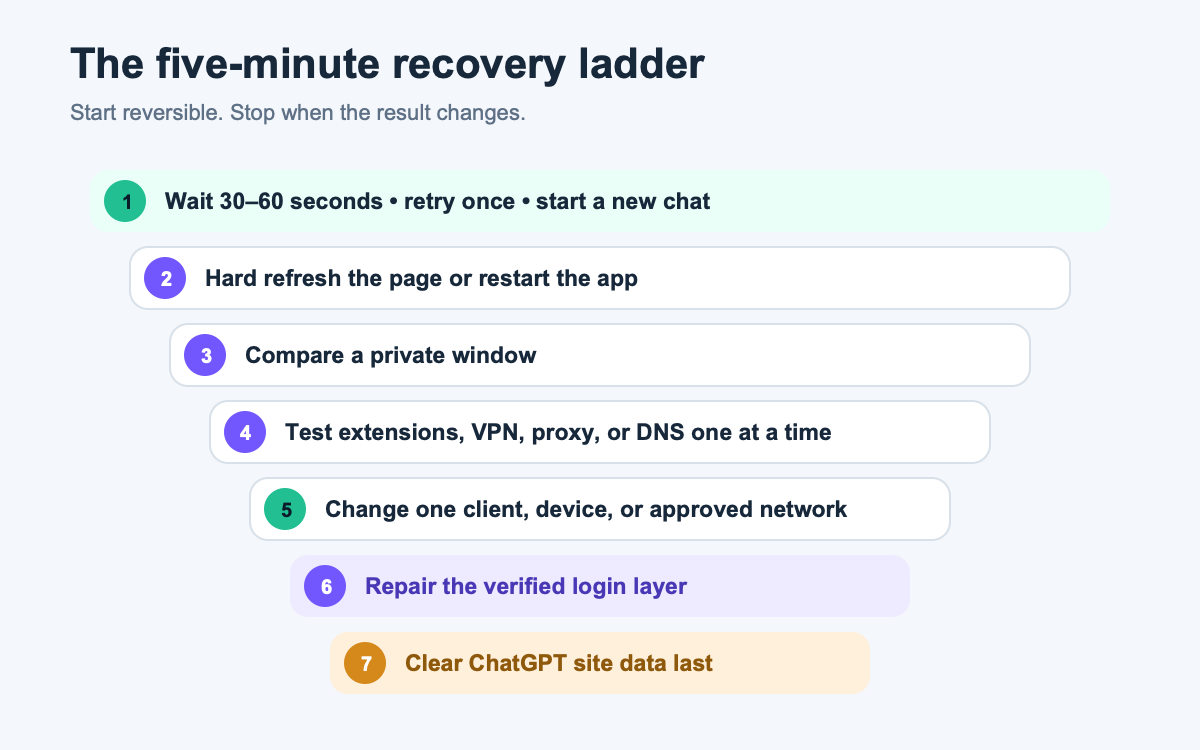
OpenAI’s official ChatGPT error guide recommends starting with reversible actions and escalating only when the problem survives them. Work downward and stop when ChatGPT works:
- Wait 30–60 seconds and retry once. For a failed generation, stop and regenerate or send the prompt in a new chat.
- Reload the client. Hard-refresh the browser page or fully restart the desktop or mobile app.
- Compare a private window. This isolates many extensions and session-state problems without deleting the normal profile.
- Temporarily remove optional interference. If permitted, disable browser extensions, content blockers, personal VPNs, proxies, or secure-DNS tools one at a time. Restore the control after the test.
- Change one route. Try another browser, the web client instead of the app, another device, or an approved second network.
- Repair authentication only when login is the failing layer. OpenAI’s login guidance says to use the original signup method. Sign out and back in that way; if the password itself is the verified problem, reset the account password through a trusted route.
- Clear ChatGPT site data last. Preserve drafts or useful error details first; clearing cookies ends the local session and may remove unsaved state.
Do not delete conversations, reinstall every app, reset the router, or disable managed security controls just because a response failed once. Those changes are broad, sometimes destructive, and poor diagnostic tests.
Use a separate branch for company networks
If ChatGPT fails only on managed Wi-Fi, a corporate VPN, a virtual desktop, or a filtered browser, do not bypass organizational controls. OpenAI’s network recommendations tell administrators to compare one device with the wider network and compare company Wi-Fi with a cellular hotspot. The guide also documents the OpenAI domains and secure WebSocket traffic that network controls may need to permit.
Give IT a bounded result: “ChatGPT fails in Chrome and the desktop app on company Wi-Fi, succeeds on the same laptop through an approved hotspot, and shows a WebSocket error at 12:18 UTC.” That is more actionable than asking IT to “unblock AI.” The administrator can then review web filtering, TLS inspection, proxy behavior, DNS, firewall, or WebSocket policy under the company’s own security requirements.
Escalate with evidence, not just “it is down”
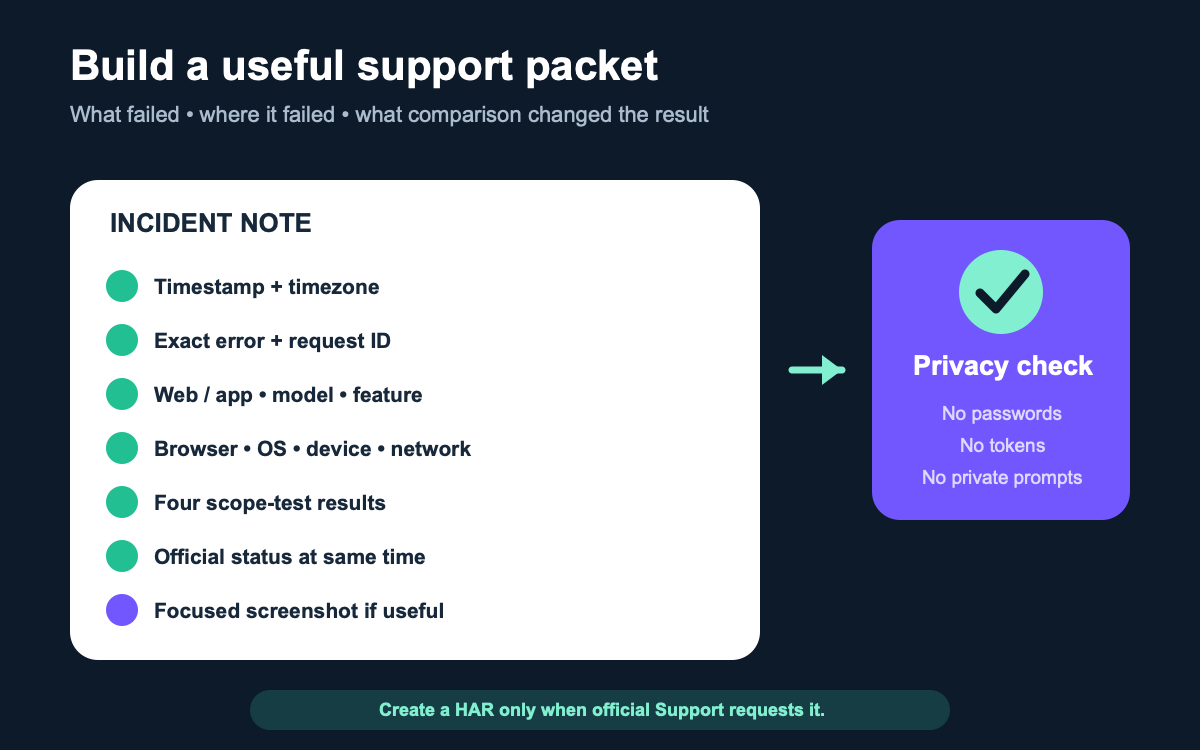
If the fault survives the recovery ladder, prepare one incident note:
- timestamp and timezone;
- exact visible error text and any request or incident ID;
- ChatGPT surface: web, desktop, iOS, or Android;
- model, feature, workspace, and affected conversation URL or ID when safe;
- browser or app version, operating system, and device type;
- home, corporate, VPN, proxy, or hotspot network context;
- results of the private-window, second-device, second-network, and second-client comparisons; and
- the official status-page state at the same time.
Attach a minimal image when it helps; capture a focused screenshot of the exact error and crop out unrelated conversations, email addresses, tokens, or personal information. OpenAI says Support may request a browser HAR file for interface problems. A HAR can contain detailed network records, so create and share one only through the official support process and remove sensitive data as instructed.
Contact OpenAI Support through the chat bubble at help.openai.com. For a team-wide issue, consolidate reports through support and service tools for a shared incident queue so one owner can provide a reproducible case instead of many conflicting tickets.
Choose the next action from the failing scope
Official incident active: subscribe to status updates, preserve work locally, avoid repeated credential or browser changes, and retry after the relevant component update.
Only one browser profile fails: isolate extensions and ChatGPT site data. Only one network fails: send the comparison to the network owner. Only one account or workspace fails: verify the sign-in method, workspace, entitlement, and administrator state. Only one conversation fails: continue in a new chat and preserve the original conversation ID for support.
After a team incident, turn the verified fix into a maintained knowledge-base entry with an owner, check date, and stop condition. If an official outage is active and the work can move without exposing confidential data or losing required features, compare alternative AI tools for a portable, non-sensitive task.
Next action: open the official status page now. If it reports an incident matching the failed component, monitor that incident. If it does not, run the private-window and second-network comparisons; those two results usually identify whether to repair the client, involve IT, verify the account, or contact Support.