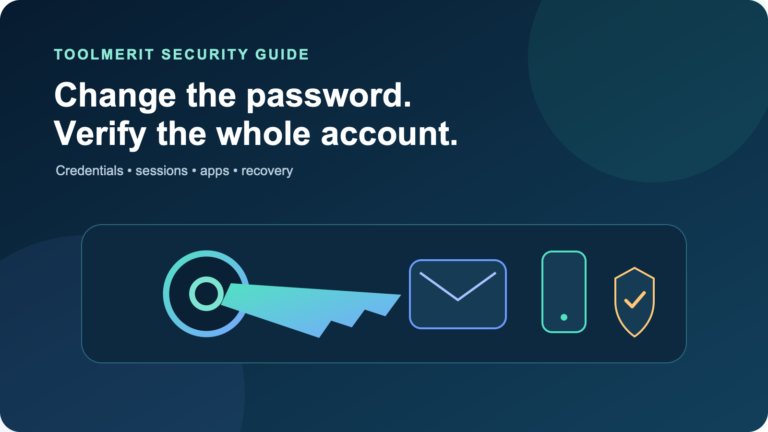
A provider-agnostic password reset workflow that starts from a trusted page and finishes with sessions, recovery factors, MFA, and connected access verified.
To reset a password safely, open the service’s official app or type its known website address yourself, choose the forgotten-password option, identify the correct account, complete an offered verification method, create a new unique password with a password manager, sign in from the official page, then review active sessions, recovery details, multifactor methods, and connected apps. If the account may be compromised, do this from a trusted device and secure the email account or identity provider that controls other resets first.
There is no universal reset page. The account’s provider, not ToolMerit or a third-party “recovery service,” must verify ownership. Never send a password, one-time code, recovery code, or approval prompt to someone claiming they can bypass that process.
Choose the correct recovery route first
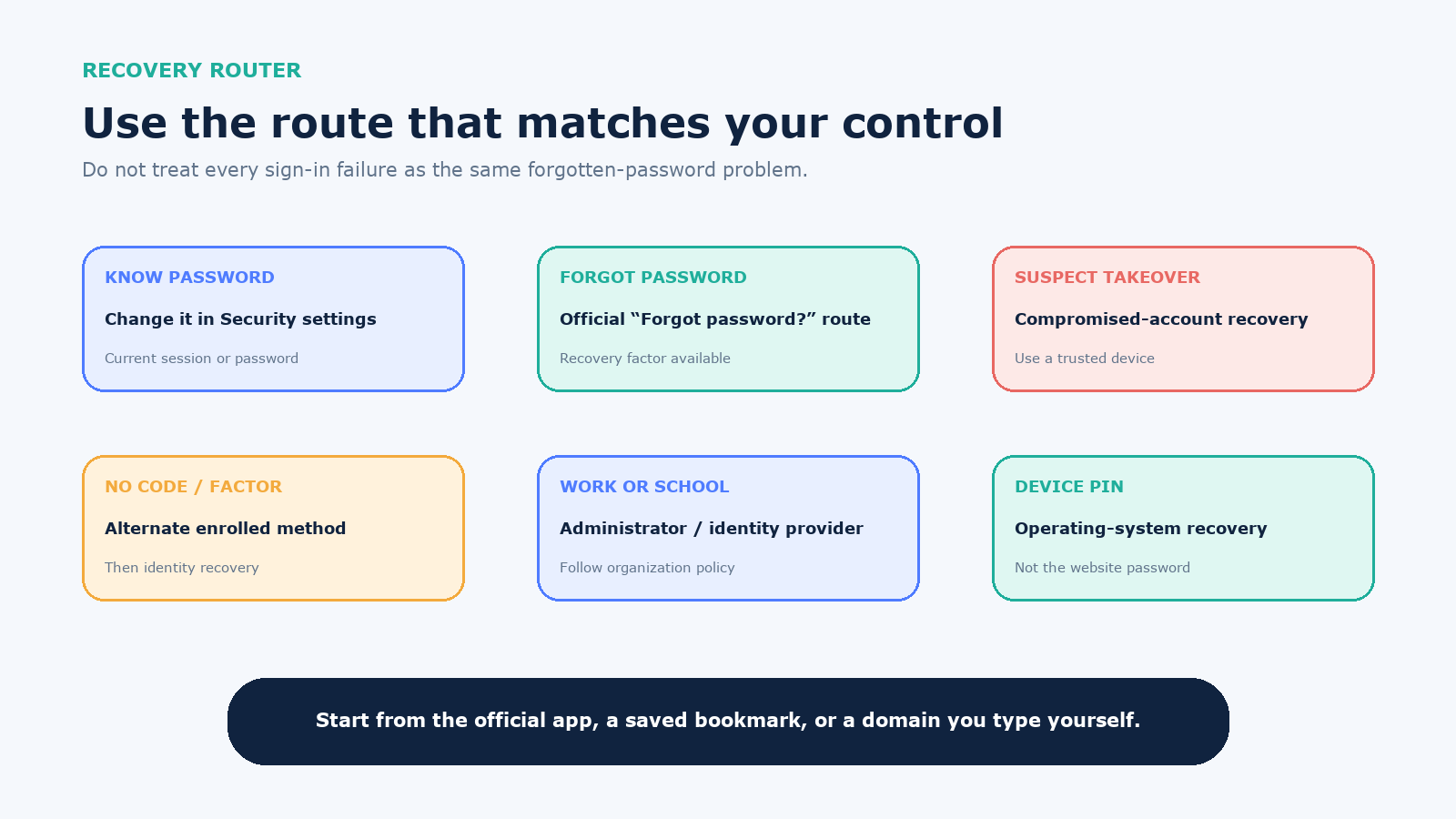
| Situation | Correct route | Do not do this |
|---|---|---|
| You know the password and are signed in | Use Security or Account settings to change it | Start account recovery unnecessarily |
| You forgot the password | Use Forgot password? at the official sign-in page | Use a reset link from an unexpected message |
| You suspect another person has access | Use the provider’s compromised-account route from a trusted device; preserve security alerts | Reset only the password and ignore sessions or recovery changes |
| You cannot receive the offered code | Use another previously enrolled method, recovery code, recognized device, or official identity-recovery process | Keep requesting codes or pay an unofficial “agent” |
| It is a work, school, child, or managed account | Use the administrator, identity provider, or designated guardian route | Remove management or create a competing personal recovery path |
| The device PIN or login is forgotten | Use that operating system’s device-recovery instructions | Assume a website password reset will unlock an encrypted device |
A password change usually begins with a valid signed-in session or current password. A password reset uses account-recovery evidence because the normal authenticator is unavailable. A device PIN, password-manager master password, recovery key, and online-account password may protect different layers; identify which prompt is actually rejecting you.
Start from a trusted entry point
A reset email can be both legitimate and easy to imitate. Prefer one of these starting points:
- Open the provider’s already-installed official app.
- Use a saved bookmark you created previously.
- Type the domain you already know into the browser, then navigate to sign-in.
- For a managed account, open the organization’s known portal or contact the help desk through a known directory.
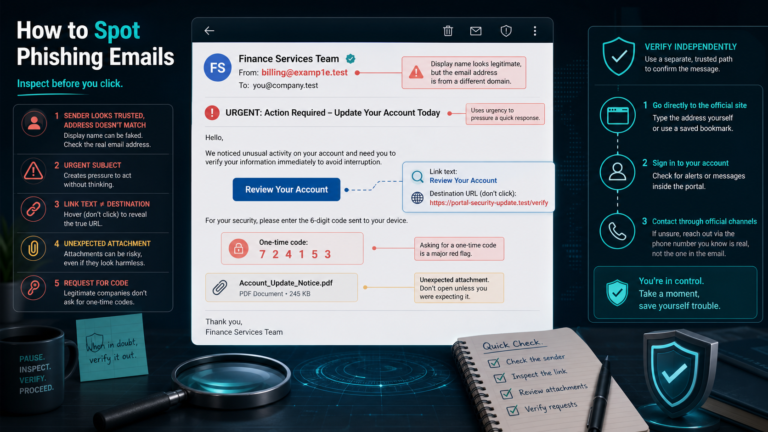
Check the complete domain before entering an account name or code. A padlock indicates an encrypted connection to the displayed domain; it does not prove the domain belongs to the brand you intended. Do not rely on the sender name, logo, urgency, or phone number inside an unsolicited message.
CISA’s Secure Our World guidance treats phishing recognition, strong unique passwords, multifactor authentication, and updates as connected protections. If the reset began after you entered credentials into a suspicious page, treat that as a possible compromise rather than an ordinary forgotten password.
Complete the reset without exposing the verification factor
- Enter the exact username, email address, or phone number associated with the account.
- Confirm any partially hidden recovery email or phone belongs to you. If it is unfamiliar, stop and use the provider’s compromised-account help.
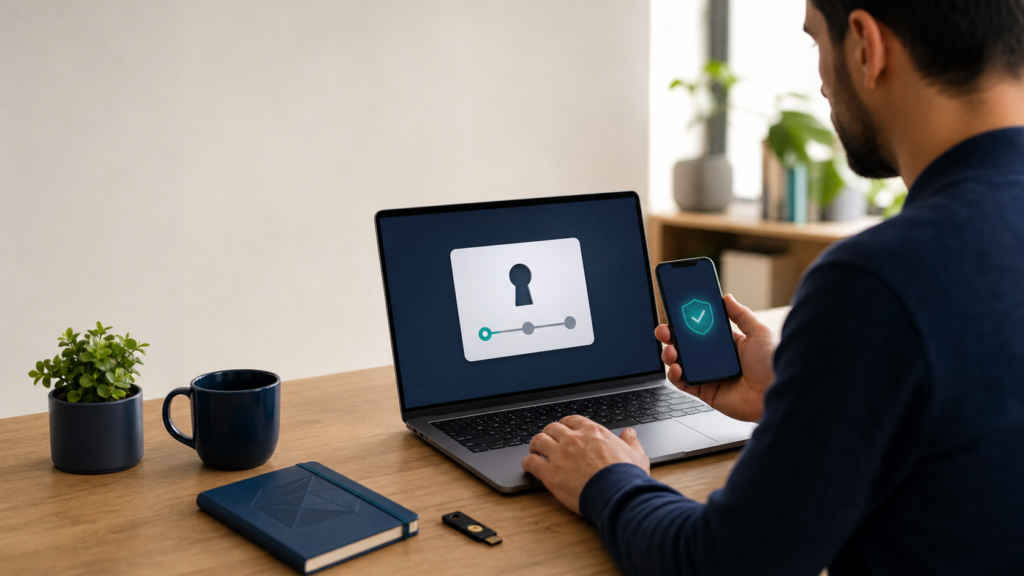
- Select the strongest recovery method you still control: an enrolled authenticator, security key, recognized device, recovery code, email, or SMS depending on what the service offers.
- Read the full verification message. Approve only the reset you initiated, for the service and device you expect.
- Enter the code only on the official page you opened. Support staff should not ask you to read it aloud or send it in chat.
- Create and save the new password, then complete any provider confirmation step.
Microsoft’s current consumer-account instructions, for example, separate changing a known password from resetting a forgotten one and require identity verification before a new password is set. Google’s recovery instructions similarly use account-specific questions and explicitly warn that Google does not work with services claiming to provide password or account support.
Create a new password that fixes the original weakness
Use a reputable password manager to generate and save a unique value for this account. Do not add a year or exclamation point to the old password, reuse the same password on another site, or put the service name in it. If a manager is not available and the service permits it, use a long, unique passphrase that is not a quotation, lyric, personal fact, or common sequence.
NIST SP 800-63B’s current password guidance requires at least 15 characters when a password is the only factor, permits an eight-character minimum when it is part of multifactor authentication, recommends support for at least 64 characters, and rejects mandatory character-mix rules. It also says providers should screen new passwords against commonly used or compromised values, permit password managers and paste, and avoid periodic changes unless there is evidence of compromise.
| Candidate | Problem | Better design |
|---|---|---|
| Old password plus a new digit | An attacker who knows the old value can predict the update | Generate an unrelated random password |
| One clever password for every site | One breach becomes access to several accounts | One unique password per account, stored in a manager |
| Short password with forced substitutions | Common substitutions are predictable | Prioritize length and uniqueness within the service’s rules |
| Password sent to yourself in email | The mailbox becomes the password store and reset channel | Use an encrypted password manager and secure its recovery |
| New password typed on a suspect device | Malware or remote access may capture the replacement | Reset from a trusted updated device, then investigate the suspect one |
If this password was reused, search the password manager or your own account inventory for the reused value. Change each affected account to a different generated password, prioritizing the primary email, password manager, identity provider, banking, cloud storage, and accounts that can reset others.
If no reset email or code arrives
Do not immediately request ten more messages. Work through the failure:
- Confirm the account identifier and make sure you are checking the correct recovery inbox or device.
- Search spam, junk, promotions, quarantine, and mail rules for the provider’s domain.
- Check whether the provider displayed a delivery delay or rate-limit message.
- Confirm the phone has service and can receive the required kind of message; do not move a SIM or change recovery data impulsively during a takeover.
- Use an already enrolled alternative or a saved recovery code.
- Try from a familiar device, browser profile, and location when the official recovery process recommends contextual evidence.
- If recovery details are unfamiliar, switch to the compromised-account path.
Expired links and codes should be replaced through a new request from the official page. Repeated attempts may trigger temporary limits. Google notes that some recovery options can be temporarily disabled after too many attempts and recommends accurate answers from a device used previously.
If the mailbox itself is inaccessible, recover that mailbox through its provider rather than asking the target service to send another message to an account you cannot control. If your phone number was unexpectedly deactivated or moved, contact the carrier through a known channel and protect financial and email accounts from a trusted device.
If you think the account was compromised
Use a clean, updated device. Resetting the password may stop a simple login, but an intruder can persist through active sessions, recovery methods, app passwords, delegated access, forwarding rules, API tokens, or a linked identity provider.
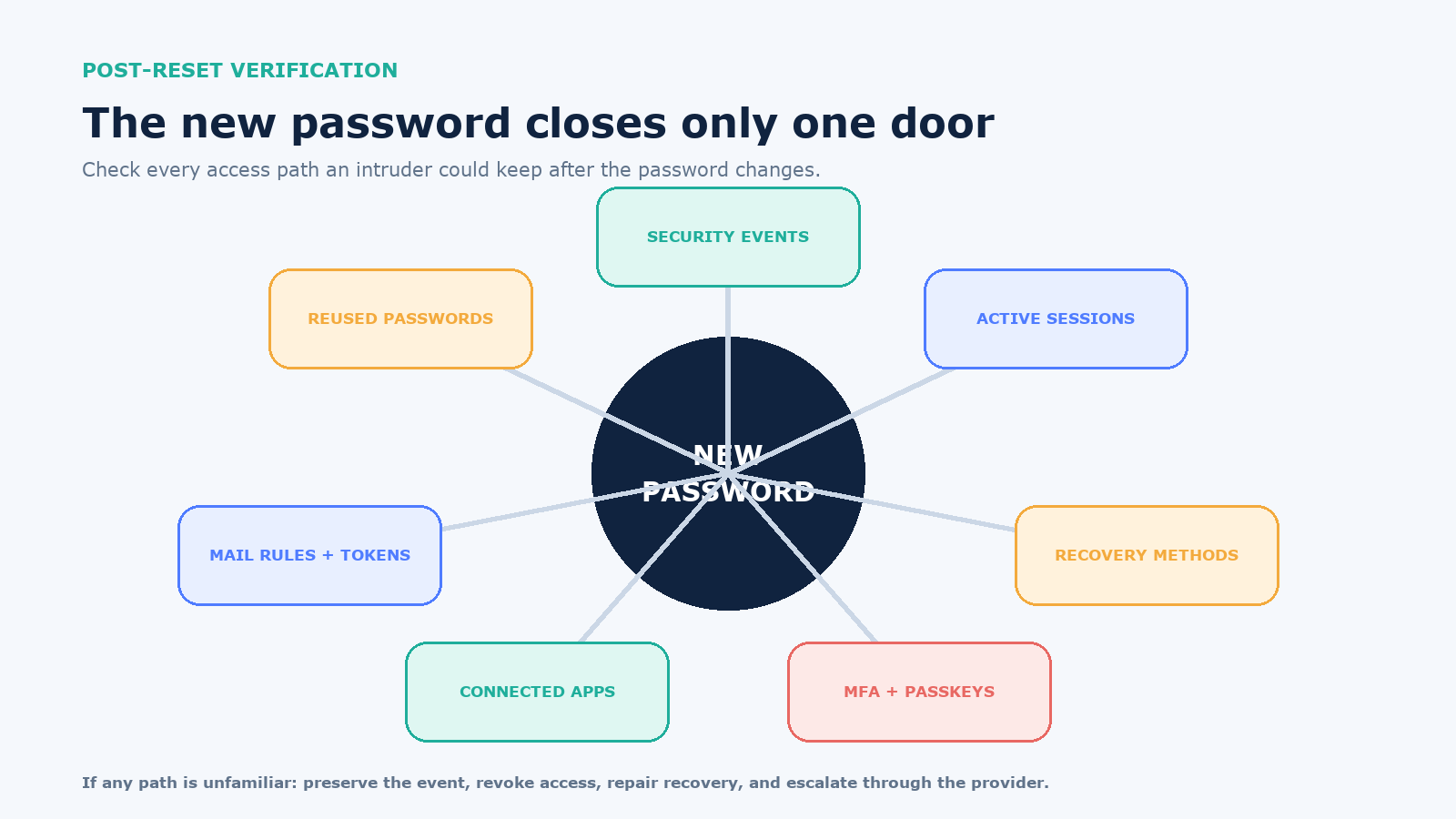
- Review security events: preserve alerts, sign-in locations, device names, timestamps, and changes you do not recognize.
- End sessions: sign out other sessions or remove unfamiliar devices. If the service offers both, do both.
- Repair recovery: remove unknown email addresses, phone numbers, passkeys, security keys, and recovery contacts.
- Rebuild MFA: confirm each enrolled factor, regenerate recovery codes when appropriate, and store them separately from the password.
- Revoke secondary access: inspect connected apps, app passwords, OAuth grants, API tokens, mail delegation, forwarding rules, filters, and automatic replies.
- Check consequences: review messages, purchases, files, ads, payment details, and profile changes; use the provider’s fraud or abuse process for unauthorized activity.
- Fix the source: update and scan devices, remove malicious extensions or apps, and change every account that reused the exposed password.
Google’s compromised-account guidance specifically calls for reviewing recovery details, recent activity, unfamiliar devices, connected apps, two-step methods, and Gmail settings. Other providers expose different controls, but the access paths are similar.
Handle work, school, and single-sign-on accounts through the owner
A work application may not store its own password. If the sign-in page redirects to Microsoft Entra ID, Google Workspace, Okta, another identity provider, or an internal portal, reset the identity-provider credential through the organization’s approved route. Resetting a local app password that is not used will not repair single sign-on.
Contact the help desk using a number or portal from the employee directory, intranet, badge, or onboarding material—not contact details inside a suspicious message. Be ready to provide the username, device asset tag, time of last successful login, exact error, and whether a security alert or suspicious approval request appeared. Never provide the password or one-time code.
After the administrator restores access, ask whether sessions, tokens, VPN certificates, managed devices, and connected applications were revoked. A reset can have wider operational effects, so report the incident rather than silently working around it.
Verify that the reset actually restored control
| Gate | Pass condition | If it fails |
|---|---|---|
| Official sign-in | The new password works at the manually opened service | Check the account identifier and provider status; do not repeat random resets |
| Session control | Only expected devices and sessions remain | Revoke all available sessions and use compromised-account support |
| Recovery ownership | Every recovery address, phone, key, and passkey is yours | Remove unfamiliar methods and preserve the change history |
| MFA | A second factor works and recovery codes are stored safely | Enroll a supported alternative before signing out |
| Secondary access | Apps, forwarding, delegation, and tokens are expected | Revoke unknown access and inspect activity |
| Reuse | No other account keeps the old exposed password | Rotate reused accounts in risk order |
When all six gates pass, record the account in the password manager and confirm that recovery contacts are current. Store recovery codes somewhere accessible if the normal device is lost, but not in the same unsecured place as the password.
If ownership verification fails, the legitimate alternatives are the provider’s recovery process, the account administrator, or—in some services—a new account and migration from data you still control. No outside party can safely guarantee a bypass. Stop when a person asks for your code, password, remote-control access, gift card, or payment to “unlock” the account.