The best Mac photo system uses one master library, a few purposeful albums, searchable metadata, and a backup that is separate from sync.
To organize photos on a Mac, keep one master library in Photos, correct dates and people before sorting, remove true duplicates, use albums for events or projects, use folders only to group albums, add a small reusable keyword set, and maintain a separate local backup even if iCloud Photos is enabled.
The goal is not to classify every image. It is to make an important photo findable in a few seconds and keep new photos from rebuilding the mess.

Choose one master library before sorting
First decide whether Apple Photos is your catalog or whether you intend to manage ordinary image files in Finder. Mixing both models casually creates uncertainty: you may not know which copy was edited, which folder is backed up, or whether deleting one version affects another device.
For most people using an iPhone and Mac, a single System Photo Library with iCloud Photos is the lowest-maintenance choice. Photos manages the library database, edits, people, albums, and sync. Check Photos > Settings > General to see the library location and System Photo Library status, then check the iCloud pane before moving or deleting anything.
If Photos is set to copy imported items into its library, do not keep a second “just in case” Finder tree on the same Mac unless it serves a deliberate export or backup purpose. If you use referenced files stored outside the Photos library, document that choice: Apple notes those files are not included when the library bundle itself is backed up.
Protect the library before you clean it
Sync and backup solve different problems. iCloud Photos keeps one current library consistent across signed-in devices. An edit or deletion can therefore appear everywhere. A backup preserves an earlier recoverable state.
Apple explicitly recommends a local photo-library backup even when iCloud Photos is active. Before a large cleanup:
- Let Photos finish syncing and confirm the expected item count and recent imports.
- Decide whether full-resolution originals exist on this Mac. Optimize Mac Storage may retain smaller local versions while originals remain in iCloud.
- Run a current Time Machine backup or make a manual library copy to a separate external drive.
- Back up referenced files separately if your library uses them.
Do not place a Time Machine backup on the same external drive that holds the live Photos library; Apple warns that library permissions may conflict. A second device or destination gives the backup an independent failure boundary.
Repair metadata before you build albums
Photos already groups and searches by date, location, people, pets, media type, captions, and detected content. Correct metadata makes all of those built-in views more useful and prevents you from compensating with dozens of manual albums.
Process the errors with the widest effect first:
- Wrong date or time zone: select the items and choose Image > Adjust Date and Time. This is common with scanned photos, exported images, or cameras whose clocks were wrong.
- Missing or incorrect location: open Info with Command-I, search for a location, or adjust the map pin. Review location privacy before sharing.
- Unnamed people or pets: confirm the most important identities first. Do not spend hours naming strangers in background shots.
- Hard-to-find scans or documents: add a short caption with names, an event, or context the image cannot reveal.
Batch changes are faster: select a group from the same event, open Info, and add shared details together. Keep captions human-readable. Use keywords for short reusable labels rather than turning captions into tag clouds.
Reduce clutter without deleting the wrong original
Open Duplicates under Utilities. Photos analyzes the library and presents detected duplicates for review; large libraries may take time before the collection appears. When you merge items, Photos keeps one item and moves the redundant copies to Recently Deleted, where they remain recoverable for a limited period.
Duplicate detection is not the same as choosing the best frame. Review bursts, screenshots, accidental videos, out-of-focus frames, and near-identical expressions separately. A safe culling order is:
- merge exact or clearly equivalent duplicates;
- review bursts and keep the strongest frame or short set;
- remove obvious mistakes and obsolete screenshots;
- mark exceptional images as Favorites;
- leave uncertain family or documentary images for a later pass.
A full backup makes this easier, but it is not permission to click “delete all” without review. With iCloud Photos, deletion synchronizes to other devices. Also distinguish Remove from Album from deleting a photo from the library: removing an item from a regular album leaves the library item intact.
Give each Photos organizing tool one job
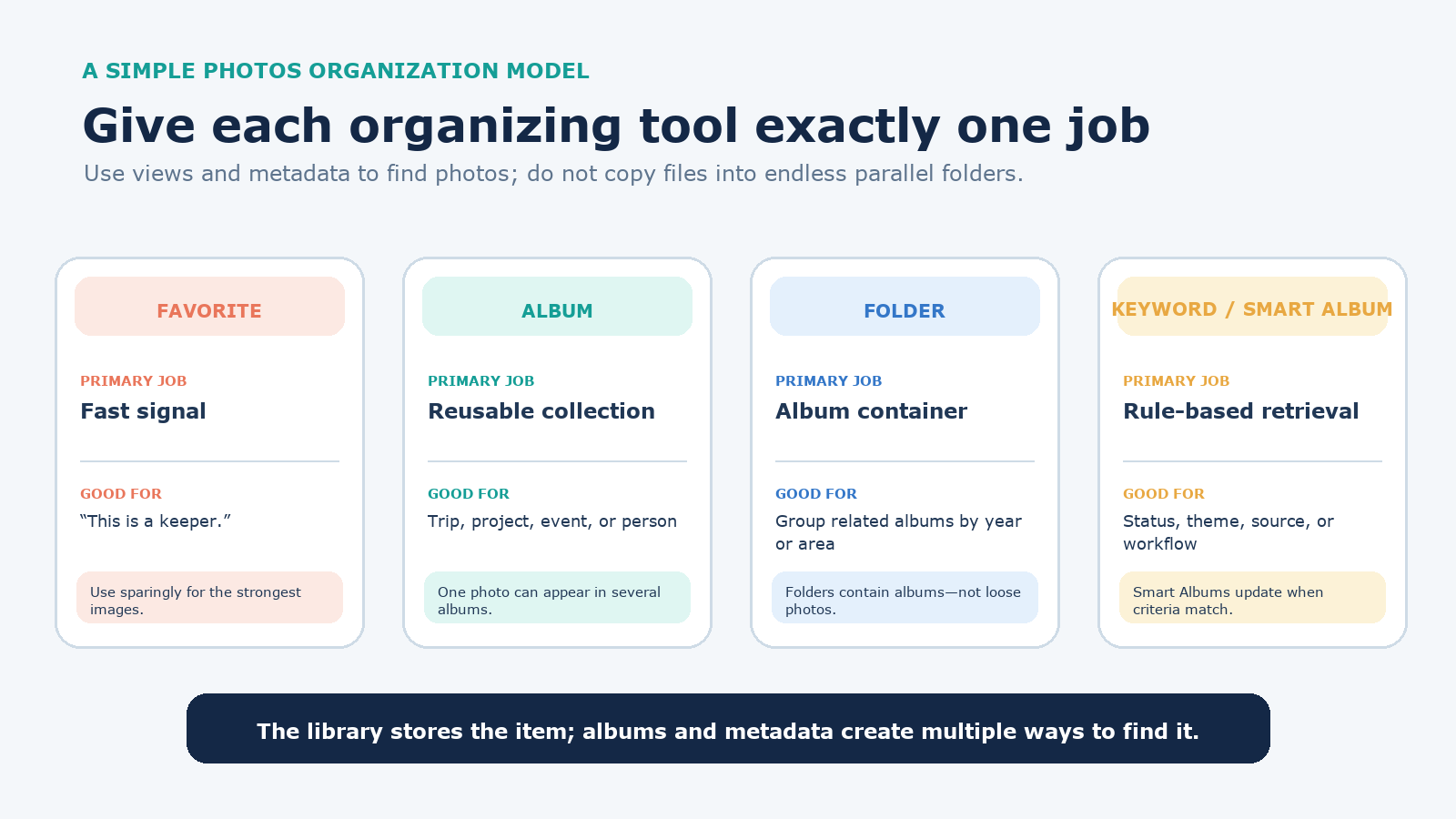
The same photo can appear in more than one album without creating another original. This is the central advantage of a catalog: organization is a set of views over one library, not a pile of copied files.
| Tool | Use it for | Avoid |
|---|---|---|
| Favorite | A quick, selective “best of library” signal | Favoriting every photo you merely want to keep |
| Album | An event, trip, client selection, project, or shareable set | Creating an album for every date already visible in Library |
| Folder | Grouping related albums, such as trips by year or work by client | Trying to place loose photos directly inside; Photos folders contain albums |
| Keyword | A reusable cross-cutting label such as “scanned,” “portfolio,” or “needs review” | Dozens of synonyms and one-time tags |
| Smart Album | An automatic view based on rules such as keyword, date, favorite, camera, or media type | Depending on it as a cross-device album; Mac-created Smart Albums do not appear on iPhone or iPad |
Build a small structure that can grow
Start with fewer containers than you think you need. Photos already exposes years, months, trips, people, places, screenshots, videos, and other media types. Manual structure should cover the retrieval needs those automatic views do not.
A practical starter blueprint might look like this:
- 00 Review — a temporary album for items that need a decision;
- Family — a folder containing albums only for meaningful events or curated collections;
- Trips — a folder with albums named
2026-04 Kyotoor2026-08 Yunnan; - Projects — a folder for work, renovations, products, or creative series;
- Archive Context — albums for scans, documents, or inherited collections whose dates need explanation.
Use YYYY-MM Event names when chronological sorting helps. Do not mirror the same hierarchy across people, places, years, and themes. Add one photo to multiple albums when it genuinely serves multiple uses.
Reserve keywords for concepts that cut across albums. Five to ten stable terms are usually more useful than fifty improvised ones. Photos’ Keyword Manager can place frequent labels in a Quick Group and assign keyboard shortcuts. A Smart Album can then gather “needs review” items automatically and empty itself as you remove that keyword.
Maintain the library in 15 minutes a week
Organization fails when it requires a heroic cleanup. A short weekly pass keeps the intake queue small enough to review with care.
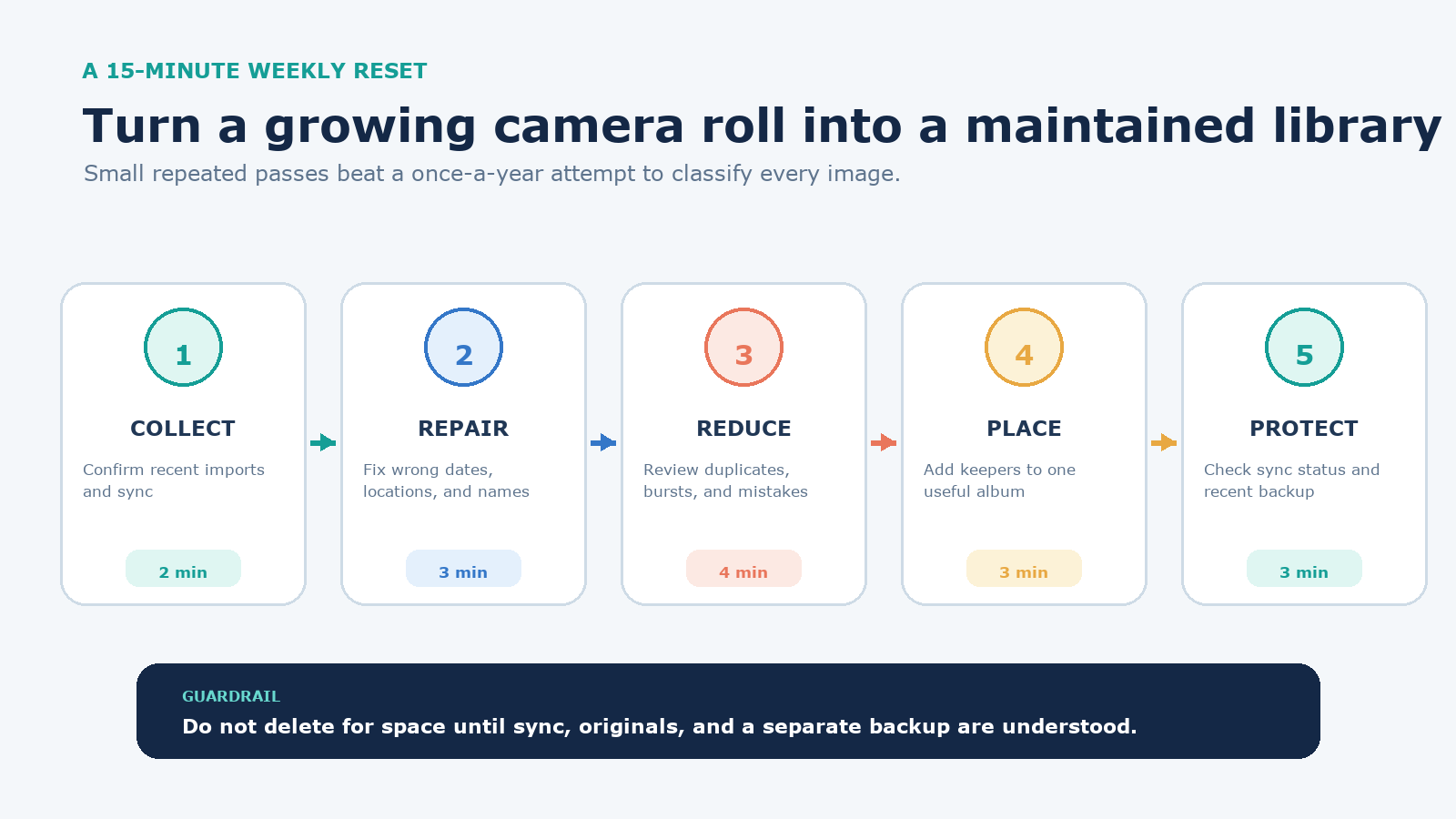
- Collect for two minutes: confirm recent imports and sync status.
- Repair for three: correct obvious dates, locations, or important names.
- Reduce for four: review duplicates, bursts, screenshots, and mistakes.
- Place for three: add keepers to one useful album and apply a workflow keyword only when needed.
- Protect for three: confirm sync completed and check that the latest backup ran successfully.
Once a month, review the temporary “00 Review” album, merge overlapping albums, and delete empty containers. Deleting an album removes the view, not its photos; deleting a folder removes the albums within it but leaves their library items. Use Undo immediately if you remove the wrong container.
Treat storage choices as infrastructure, not organization
Download Originals to this Mac keeps full-resolution items locally and in iCloud but requires enough Mac storage. Optimize Mac Storage can retain smaller local versions when space is tight while originals remain in iCloud. Neither option changes whether the library is well organized.
Do not delete originals merely to free space until you understand which device owns the full-resolution copy, whether iCloud sync is active, and whether an independent backup is current. If the library is too large for the internal drive, Apple supports placing a Photos library on a properly formatted external storage device, but the live library and its backup still need separate destinations.
Begin today with one safe action: verify the library location, iCloud setting, and latest backup. Then create only the albums you can name from real retrieval needs. A smaller structure that you maintain is more valuable than a perfect taxonomy abandoned after one weekend.
If documents are mixed into your photo workflow, keep editable files in a document system rather than treating Photos as a filing cabinet; for a common Mac document task, see how to edit a PDF on Mac for free.