A provider-aware password change runbook that covers the main credential, app access, active sessions, recovery routes, and post-change verification.
Does changing an email password remove every other person, phone, and mail app from the account? Not necessarily. Change your email password from the provider’s official account-security page, save a new unique password, then review sessions, recovery methods, forwarding rules, and app-specific passwords.
The last four checks matter because an email account is more than a password. A device may hold an active session, an older mail client may use a separate app password, and an intruder may have added a forwarding rule or recovery address. The safest procedure therefore depends on why you are changing the credential:
- Routine change: you know the current password and have no sign of intrusion. Preserve working access while rotating the credential cleanly.
- Forgotten password: use the provider’s official recovery process instead of a normal change screen.
- Suspected compromise: treat the password change as the first containment step, not the finish line.
The email credential map
Before changing anything, identify the four access layers around the mailbox. This prevents a successful password change from being mistaken for a complete security reset.
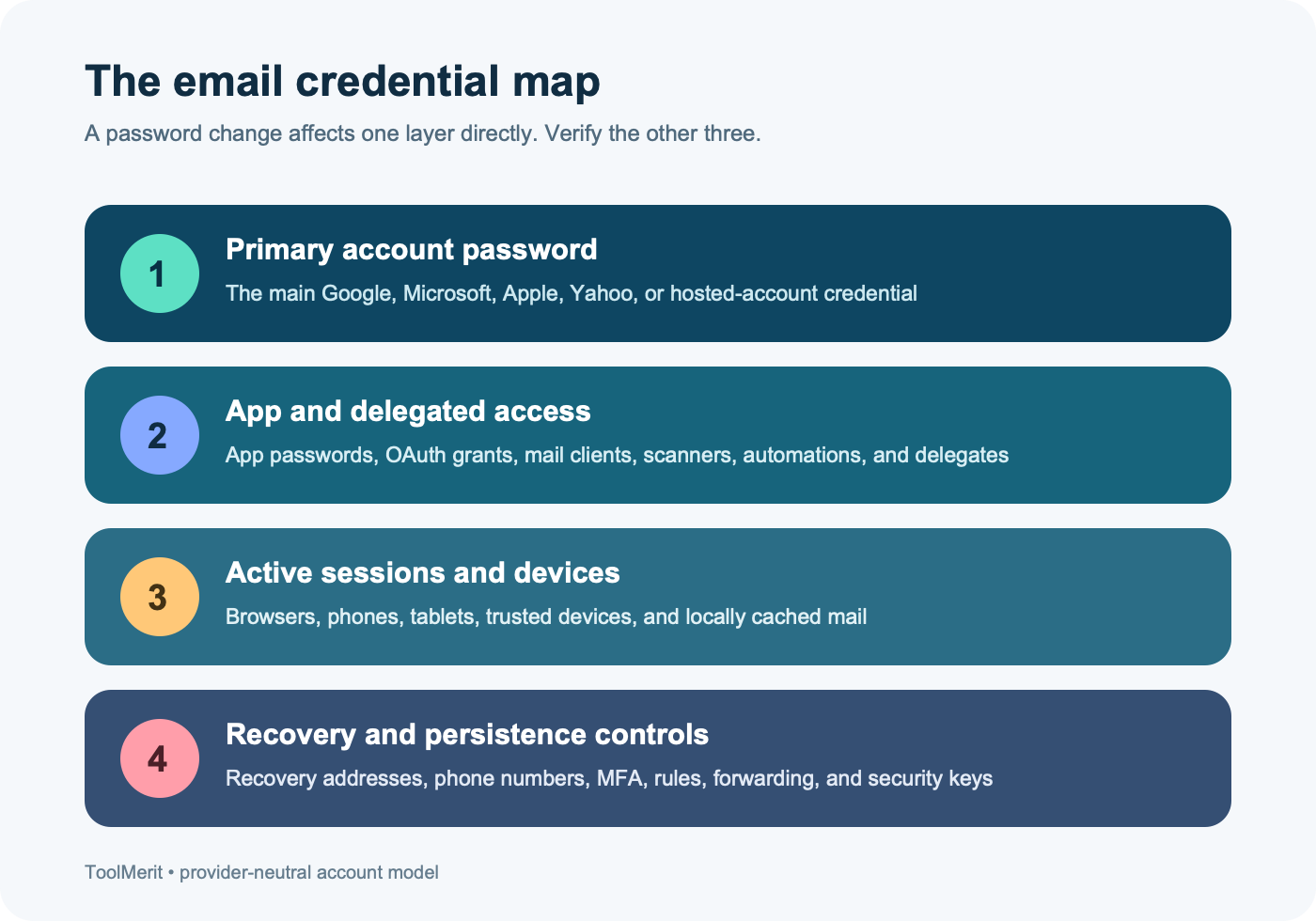
- Primary account password. For Gmail, Outlook.com, iCloud Mail, and Yahoo Mail, the mailbox usually uses the password of the larger Google, Microsoft, Apple, or Yahoo account. Changing it may affect other services under that identity.
- App access. A desktop mail client may use an app-specific password or a provider authorization token rather than the primary password. Changing the primary credential does not produce identical results across providers.
- Active sessions. A browser or app can remain authenticated with a session token. Our guide to session cookies and login lifetime explains why closing or changing a password form is not the same as invalidating every session.
- Recovery and control paths. Recovery email addresses, phone numbers, security keys, trusted devices, delegated mailbox access, filters, and forwarding rules can all affect who controls the account.
Change versus reset: a change normally starts while you are signed in and can provide the current password. A reset starts when you cannot authenticate and must prove ownership through recovery methods. Use the normal change route when it is available; use recovery only when it is necessary.
Before you touch the password
A two-minute preparation step reduces lockouts and makes the result easier to verify.
- Start from a device you trust. Type the provider’s account address yourself or open it from a known bookmark; do not use a password-change link from an unexpected email or text.
- Confirm that you can still receive a verification code through at least one recovery method you control.
- List the places that read this mailbox: phone, tablet, desktop client, calendar app, scanner, automation, and any shared or delegated mailbox.
- Generate a password that is long, unique to this account, and accepted by the provider. A password manager can generate and store the new credential without encouraging a memorable pattern or password reuse.
- Keep the current session open until the new password has been saved and one fresh sign-in has succeeded.
If the change follows an unfamiliar login, unexpected sent mail, a stolen device, or repeated security alerts, do it from a different trusted device when possible. If the device itself shows signs of infection, use the separate malware cleanup and recovery plan before trusting it with the replacement password.
On a Mac, use the Mac malware-check workflow when the warning signs are device-specific and you need a diagnostic route before changing credentials.
Provider route matrix
The exact labels can move, but the ownership boundary is stable: change the password at the account provider, not inside a generic mail composition screen. These routes were checked against provider documentation on August 18, 2026.
| Mailbox | Credential owner | Official starting route | Important distinction |
|---|---|---|---|
| Gmail | Google Account | Google Account → Security & sign-in → Password | The password also opens other Google products. Google documents several exceptions to its normal post-change sign-out behavior. |
| Outlook.com / Hotmail | Microsoft personal account | account.microsoft.com → Security → Change password | A work or school Microsoft account follows the organization’s reset or administrator route instead. |
| iCloud Mail | Apple Account | Trusted Apple device → Sign-In & Security → Change Password | Apple prefers a trusted device. Stolen Device Protection can impose a security delay for critical changes. |
| Yahoo Mail | Yahoo Account | Yahoo Account security → Ways of signing in → Password | If Account Key is enabled, Yahoo says the password option may not appear until Account Key is disabled. |
| Work, school, ISP, or custom-domain mail | Organization, host, or identity provider | Use the organization’s account portal or contact its administrator | The visible email address may be an alias while authentication belongs to a different account or single sign-on system. |
An address that receives mail is not always a separate login. If you use multiple addresses for one inbox, first determine whether the address is an email alias or an independent account. Changing a password on the wrong identity can leave the intended mailbox untouched.
Password change runbook
Route A: a planned change
- Open the official account-security page. Reach it through the provider’s site or device settings, not through an unsolicited message.
- Re-authenticate. The provider may ask for the current password, a trusted-device approval, a passcode, or another factor.
- Create and save the replacement. Use a unique generated value. Save it in the intended password manager entry before leaving the page, and check that the entry belongs to the correct account.
- Complete the change once. Avoid repeatedly submitting different passwords. Multiple incomplete attempts make it harder to know which credential was accepted.
- Make one fresh web sign-in. Open a private browser window, type the provider’s official address, and sign in with the new credential. This separates a new authentication from the session that performed the change.
- Update only the clients that need it. Some modern apps use authorization tokens and continue to work; others request the new password or a newly generated app password. Do not replace working OAuth access with a weaker legacy setup just to force a prompt.
Route B: suspected account compromise
- Use a trusted device and network. If the usual device may be compromised, do not type the new password into it yet.
- Change or recover the account immediately. If someone already changed the password, use the provider’s official recovery page.
- Correct recovery details. Remove any phone number, recovery address, security key, trusted device, or two-factor method you do not recognize.
- Review mailbox controls. Inspect forwarding, filters, rules, delegates, connected apps, POP/IMAP access, and sent or deleted mail. An attacker may create durable access or quietly redirect future messages.
- End unwanted sessions. Use the provider’s device or session controls. Where a global sign-out is separate from the password change, invoke it explicitly.
- Rotate reused credentials. If the old email password was used on any other site, replace it there too, beginning with accounts that can reset other accounts or move money.
Session and app access sweep
Do not assume every provider invalidates the same access after a password change. Use the provider’s device, session, and connected-app pages to verify the actual state.
| Provider | Documented post-change behavior to plan for | Action after the change |
|---|---|---|
| Google says a password change signs the account out in most places, but excludes devices used for identity verification, some third-party apps with account access, and certain helpful home devices. Google also says its app passwords are revoked after the main password changes. | Review devices and third-party access; create a replacement app password only for a necessary compatible client. | |
| Microsoft | Microsoft provides a separate “Sign out everywhere” control and says completion can take up to 24 hours; its documentation excludes Xbox from that global action. | Use the separate global sign-out when containment is required, then inspect account activity and devices. |
| Apple | Apple says changing or resetting the primary Apple Account password automatically revokes all app-specific passwords. | Review the device list, remove unfamiliar devices, and issue new app-specific passwords only for third-party clients that still need them. |
| Yahoo or another provider | Do not infer behavior from another service. Passwordless options, app passwords, sessions, and connected clients are provider-specific. | Open the account-security dashboard and inspect recent activity, connected apps, devices, and recovery methods directly. |
A mail app that still displays old messages is not proof that it can still reach the server; the messages may be cached locally. Conversely, a working inbox does not prove that an unwanted browser session was closed. Force a refresh or send a controlled test message before drawing a conclusion.
Failure diagnosis table
| What you see | Likely cause | Safest next action |
|---|---|---|
| The new password works on the web but not in a mail app | The app holds the old password, needs a new app-specific password, or has a broken authorization token. | Confirm the provider’s supported sign-in method. Update the saved credential, reauthorize the account, or remove and re-add it only after confirming mail is present on the server. |
| The provider says the new password is wrong everywhere | The change did not finish, the password manager saved the wrong entry, the wrong account was changed, or typing/copying altered the value. | Check the exact account identifier and saved entry. If a fresh official sign-in still fails, use the provider’s recovery route instead of guessing repeatedly. |
| There is no password-change option | The account may use a passwordless mode, Yahoo Account Key, organization-managed authentication, or single sign-on. | Identify the credential owner in the provider route matrix. Follow its security settings or contact the account administrator. |
| A device keeps asking for the old password | A stale credential is stored in the mail client, operating-system account store, calendar, contacts sync, scanner, or automation. | Find which client is generating the prompt, update that one credential, and avoid changing the account password again. |
| Another device still shows the inbox | It may have a valid session or merely a local cache. | Refresh the mailbox, inspect the provider’s device/session list, and revoke the device if it should no longer have access. |
| Recovery codes or prompts do not arrive | The recovery method may be unavailable, changed, delayed, or controlled by someone else. | Stop repeated requests, use another provider-offered method, and complete the official account-recovery flow from a familiar device and location. |
If the old password is rejected or the account is already locked, switch to the safe password-reset workflow instead of repeating guesses in the change form.
For a broader device check before cleanup, use the malware scanning and result-reading guide to choose a scan depth and interpret detections safely.
Verify the result with a two-device test
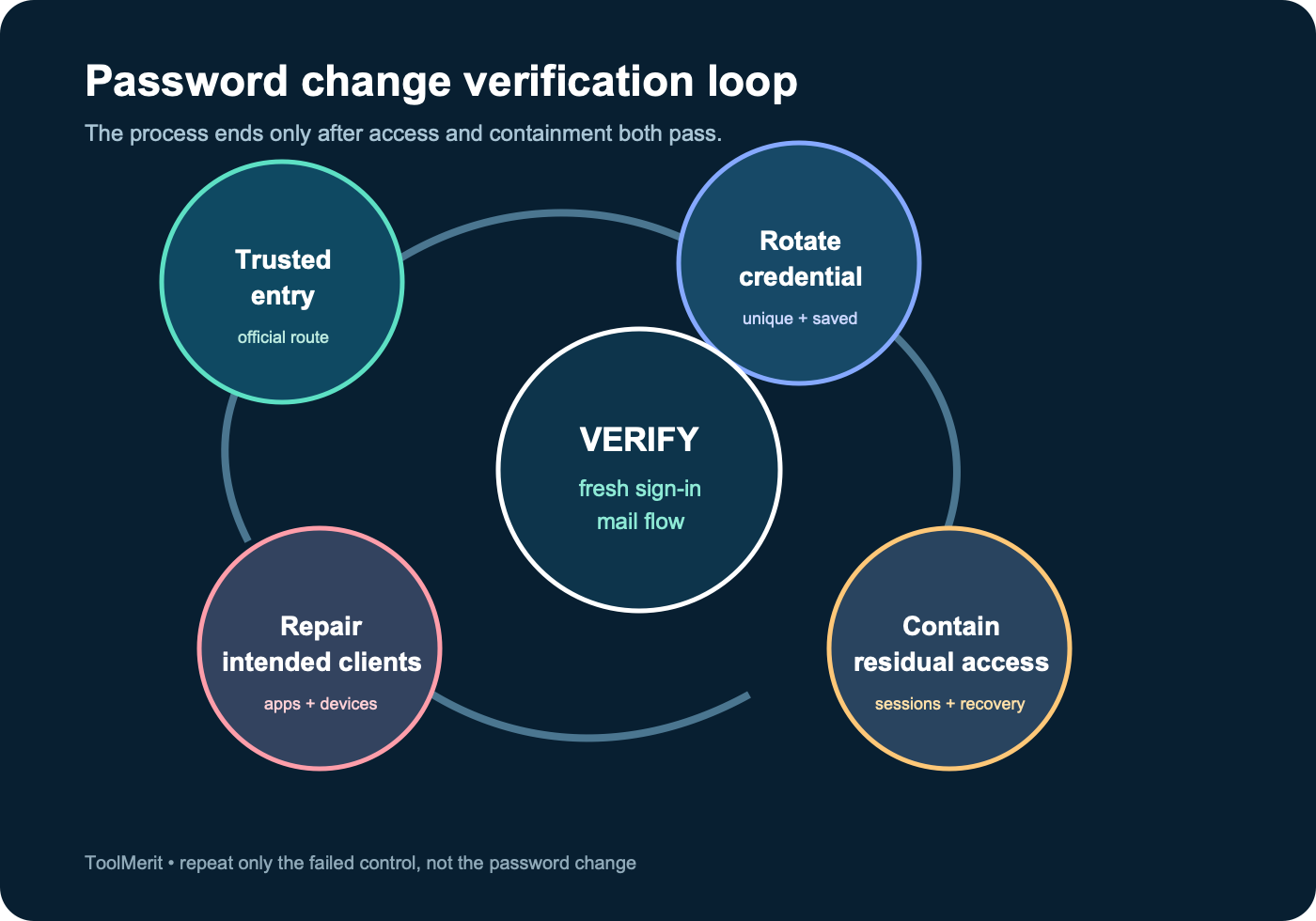
A password change is complete only when you can show both restored access and removal of unwanted paths. Use this bounded verification sequence:
- Fresh authentication: sign in through the official website in a private browser window with the new password and the expected second factor.
- Mail flow: send a harmless message to a second address you control, reply from that address, and confirm both directions without exposing sensitive content.
- Intended client: refresh one phone or desktop client that should keep access. Repair its authorization only if it fails.
- Unwanted access: verify that lost, sold, shared, or unfamiliar devices have been removed from the provider’s device or session list.
- Persistence controls: confirm recovery methods, two-factor methods, forwarding, rules, delegates, app passwords, and connected apps.
- Record: keep only the new credential in your password manager and note any clients that received a new app-specific password. Never store the password itself in an unencrypted checklist.
Do not test containment by giving the old password repeated attempts on the live account. A continuing session, a cached inbox, and a valid primary password are three different things; the provider’s security dashboard is the authoritative place to inspect the first two.
When a password change is not enough
Changing a password cannot make an untrusted device clean, reclaim a phone number controlled through SIM fraud, undo messages already read, or invalidate a recovery method you did not review. Escalate beyond this runbook when the account belongs to an employer, contains regulated or legally sensitive information, controls financial accounts, or remains inaccessible after official recovery. An administrator or provider support channel may need to preserve logs, reset organization sessions, or restore policy-controlled access.
For the longer term, enable a strong second factor and consider whether the provider supports a phishing-resistant sign-in method. A passkey changes how authentication and recovery work, so set up its recovery route before treating it as the replacement for a password. The risk boundary is simple: a new password protects only the credential you changed; account control requires the sessions, recovery paths, devices, and mailbox rules to agree with it.
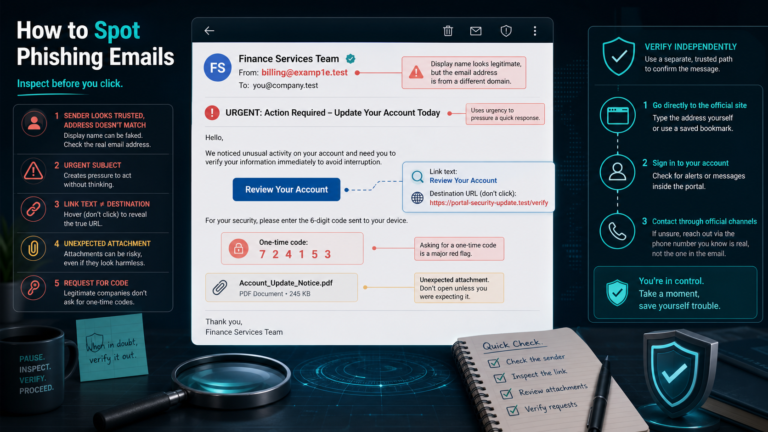
When the incident began with a message or sign-in link, run the phishing-email inspection checklist so the same lure does not capture the new password.