A practical explanation of encrypted password vaults, autofill, recovery, browser and standalone options, and a staged plan for replacing reused passwords.
A password manager is not simply a document that hides a list of passwords. A well-designed one changes how credentials are created, stored, retrieved, and matched to accounts.
A password manager is software that creates, stores, and autofills unique passwords from an encrypted vault. You unlock the vault with a master password, passkey, biometric, or another supported method, so you do not have to remember every account password.
The important trade is not “many passwords versus one password.” It is repeated, human-made credentials versus unique machine-generated credentials protected by a vault, device controls, recovery plan, and usually multifactor authentication.
What a password manager actually does
Most password managers combine several jobs that are easy to confuse:
- Generate: create a different random password for each website or app.
- Store: keep credentials and notes inside an encrypted vault instead of an ordinary text file.
- Retrieve: unlock the vault on an approved device when a credential is needed.
- Match and fill: offer a saved login for its associated website or app rather than making you retype it.
- Monitor: depending on the product, flag reused, weak, or known-compromised credentials.
Some managers live inside a browser or operating-system account. Others are standalone services with browser extensions, desktop apps, and mobile apps. A third group stores a local database that the user syncs and backs up. These designs shift responsibility; they do not eliminate it.
Follow one password through the vault
Suppose you create an account at a new store. In a typical end-to-end encrypted manager, the flow looks like this:
- The generator creates a random, site-specific password.
- The manager saves the account name, website, username, and password in the vault. The client encrypts protected vault data before a cloud copy is stored.
- An encrypted copy can sync to your other approved devices.
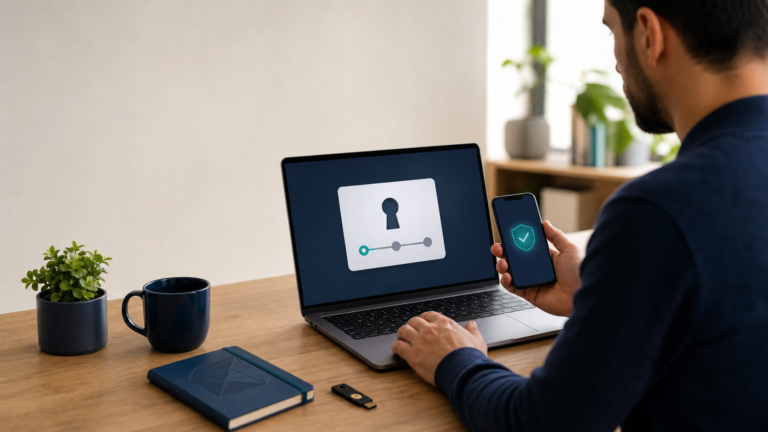
- You unlock the vault on a device using the method supported by that manager. A biometric commonly unlocks a local client; it does not necessarily replace the account’s master secret or recovery process.
- On the matching store domain, the manager offers the saved credential. The store receives its own password—not the contents of the rest of the vault.
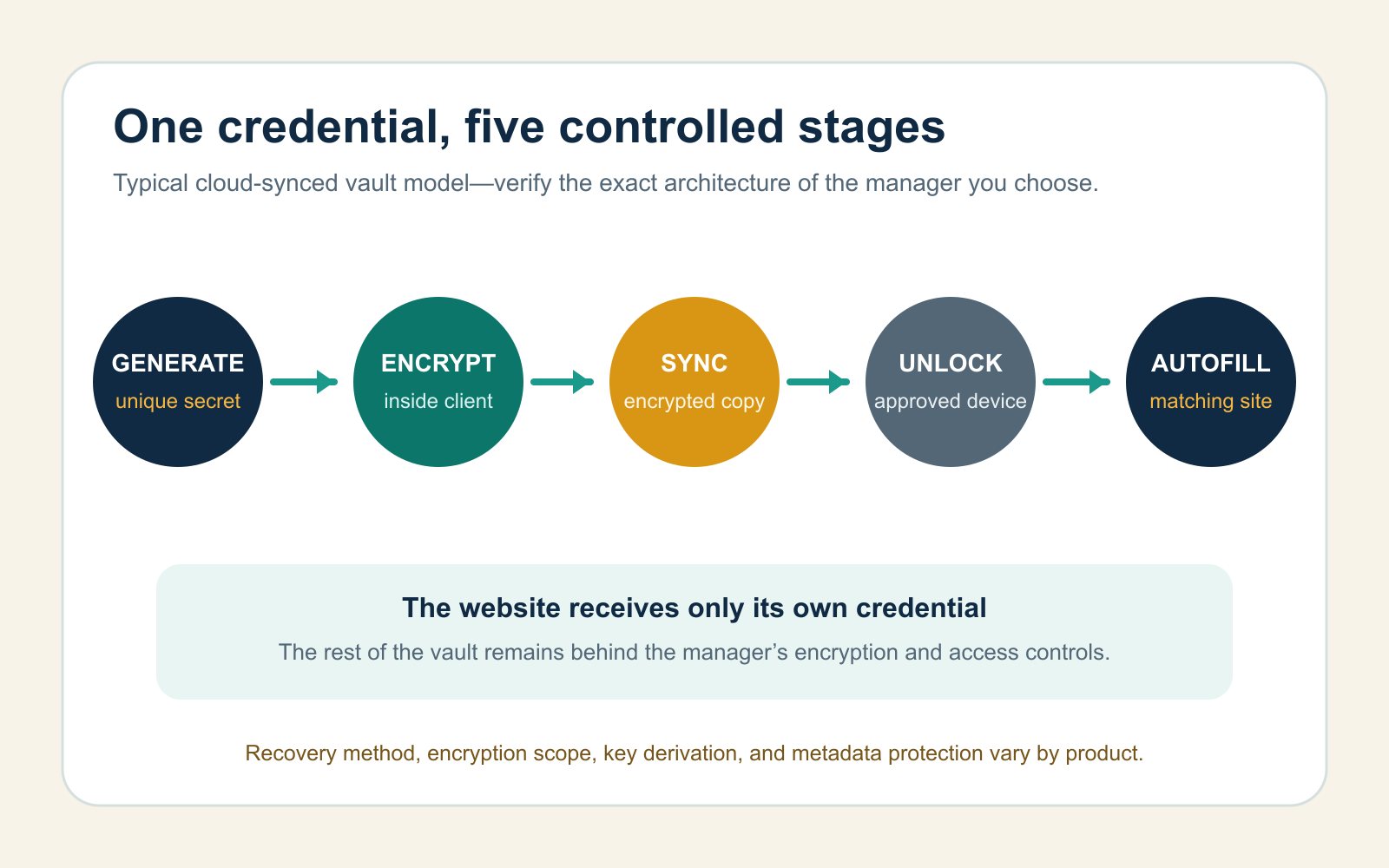
That description is a model, not a promise that every product implements it equally well. For example, Bitwarden documents client-side encryption and a zero-knowledge design for its own vault. When evaluating a different manager, verify its architecture, audits, update record, recovery rules, and exact list of encrypted metadata in that manager’s documentation.
Why unique passwords change the failure boundary
Password reuse turns one website breach into a key for other accounts. Attackers can try a leaked email-and-password pair against email, shopping, social, and financial services—a pattern called credential stuffing. A password manager makes it practical to give every account a different random password, so one stolen credential should not unlock the others.
Current NIST authentication guidance requires services to allow password managers and autofill and notes that managers with generators can increase the likelihood of stronger password choices. The gain comes from uniqueness and generation, not from hiding a reused password behind a vault.
What a password manager protects—and what it does not
| Threat | How the manager helps | Remaining boundary |
|---|---|---|
| Password reuse after one site is breached | Generates a unique password for every account | You must replace existing reused passwords; storing the old duplicates does not fix them |
| Guessable human patterns | Generates random credentials without a memory burden | The vault’s own master passphrase still needs to be long, unique, and protected |
| Look-alike phishing website | Domain-aware autofill may withhold a credential when the saved domain does not match | Passwords themselves are not phishing-resistant; manual copy-and-paste or an approved look-alike domain can still defeat the cue |
| Stolen locked device | Vault lock, device lock, and encryption add barriers | A weak device PIN, exposed recovery method, or already-unlocked vault changes the outcome |
| Malware or remote control on the device | May reduce typing and clipboard exposure | Malware operating in a trusted session can capture input, read an unlocked vault, or misuse the browser |
| Vault provider breach | Strong end-to-end encryption can keep stolen vault data unreadable without the key | Security depends on implementation, master-secret strength, key derivation, metadata protection, and timely fixes |
| Forgotten master secret or lost recovery method | Some products provide recovery kits, emergency access, or organization-admin recovery | Other zero-knowledge designs cannot reset or recover the vault; the rules must be understood before migration |
The manager therefore reduces many-password failure while concentrating value in the vault. That concentration is manageable only if the vault account and endpoint devices receive stronger protection than an ordinary low-value account.
Choose the type that fits your devices
| Type | Usually fits | Main tradeoff to check |
|---|---|---|
| Browser or operating-system manager | One person who stays mainly inside one browser or device ecosystem | Cross-platform sync, shared-device profiles, export options, and what protects the ecosystem account |
| Standalone cloud-synced manager | Mixed browsers and operating systems, families, or teams that need controlled sharing | An additional high-value account and vendor; verify encryption design, MFA, recovery, audits, and incident response |
| Local database manager | A technically confident user who wants to control the vault file and sync path | You own backups, conflict handling, updates, device transfer, and disaster recovery |
ToolMerit’s view: start with the simplest manager that works on every device you actually use and that has a recovery model you can explain. A theoretically stronger setup that you cannot update, sync, or recover reliably can become the weaker real-world system.
Migrate in control-plane order
Do not import everything and assume the job is finished. First establish the vault, then secure the accounts that control recovery for other accounts.
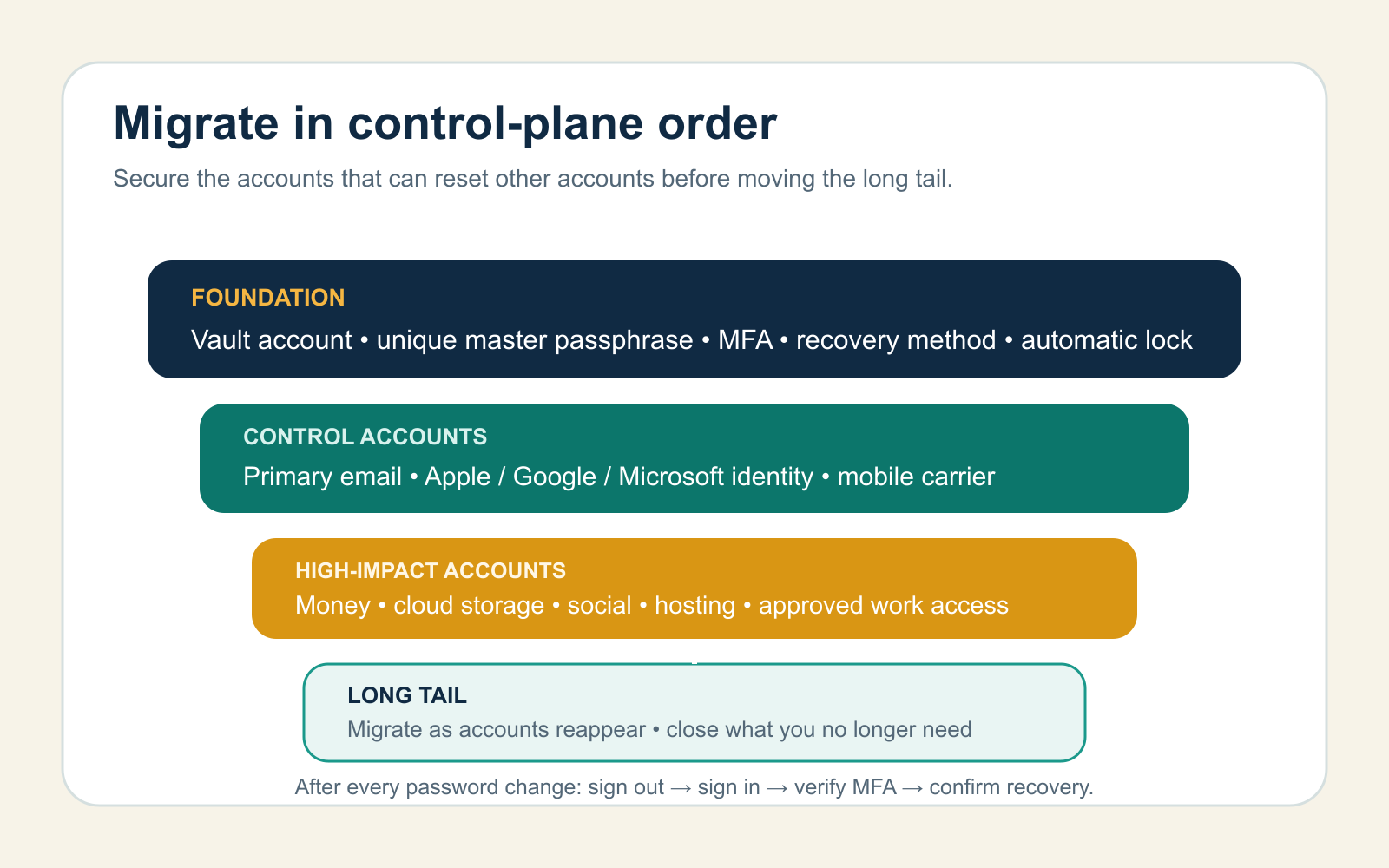
- Build the vault foundation. Choose a unique master passphrase, enable the manager’s strongest practical MFA, record the recovery method, and set a short automatic-lock interval.
- Secure recovery accounts. Change the password for your primary email and major Apple, Google, or Microsoft identity account. Add MFA and save recovery codes outside the only device you use daily.
- Secure high-impact accounts. Move financial, cloud-storage, mobile-carrier, social, and domain or hosting accounts one at a time. Use the organization-approved manager for work credentials.
- Clean up the long tail. Let normal logins reveal forgotten accounts. Replace duplicates as you encounter them and close accounts you no longer need.
After each change, sign out and test the new login before deleting the previous record. Imports can accelerate migration, but CSV and JSON exports may be plaintext depending on the product. Never email an unencrypted export or leave it in a synced downloads folder; follow the old and new managers’ export instructions.
Decide where the second factor lives
Many managers can also store time-based one-time password (TOTP) seeds and fill six-digit codes. Keeping password and TOTP in one vault is convenient and may increase MFA adoption, but a fully compromised unlocked vault can expose both factors. Keeping TOTP in a separate authenticator improves fault isolation but adds another backup and recovery system.
For ordinary personal accounts, integrated TOTP may be a reasonable convenience trade when the vault itself has strong MFA. For the vault account, primary email, financial administration, domain control, and high-impact work access, prefer a separate phishing-resistant factor such as a supported security key or passkey when available. A passkey is an authentication credential; a password manager is the system that may store passwords, passkeys, or both.
Run a recovery test before trusting the vault
A setup is not complete until you can answer these questions without opening the vault’s own notes:
- Can you unlock it after the app has been fully locked—not merely minimized?
- Can an approved second device reach the synchronized vault?
- Where are the manager’s MFA recovery codes or emergency instructions stored?
- What exactly happens if the master passphrase is forgotten?
- Can you create an encrypted backup or safe export, and can you restore it?
- Does autofill stay silent on a deliberately different test domain?
Fix any failed answer before adding more credentials. Then migrate the primary email account first, verify its login and recovery path, and continue outward in control-plane order. The vault becomes useful when it replaces reuse with verified unique credentials—not when it merely becomes a larger list.