Follow a passkey from creation through sign-in, then choose its storage location and build a tested recovery route before relying on it.
A passkey is a sign-in credential based on a cryptographic key pair. The service stores a public key; your device or credential manager controls the private key and uses it only after you unlock it with a device PIN, fingerprint, or face. The biometric is not sent to the website. Because the credential is bound to the legitimate site and you never type a reusable secret, passkeys resist phishing and password reuse. A passkey may sync across devices or stay on one device or security key, so recovery depends on where it is saved.
In plain English, a passkey changes the proof you give a website. A password asks you to reveal the same secret again. A passkey asks your authenticator to produce a new cryptographic answer for this site and this sign-in attempt. You approve the action locally, but there is no passkey string to memorize, paste, read to support, or type into a look-alike page.
Follow the two ceremonies: create and sign in
The term makes more sense when registration and sign-in are kept separate. The FIDO Alliance describes passkeys as FIDO credentials built on the FIDO2 standards, including WebAuthn for browser interactions. The user-facing button is simple, but two different exchanges happen behind it.
- Registration begins with an authenticated account. You are creating a new account or have already proved control of an existing one. The service asks your device or chosen credential manager to create a passkey for its domain.
- The authenticator creates a key pair. The public key and a credential identifier go to the service. The private credential material stays under the control of the authenticator or passkey provider; a synced provider may protect and synchronize it between your approved devices.
- A later sign-in starts with a fresh challenge. The service sends unpredictable data and identifies the legitimate relying party. Your device offers only credentials valid for that site.
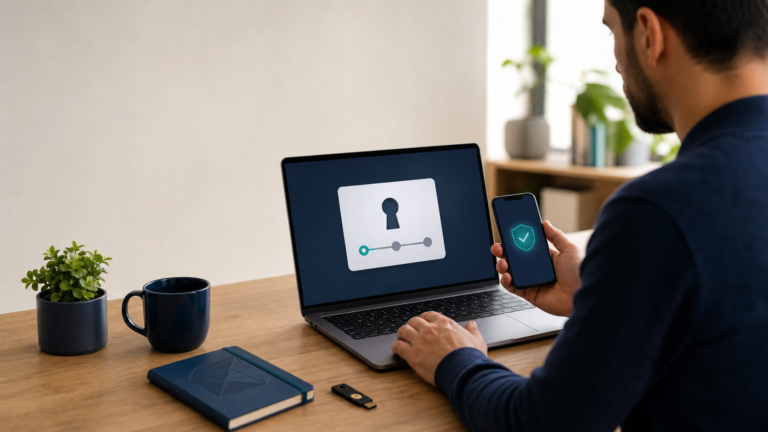
- Local user verification authorizes the signature. You use the device’s face, fingerprint, PIN, pattern, or other approved unlock method. The authenticator signs the challenge with the private key.
- The service verifies the answer. It uses the stored public key to validate the signature and challenge. A valid answer proves control of the matching private key without disclosing that private key.
| Moment | Your authenticator or provider controls | The service stores | What crosses the network |
|---|---|---|---|
| Passkey creation | Private credential material and its protection policy | Public key, credential identifier, and account association | Registration data containing the public portion—not your biometric |
| Passkey sign-in | The private key operation after local approval | A fresh challenge and the registered public key | A signed assertion tied to the challenge and relying party |
| Database breach at the service | The private credential remains outside that service database | An attacker may obtain public credential records | The public key alone cannot create a valid private-key signature |
Microsoft’s passkey authentication overview documents this public-key registration and signed-challenge flow. The challenge matters because recording one old answer should not make it valid for a later attempt.
Keep the passkey, biometric, and device PIN separate
These parts often appear in one prompt, but they have different jobs:
- The passkey is the site-specific cryptographic credential used to answer the service.
- The fingerprint or face is one possible local method for telling your device that it may use the credential. The FIDO passkey FAQ says biometric information and processing stay on the device; the remote service receives an assurance that local verification succeeded.
- The device PIN or pattern is another local activation method. It is not the website password, and the website does not receive it.
- The passkey provider account may protect and synchronize passkeys across devices. Its sign-in and recovery controls are therefore part of your access design.
- The website’s recovery methods decide what happens if no registered passkey is available. They may include another passkey, a password, recovery code, verified email, an administrator, or a service-specific process.
This separation explains both convenience and risk. Someone cannot learn your passkey by watching you type because there is no reusable site secret to type. But a person who can unlock a trusted device may be able to use passkeys stored on it. Google explicitly advises creating passkeys only on personal devices you control; signing out of the Google Account alone does not make a locally usable passkey harmless to another person who can unlock that device.
Choose the storage model before you click Create
“Save a passkey” can mean several different placements. Read the save prompt instead of accepting the first destination automatically.
| Model | Where it is available | Best fit | Recovery consequence |
|---|---|---|---|
| Synced passkey | Approved devices signed into the same passkey provider | Everyday consumer accounts and multiple personal devices | A new device may regain the passkey after provider-account recovery and sync; the provider account becomes a critical dependency |
| Device-bound platform passkey | One computer or phone, such as a credential stored locally through a platform authenticator | Managed devices or a deliberate single-device policy | Losing or resetting that device can remove the route; register another authenticator before relying on it |
| Device-bound security key | A compatible physical FIDO security key | Portable independent access, regulated environments, or a backup kept separately | The credential is lost with the key; enroll a second key or another approved recovery route |
| Nearby-device sign-in | The passkey remains on a phone or other authenticator while approving sign-in on another screen | A borrowed, new, or cross-platform computer | The QR and proximity exchange is a way to use an existing passkey, not proof that a permanent copy was saved on the other computer |
FIDO calls the first category a synced passkey and credentials that remain on one authenticator device-bound passkeys. Apple says iCloud Keychain synchronizes passkeys with end-to-end encryption between approved Apple devices and has a separate recovery design. Other operating systems and password managers have their own protection and recovery models. “Synced” does not mean the website receives your private key; it means the chosen provider can make protected credential material available to your other approved devices.
Nearby-device sign-in is useful when the current computer does not have the credential. A QR-based flow can ask a phone holding the passkey to authorize the computer’s sign-in and use a proximity check. Confirm that the browser names the correct site, keep the phone near you, and decline any follow-up offer to save a new passkey on a public or shared computer.
Design recovery before removing the password

A passkey improves authentication; it does not create a universal recovery system. Recovery is a chain involving the credential location, the passkey provider, the service, and sometimes an employer administrator. Design that chain while you can still sign in.
- Choose the primary route. For many people this is a synced provider already protected by a strong device lock and provider-account safeguards.
- Add an independent route when the account matters. Depending on what the service permits, that may be a second passkey in another trusted provider, a separately stored hardware security key, another approved authenticator, or an administrator-managed method. A second device using the same provider improves device redundancy but may not protect against losing the provider account itself.
- Verify service recovery. Confirm which email address, phone number, recovery code, password, support process, or organizational administrator the service will accept. Do not assume a provider can restore access to a service that has removed your credential.
- Plan revocation. Know where the service lists passkeys and active sessions, and where the provider lists saved credentials and devices. A lost device can require action in more than one control panel.
Record the plan without recording secrets in the same note:
Account or service:
Primary passkey location:
Independent access route:
Passkey-provider recovery route:
Service recovery route:
Lost-device revocation pages:
Last successful recovery test:
If a device is lost, use another working route to enter the account, secure or recover the passkey-provider account, remotely lock or erase the missing device when supported, remove its session or registered passkey at the service, and create a replacement credential. Google’s passkey help directs users to remove the passkey associated with a lost device and notes that removing a passkey from the Google Account may still leave a saved copy visible in a third-party credential manager. Account-side invalidation and provider-side cleanup are related but distinct tasks.
Create your first passkey with a reversible test
Start on a supported account that already has a verified recovery route and a clear page for viewing sign-in methods. Do not make a high-consequence account passkey-only during the first experiment.
- Prepare the device. Install current operating-system and browser updates, enable a strong screen lock, and confirm that you can recover the Apple, Google, Microsoft, or third-party provider account that will store the passkey.
- Inspect the account before changing it. Confirm the username, recovery email or administrator, active sessions, and existing sign-in methods. Save any offered recovery codes in an appropriate protected location.
- Choose Add passkey in the service’s real account settings. Navigate there directly or from a trusted bookmark. If an unsolicited message asks you to “upgrade” through a link, open the service independently instead.
- Read the save destination. Decide whether the passkey should go to a synced credential manager, this device, another device, or a hardware security key. Cancel if the prompt would save it on a shared computer or the wrong provider.
- Complete local verification. Approve with the device unlock method. Then name the passkey in the service’s credential list when naming is available, using a description that will help you recognize and revoke it later.
- Run a clean sign-in test. Sign out, close the private window or browser session, return through a trusted route, choose passkey sign-in, and verify that the expected provider and device handle the request.
- Run the loss simulation. Without deleting anything, pretend the creating device is unavailable. Sign in from another approved device, use the nearby-device route, or verify the independent credential. Confirm that you know how to reach the service’s passkey list afterward.
- Change fallback policy only after both tests pass. Adding a passkey does not necessarily delete the password or other recovery factors. Keep or remove fallback methods according to the service’s documented controls, your threat model, and the proven recovery routes—not because the setup banner suggests the job is finished.
Stop if the passkey is stored somewhere you cannot identify, the alternate device cannot find it, the service offers no usable recovery method, or you cannot revoke it from the account. Fix that condition before making passkey sign-in the only path. ToolMerit’s tool tutorials can help with adjacent device and browser setup tasks.
Know what phishing resistance does—and does not—mean
A correctly implemented passkey is bound to the relying party. A look-alike domain should not be able to request and use a credential registered for the real domain. NIST’s authentication guidance identifies WebAuthn as verifier-name-bound phishing-resistant authentication and distinguishes it from manually entered one-time codes, which an impostor can relay.
| Threat | What a passkey changes | What still needs control |
|---|---|---|
| Look-alike login page | The authenticator will not offer the real site’s domain-bound credential to the wrong relying party | Do not switch to a phishable fallback just because the fake page claims the passkey failed |
| Password reuse and credential stuffing | There is no shared password string for this account to reuse at another site | Old passwords or fallback passwords remain attackable until changed or removed |
| Service credential-database theft | The public key does not let an attacker generate the required private-key signature | Personal data, sessions, recovery records, and implementation flaws may still be exposed |
| Lost, shared, or already-unlocked device | The passkey normally requires local device access and activation | Strong screen locks, remote device controls, session review, and fast revocation remain essential |
| Session theft or compromised endpoint | The initial authentication secret is harder to steal through a fake form | Passkeys do not repair malware, malicious browser extensions, stolen session cookies, or an unsafe authenticated device |
| Weak account recovery | The normal sign-in can be phishing-resistant | An attacker may target email, support, password fallback, or recovery workflows instead |
Evaluate the whole access path, not only the passkey button. Review fallback methods, provider-account recovery, device sharing, and session controls with the same care. ToolMerit’s performance and privacy resources provide a broader framework for examining web-service safeguards and data handling.
Use a passkey as a recoverable system
A passkey setup is complete when you can answer six questions without guessing: Which provider or device holds it? Can you sign in cleanly? Can another approved route work if that device disappears? Can you recover the provider account? Can the service recover you if every passkey is unavailable? Can you identify and revoke a lost credential?
For a low-risk account, one well-protected synced passkey plus verified service recovery may be proportionate. For email, finance, business administration, or any account that can reset other accounts, add an independent authenticator or recovery route and test it. A passkey removes the need to remember a reusable website secret; it does not remove the need to manage devices, providers, recovery, and revocation.