A platform-aware route from the first suspicious sign to a device you can reasonably trust again—or a clear decision to rebuild it.
The first mistake in malware cleanup is treating it as a delete-one-file job. Removing a detected file may stop one component while leaving a browser extension, startup item, stolen session, or damaged system behind.
The goal is not merely “the warning disappeared.” The goal is to move from an untrusted state to a device and set of accounts you can reasonably use again. The sequence below is designed for home users and small teams; an employer’s incident-response instructions take priority on any work or school device.
First, identify the incident you are actually handling
A slow computer, a pop-up, and an antivirus detection are different signals. None alone proves the same kind of compromise. Match the first action to the strongest evidence you have.
| What you see | Most useful working assumption | First move |
|---|---|---|
| One web page claims the device is infected and demands a call, payment, extension, or download | Scareware or a malicious page, not proof of a device infection | Do not click, call, pay, or install. Close the tab or browser; use a browser reset if it reopens. |
| Redirects, changed search settings, or an unwanted extension keep returning | Browser hijack or unwanted software may be changing the browser | Remove the unwanted desktop app or extension, then reset the browser. |
| A trusted security tool names a threat, security controls stop working, or an unknown app gains broad permissions | Probable device compromise | Isolate the device, record the detection, and follow the platform cleanup route. |
| Files are encrypted, a ransom note appears, several devices change at once, or the affected device handles work or regulated data | Security incident with possible network and data impact | Disconnect affected systems and contact the responsible IT, security, insurer, or incident-response team. |
Google lists persistent pop-ups, redirects, returning extensions, and unapproved homepage changes as signs of unwanted software, but its Chrome cleanup guidance also distinguishes browser repair from removing a program installed on the computer.
Contain first when the risk is bigger than a bad tab
For a confirmed or strongly suspected device compromise, turn off Wi-Fi, unplug Ethernet, disconnect external drives, and pause file synchronization if you can do so without navigating through suspicious prompts. This limits continued command-and-control traffic, spread, and damage to attached storage. If you cannot isolate a home device and active encryption appears to be continuing, power it down and get help.
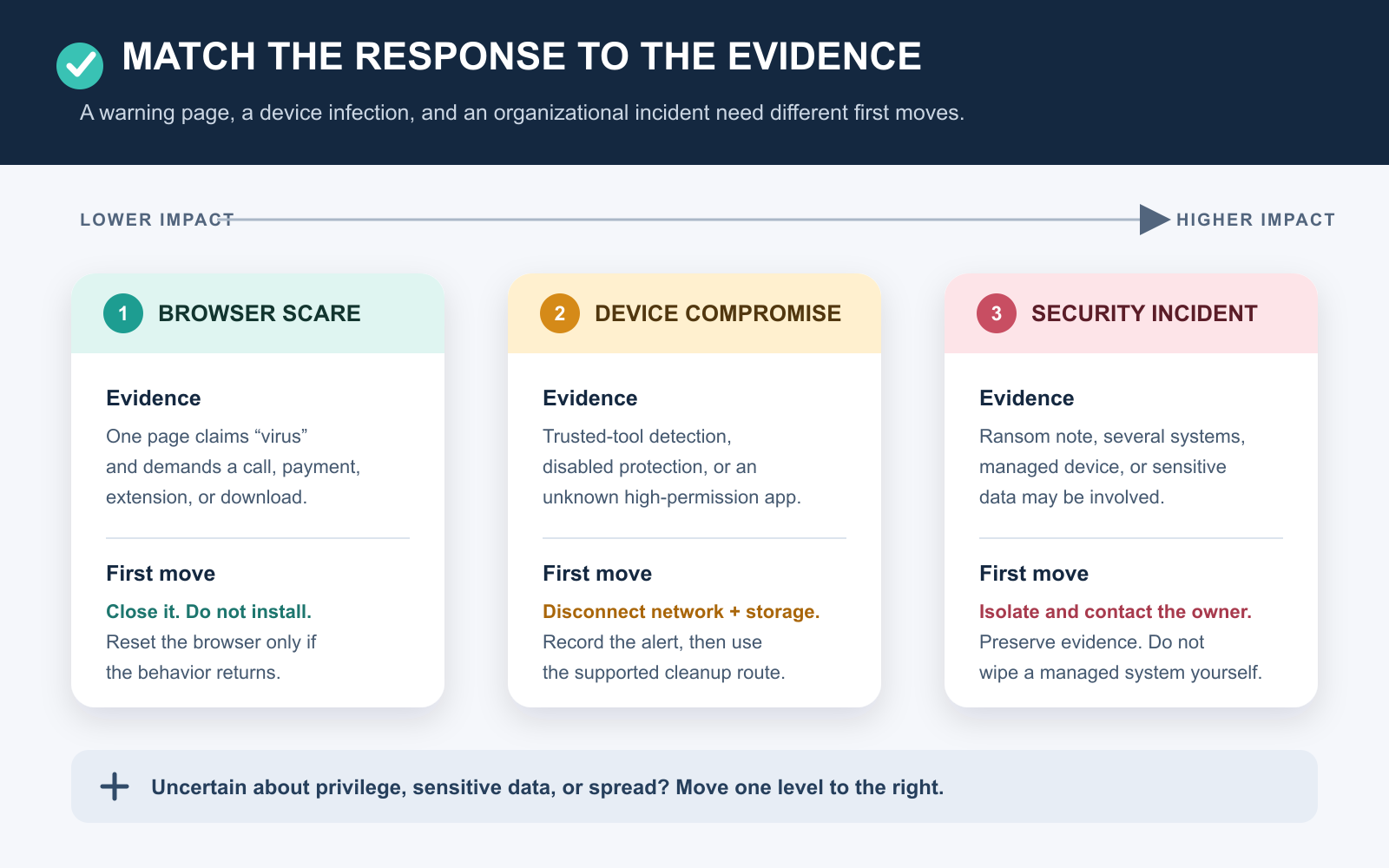
The boundary is different for an organization. CISA’s ransomware response guide says affected systems should be identified and isolated immediately, while logs, system images, and other evidence may need to be preserved. That is why wiping a work laptop on your own can make recovery and investigation harder. Use a phone or separate clean device to contact IT rather than messaging through a possibly monitored system.
Keep a minimal incident record before changing things
Record enough to explain what happened without opening suspicious files. A photo of the screen taken with another device is often safer than interacting with the suspect device. Capture:
- the exact warning, threat name, file path, app, or extension shown;
- the date and approximate time the behavior began;
- what was downloaded, opened, installed, or allowed shortly beforehand;
- which security tool reported it and what action that tool took;
- which important accounts were used on the device after the suspected infection; and
- the date of the most recent backup created before the incident.
Do not upload a suspected sample to a random analysis website if it may contain private or business data. Do not delete logs on a managed device. For an ordinary personal-device cleanup, the record helps you see whether the same threat returns and whether a backup predates the infection.
Run the cleanup route for your platform
Use tools built into the platform or downloaded directly from a vendor you already trust. Never install a “cleaner” offered by the warning page that frightened you.
Windows: update, scan deeply, then check the history
- For a home PC with no sign of active ransomware or remote control, reconnect only as needed to install Windows updates and current Microsoft Defender security intelligence. Higher-risk devices should remain isolated until IT directs the cleanup.
- Open Windows Security → Virus & threat protection → Scan options. Start with a full scan when the device is stable enough to run it.
- Quarantine or remove confirmed threats. Do not add an exclusion just to silence the alert.
- Restart and review Protection history so you know whether the action completed or failed.
- If the same detection returns, save open work and run Microsoft Defender Offline. It restarts the PC and scans without loading normal Windows, which makes persistent malware harder to hide.
Microsoft describes Defender Offline as its most complete scan option in its current scan instructions. Its removal troubleshooting guide recommends a reset or reinstall when malware has made irreversible changes, ideally restoring files from a backup created before the infection.
Mac: respect the built-in warning and remove the source
- Update macOS, then follow Apple’s malware-alert guidance: put a downloaded item identified as malware in the Trash and empty the Trash.
- Uninstall the associated untrusted app and remove browser extensions it added. Do not override a Gatekeeper warning simply to make the app run.
- Review the evidence carefully before deleting startup or system files. The dedicated Mac malware-checking guide provides a safer evidence route for ambiguous symptoms.
- If suspicious behavior survives removal and an update, use a reputable scanner obtained from its official site or erase and reinstall macOS rather than following random terminal commands.
Apple explains that macOS checks apps from identified developers and can block known malicious software; its Mac malware protection guidance recommends trusted software sources. A security warning is a reason to stop, not an obstacle to bypass.
Android: use Play Protect, updates, and app removal
- Open Google Play, select your profile, then Play Protect → Settings and make sure app scanning is enabled.
- Install the available Android security update and Google Play system update.
- Uninstall apps you do not need or trust, especially apps obtained outside Google Play. Review apps with accessibility, device-admin, VPN, notification, or install-unknown-app permissions before granting anything again.
- Run Google Account Security Checkup from a clean browser and remove unknown sessions or access.
- If the signs remain, back up essential personal data and factory-reset the device or contact its manufacturer.
Those steps follow Google’s Android malware-removal sequence. Menu names can vary by phone maker, but Play Protect, system updates, app removal, account review, and reset remain the decision points.
Chrome and Chromebook: remove the changer before resetting the setting
On Windows or Mac, remove an unwanted installed program before resetting Chrome; otherwise the program may simply change the browser again. In Chrome, open Settings → Reset settings → Restore settings to their original defaults, then re-enable only extensions you recognize.
On a Chromebook, Safety reset disables extensions and restores network, input, and Chrome settings without deleting local apps and files. Review each extension before turning it back on. If the behavior survives Safety reset, back up the Downloads folder and consider Powerwash or ChromeOS recovery. A work or school Chromebook belongs with its administrator, not a self-service factory reset.
iPhone or iPad: inspect apps, profiles, and the account
Do not treat a browser pop-up as a diagnostic scan, and do not install the advertised cleaner. Update iOS or iPadOS, remove an app you do not recognize, and—on a personally owned device—review Settings → General → VPN & Device Management for an unknown configuration profile. Apple’s profile review guidance explains how to remove a profile; managed devices may intentionally use profiles, so ask the administrator before changing one.
If the real sign is an unknown login, verification code, purchase, message, or trusted device, treat it as an account incident. Apple’s compromised-account procedure covers changing the password, correcting account details, and removing devices you do not recognize. Persistent device-level concerns warrant Apple Support or a clean erase and setup rather than a third-party “virus cleaning” subscription bought from a pop-up.
Recover accounts from a clean device
Malware removal and account recovery are separate jobs. A clean scan cannot revoke a stolen browser session, and changing a password on the infected device may expose the new one. Use a different updated device and recover accounts in the order that limits cascading resets:
- Primary email: change its unique password, review recovery addresses and phone numbers, remove unknown forwarding rules, and sign out unfamiliar sessions.
- Password manager: secure the vault and review logged-in devices if it was opened on the suspect device.
- Platform and cloud accounts: Google, Microsoft, Apple, cloud storage, and browser sync can restore settings or control other devices.
- Financial and work accounts: contact the provider or employer promptly if you see an unknown transaction, login, or data access.
- Messaging, social, and shopping accounts: replace reused passwords, revoke unknown connected apps, and review sent messages or purchases.
Turn on phishing-resistant multifactor authentication or a passkey where the service supports it. Save new recovery codes somewhere the suspect device cannot access. CISA notes that organizational breaches can include credential theft and recommends containing affected accounts as part of incident response; do not assume a file cleanup automatically restores identity security.
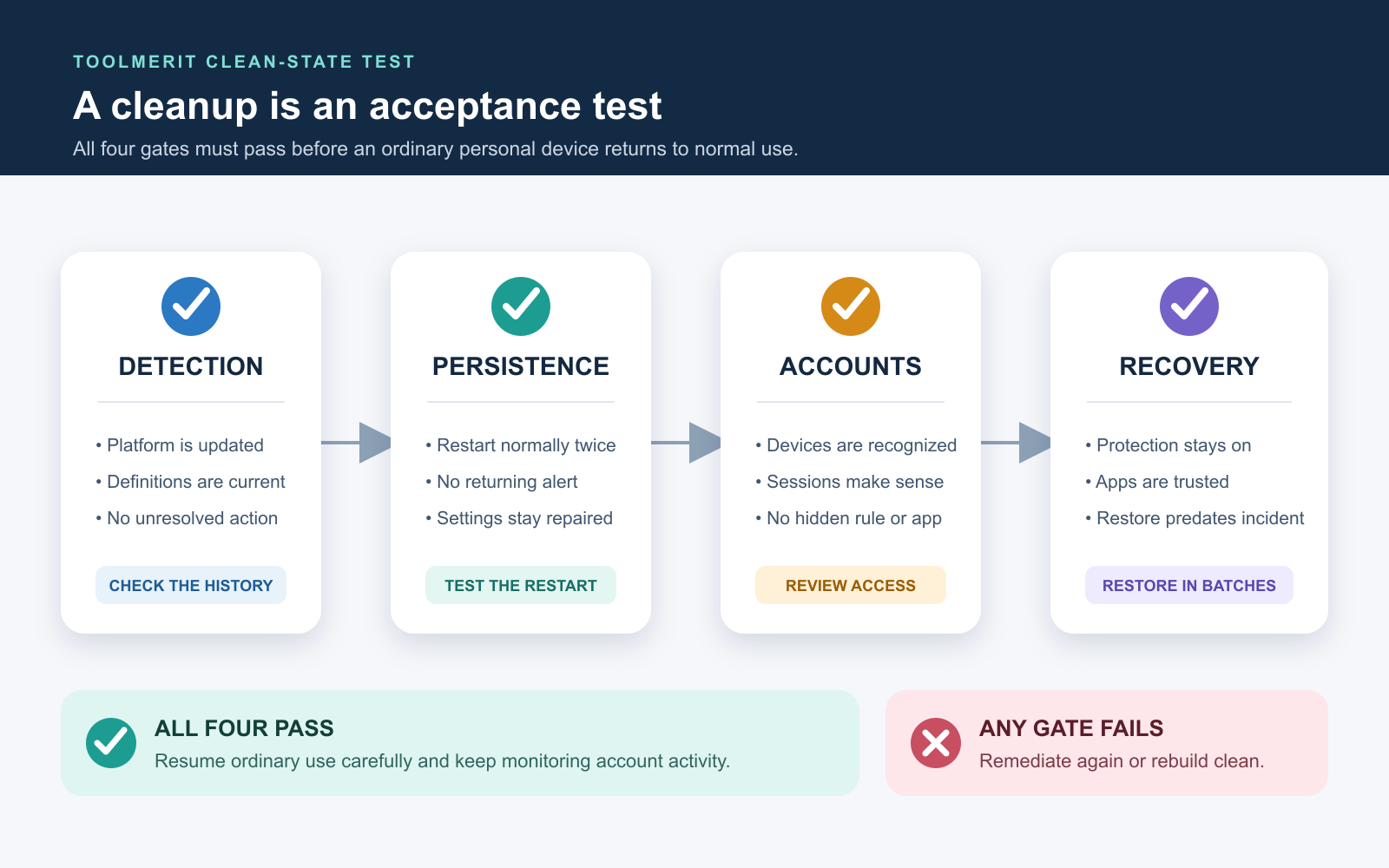
Use four gates to prove the cleanup
No consumer procedure proves that a sophisticated attacker never touched a device. You can, however, require observable evidence before returning an ordinary personal device to normal use.
| Gate | Pass condition | Failure means |
|---|---|---|
| Detection | The platform and security definitions are current; the appropriate full, offline, or platform-supported check has no unresolved action. | Finish removal, use a deeper supported scan, or rebuild. |
| Persistence | After two normal restarts, the alert, redirect, extension, process, or changed setting does not return. | A surviving component or synced setting is still restoring the problem. |
| Accounts | Recovery details, active devices, sessions, forwarding rules, purchases, and connected apps contain nothing unexplained. | Continue identity recovery and contact affected providers. |
| Recovery | Updates and protection are on; apps come from trusted sources; restored data comes from a known pre-incident backup. | The device may be reinfected during restoration. |
The two-restart persistence test is ToolMerit’s practical acceptance rule, not a forensic guarantee. High-value accounts, regulated data, administrator-level access, or an unknown intrusion scope justify a clean rebuild or professional review even when these consumer gates appear to pass.
Know when wiping is safer than another scan
Choose a factory reset, clean operating-system reinstall, or professional incident response when any of these conditions applies:
- the same detection or unwanted change returns after an updated deep or offline scan;
- security software, updates, administrator settings, or disk encryption remain disabled or altered;
- the malware may have obtained remote control, root, administrator, or credential-stealing access;
- files were encrypted, several devices are affected, or data may have left the device;
- the device handled financial, health, client, employee, or other regulated information;
- it is managed by an employer or school; or
- the operating system no longer receives security updates.
A rebuild means erasing or resetting the affected system through the platform’s supported recovery path, updating it before ordinary use, reinstalling apps from official sources, and restoring only necessary data from a backup known to predate the incident. Do not blindly restore the same unknown installers, scripts, extensions, or full system state that may have carried the infection. The computer backup guide explains how to keep recovery copies separate and testable.
Avoid cleanup shortcuts that reduce trust
- Do not call a phone number or install software from a virus pop-up.
- Do not disable protection, bypass a platform warning, or create an antivirus exclusion just to open a file.
- Do not run two real-time antivirus products together; they can interfere with each other. Use one trusted real-time provider and supported on-demand tools when needed.
- Do not change important passwords on the suspect device.
- Do not reconnect every external drive or restore everything at once. Restore in small, verifiable batches.
- Do not self-clean a managed or ransomware-affected device before the response owner tells you what evidence to preserve.
The final decision is deliberately strict: resume ordinary use only when the cleanup route is complete and all four gates pass. If one gate fails—or the incident includes ransomware, privileged access, sensitive data, or a managed system—the safer answer is a clean rebuild or qualified incident response, not another hopeful scan.