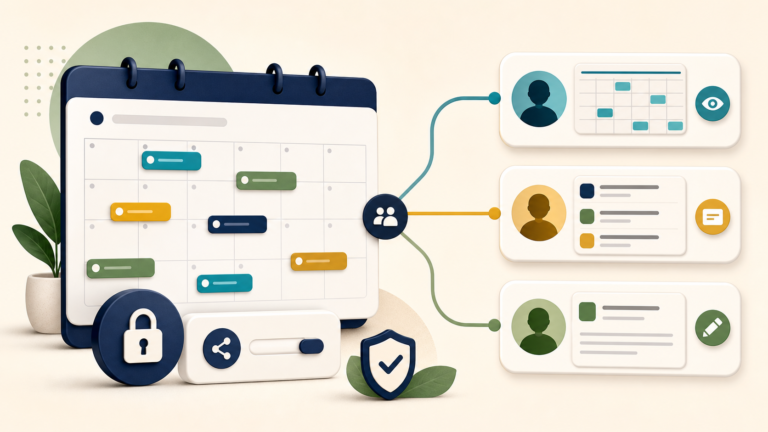
A role-aware guide to the official When I Work login, workplace invitations, employee setup, manager publishing, and access troubleshooting.
When I Work is an employee scheduling, time-tracking, and team-communication service for shift-based workplaces. If you already have an account, use the official When I Work login; if you are an employee joining a team, accept the invitation from your manager instead of creating a new workplace.
Those two entry paths look similar but create very different results. An employee account must connect to an employer’s existing workplace. A business owner or authorized admin creates and configures the workplace itself. Choose the state you actually have before resetting passwords or signing up again.
Start from the screen you actually see
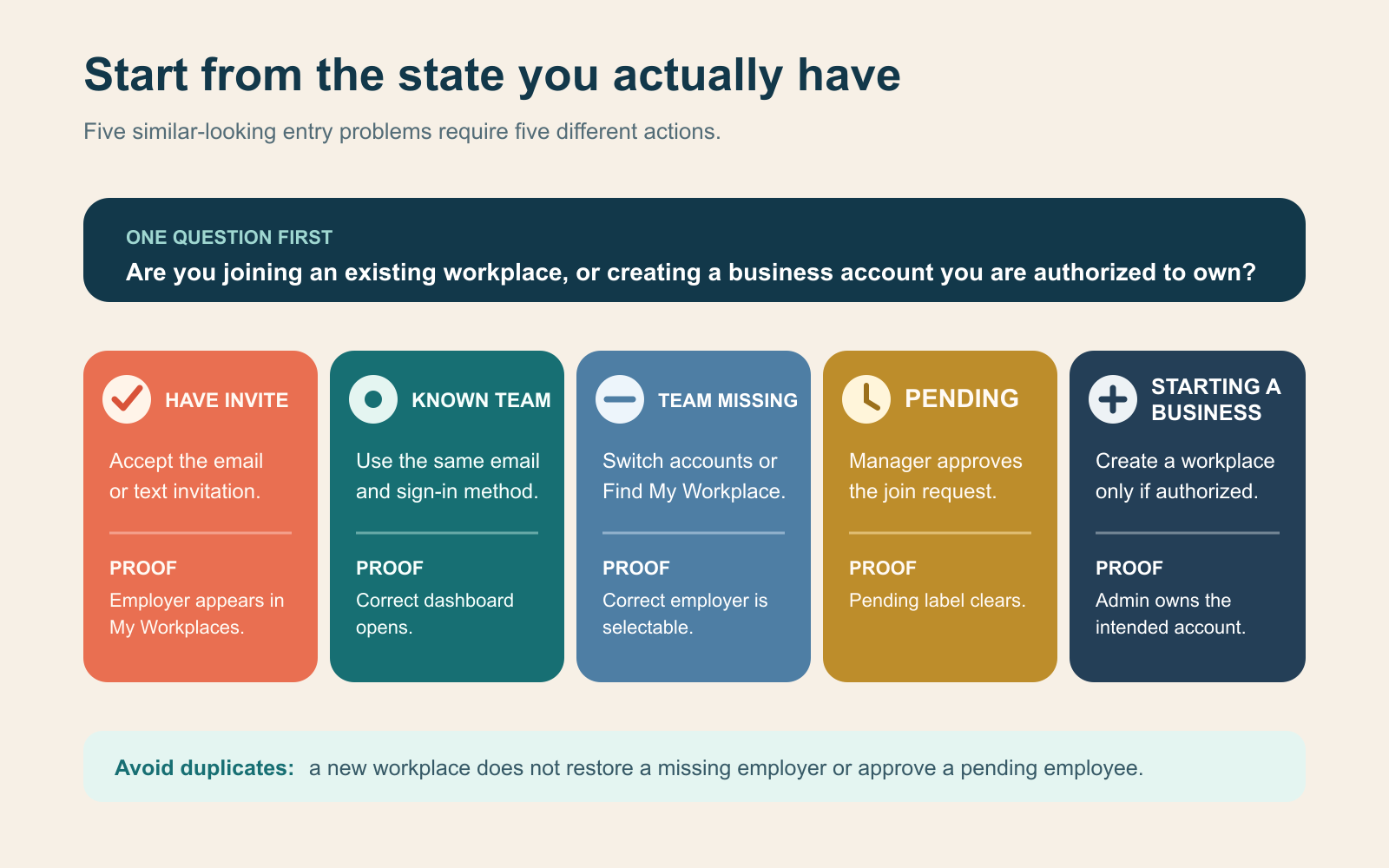
| What you have or see | Correct route | Completion proof |
|---|---|---|
| An email or text invitation | Open the invitation, set the requested credentials, and join that workplace | The employer appears in My Workplaces or the app opens its schedule |
| An existing account and known workplace | Sign in with the same email and authentication method used at registration | Your workplace dashboard loads |
| You can sign in, but the workplace is absent | Try the email your manager has on file, switch workplaces, or use Find My Workplace | The correct workplace is listed and selectable |
| Your profile says pending | Ask a manager to approve the join request | The pending state clears and workplace access opens |
| You are starting scheduling for a business | Create a workplace from the official When I Work site | You hold admin access to a workplace you are authorized to manage |
The official workplace registration guide says invitation links expire after 24 hours, so ask the manager to resend an expired invite. It also warns employees not to choose Create A New Workplace while trying to find an employer. That action creates a separate organization; it does not reveal a missing team.
Know which similarly named product you opened
When I Work and WhenToWork are separate employee-scheduling services with different accounts, domains, and interfaces. This page covers When I Work at wheniwork.com. If your employer gave you a WhenToWork or W2W address, use our WhenToWork login and scheduling guide instead.
When I Work describes its product as a mobile-first platform that combines employee scheduling, time and attendance, and team messaging. The features visible to you still depend on the workplace’s plan, enabled services, settings, and your assigned role. An employee may see a personal schedule and requests while an admin sees billing and account-wide configuration.
Employees: join first, then configure preferences
An employee does not build the employer’s account. Use this first-session order:
- Accept the correct invitation. Match the employer name and use the email address or mobile number that received the invite.
- Complete the profile. Confirm the contact details that connect you to the workplace and check the displayed time zone.
- Set alert preferences. Choose where schedule updates and upcoming-shift notices should arrive.
- Enter availability. Add the times you prefer or are unable to work if the employer has enabled that feature.
- Open the published schedule. Verify the date, time, position, and workplace or job-site details for the next shift.
- Protect access. Enable two-step verification when appropriate for the account and keep recovery information current.
Availability is not an approved absence and does not automatically remove a shift. When I Work’s registration guidance states that availability is a preference the employer can consider, that an employer can still schedule a conflicting shift, and that the feature can be disabled. Use the workplace’s time-off or shift-request process for an actual exception, and keep the current published shift until an authorized change appears.
Managers: build permissions before building the week
When I Work uses four default access levels. Its current user-role reference separates them this way:
| Role | Practical scope | Good first check |
|---|---|---|
| Employee | Personal schedule, availability, time-off and shift requests, and coworker communication as enabled | Can the person see the correct published shift without editing it? |
| Supervisor | Assigned schedules and employees within that scope | Does the supervisor manage only the intended schedule? |
| Manager | Account-wide scheduling and most management controls, excluding plan and billing | Can the manager configure shifts without receiving unnecessary owner access? |
| Admin | Manager capabilities plus account and billing responsibility | Is this person an authorized account holder? |
ToolMerit’s view is to grant the narrowest role that completes the person’s job. That limits accidental account-wide changes and makes troubleshooting clearer: a missing control can be a permission boundary, not a broken application.
For a new workplace, follow the product’s scheduling setup sequence: define schedules, add positions, add users, create reusable shift templates, configure scheduling rules, build the first week, and publish only after reviewing it. A schedule can represent a location, region, department, or another independently managed group, so decide that grouping before importing a large employee list.
Publishing is the visibility boundary
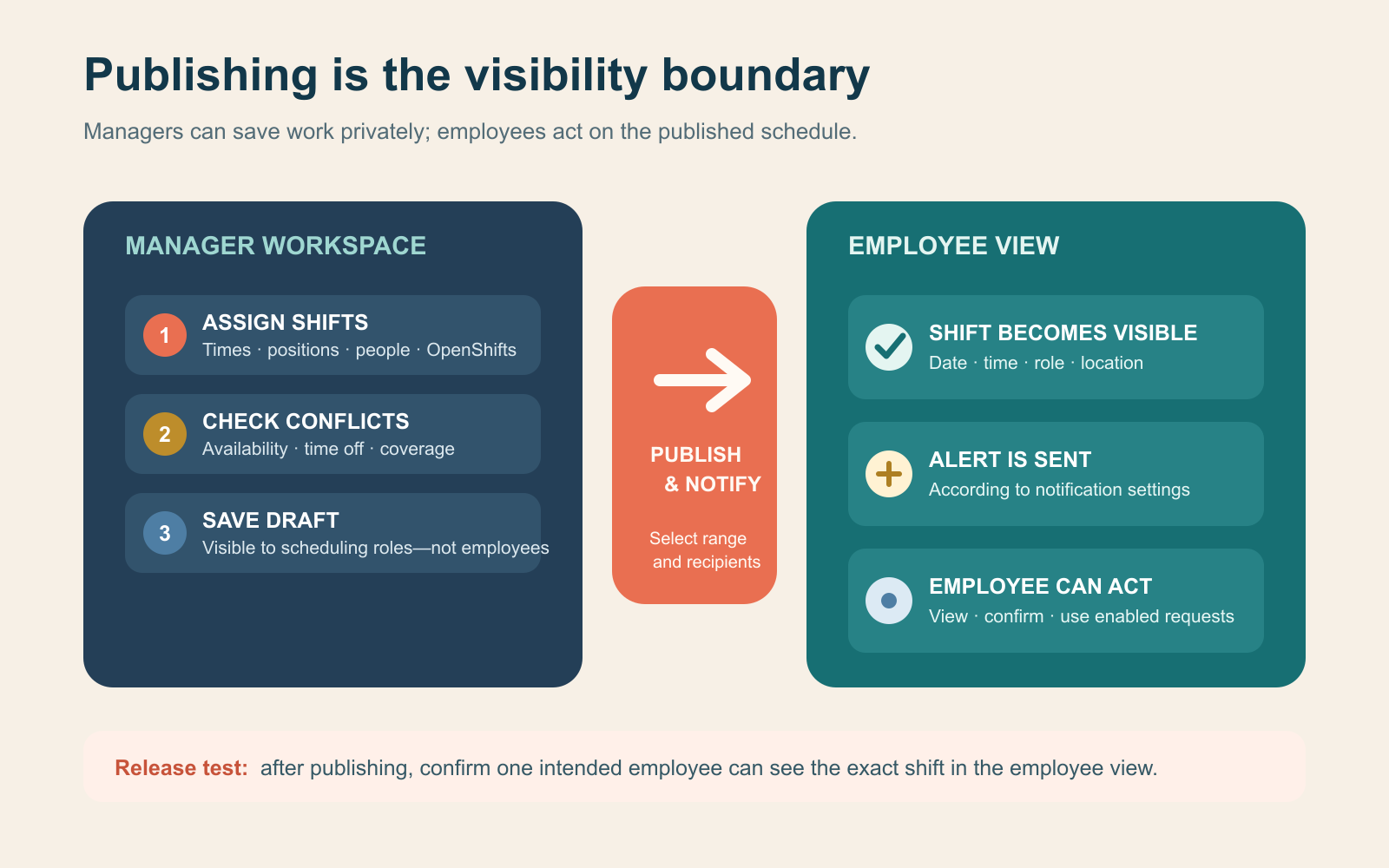
Managers and supervisors can save shifts while assembling the schedule, but employees do not see those shifts until they are published. The official Publish & Notify instructions say publishing makes assigned shifts visible and alerts affected users according to their notification preferences. Changes to already published shifts can also trigger notices.
Use a simple release check before publishing:
- Every required shift has a date, start and end time, position, and intended assignee or OpenShift status.
- Availability, approved time off, double-booking, and qualification conflicts have been reviewed.
- The publishing range and recipient selection match the week or team being released.
- After publishing, one test employee confirms the shift is visible in the employee view.
A notification is useful evidence that publication occurred, but the visible employee schedule is the stronger source of truth. If an employee says a shift is missing, check whether the shift was saved but never published before assuming the account is disconnected.
If credentials fail, preserve the original account
The official login instructions allow email and password, Google sign-in, and Apple sign-in when those methods were used for the account. Reuse the original method. Entering the same email into a password field does not work when the profile was set up to authenticate through a provider.
| Symptom | Likely cause | Next owner and action |
|---|---|---|
| Incorrect username or password | Wrong password, wrong email, or wrong sign-in method | User: try the original Google or Apple route, verify the email, then reset the password if applicable |
| Reset email says no account exists | The reset was requested for another email address | User and manager: confirm the email stored in the workplace profile |
| Login succeeds but no workplace appears | The account email does not match the workplace profile, or another workplace is selected | User: switch or find the workplace; manager: verify the profile email and invite |
| Profile remains pending | A join request awaits approval | Manager: approve or merge the pending profile |
| Everyone sees loading or connection failures | A browser, network, or service-wide issue may exist | Admin: check supported access and the official When I Work status page before changing accounts |
When I Work’s current access troubleshooting guide emphasizes the same account-preserving route: try the correct email and authentication method, use Find My Workplace when appropriate, and involve the manager for a pending or missing workplace. Do not create duplicate workplaces or fresh employee profiles as a first repair; duplicates can make the correct schedule harder to identify.
Prove the first useful outcome for your role
For an employee, success means the correct workplace opens, the next published shift is visible, alert preferences are intentional, and any availability or request is in the expected state. For a manager, success means roles are scoped, the first schedule has been published to the intended recipients, and an employee-view check confirms the release.
If those proofs pass, continue in the official help center for the specific task—time off, shift swaps, time clock, team messaging, or reporting. If they do not, use the symptom table to keep the repair with the right owner: the user for credentials, the manager for workplace membership and permissions, the admin for account configuration, or When I Work support and status reporting for a service problem.