A safe, role-aware route to the official WhenToWork sign-in, credential recovery, mobile access, and common login fixes.

The official WhenToWork login is https://whentowork.com/logins.htm. A safer route is to type whentowork.com, choose Sign In, and verify the address before entering credentials. Employees normally use an account their scheduling manager already created; if the username or password is unknown, use the official recovery link or contact the manager rather than starting a new trial.
ToolMerit is not affiliated with WhenToWork and does not collect its credentials. Never send a username, password, recovery email, or sign-in screenshot containing secrets to this site or to an unknown person offering help.
Use the official sign-in route
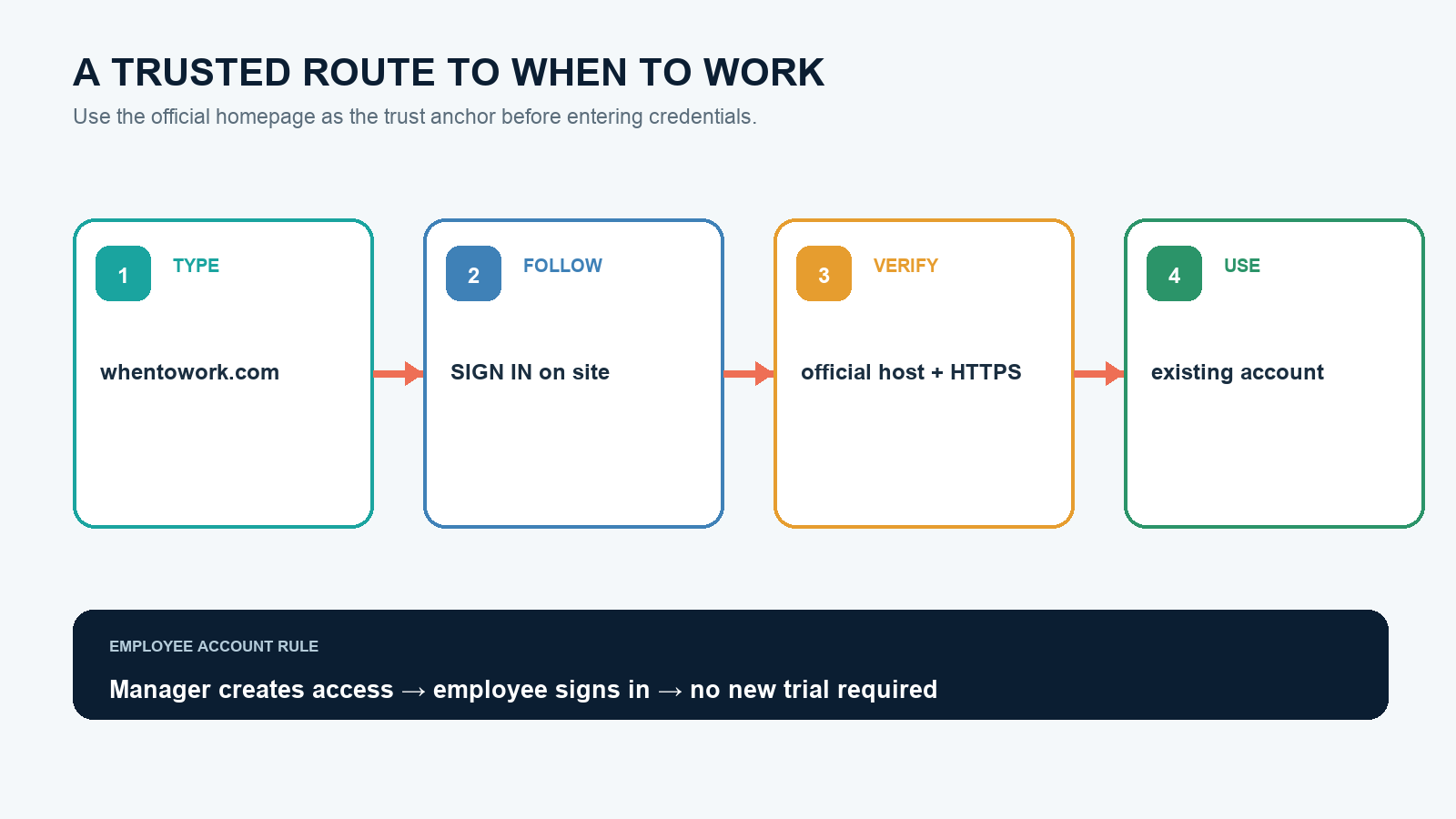
- Type whentowork.com. Avoid sponsored results and copied links when credentials are involved.
- Select Sign In on the official site. The current site links to
whentowork.com/logins.htm. - Verify the address and secure connection. The host should end in
whentowork.comor an official alternative reached from that page, not a lookalike spelling. - Use your existing account. Enter the username assigned or chosen for that organization. Do not create a scheduling trial just to see an employee schedule.
WhenToWork’s new employee guidance says an employee already has a login if the scheduling manager created a schedule for that person. It also notes that employee use does not require starting a free trial. If you were never added, only the organization’s manager can create or correct that employee access.
Recover the correct username before resetting again
The login page links to an official sign-in information recovery form. Enter the email address associated with the account, then check the inbox and filtered folders. Use the username contained in the new recovery message; do not assume the username is the same as the email address.
This matters because a password can appear to “reset every time” when the real problem is an outdated or incorrect username. WhenToWork’s recovery page explicitly advises checking the username in the emailed sign-in instructions in that situation.
Separate these cases:
- Never received credentials: ask the scheduling manager to confirm that the employee record exists and contains the correct email.
- Temporary first-login details no longer work: use the personal username and password chosen after the initial sign-in, or recover current details.
- Recovery email does not arrive: verify the address with the manager, wait for ordinary delivery, check spam or quarantine, and avoid submitting the form repeatedly.
- No access to the old email account: contact the scheduling manager or official support; email recovery cannot prove control of an address you no longer receive.
Do not forward a recovery message to a coworker. It can contain account identifiers or reset information. A manager can verify the account record without learning the employee’s private password.
Match the symptom to the next action
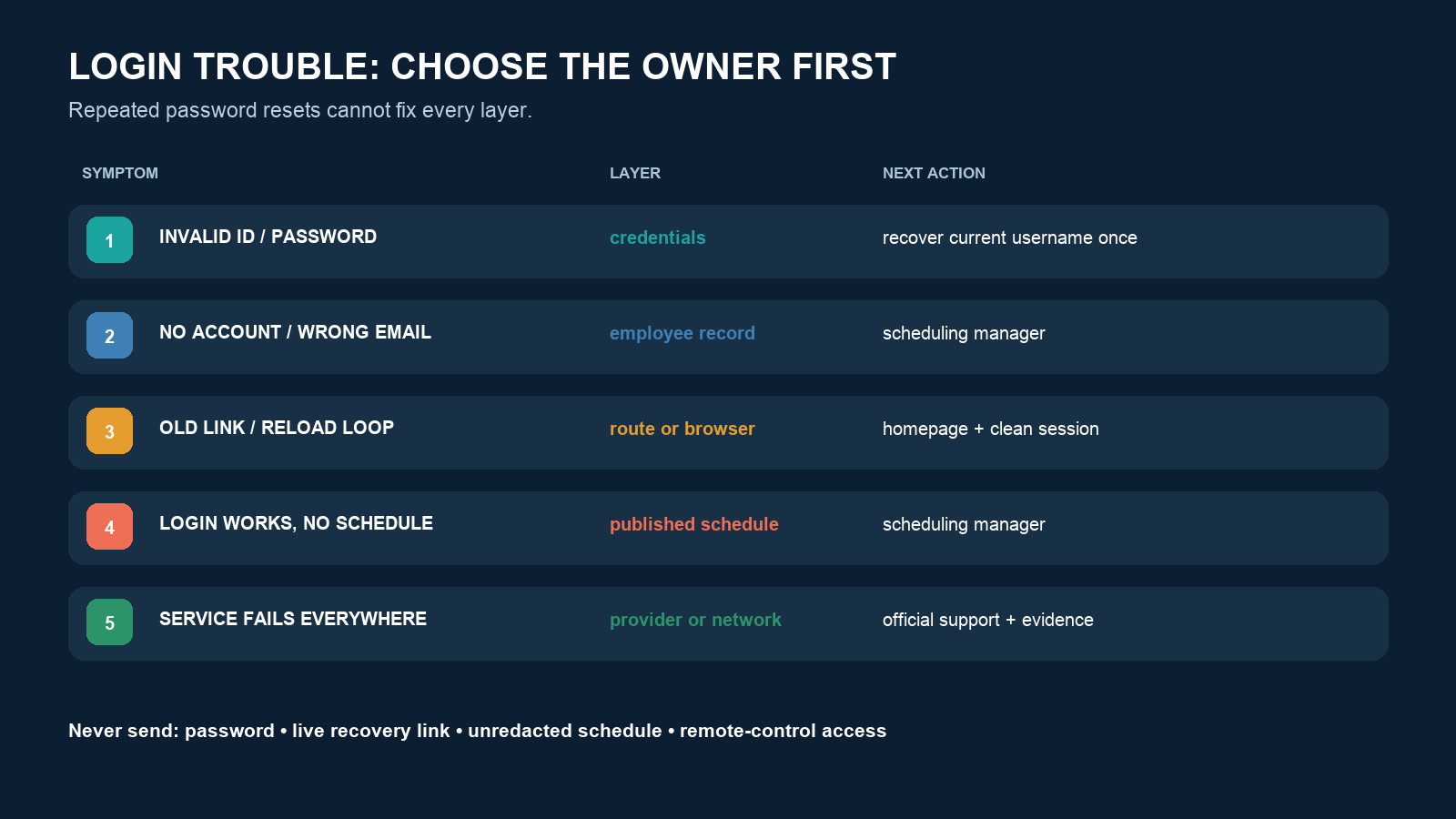
| Symptom | Likely area | Next action |
|---|---|---|
| “Invalid ID or password” | Wrong current username, mistyped password, or old temporary credentials | Recover sign-in information once; copy the current username exactly; then ask the manager to verify the employee record |
| Page says an old link points to the wrong server | Stale bookmark or saved deep link | Delete the bookmark and enter through the official homepage’s Sign In link |
| Recovery email never arrives | Email mismatch, filtering, or delayed delivery | Check folders and organization quarantine; ask the manager which email is stored; contact official support if the record is correct |
| Login form reloads without completing | Browser session, extension, network, or service issue | Record the error, try a current browser/private window, disable only relevant blockers temporarily, and try another trusted network |
| Sign-in works but no schedule appears | Organization, role, or unpublished schedule issue | Confirm the correct account and contact the scheduling manager; password resets will not publish a schedule |
| Schedule is wrong or a shift is missing | Scheduling data, not authentication | Preserve a redacted screenshot and contact the manager before assuming a trade or time-off request was approved |
If one browser works and another does not, compare cookie settings, extensions, saved passwords, and autofill. Clear only the relevant site data after noting whether doing so will remove a useful session. If no browser or network reaches the official page, check the provider’s support route instead of repeatedly changing the account password.
Use mobile access without installing a copycat app
WhenToWork’s official mobile page describes employee access to schedules, notices, messages, open shifts, trades, and time-off requests. Follow store links from the official site or verify the developer and branding in the app store before installing.
The regular website can also be used from a computer, tablet, or phone, according to the provider. If the app and website disagree, note the last refresh time, sign into the same organization and account, and ask the manager which schedule version is published. Do not accept or trade a shift merely to test whether the app is working.
Handle social sign-in carefully
The current official sign-in page displays options for Google, Facebook, and Microsoft in addition to username and password. Use a social option only if it is the method previously connected to your WhenToWork account or explicitly configured by your organization. Selecting an unrelated identity can create confusion or fail to reach the intended employee record.
Check the provider authorization screen before approving access. It should identify WhenToWork as the requesting service and return to the official domain. If you normally use a WhenToWork username, an unexpected social-login prompt is not a reason to switch methods.
Protect the account on shared devices
- Do not save the password on a public, borrowed, or shared workstation.
- Sign out when finished; closing a tab may leave the session active.
- Do not post schedule screenshots containing coworker names, phone numbers, locations, or shift details.
- Reject unsolicited “support” messages asking for a password, recovery code, or remote-control access.
- Use a unique password if the account uses a standalone password, and change it through the official route after suspected exposure.
WhenToWork’s institutional terms recommend signing out at the end of a session, especially on a shared device, and place responsibility for credential confidentiality on the account user. An organization’s own security policy may add requirements.
Send useful evidence without sending secrets
If the manager or official support must investigate, provide:
- organization or workplace name and your role
- the time and time zone of the failed attempt
- the exact error text and the page address, with sensitive query values removed
- device, operating system, browser or app version, and whether another device works
- a screenshot cropped to the error with usernames, emails, schedules, and personal data redacted
- the troubleshooting steps already attempted
Never include the password or a live recovery link. WhenToWork’s official contact page directs account users to the “Contact WhenToWork” link inside account pages when available, or to official support. Employees who lack an account identifier should normally start with their scheduling manager because the manager controls the workplace roster.
If an old bookmark fails, the dependable alternative route is always the same: type whentowork.com, use its current Sign In link, and recover the current username once. If access still fails, stop resetting and move the evidence to the person who controls the missing layer—the scheduling manager for the employee record or official WhenToWork support for the service.