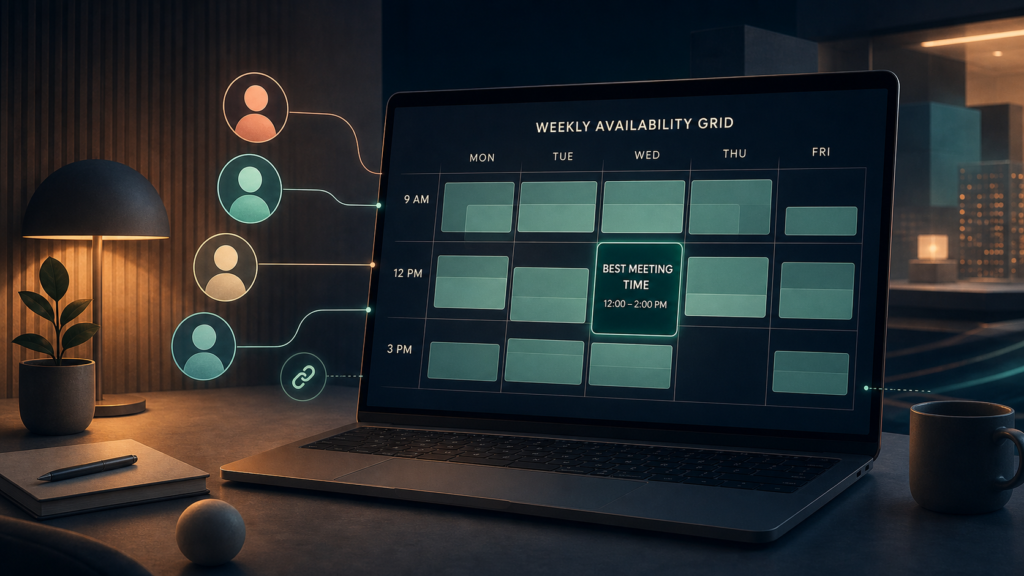
When2Meet is a free group-availability survey. Set a narrow range, share one event link, have everyone shade all workable time, then confirm a continuous meeting window outside the poll.
If you searched for when 2 meet, the service you probably want is When2Meet at when2meet.com. An organizer names an event, limits the possible dates and hours, selects the appropriate time zone for specific-date polls, creates the survey, and shares its unique link. Participants identify themselves and shade every time they can attend. Darker overlap shows when more people are free, but the organizer should choose a continuous block of the required length and send a separate calendar invitation to confirm it.
That last distinction matters. When2Meet is an availability map, not a complete invitation, room-booking, reminder, or attendance system.
Start at the correct When2Meet
The product name is commonly typed with spaces, but the official service uses the single word When2Meet. Verify the address before entering names or availability because several unrelated scheduling sites use similar names. The official About page describes When2Meet as a compact, free service for creating and participating in group availability surveys.
The public home page currently opens directly on a new-event form. It asks for an event name, lets the organizer survey either specific dates or days of the week, provides earliest and latest time selectors, and shows a time-zone selector for specific-date events. The site notes that a days-of-the-week event expects participants to be in one time zone.
The official footer says the service does not ask for contact or billing information and also discloses third-party advertising. That is a narrower statement than a complete privacy guarantee. Avoid putting confidential project names, medical information, client details, or other sensitive content in an event title. Use a neutral label when the link may travel beyond the intended group.
Decide whether the grid fits the job
When2Meet is strongest when three or more people need to expose broad availability and the organizer wants to see overlap. The University of Wisconsin–Madison Ebling Library describes it as best for finding times when all members of a group are available, while contrasting a fixed-option poll as better for choosing among a small set of proposed times.
Use the grid for a project team, committee, study group, volunteer shift discussion, or one-off planning session. It is less useful when the host already has a fixed appointment calendar, must collect payment, needs automatic round-robin assignment, or wants invitees to book directly into connected calendars. In those cases, a booking tool or the scheduling assistant inside your shared calendar system may remove more work.
Before opening the form, know the meeting length, required attendees, acceptable date range, working-hour limits, decision deadline, and time zone. If those inputs are vague, the poll will simply display vague data more attractively.
Create an event people can answer
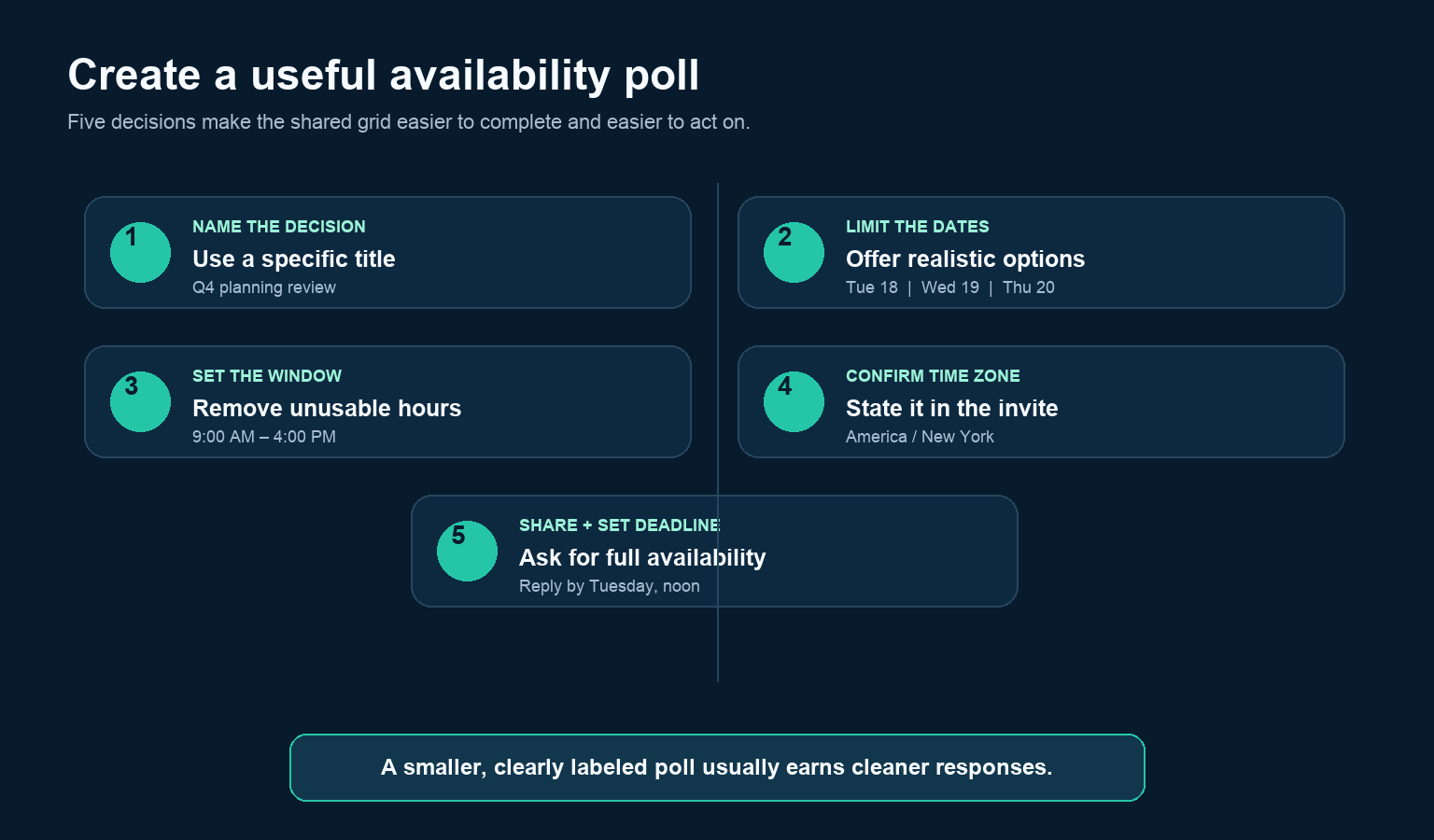
- Name the decision. Use a recognizable, non-sensitive title such as “Q4 planning review” rather than “meeting.”
- Limit the dates. Include realistic possibilities, not every day in the next month. If necessary, run a date poll first and a time poll after the group narrows the week.
- Set the usable hours. Remove times that the organizer, venue, or required participants can never accept.
- Confirm the time zone. For a multi-zone group, use specific dates, choose the intended zone, and repeat the zone in the message that carries the link.
- Create and share once. Send the same event link to everyone, state the meeting duration, name the required responders, and provide a response deadline.
The University of Washington’s guide to scheduling tools flags excessive options, missing responses, changing availability, and time-zone confusion as common weaknesses of group polls. Its simplest mitigation is to narrow the options before asking. A smaller poll is not less generous; it is more likely to be completed accurately.
Enter availability without gaming the result
On the event page, follow the sign-in or identification prompt and mark every time you could genuinely attend, not only your favorite slot. The usual interface allows participants to drag across time cells. Confirm that your intended blocks remain selected before leaving, especially after using a phone or trackpad.
Availability and preference are different. If the grid has only an available/unavailable state, enter honest availability and send a short note to the organizer about a strong preference or a movable conflict. Quietly omitting workable times makes the overlap look worse and can penalize everyone else.
For a 60-minute meeting, a participant must shade a continuous 60-minute range. Marking 10:00 and 11:00 while leaving the interval between them empty does not create an hour. The same logic applies to setup or travel buffers: keep them unavailable if they are real constraints.
If your schedule changes, return through the original link and update the same participant entry when the event permits it; do not add a second version of your name. Tell the organizer when a change removes the current leading option.
Read the overlap grid correctly
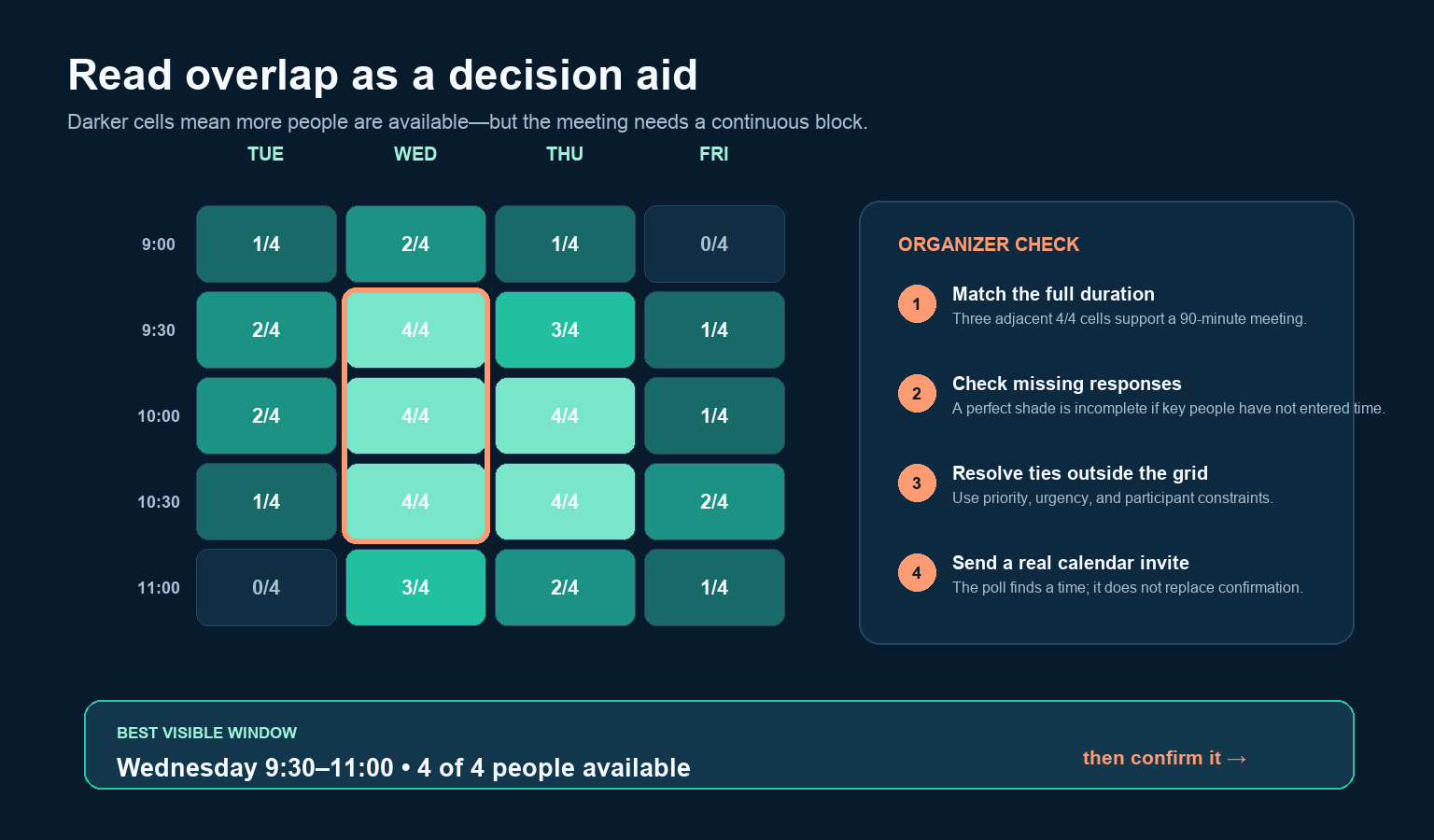
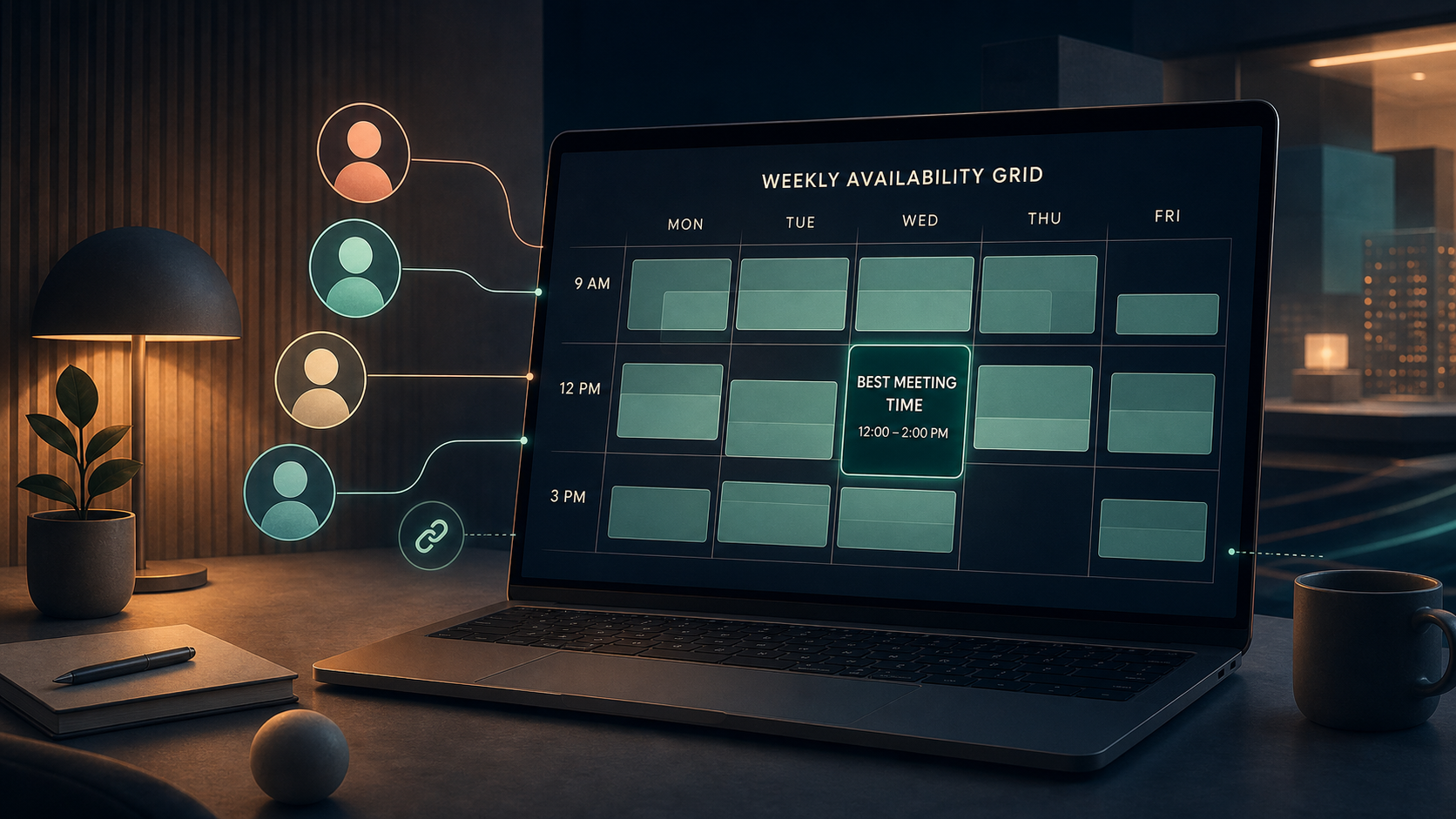
Darker shading generally represents more participant overlap. Start with the required meeting length, then scan for adjacent cells that remain dark for that entire duration. In the example above, Wednesday 9:30–11:00 supports a 90-minute meeting for all four people. A lone 4/4 cell at another time would not be enough.
Next, check the denominator. “4 of 4 available” is meaningful only if all four expected participants have responded. If six people were invited and two are missing, the grid is not yet a complete decision record. Contact the missing people or decide explicitly that their attendance is optional.
When two windows tie, do not pretend the colors decide. Use meeting urgency, required roles, accessibility needs, time-zone fairness, venue availability, and the cost of splitting someone’s focus. For a recurring global meeting, rotate inconvenience instead of permanently assigning the least comfortable hour to one region.
Avoid the four common poll failures
| Failure | What it causes | Repair |
|---|---|---|
| Too many dates and hours | People postpone or enter approximate availability | Remove impossible options before sharing |
| Unstated time zone | Participants interpret identical labels differently | Name the zone in both the poll and invite message |
| Favorite-time voting | The grid understates feasible overlap | Ask for all workable time; collect preferences separately |
| No response deadline | The leading window expires while the organizer waits | Set a deadline and chase only required nonresponders |
The University of Chicago’s virtual-event guidance specifically reminds organizers to consider time-zone differences. For mixed zones, include the calendar date as well as the local time in the final invitation; “Friday afternoon” can become Saturday for another participant.
Turn the best window into a real meeting
Once the response deadline passes, choose the strongest continuous window that includes the required people. Then send a calendar invitation containing the date, start and end time, time zone, location or meeting link, agenda, and owner. Ask participants to accept or decline. Close the loop in the channel where the poll was shared so nobody treats the live grid as the final authority.
If no complete overlap exists, use the grid diagnostically. Identify the person or constraint that breaks the best window, ask whether that conflict can move, shorten the meeting, split attendance by agenda section, appoint a representative, or offer an asynchronous update. Do not keep extending the poll until it becomes a second job.
Know when When2Meet is the wrong tool
Choose another workflow when you need automatic calendar conflict detection, reservation of a room or resource, reminders, authentication tied to an organization, approval routing, paid bookings, audit logs, or a recurring series that must stay synchronized. Also use an approved enterprise system when your organization’s privacy, security, accessibility, or record-retention rules require it.
For the lightweight case, When2Meet’s value is its visible overlap and low setup burden. Keep the question narrow, collect complete availability, read the whole required duration, and move the result into a proper calendar invitation. The poll has done its job when the group no longer needs the poll.