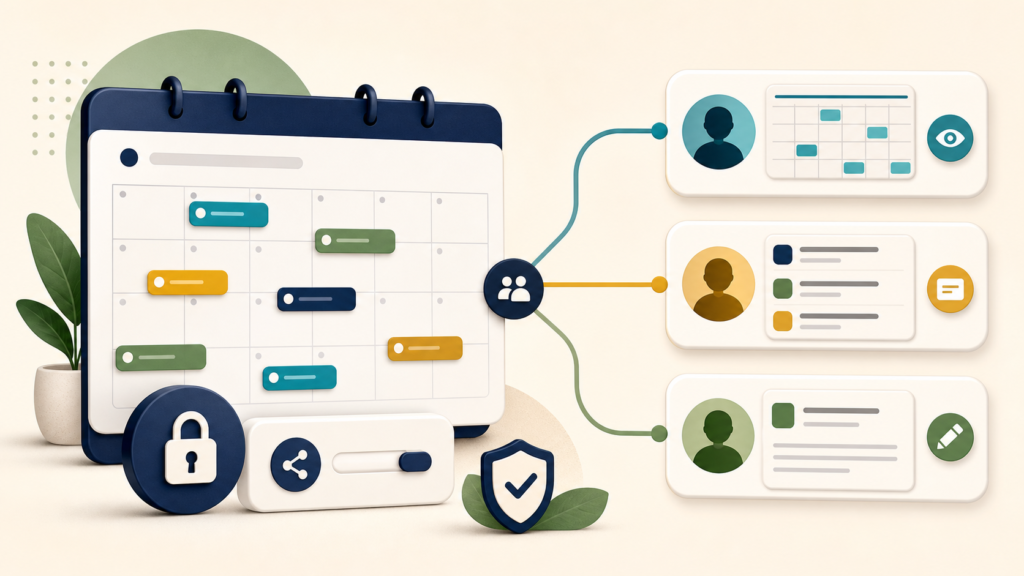
Share one event for a single meeting, a calendar for ongoing access, or a separate public calendar for published schedules—and always start with least privilege.
To share a Google Calendar, use Google Calendar in a computer browser. Under My calendars, point to the calendar, select More → Settings and sharing → Shared with → Add people and groups. Enter an email address or Google group, choose the lowest permission the recipient needs, and select Send. The recipient must use the email link to add the calendar.
Share the whole calendar only for ongoing access. For one meeting or deadline, invite named guests to that event instead. For a schedule meant for anyone, create a separate public calendar rather than exposing a personal calendar.
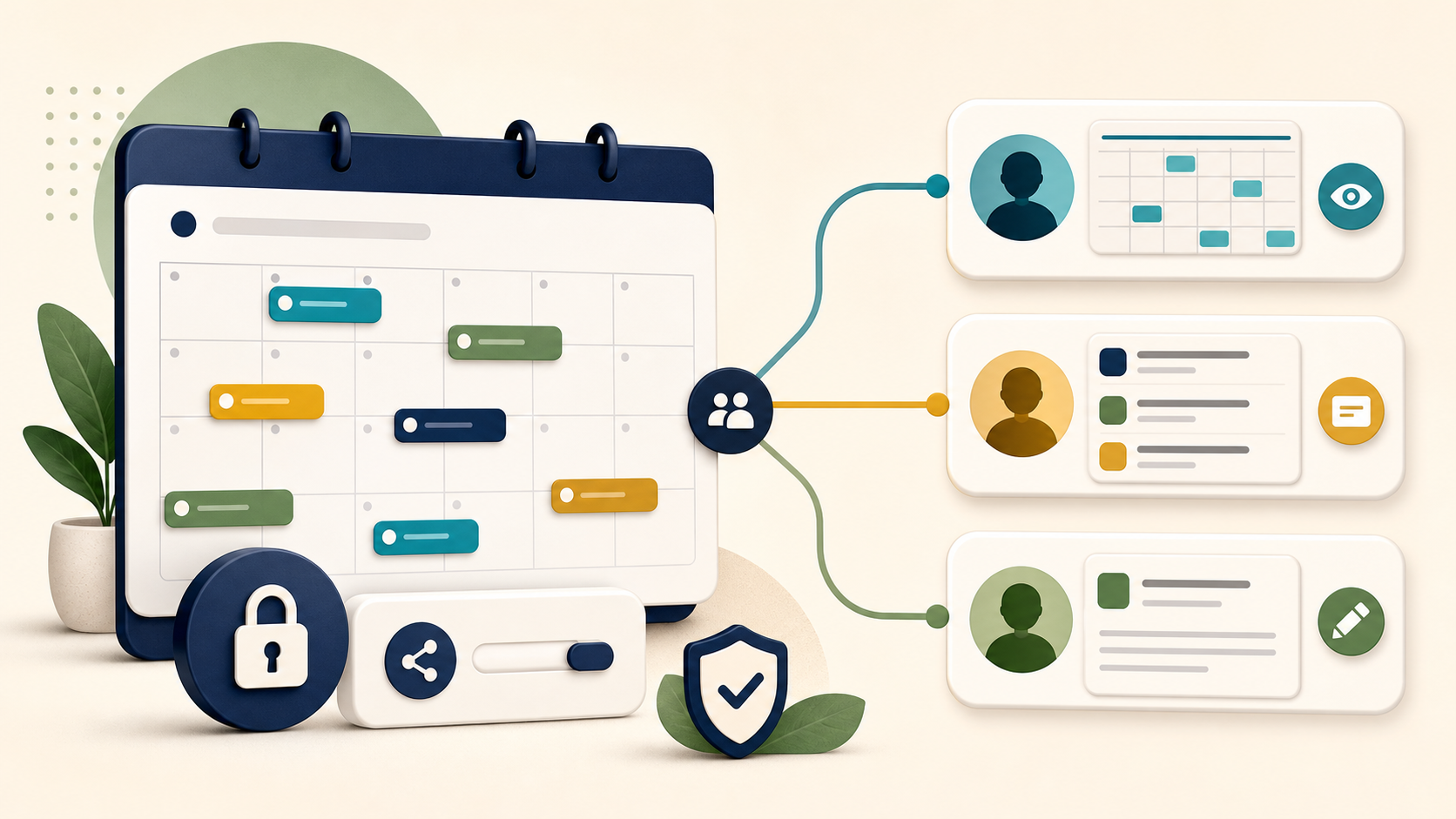
Choose what you actually need to share
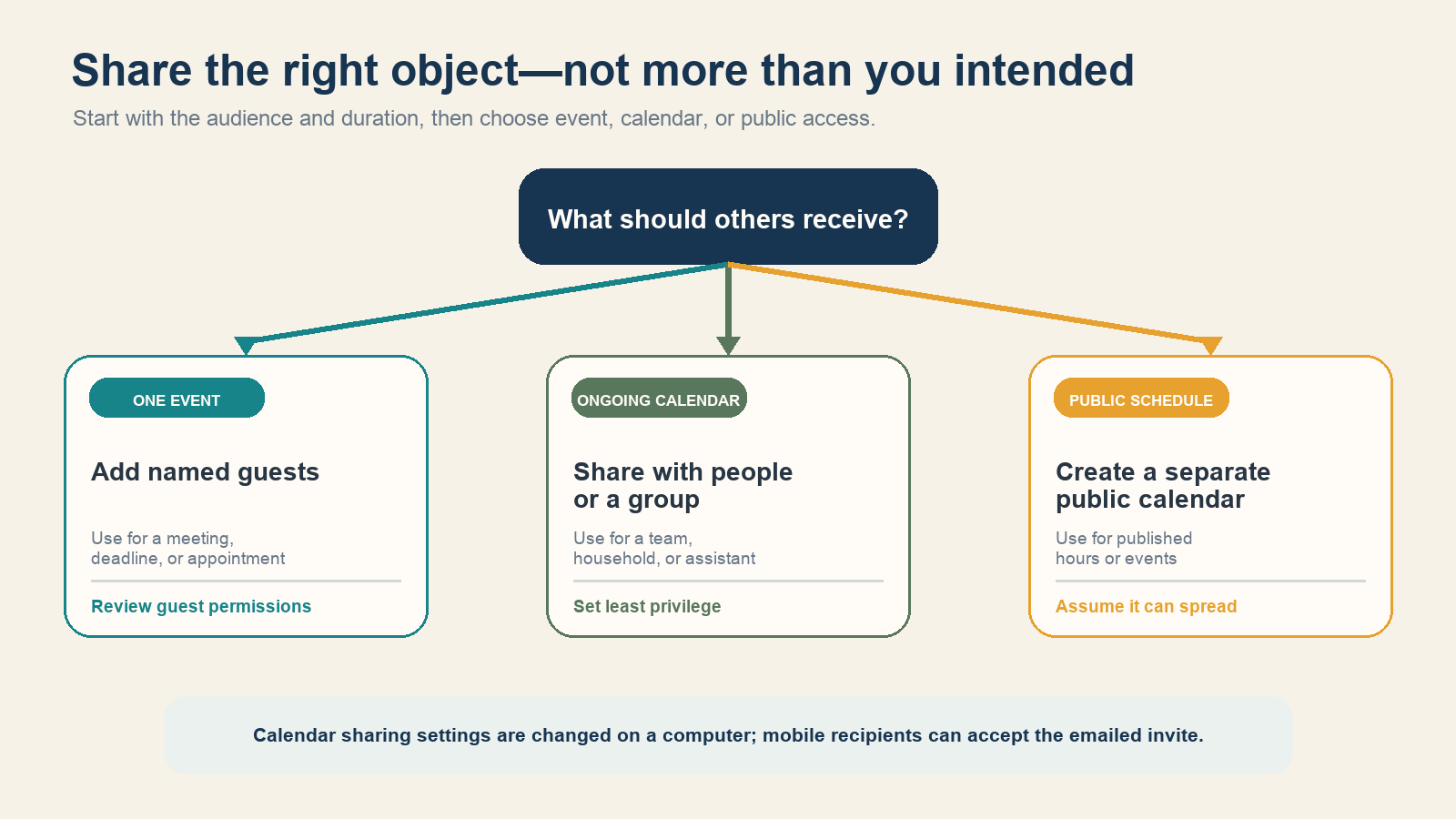
- One event: add named guests. They receive only that invitation and future updates to it.
- Ongoing schedule: share a calendar with specific people or a Google group.
- Availability only: share free/busy so people can find open time without reading event details.
- Public program: publish a separate calendar that contains only information intended for the internet.
This distinction limits accidental disclosure. A calendar can contain locations, meeting links, descriptions, guest names, travel, medical appointments, client names, and routine patterns. Sharing one event avoids granting a standing view of all of it.
Share an entire Google Calendar with a person or group
- On a computer, open Google Calendar and sign in.
- On the left, expand My calendars.
- Point to the calendar you own, select the three-dot More menu, then choose Settings and sharing.
- Select Shared with, then Add people and groups.
- Enter the person’s email address or a Google group.
- Choose a permission level. Start with free/busy or event details unless editing is required.
- Select Send.
Google’s current calendar-sharing instructions say the recipient receives an email and must select its link to add the calendar. You can share a calendar you own or one for which the owner gave you permission to manage sharing.
If this is a work or school account, a Google Workspace administrator may prevent external sharing or remove some permission choices. That is an organization policy, not a browser error; contact the administrator instead of trying to route around it.
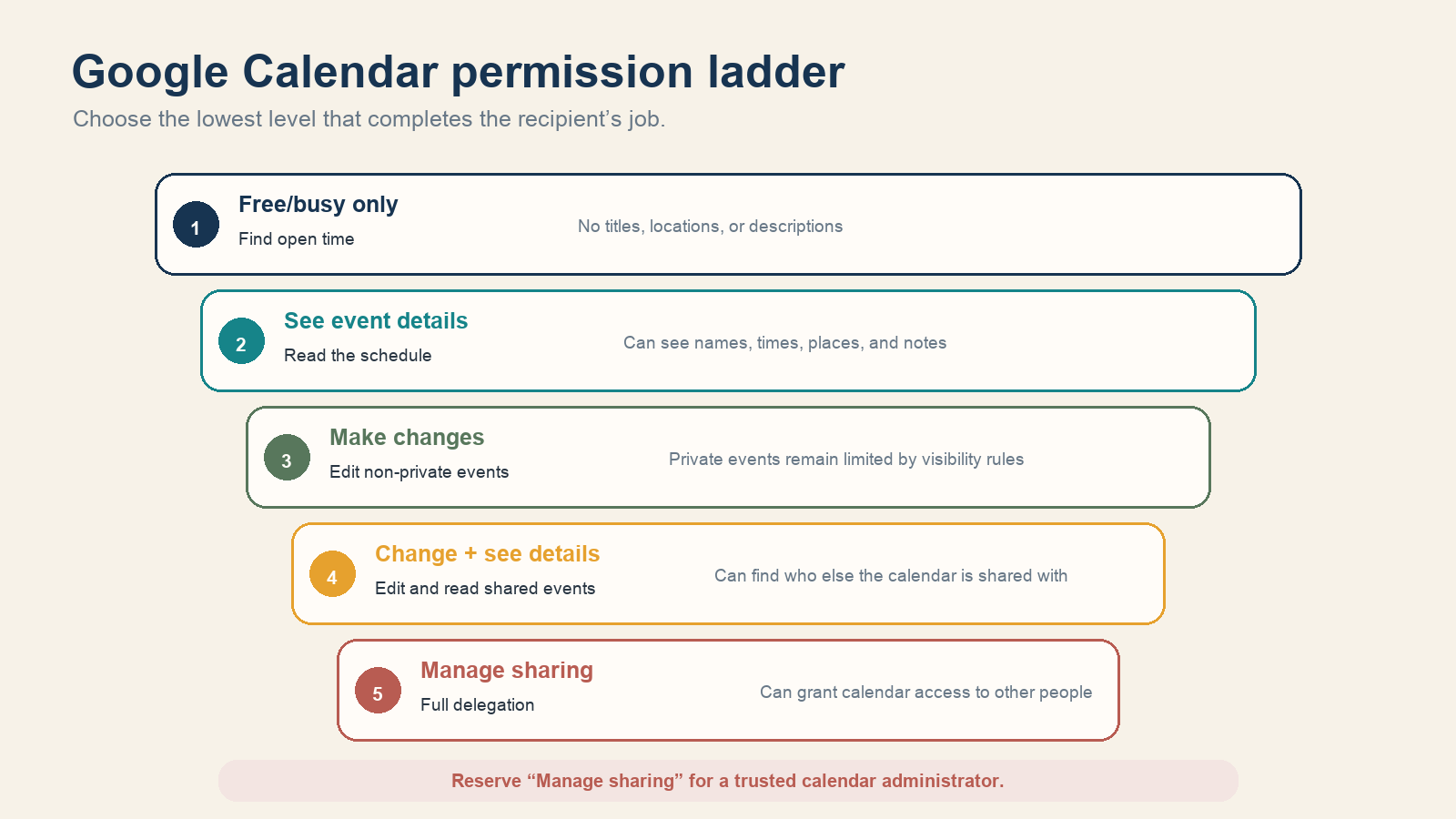
Choose the lowest useful permission
| Permission | What the recipient can do | Good use |
|---|---|---|
| See only free/busy | See when time is busy, without event names or details | Scheduling with colleagues, clients, or family |
| See event details | Read event names, times, places, and descriptions | A teammate who needs schedule context |
| Make changes (see private events as free/busy) | Edit non-private events; private-event visibility remains constrained | An assistant who maintains ordinary events |
| Make changes and see event details | Edit events and read shared details | A trusted operational collaborator |
| Make changes and manage sharing | Control events and grant access to other people | A trusted calendar administrator or co-owner |
Google’s permission documentation warns that broader calendar permissions take priority when settings conflict. For example, making a calendar public with event details cannot be undone for one person by assigning that person only free/busy access—the public permission is already broader.
Invite people to one event instead
Open or create the event, add each guest’s email address, review guest permissions, and save. This is the normal choice for a meeting, appointment, launch, or deadline. Guests can respond without receiving ongoing access to unrelated events.
A personal Google Account may also offer Invite via link for a future event on the primary calendar. Treat that link as transferable. Google’s event-sharing guide says people who receive the link can open the event page and respond; link sharing requires the guest-list visibility setting to be enabled, and changing guest permissions can invalidate the link. Named invitations are safer when attendance must be controlled.
Make a calendar public only for public information
A public calendar can be found on the internet, subscribed to, used by other apps, and potentially appear in search results. If you need public office hours, community events, classes, or release dates, create a separate calendar and copy only approved information into it.
- On a computer, open the calendar’s Settings and sharing page.
- Under Access permissions for events, select Make available to public.
- Choose free/busy or full event details.
- Under Integrate calendar, copy the appropriate public link only after reviewing every event.
Google’s public-calendar guide notes that sharing settings can be edited only on a computer, not in the mobile app. It also explains that public changes may take time to propagate. Removing the public setting later does not retrieve copies, screenshots, exported feeds, or information already indexed elsewhere.
What the recipient must do
The recipient opens the sharing email and follows its link. The calendar then appears under Other calendars. On Android, iPhone, or iPad, a calendar that was already shared can be shown or hidden in the app, but requesting a new subscription to another person’s calendar requires a computer browser.
If the recipient cannot find the calendar:
- Confirm the exact Google Account or group address you shared with.
- Ask them to check Spam and Trash and search for your email address.
- Have them open Google Calendar on the web and inspect Other calendars.
- Remove the person from Shared with, add them again, and resend if the original invitation was lost.
- For work or school accounts, verify that both organizations allow the requested sharing scope.
Google’s subscription instructions also distinguish a shared Google calendar from a public URL. Adding a calendar “From URL” works only when that calendar is public.
Verify the share from the recipient’s account
A name in the owner’s sharing list does not prove that the recipient opened the right calendar. Check both sides with disposable events, not confidential appointments:
- Confirm the account. Ask the recipient to open the invitation using the exact address you added. In the web calendar, select the calendar under Other calendars so its events are displayed.
- Check ordinary visibility. Create an event called “Calendar access test” with a harmless location and note. Ask what the recipient can read and compare that with the permission you intended.
- Check privacy separately. Set a second harmless event to Private and Busy. Inspect the result from the recipient’s account; do not infer private-event visibility from the ordinary event.
- Test editing only if needed. Have an editor create and move a disposable event on the shared calendar. Verify they selected this calendar, not their personal one. Remove only the test events after both people confirm the result.
For an assistant maintaining appointments, use a dedicated appointment calendar and grant editing without sharing management unless that extra responsibility is required. For a short-term contractor, write down when access should end. A reminder to review access is useful; it is not automatic expiry of the permission.
If the problem is simply finding a time that suits a group, the When2Meet scheduling guide covers a polling alternative to ongoing calendar access. Once a meeting is booked, a separate meeting-minutes record can hold decisions and action owners without putting the whole discussion in a calendar description.
Change a permission or stop sharing
- On a computer, open Settings and sharing for the calendar.
- Select Shared with.
- Use the menu beside a person or group to lower or change permission, or select Remove.
- Separately disable Make available to public or organization-wide access if either is enabled.
- Review Google groups as groups; removing one visible person does not help if that person remains a group member.
Run a sharing review when a project ends, a contractor leaves, a household arrangement changes, or an assistant no longer needs edit rights. The list of named recipients is not the whole exposure if a calendar is also public, organization-wide, or shared to a group.
Privacy check before you select Send
- Does this person need one event, ongoing availability, details, or editing?
- Are private-event visibility and broad public or organization permissions understood?
- Does any description contain meeting passwords, customer data, addresses, or confidential notes?
- Could a separate team or public calendar reduce exposure?
- Who will remove access, and when?
The safe rule is to share the smallest object with the lowest permission for the shortest necessary time. If the available option is broader than the real need, use an event invitation, free/busy scheduling, or a separate calendar instead.