A virtual desktop may be a local window workspace or a complete desktop running elsewhere. Use workload location, persistence, and ownership to tell the models apart.
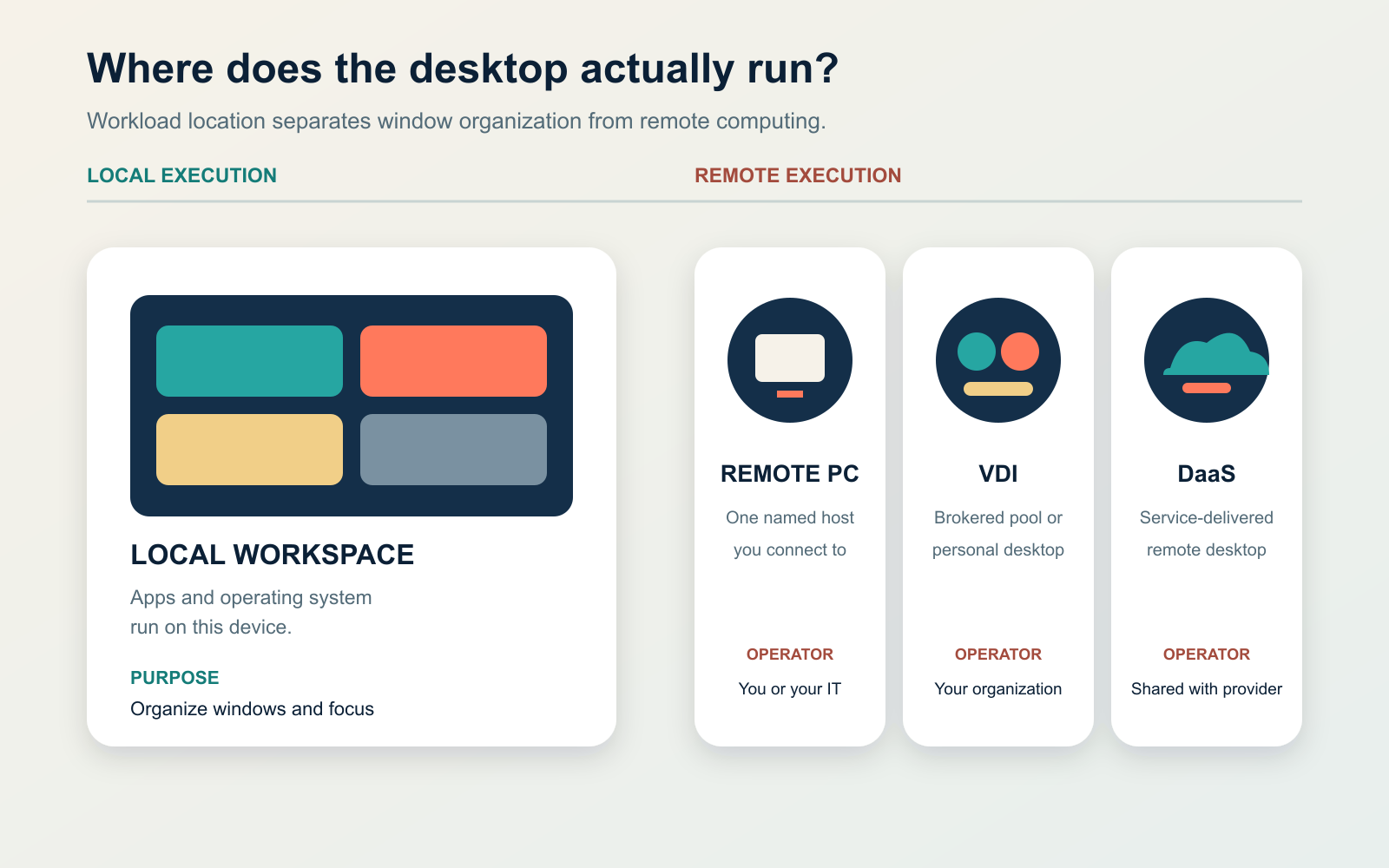
A virtual desktop is a software-defined workspace that either organizes windows on your current device or delivers a desktop running on another computer. The phrase covers two fundamentally different ideas. Windows “multiple desktops” and macOS Spaces stay on your laptop; virtual desktop infrastructure (VDI) and desktop as a service (DaaS) run the work on remote hosts and send the experience across a network.
The fastest way to avoid the confusion is to stop looking at the screen and ask where the operating system and applications are executing. If they still run on the device in front of you, you have a local workspace. If they run in a data center, cloud account, or another PC, you have a remote desktop session.
Start with the two-question location test
Ask these questions in order:
- Would this desktop still work if the network disappeared? If yes, it is probably a local virtual workspace. If the session freezes or disconnects, the workload is probably remote.
- Which machine owns the running apps and files? A local workspace uses the CPU, memory, storage, and operating system of the endpoint. A remote virtual desktop uses a remote physical PC, virtual machine, or multi-user session host.
This test is more useful than the product label. A vendor may call a service a cloud PC, hosted desktop, workspace, VDI platform, or DaaS offering. The location of execution tells you what depends on the network, who must patch the operating system, and where data can reside.
Four systems commonly called a virtual desktop
1. A local virtual workspace
Windows lets a user create multiple desktops to group apps and tasks, while Apple calls additional macOS desktops “Spaces.” Microsoft’s multiple-desktop documentation describes separate workspaces for organizing open apps; Apple’s Spaces guide similarly says only the windows assigned to the active Space are shown.
These are window-management views, not separate computers. Closing a workspace does not normally uninstall its apps, create a new security boundary, or give it independent RAM and CPU. Use this meaning when the goal is focus: one desktop for research, another for meetings, and another for personal windows.
2. Remote access to one existing PC
A remote desktop connection lets one device control a specific computer from elsewhere. Microsoft’s Remote Desktop guide, for example, has the user enable a remote Windows PC and connect to it by name. That destination could be a physical office PC or a virtual machine, but the defining relationship is one client connecting to a known host.
This route is useful when an individual needs the exact apps, files, or hardware access already configured on that machine. It does not automatically provide a pool, centralized image lifecycle, or the brokering functions associated with an organization-wide VDI deployment.
3. Virtual desktop infrastructure
VDI hosts desktop operating systems or sessions on centralized infrastructure and delivers them over a network. A typical environment includes host servers, virtual machines or session hosts, desktop images, user profiles, storage, and a connection broker that authenticates a user and assigns an appropriate desktop. Google Cloud’s VDI architecture overview identifies the hypervisor, virtual machines, desktop images, broker, storage, client, and remote display protocol as core pieces.
Those pieces make VDI a distributed service rather than one oversized computer. Our distributed-systems explainer covers the coordination problem behind services with multiple independently failing components. For the end user, however, the experience can still look like a familiar full desktop.
4. Desktop as a service
DaaS delivers a remote desktop through a cloud service. It is best understood as an operating and commercial model, not a new display protocol. The provider runs some of the infrastructure and service layer; the customer still owns responsibilities such as user access, application configuration, data governance, and often the desktop image. AWS’s DaaS guidance describes service-based desktop delivery with adjustable hardware choices and pay-as-you-go capacity.
The line between managed VDI and DaaS can be fuzzy. Do not decide from the acronym. Map who operates the broker, gateways, hosts, images, identity controls, profiles, backups, monitoring, and support.
What actually crosses the network?
In a remote virtual desktop, the endpoint acts as a client. It sends keyboard, mouse, touch, and permitted device input to the remote session. The host executes the applications and returns the changing display, audio, and other allowed output. Microsoft documents RDP as providing remote display and input capabilities over network connections.
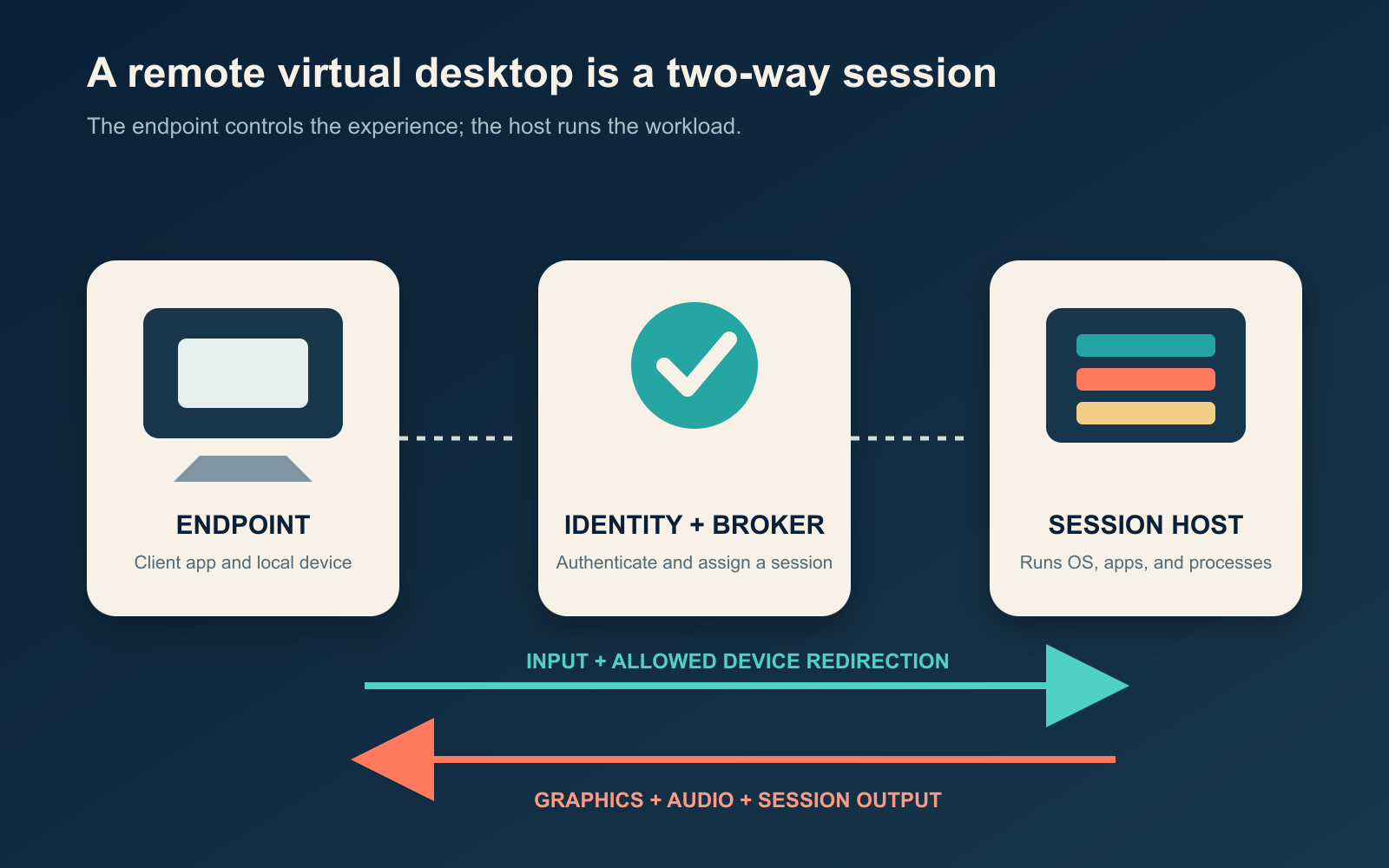
“The data stays in the data center” is therefore a policy outcome, not a guaranteed property of the screen. Clipboard, drive, printer, USB, camera, and file-transfer redirection can move data or device capabilities across the boundary. Microsoft’s RDP redirection documentation shows that administrators can allow or restrict those resources. Downloads, browser storage, screenshots, and unmanaged endpoints also need explicit treatment.
Persistent or non-persistent: what must survive sign-out?
Remote desktops often differ more by persistence than by appearance.
| Question | Persistent desktop | Non-persistent or pooled desktop |
|---|---|---|
| What the user receives | The same personal desktop experience or a preserved user state | An available session from a standardized pool |
| What survives | Approved customization, profile state, and installed tools can persist | The session host may reset; required profile and data must live elsewhere |
| Best fit | Developers, designers, or specialists with durable machine-specific configuration | Task workers, training rooms, call centers, labs, and standardized shifts |
| Main operational burden | More unique state to patch, recover, and support | Applications and profiles must behave correctly when hosts are replaceable |
Use a concrete survival test: an analyst changes an application preference, saves a template, and signs out. Which changes must appear at the next login? If everything must return, design persistent state and recovery. If the desktop should reset, keep the user’s files and profile data in managed services outside the disposable session. “Non-persistent” should never mean “we hope important data was not stored locally.”
What a virtual desktop isolates—and what it does not
A local virtual workspace offers almost no security isolation. Apps remain under the same operating system, account, and endpoint controls. Moving a suspicious app to another desktop does not contain it.
Remote VDI can centralize images, access rules, logging, and data, but centralization also concentrates impact. A compromised identity can expose a remote session; an unpatched session host can affect users; an over-permissive clipboard can move sensitive data; and an unhealthy broker or profile service can block many people at once. Microsoft’s current Azure Virtual Desktop security recommendations call for controls such as least privilege, session-host protection, constrained resource redirection, and appropriate access policies.
Evaluate four boundaries separately:
- Identity: strong authentication, conditional access, session lifetime, and recovery.
- Endpoint: device trust, local capture, downloads, browser storage, and client updates.
- Session: host patching, application control, privileges, and separation between users.
- Data path: clipboard, drives, printers, USB, files, and network destinations.
Why a remote virtual desktop can feel slow
The application may be running on powerful hardware and still feel unresponsive because every interaction has a round trip. Latency affects the pause between input and visible response; bandwidth and encoding capacity affect how quickly changing graphics arrive. High-resolution displays, video, animation, conferencing, and redirected peripherals create different loads from static documents.
Microsoft’s RDP bandwidth guidance notes that usage varies with activity, display resolution, graphics, printing, file transfer, and real-time communication. If typing is delayed, measure round-trip network latency before buying more host CPU. If video degrades while text remains responsive, inspect graphics encoding, bandwidth, packet loss, and media optimization. If only one app is slow, test the application and its back-end data path inside the remote environment.
Choose the model by the job
- You only want a cleaner laptop screen
- Use local Windows desktops or macOS Spaces. No remote service is required.
- You need your exact office or home PC from elsewhere
- Use a secured remote desktop route to that named machine, subject to organizational access policy.
- IT must deliver standardized desktops to many users
- Evaluate VDI, including image management, brokering, profiles, capacity, identity, redirection, and support.
- The organization wants a provider to operate more of the platform
- Evaluate DaaS, but write down the shared-responsibility boundary before comparing prices.
- Users need one managed application, not a whole desktop
- Consider remote application delivery. A full desktop may add navigation, licensing, and support work without improving the task.
Before adoption, ask vendors and internal teams to demonstrate one normal login, one reconnect after a network interruption, one profile restore, one blocked data-transfer attempt, and one host failure. ToolMerit’s recommendation is to choose the least complex model that meets the actual location, persistence, security, and application requirements. A virtual desktop is valuable when its operating boundary solves a real problem—not merely because the screen can be opened somewhere else.