A favicon is a website's tiny recognition mark. Learn where it appears, how browsers choose it, which files to provide, and how to test it at real tab size.
A favicon is the small identifying icon attached to a website or page. The name comes from “favorite icon,” but the job has grown beyond bookmarks: browsers may show it in tabs, history, address suggestions, and other interface surfaces, while Google may show a site’s favicon beside its search result.
It is not simply a logo shrunk until it fits. At 16 or 32 pixels, a detailed logo can turn into an unreadable smudge. A useful favicon is the smallest reliable expression of a brand: one shape, strong contrast, and no detail that disappears at tab size.
What does favicon mean in practical terms?
In HTML, a favicon is usually an image connected to a document with a <link rel="icon"> element. The HTML Living Standard describes that icon as a resource representing the page or site in a user interface. In other words, the image is not part of the page’s visible content; it is metadata that a browser or another service can use when it represents the page elsewhere.
The historical name can be misleading. A favicon does not mark a page as one of your favorites, and adding one does not improve rankings by itself. It gives software a visual identifier to display when space is scarce. That identifier can make the right tab easier to find and can make an otherwise generic browser entry look intentional.
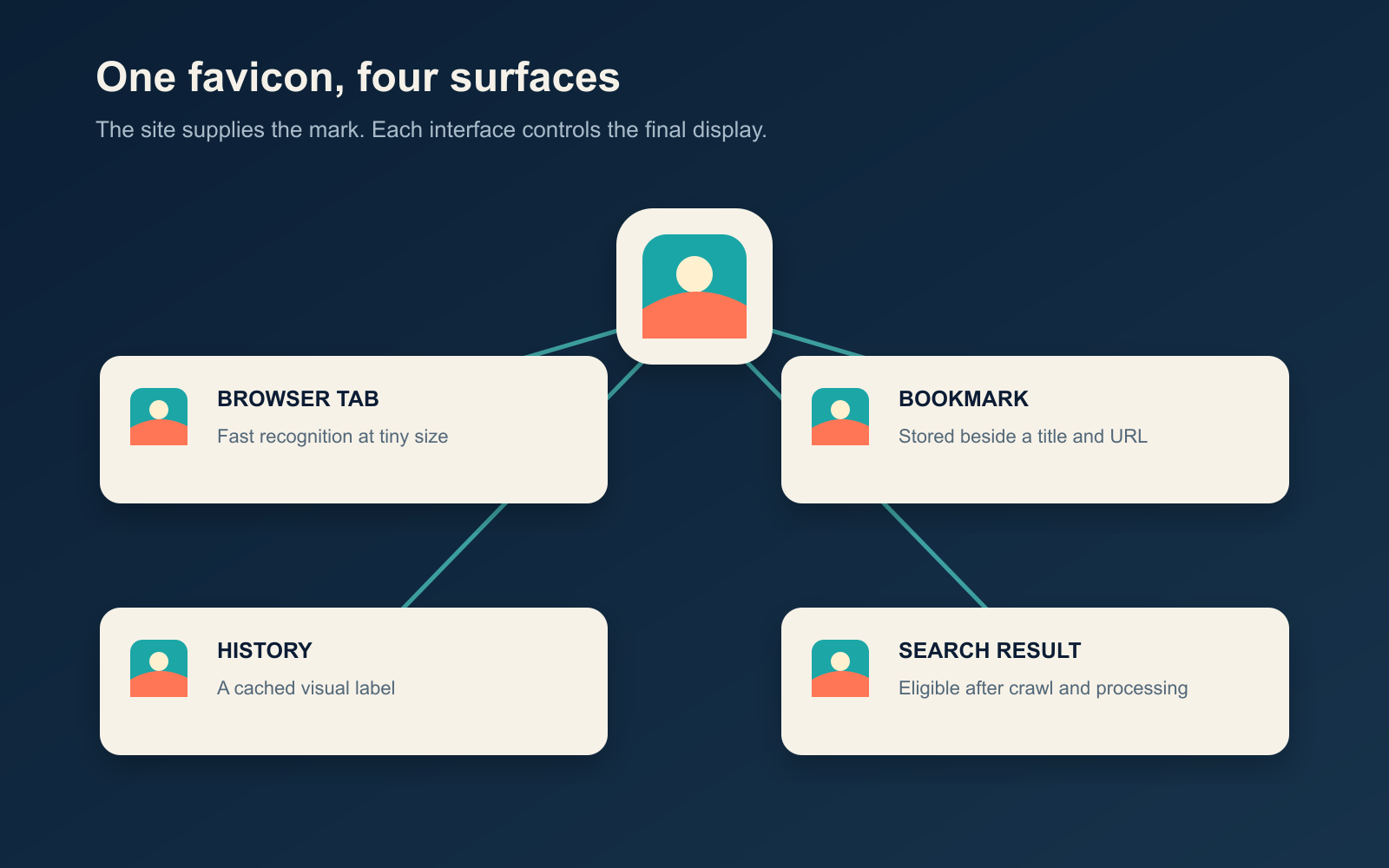
One mark, four separate display decisions
A site supplies an icon; it does not control the exact rendering. A browser may choose among several declared icons, scale one to its interface, or retain a cached version. A search engine has its own crawl and display rules. A phone’s home-screen shortcut may use a separate touch icon. That distinction explains why a favicon can look current in a browser tab yet remain old in search results.
- Browser tab: rapid recognition at a very small size, often 16 or 32 pixels.
- Bookmark or history: a visual label stored alongside a title and URL.
- Search result: a site-level identity cue subject to the search engine’s eligibility and recrawl process.
- Home-screen shortcut: a larger, platform-shaped icon that may come from an Apple touch icon or a web app manifest rather than the ordinary tab asset.
This is why “I changed the favicon” is not a complete troubleshooting statement. You also need to name the surface, the file it requested, and whether that surface has fetched the new version.
Favicon vs. logo vs. app icon
These assets can share a visual system without being interchangeable.
| Asset | Main job | Design pressure | Typical delivery |
|---|---|---|---|
| Favicon | Identify a site or page in browser and search interfaces | Must remain distinct at tiny sizes | rel="icon", often SVG, PNG, or ICO |
| Primary logo | Communicate the full brand on the page and in marketing | May include a wordmark, fine geometry, or a tagline | Page image or inline vector artwork |
| Touch icon | Represent a saved website on an Apple home screen | Needs more padding and must tolerate platform treatment | rel="apple-touch-icon" |
| Installable web app icon | Represent an installed PWA in operating-system surfaces | Requires manifest sizes and may need a maskable safe area | Web app manifest |
If a logo is already a bold symbol, the favicon may be the symbol alone. If the logo is mostly a wordmark, design a separate monogram or abstract mark. SVG can preserve clean vector geometry; our guide to vector images explains why that differs from enlarging a small bitmap. The final decision still comes from a small-size test, not from how elegant the master file looks at 512 pixels.
How a browser finds and chooses a favicon
The clearest method is to declare icon files in the page’s <head>. When more than one rel="icon" link exists, the HTML standard and MDN’s rel reference explain that a browser can use the type, media, and sizes attributes to select an appropriate candidate. If equally suitable candidates remain, the last declared one wins. If the selected file proves unusable, the browser can try the next candidate.
The standard also permits an HTTP(S) browser to request /favicon.ico when no icon link is present. Treat that as compatibility behavior, not as a reason to omit explicit markup. An explicit URL is easier to inspect, version, and test.
The sizes value must describe sizes actually present in a bitmap file. For a scalable SVG, sizes="any" expresses that the resource is not limited to fixed bitmap dimensions. The file still needs a design that works when rendered small; scalability prevents pixelation, not visual clutter.
A practical favicon file set
There is no single universal package that every website must ship. ToolMerit’s preference for a new, manually coded site is a small compatibility set rather than dozens of redundant exports:
- A simplified square master at 512 × 512 pixels for editing and CMS uploads.
- A scalable SVG favicon for clients that support it.
- An ICO fallback containing useful small bitmap sizes such as 16, 32, and 48 pixels, served at a stable URL.
- A 180 × 180 PNG touch icon when saved-to-home-screen behavior on Apple devices matters.
<link rel="icon" href="/favicon.ico" sizes="32x32">
<link rel="icon" href="/favicon.svg" type="image/svg+xml" sizes="any">
<link rel="apple-touch-icon" href="/apple-touch-icon.png">
This markup identifies candidates; it does not force every surface to use the same one. Apple’s Web Clip documentation defines apple-touch-icon for home-screen shortcuts, while the ordinary icon relationship covers the page or site icon used by conforming user agents.
If you use WordPress, avoid hand-editing a theme unless you have a specific compatibility requirement. The current WordPress Site Icon instructions for version 6.5 and later direct administrators to Settings → General → Choose a Site Icon and recommend a square PNG at least 512 × 512 pixels. WordPress generates and emits several site-icon sizes from that upload.
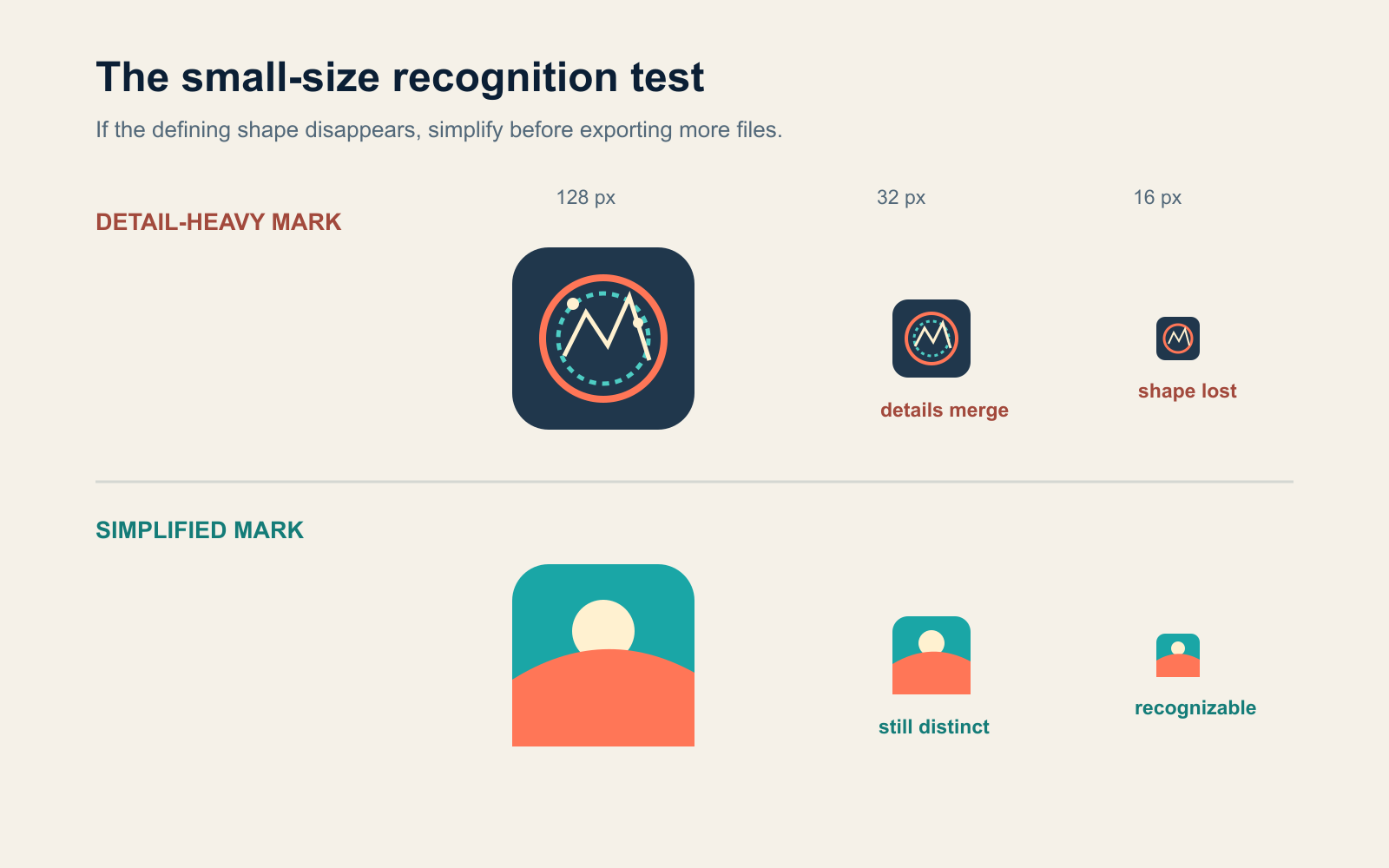
The 16-pixel recognition test
Do not judge a favicon only on an artboard. Run this short test before export:
- Place the candidate beside five unrelated icons rather than viewing it alone.
- Render it at 32 × 32 and 16 × 16 pixels on both light and dark browser-like backgrounds.
- Look away, then return and try to identify its defining shape in one second.
- Check whether transparent edges disappear, thin strokes break, or letters close up.
- If recognition depends on reading a full word, remove detail and repeat.
A good reduction usually preserves one silhouette and one contrast boundary. It does not need to reproduce every brand color or every curve. When the 16-pixel version needs special pixel adjustments, make them deliberately; do not assume a mathematically scaled master is automatically the clearest result.
Make it eligible for Google Search
Google Search treats the favicon as a site-level asset by hostname. Its current favicon guidelines require a square image of at least 8 × 8 pixels and recommend an image larger than 48 × 48 pixels for quality across surfaces. The home page and favicon file must be crawlable, the icon URL should remain stable, and the design should represent the site. Meeting those conditions makes the site eligible; Google explicitly does not guarantee that the favicon will appear.
For search, add the icon link to the hostname’s home page, verify that the URL returns the intended image without authentication or a crawler block, and then allow for recrawling. Google notes that processing can take several days to several weeks. A subdirectory cannot have a separate Google Search favicon from the rest of its hostname, while a subdomain is a separate hostname and may use its own.
Why a favicon may still look missing or outdated
Diagnose the requesting surface before redesigning the image.
- The tab shows a generic icon
- Open the icon URL directly. Confirm a successful image response, valid markup in the rendered
<head>, and a declared size that matches the bitmap. Then test in a fresh browser profile or private window to separate a file problem from a cache problem. - The tab is correct but Google is old
- Check the home page and icon with the relevant crawler permissions, keep the URL stable, and wait for processing. Replacing the file repeatedly can extend the uncertainty instead of fixing it.
- The desktop tab is correct but the home-screen icon is wrong
- Inspect the touch-icon link or web app manifest. That surface may not be using the ordinary browser favicon at all.
- The icon is technically present but impossible to recognize
- Return to the 16-pixel test. Increase contrast, thicken fragile strokes, remove words, and simplify the silhouette before adding more file formats.
The decision rule is simple: use a favicon as the site’s tiny recognition mark, not as a compressed brand poster. Declare it explicitly, give special platforms the assets they actually request, and verify the result at the surface and size where people will see it.