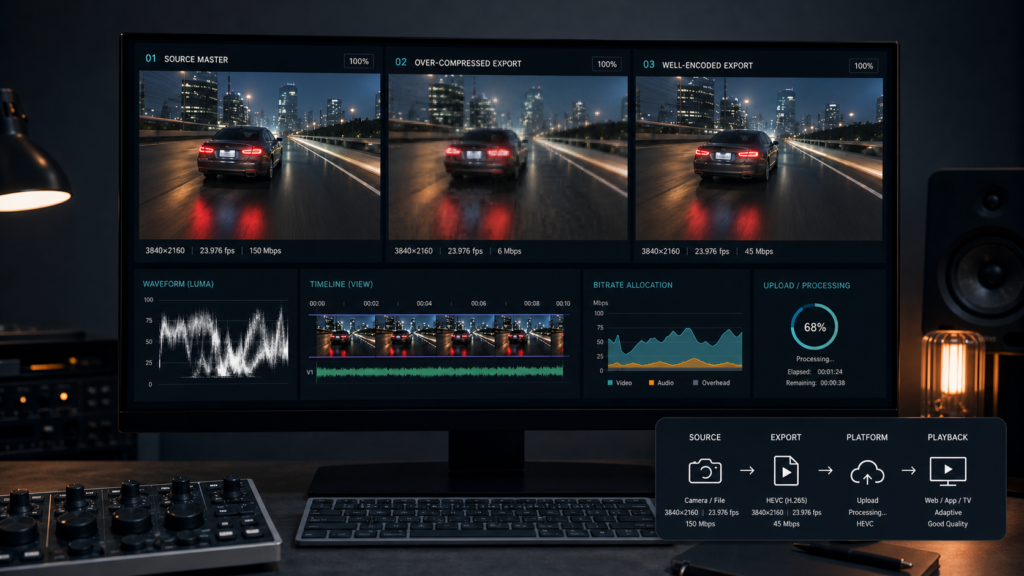
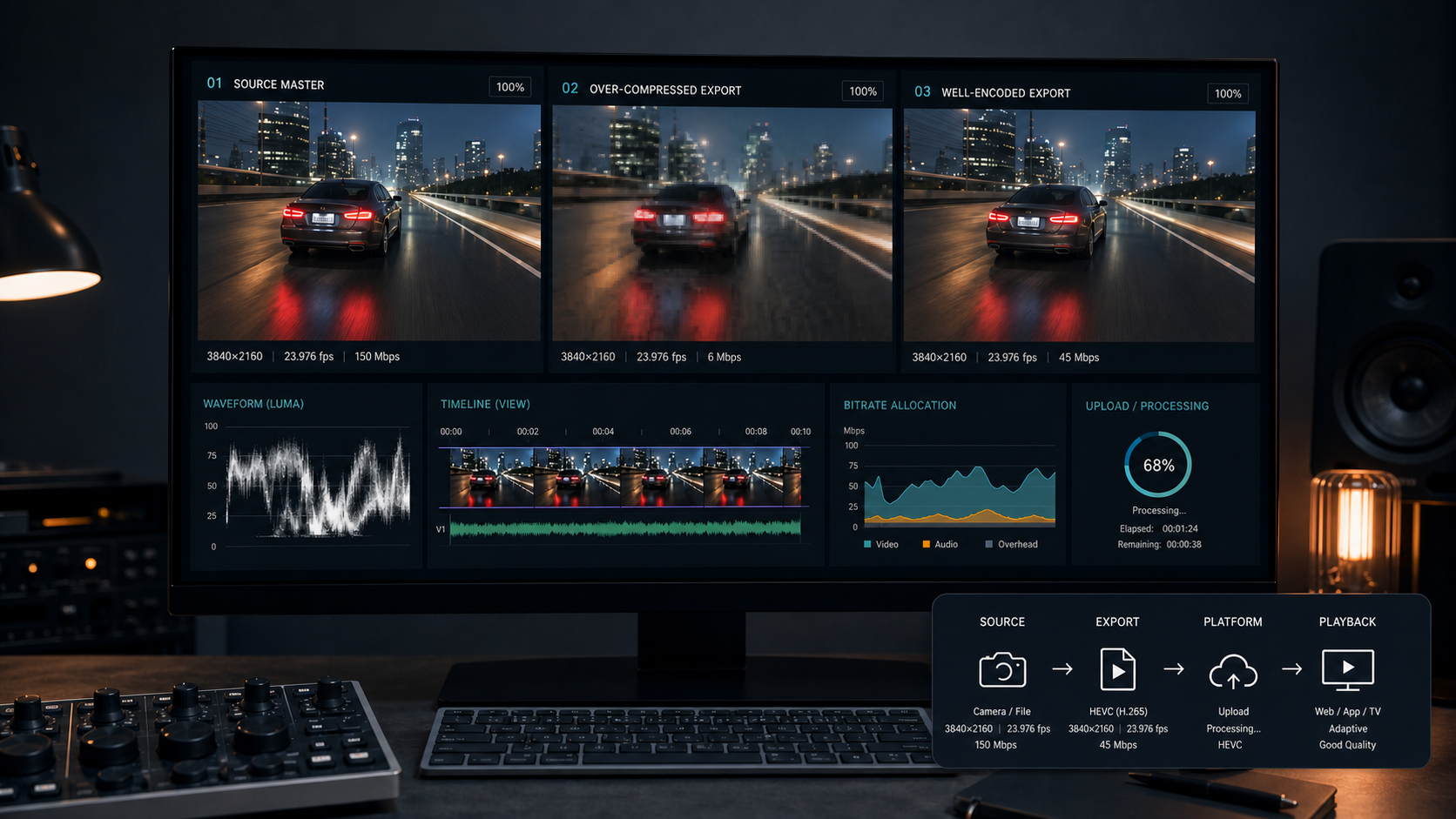
Compare the source, local export, uploaded master, and final playback at the same size. The first bad checkpoint determines whether to reshoot, re-export, wait for processing, or change playback quality.
To fix pixelated video, compare the original source, local export, uploaded file, and final playback at the same display size. If the source is already blocky or too small, use a better master or reshoot. If only the export is bad, re-export from the source at its native resolution and frame rate with a higher quality setting or adequate bitrate. If only the platform copy is bad, wait for high-resolution processing and select the correct playback quality. Lost source detail cannot be fully reconstructed.
Do not begin by adding sharpness or buying an AI enhancer. First locate where the picture changed. Pixelation introduced during one step can usually be avoided by rebuilding that step from a better input; pixelation already baked into the only source has a hard recovery limit.
Name the artifact before choosing a fix
People use pixelated for several unrelated defects. Pause on a representative frame and describe what you actually see:
| Visible symptom | Likely class | First test |
|---|---|---|
| Large shifting square blocks, especially in motion or darkness | Compression starvation or a damaged compressed stream | Compare source and local export during the same motion |
| Stable square pixels and jagged edges when enlarged | Low source resolution or excessive digital zoom | View at 100% instead of filling a larger display |
| Soft picture without visible blocks | Focus, motion blur, denoise, scaling, or low playback tier | Inspect a still source frame and player quality setting |
| Steps in a sky or gradient | Banding from compression, bit depth, or processing | Compare the master and export on the same display |
| Random green blocks, freezes, or broken frames | File corruption, decode, storage, or transfer problem | Try another copy, player, and device; verify the transfer |
| Quality changes while streaming | Adaptive playback or network limitation | Select a fixed quality and test after buffering |
One clip can have more than one defect. A noisy low-light source requires more data to compress and may then develop blocks in a low-bitrate export. Treat the earliest defect first.
Find the first bad checkpoint
Use the same difficult moment and the same display. Disable fit-to-screen enlargement where possible and compare at 100%.
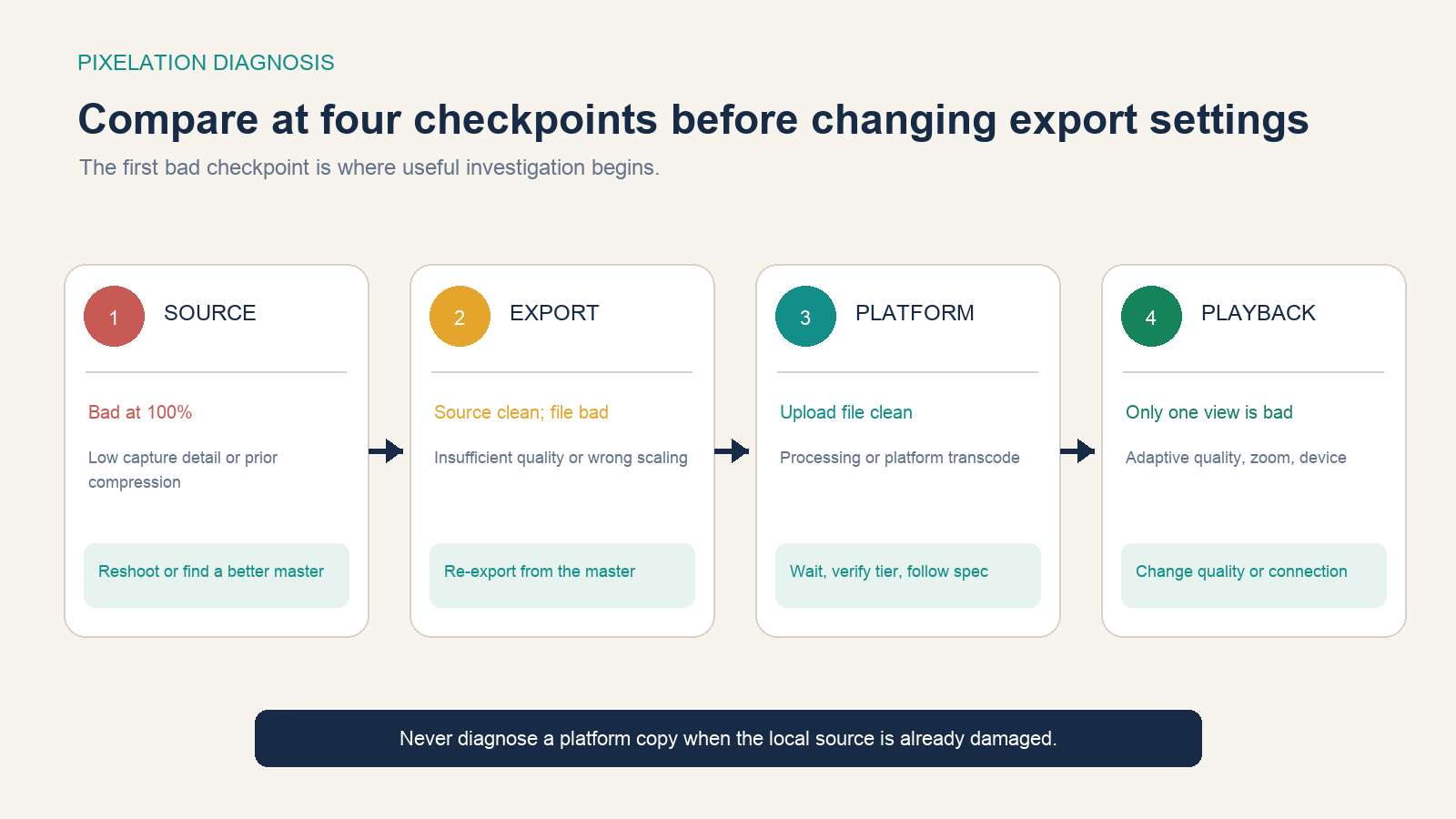
- Source: open the least-compressed camera file, screen recording, or delivered master. If it is bad locally, later encoders cannot recover its real detail.
- Export: play the new local file before uploading. If the source is clean and this copy is blocky, inspect export resolution, frame rate, scaling, quality, bitrate, codec, and preset.
- Platform: download or inspect the uploaded master where permitted and wait for every quality tier. If the upload is clean but the platform rendition is bad, follow the destination specification.
- Playback: compare browsers, apps, devices, connection types, display zoom, hardware decoding, and manually selected quality.
YouTube’s upload troubleshooting guidance notes that high-resolution tiers may take hours to process and recommends testing other browsers or devices to isolate display problems. A newly uploaded 4K video viewed immediately at a low temporary tier is not evidence that the 4K encode failed.
Recover the best available source
Return to the camera original, screen-recording master, project render, or highest-quality received file. Do not take a downloaded social-media copy, enlarge it, sharpen it, and call it repaired. Every lossy transcode makes new decisions using a picture that has already discarded information.
If only a low-resolution source exists, decide whether it can be shown smaller, placed in a designed frame, replaced with a still, recreated as a screen capture, or reshot. A smaller display can make fixed pixels less distracting without claiming the source gained detail.
For screen recordings, re-record at the intended output pixel dimensions where practical. Increase application text and interface scale before capture instead of digitally zooming a small recording later. For camera footage, avoid unnecessary digital zoom and confirm focus, light, shutter behavior, and recording quality before a reshoot.
Re-export one difficult sample
Choose ten to thirty seconds containing fast motion, fine texture, water, smoke, confetti, gradients, low light, or camera noise. These scenes expose insufficient compression quality more clearly than a static talking head.
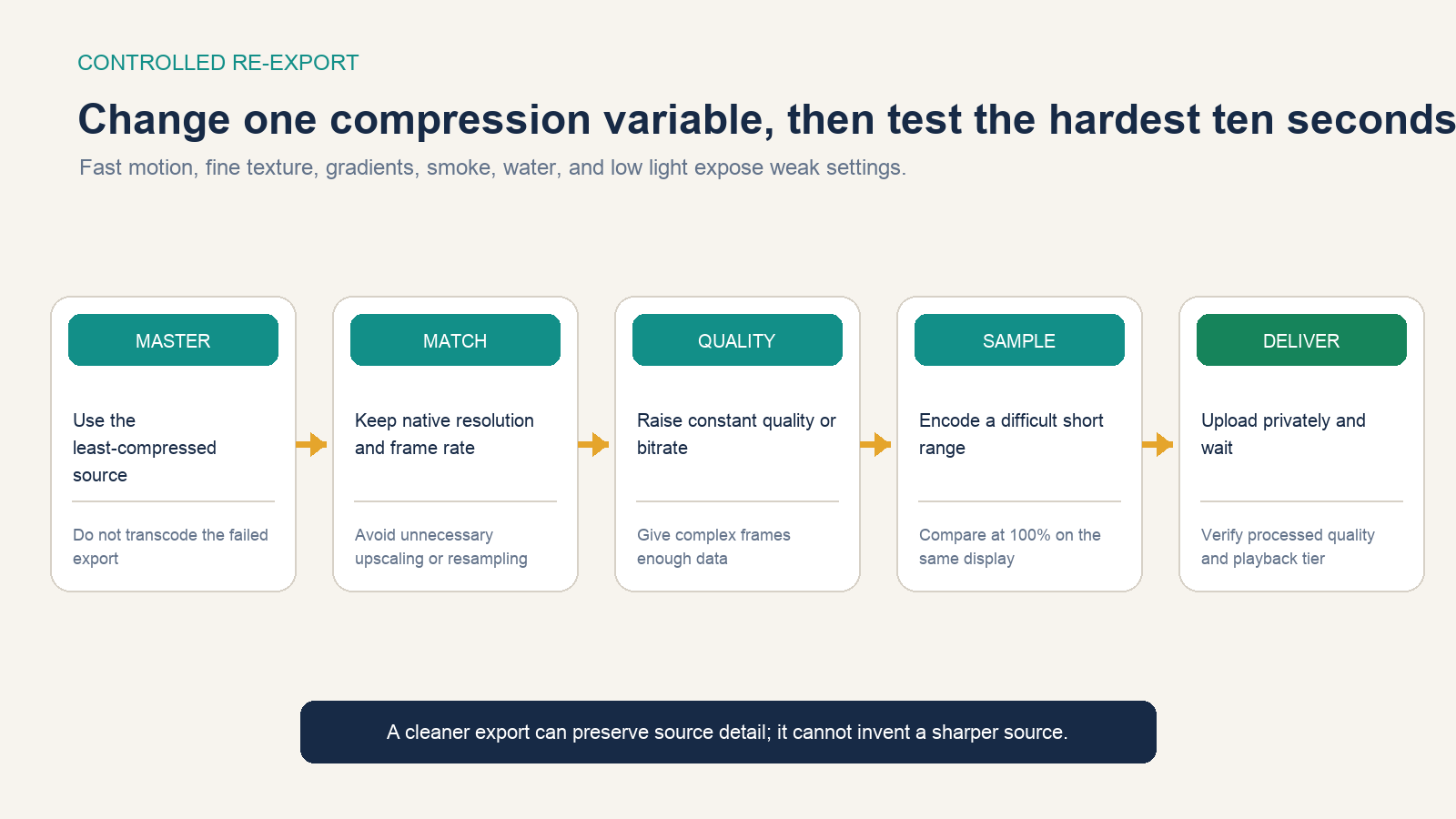
- Start from the least-compressed source and a clean project timeline.
- Match the source resolution, pixel aspect ratio, and frame rate unless the destination requires a deliberate conversion.
- Use a destination-compatible codec and increase constant quality or target bitrate by one meaningful step.
- Encode only the difficult range and compare the same frames at 100%.
- When the local file passes, export the complete video and run the platform test privately or unlisted.
HandBrake’s current quality documentation recommends constant-quality encoding for ordinary use and small adjustments followed by preview tests. Its quality-versus-bitrate explanation notes that complex frames need more data and that restoring a previously compressed source at lossless settings only preserves the already damaged decoded picture.
Match the delivery specification
There is no universal “best bitrate.” Required data depends on codec, resolution, frame rate, motion, texture, noise, bit depth, quality target, and what the destination will do next. Use the current specification for the platform and test with your actual content.
For one concrete example, YouTube’s current upload recommendations list H.264 High Profile, progressive scan, 4:2:0 chroma, the recorded frame rate, and variable bitrate. Its SDR reference rates include 8 Mbps for standard-frame-rate 1080p, 12 Mbps for high-frame-rate 1080p, 35–45 Mbps for standard-frame-rate 2160p, and 53–68 Mbps for high-frame-rate 2160p. These are YouTube upload references—not promises for every encoder or destinations.
Do not raise resolution merely to show a larger number. Upscaling 720p to 4K spreads the same captured information over more pixels and can increase file size and encode demand. Preserve the native source geometry unless a tested delivery or processing reason justifies conversion.
Fix platform and streaming pixelation
If the uploaded master is clean but playback is blocky:
- wait until the destination finishes high-resolution processing;
- select the intended quality manually and let the buffer fill;
- test another network, browser, app, device, and display connection;
- disable excessive browser or operating-system zoom;
- confirm that the account or embed is serving the expected rendition;
- upload a short private test that follows the platform’s current container, codec, color, frame-rate, and audio guidance.
For live video, leave enough reliable upload headroom for the selected ingest rate. YouTube’s live encoder guide recommends testing upload speed, using representative motion in a test, monitoring stream health, and choosing resolution and bitrate together. A higher configured bitrate does not help when the connection cannot sustain it.
Use filters only after the pipeline is fixed
Deblocking can soften block boundaries. Denoising can remove random texture that consumes compression capacity. Sharpening can increase edge contrast. Upscaling can create a larger raster and may make an image look smoother. These operations can make a damaged copy less distracting, but they also can smear texture, create halos, erase intentional grain, or invent plausible-looking details.
Apply filters gently to a duplicate, compare still and moving sections, and disclose synthetic enhancement where provenance matters. Do not use invented text, faces, license plates, measurements, or evidence as though it came from the original recording.
Know what enhancement cannot recover
A cleaner re-export can preserve source detail that the failed export discarded. It cannot prove what was behind a compression block, outside the recorded frame, beyond the camera’s focus, or absent from the pixels. When factual detail matters—security, identification, inspection, medical, scientific, or legal use—keep the original, document every transformation, and do not substitute a generated reconstruction for evidence.
If the best source is already inadequate, the honest choices are to show it at an appropriate size, replace it with a better source, reshoot, or label an enhancement as an interpretation. The repair ends where the recorded information ends.