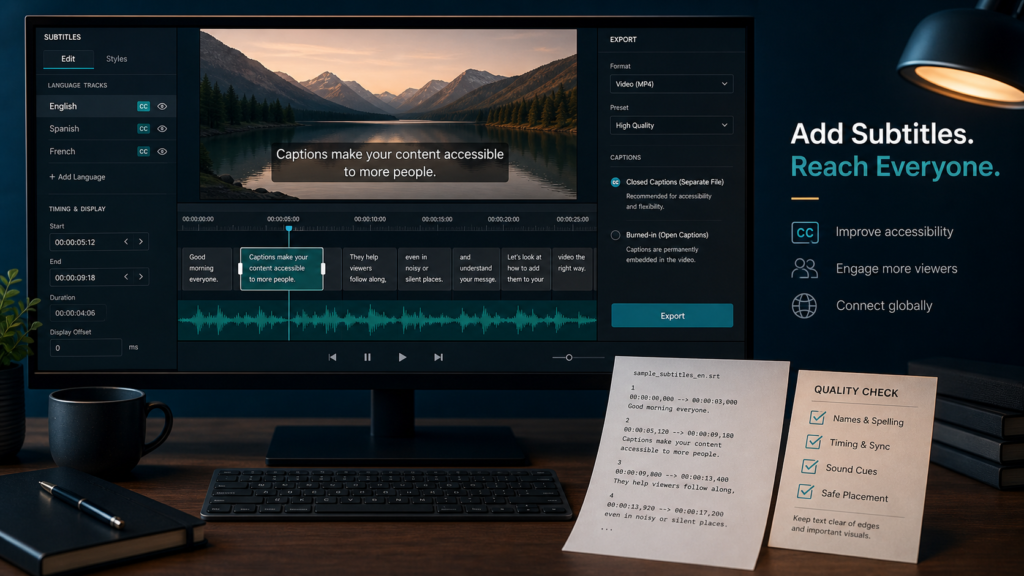
Create captions as an editable timed-text master, correct the transcript and timing in separate review passes, then deliver a selectable track or burned-in copy according to the player and audience.
To add subtitles to a video, import the video into an editor or hosting platform, select the original language, generate or upload a transcript, correct the words, split the text into readable cues, align each cue with the audio, add speaker labels and meaningful sound cues when needed, then export an SRT or WebVTT file or render open captions into a copy of the video. Test the final uploaded or exported deliverable with captions on and off.
Before opening a caption tool, decide whether you are creating a translation, same-language accessibility captions, or both. Dialogue-only translated subtitles may be enough for language access. Captions for deaf and hard-of-hearing viewers also identify speakers when unclear and represent meaningful non-speech audio such as music, laughter, alarms, or applause.
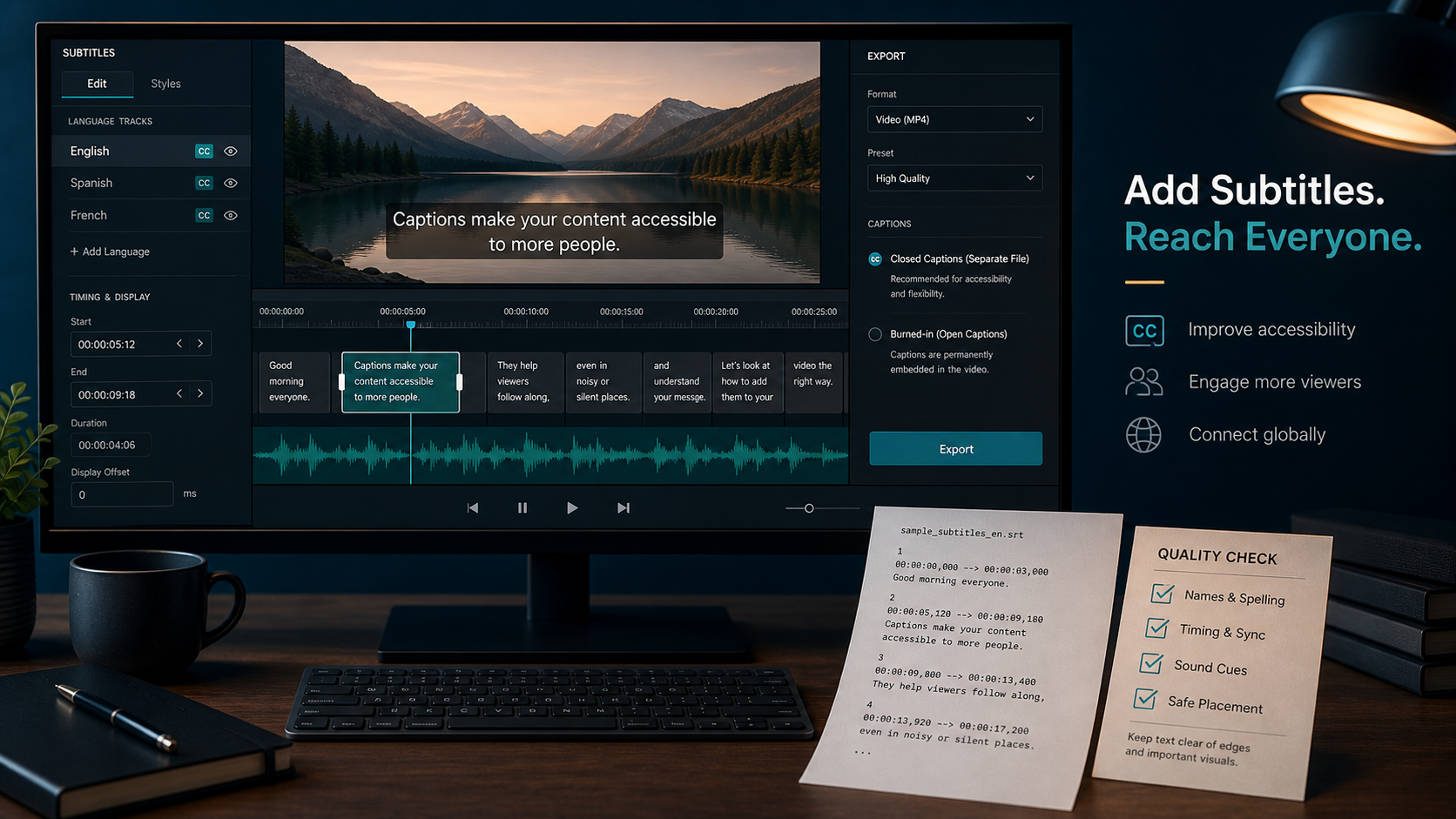
Choose closed captions or burned-in text
Choose delivery behavior before spending time styling every cue. Closed captions or subtitle tracks are separate timed text that a compatible player can turn on or off. Open captions are permanently rendered into the picture and cannot be hidden.
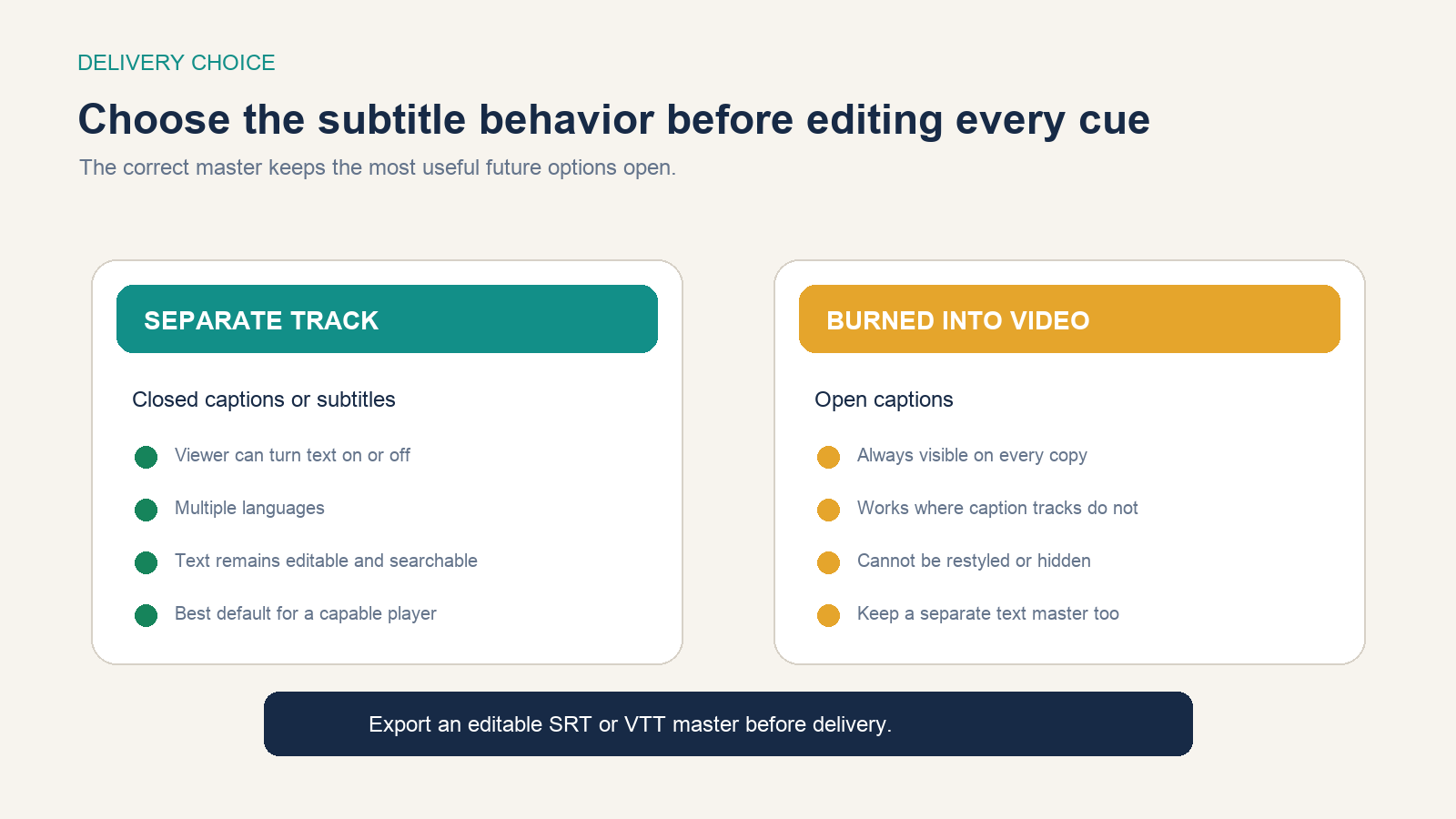
| Requirement | Separate SRT/VTT track | Burned-in copy |
|---|---|---|
| Viewer can hide captions | Yes, with a capable player | No |
| Multiple languages | Separate track per language | Separate video export per language |
| Viewer-controlled appearance | Often available | Fixed at export |
| Works in a player with no text tracks | No | Yes |
| Easy correction after delivery | Replace the text track | Render and distribute the video again |
Keep an approved SRT, VTT, or source-project track even when you must burn captions into a social clip. That file preserves text and timing for corrections, translations, transcripts, and future players.
Prepare the audio and source list
Caption quality begins before transcription. Use the cleanest final audio, not a draft edit. Reduce avoidable music under speech, confirm the program start time, and note any edit that changes duration. A caption file timed to an earlier cut will drift after inserts or removed pauses.
Create a reference list with speaker names, company and product names, technical terms, acronyms, places, quoted text, and important numbers. Give it to a human captioner or use it while reviewing automatic output. Automatic speech recognition is most likely to damage the terms that matter most to your audience.
Create the first transcript
You can type from the audio, import a script, hire a professional, or generate an automatic draft. A recording script is useful only when it matches what was actually said; presenters often paraphrase, skip, or add material.
On YouTube, current caption instructions support uploading a timed or untimed file, auto-syncing a same-language transcript, or typing manually. Microsoft’s Clipchamp guidance describes automatic captions, a transcript panel, timestamp navigation, editing, formatting, and SRT use.
Never publish automatic captions without review. YouTube lists poor audio, unsupported languages, long silence, overlapping speakers, multiple languages, and processing time among reasons automatic output may fail or be unavailable. Even when every word looks plausible, names, negation, numbers, punctuation, and speaker changes can be wrong.
Split text into readable cues
A cue is one timed unit of subtitle text. Break at natural phrase or sentence boundaries. Keep closely related words together and avoid leaving a short function word stranded on another line. Two balanced lines are usually easier to follow than one very long line, but no single character limit fits every font, player, screen, language, and audience.
Time the cue to appear as speech begins and disappear when the phrase ends, allowing enough reading time without letting old text cover the next thought. Prevent rapid flashes, overlapping duplicate cues, and long captions that remain after the speaker has stopped. Watch at normal speed; waveform alignment alone cannot tell you whether a human can read comfortably.
Place text where it does not cover faces, demonstrations, lower-thirds, controls, or other essential visuals. Closed-caption placement support varies by file format and player, so test the actual destination instead of assuming editor styling will survive.
Write captions that carry the audio meaning
Transcribe accurately and honestly. Remove only disfluency that your editorial policy permits without changing meaning. Preserve negation, uncertainty, quoted language, numbers, and distinctions important to the content.
- Identify a speaker when the visible context does not make the speaker clear.
- Represent meaningful sounds, such as
[alarm sounds]or[audience laughs], rather than every incidental noise. - Indicate relevant music or off-screen audio when it changes interpretation.
- Do not use color alone to distinguish speakers.
- Translate meaning for the target audience instead of forcing the source language’s word order into unreadable subtitles.
W3C’s explanation of prerecorded captions notes that captions carry dialogue plus needed non-dialogue audio, speaker identification, and significant sound. Its broader media accessibility guidance also distinguishes captions from transcripts, audio descriptions, sign-language versions, and accessible players. Captions do not replace the visual information a blind viewer may need described.
Understand the subtitle file you are creating
SRT is a simple, widely accepted timed-text format. Each cue contains a sequence number, a start and end timestamp, text, and a blank line:
1
00:00:02,400 --> 00:00:05,200
MAYA: Open the settings panel.

2
00:00:05,600 --> 00:00:08,900
Turn on captions, then choose English.

3
00:00:09,100 --> 00:00:11,300
[confirmation tone]
WebVTT begins with a WEBVTT header and commonly uses a period for fractional seconds:
WEBVTT

00:00:02.400 --> 00:00:05.200
MAYA: Open the settings panel.

00:00:05.600 --> 00:00:08.900
Turn on captions, then choose English.
The W3C WebVTT specification defines timed cues used for subtitles, captions, text descriptions, chapters, and other time-aligned data. Platform support is narrower than the full format. YouTube’s file-format guide, for example, recommends plain UTF-8 SRT for beginners and documents which positioning and styling it currently accepts. Validate against the destination’s present requirements.
Follow the route your tool actually supports
| Destination or tool | Practical route | Important boundary |
|---|---|---|
| YouTube | Studio > Subtitles > language > upload, auto-sync, or type | Review automatic text and confirm the published track |
| Clipchamp | Generate autocaptions, edit transcript and timing, export or retain SRT | Feature and data behavior can differ between personal and work accounts |
| iMovie titles | Add timed title overlays above clips and render a new video | Titles become open text; they are not a selectable SRT/VTT player track |
| Website video player | Provide WebVTT as a correctly labeled text track | Test keyboard access, controls, language metadata, and hosting configuration |
Apple’s current iMovie text instructions explain adding and timing title overlays. That can produce visible burned-in subtitles, but it does not create the same viewer-controlled experience as attaching a caption file to a capable player.
Review subtitles in four focused passes
A general watch-through can miss a systematic error because you are trying to judge words, timing, placement, and delivery at once. Make four passes:
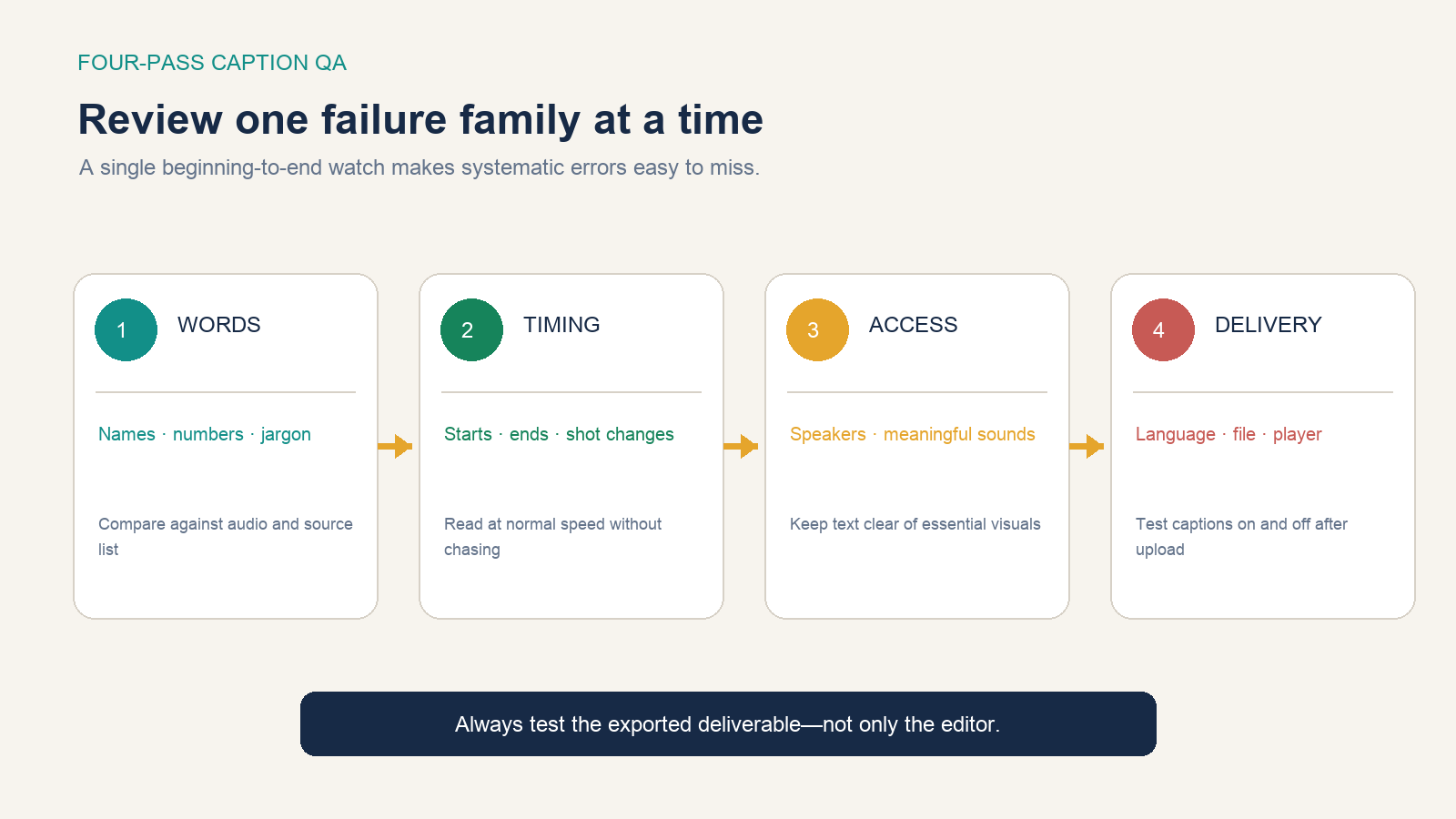
- Words: compare every cue with the audio and reference list; inspect names, numbers, negation, jargon, punctuation, and speaker changes.
- Timing: watch at normal speed; fix late starts, early ends, flashes, overlaps, drift, and awkward splits.
- Access: add missing speaker or sound information and move cues away from essential visual content.
- Delivery: export, upload, select the correct language, and test the real player or file on more than one screen size.
Test the deliverable outside the editor
Play the first, middle, and last sections to catch a global timing offset or drift. Turn captions off and back on. Switch language tracks. Resize the player, try a phone-sized viewport, and inspect scenes with lower-thirds or demonstrations. Confirm that UTF-8 characters, punctuation, speaker labels, and sound cues survive export.
If captions were burned in, confirm that no text is cropped and keep the clean video master plus the editable subtitle file. If captions are separate, confirm that the player exposes a clear caption control, reports the correct language, and loads the text track after publication. The finished result is not “captions visible in the editor”; it is an audience member successfully using the delivered video.