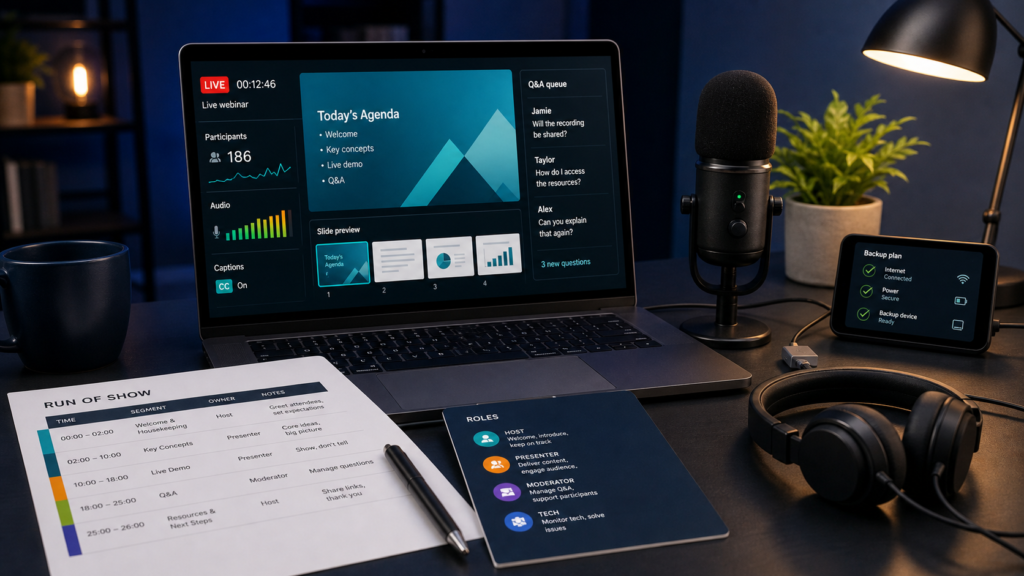
A reliable webinar is produced, not merely presented. Define one audience outcome, assign platform and audience owners, rehearse every handoff, and decide your fallback before going live.
To host a webinar, define one audience outcome, choose a format and platform that support the needed registration and interaction, create a minute-by-minute run of show, assign host, presenter, producer, and moderator roles, rehearse the complete session, run a 30-minute technical preflight, then follow up with the recording, resources, and outcome-based metrics. Document a fallback for every live dependency before the event starts.
A webinar is a small live production, not a slide deck with a registration form. The audience sees one continuous session, while the team must coordinate speaking, screen states, questions, captions, recording, timing, and recovery. Build those controls before polishing transitions.
Define the promise before choosing features
Write one sentence that completes this thought: “By the end, a specific audience will be able to do or decide ___.” This is the event promise. “Learn about our platform” is weak; “choose which of three migration paths fits a 20-person team” gives the session a finish line.
Then make four decisions:
- Audience: public, customer-only, employee-only, partner, or invitation-only.
- Format: presentation, demonstration, interview, panel, workshop, or office hours.
- Interaction: moderated Q&A, open chat, polls, downloadable materials, or no live participation.
- Afterlife: live only, edited recording, gated on-demand session, transcript, or reusable clips.
These requirements choose the platform—not its brand recognition. Confirm attendee capacity, registration fields, presenter roles, captioning, recording, Q&A moderation, reporting, authentication, dial-in access, browser support, and data handling on the plan you will actually use. Feature availability and limits change, so verify the current vendor documentation before committing.
Produce the webinar on a countdown
Work backward from the live time. The exact number of days can shrink for a small internal event, but the sequence should remain. Do not call a milestone complete because someone “looked at it”; name the owner and the proof.
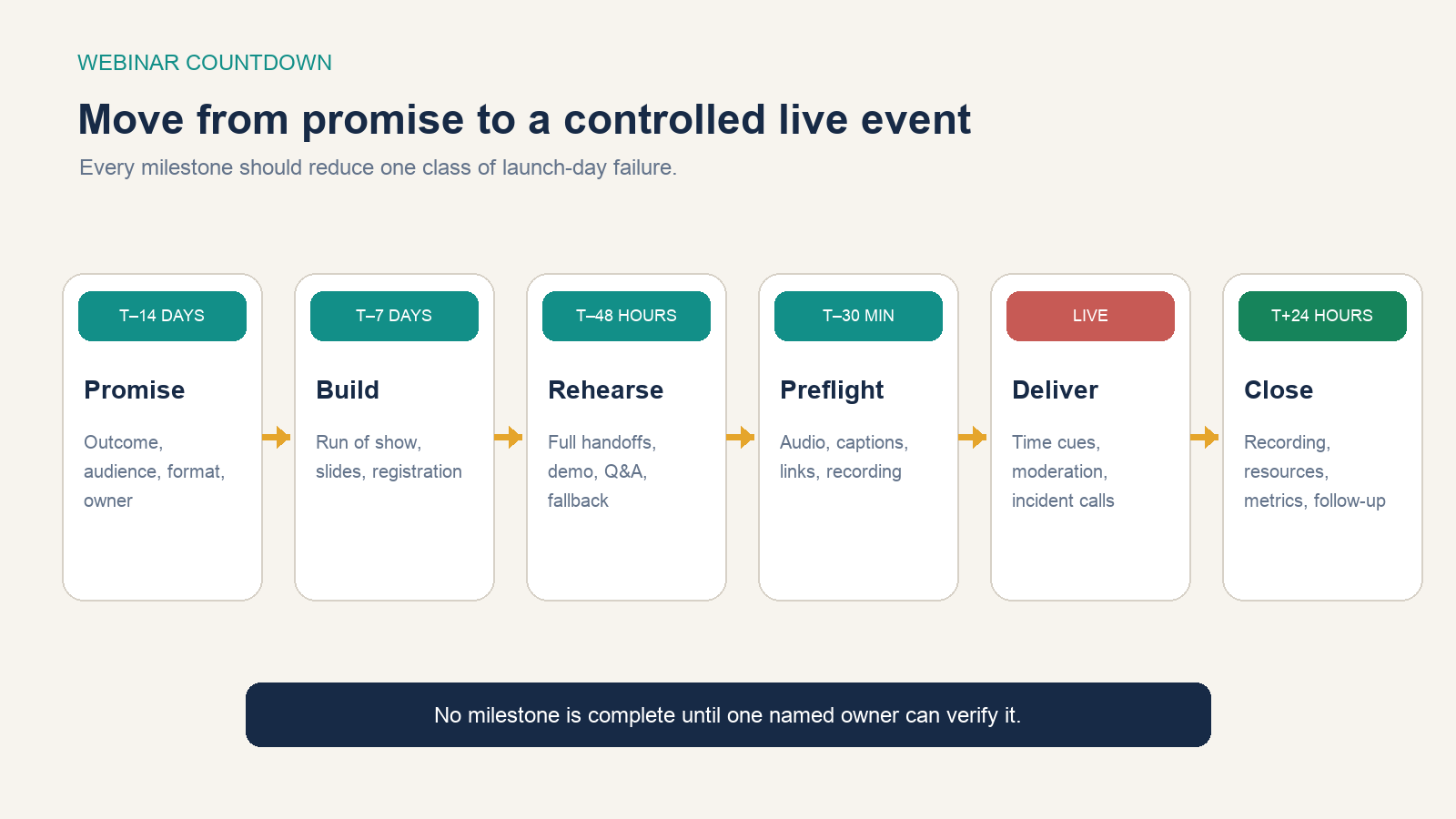
At T–14 days, approve the promise, audience, format, date, time zone, roles, and success measure. At T–7 days, publish registration only after checking the attendee journey from form to confirmation. Finish the run of show and first usable slides. At T–48 hours, run the full program with presenters, transitions, demo data, Q&A handoff, captions, and fallbacks. At T–30 minutes, freeze content changes and perform the live preflight.
Microsoft’s current Teams webinar guidance separates organizers, co-organizers, and presenters and supports private presenter notes. Zoom’s practice-session documentation similarly lets hosts and panelists prepare before broadcasting to attendees. Use the platform’s backstage or practice behavior during rehearsal, not for the first time on live day.
Design registration as a trust exchange
Ask only for information you can justify. Name and email may be enough for a public educational session. Company, role, team size, or a pre-event question can help tailor the content, but every extra field adds friction and another data element to protect.
Test registration with an address outside your organization. Verify the time zone, calendar file, confirmation message, reminder schedule, join link, mobile layout, privacy notice, terms, contact path, and what happens after cancellation. If manual approval or account authentication is enabled, state that before the form is submitted.
Zoom’s registration documentation describes automatic or manual approval, custom questions, confirmation emails, source-tracking links, reports, authentication, and custom privacy-policy links. It also warns that some recurring-event edits can remove registration data. Treat configuration changes after promotion as controlled changes, not casual edits.
Invitation law depends on location and message purpose. For U.S. commercial email, the FTC’s CAN-SPAM guide covers truthful headers and subject lines, a valid postal address, an understandable opt-out, prompt honoring of opt-outs, and responsibility for vendors sending on your behalf. Obtain legal advice for the jurisdictions and data practices relevant to your event.
Build a run of show that controls the room
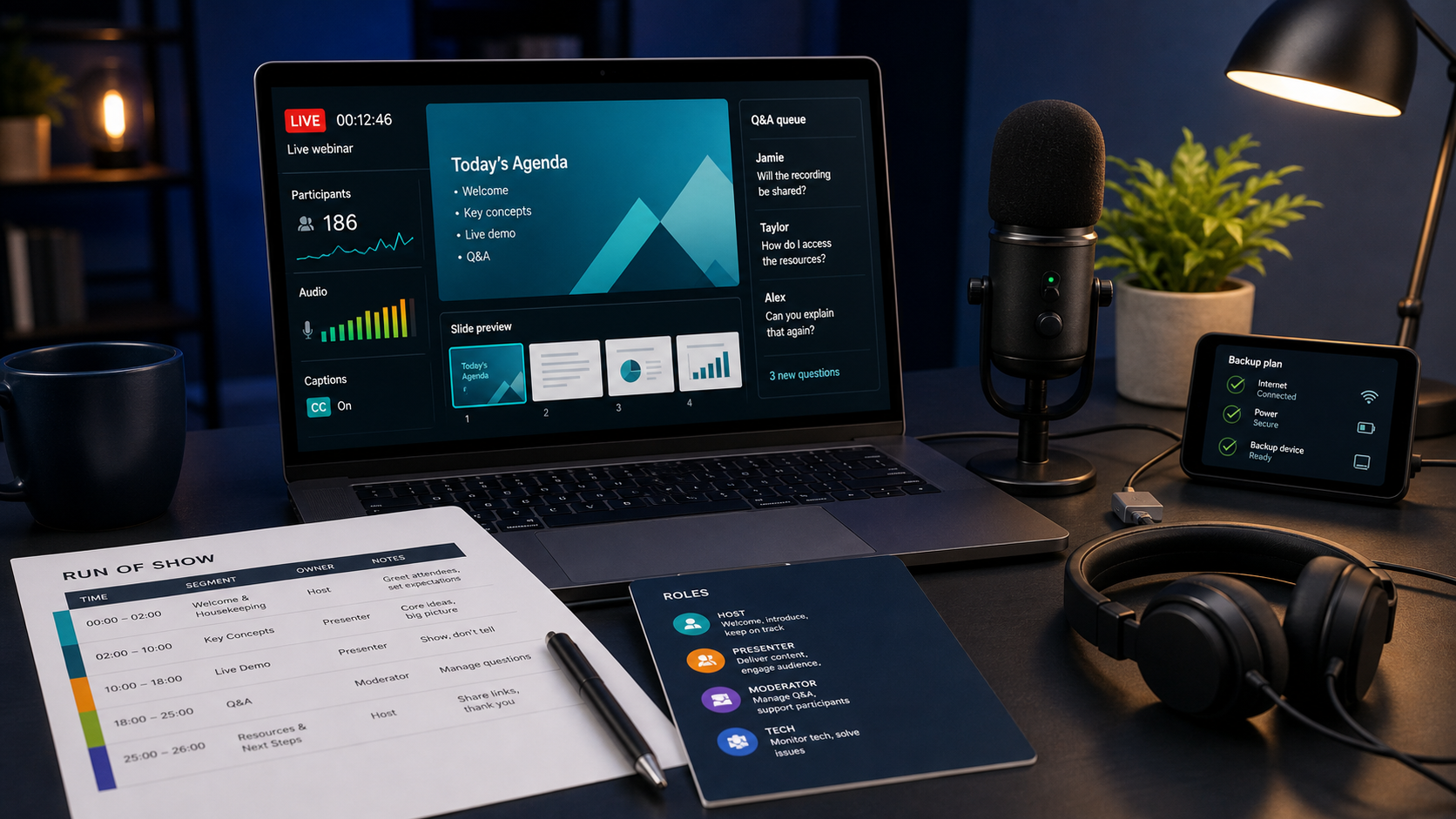
A useful run of show is not an agenda. It states what the audience sees, who owns the next action, and what replaces a failed dependency. Keep one live copy visible to the production team.
| Clock | Audience experience | Owner and control | Fallback |
|---|---|---|---|
| –10:00 | Holding slide, music if licensed, captions ready | Producer opens room; moderator posts welcome | Static branded slide and silent room |
| 00:00 | Welcome, outcome, access notes, Q&A method | Host speaks; producer records | Host reads a saved opening card |
| 03:00 | Teaching segment | Presenter; host gives private time cues | PDF backup if screen share fails |
| 18:00 | Live demonstration | Presenter drives; producer watches health | Annotated screenshots or short backup video |
| 28:00 | Moderated questions | Moderator selects; host closes loops | Prepared questions if queue is empty |
| 40:00 | Summary and next action | Host; moderator posts verified link | Short spoken URL plus follow-up email |
Write real timestamps, not just durations. Add the exact file or link for each screen state. Mark whether a poll, video, demo, or external presenter changes the platform state. Keep five minutes unallocated in a 45-minute session; otherwise a late start or valuable question forces an abrupt ending.
Separate the live roles
One person can combine roles for a small webinar, but the responsibilities must remain explicit. When one person is presenting, sharing, admitting speakers, reading chat, choosing questions, watching captions, and troubleshooting, every interruption becomes visible.
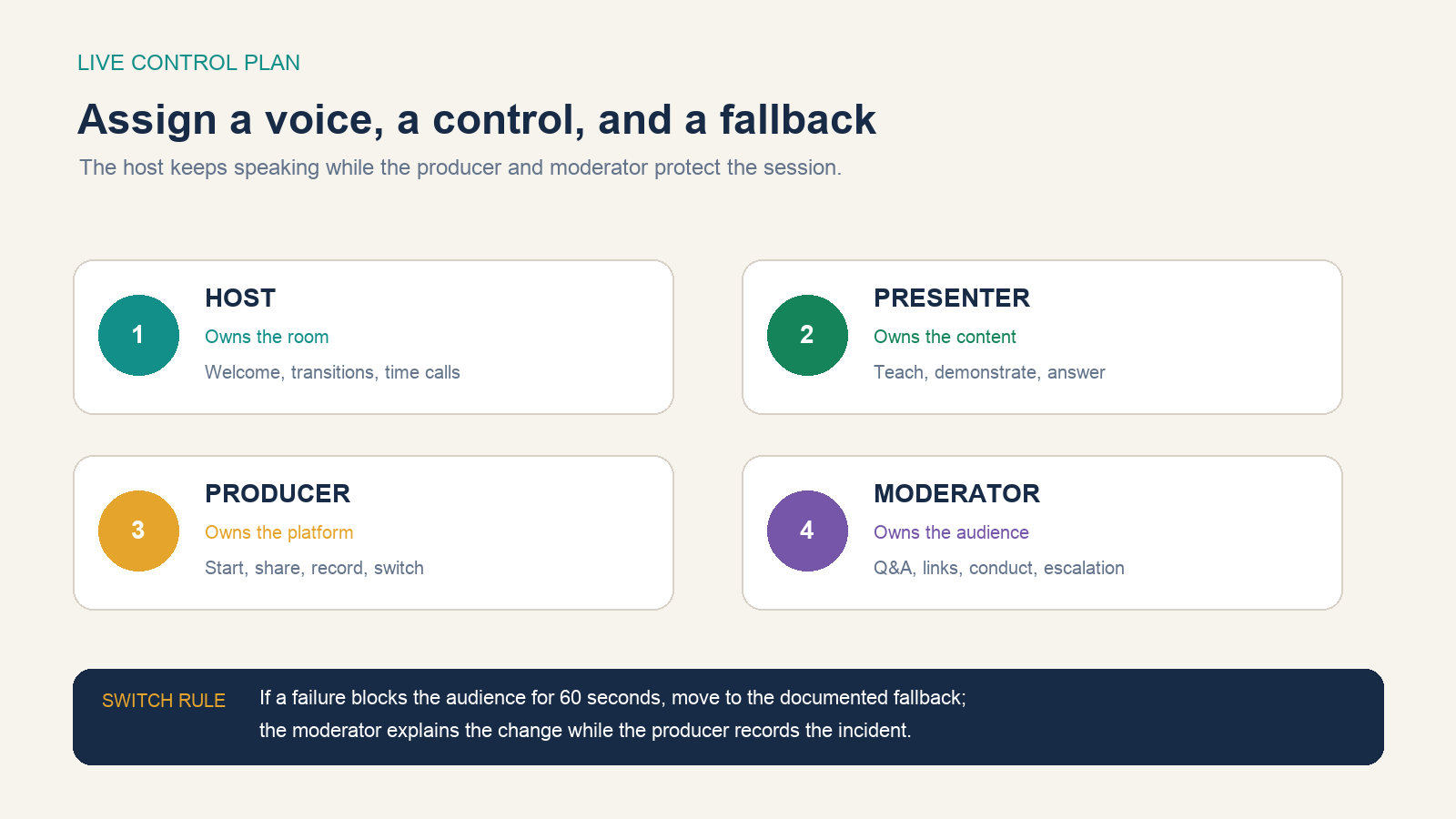
- Host: welcomes the audience, states access and conduct notes, connects segments, gives time cues, and closes.
- Presenter: teaches or demonstrates and responds to selected questions.
- Producer: controls broadcast state, recording, screen share, speaker access, audio, polls, and fallbacks.
- Moderator: watches Q&A, consolidates duplicates, removes abuse, posts verified resources, and tells the audience about incidents.
Microsoft’s Q&A guidance allows organizers and co-organizers to manage questions and describes separate moderation and chat settings. Decide before the event whether questions appear immediately, are reviewed first, can be anonymous, and remain visible after the webinar.
Rehearse handoffs and failure switches
A rehearsal is not a private presentation. Run the opening, every speaker handoff, every screen-share change, every media clip, the full demonstration, two questions, the close, and the fallback. Join from the same devices, locations, accounts, and networks planned for live day.
| Dependency | Switch trigger | Immediate fallback | Audience message owner |
|---|---|---|---|
| Presenter audio | Unintelligible for 30 seconds | Host summarizes; presenter reconnects by backup device | Moderator |
| Live demo | Blocked or stalled for 60 seconds | Move to annotated screenshots or recorded path | Host |
| Slides | Wrong deck or share failure | Producer shares locked PDF | Host continues speaking |
| Main connection | Producer detects instability | Wired or hotspot backup; reduce video load | Moderator |
| Platform-wide failure | No attendee access or broadcast | Use status channel and prewritten reschedule message | Event owner |
Choose the switch threshold in advance. Without one, teams spend several public minutes trying to rescue the ideal path. A simple rule is useful: when the audience is blocked for 60 seconds, use the documented fallback and continue; investigate fully after the session.
Make access part of production quality
Enable and test captions. Send accessible slides or resources in advance when appropriate, add alternative text to meaningful images, use readable contrast and type size, identify speakers, and describe visual information that is necessary to understand the point. Repeat or summarize audience questions before answering.
The W3C’s accessible-events checklist recommends adaptable materials, advance access for participants and captioners, visible and well-lit speakers, good microphones, and making all relevant sound available through the audio system. WCAG guidance explains that live captions give deaf and hard-of-hearing audiences access to spoken and significant non-speech audio in synchronized media.
Automatic captions can make errors, especially with names, acronyms, technical terms, and accents. Give speakers a terminology list, test the selected language, and arrange professional captioning when accuracy or obligation requires it.
Run a 30-minute preflight
- Join with host, presenter, producer, and attendee test accounts.
- Confirm the correct event, account, time zone, presenter links, and permissions.
- Test microphone, camera, headphones, captions, screen share, slides, demo, polls, and Q&A.
- Close notifications, messaging apps, private tabs, password managers, and unrelated windows.
- Open backup files locally and place the backup device and connection within reach.
- Confirm recording state, consent notice where required, storage destination, and available space.
- Review the first three minutes, final call to action, time cues, and switch rule.
Freeze nonessential changes at this point. A last-minute animation or plugin is not worth adding a new failure mode. Start the room or practice session early enough to resolve account and role mistakes without using attendee time.
Close the loop after the webinar
Before leaving the platform, confirm that recording and reports exist and save the incident notes. Publish only after checking the beginning, end, audio, captions or transcript, confidential screen content, licensed media, and promised resources.
Measure each stage separately:
- Registration conversion = completed registrations ÷ unique registration-page visitors.
- Attendance rate = unique live attendees ÷ approved registrants.
- Retention = attendees present at a chosen checkpoint ÷ attendees who joined.
- Participation rate = attendees who completed a defined interaction ÷ live attendees.
- Outcome rate = attendees who completed the intended next action ÷ eligible attendees.
Do not interpret one metric alone. A high registration count with low retention may mean the promise attracted interest but the session did not deliver it quickly. A smaller audience with strong outcome completion may be more valuable. Within 24 hours, send the promised recording or resources, answer unresolved questions, document incidents, and change the production template before the next date is scheduled.