A safe orientation to Google Académico and Google Acadêmico: official access, language settings, query refinement, full-text routes and evidence limits.
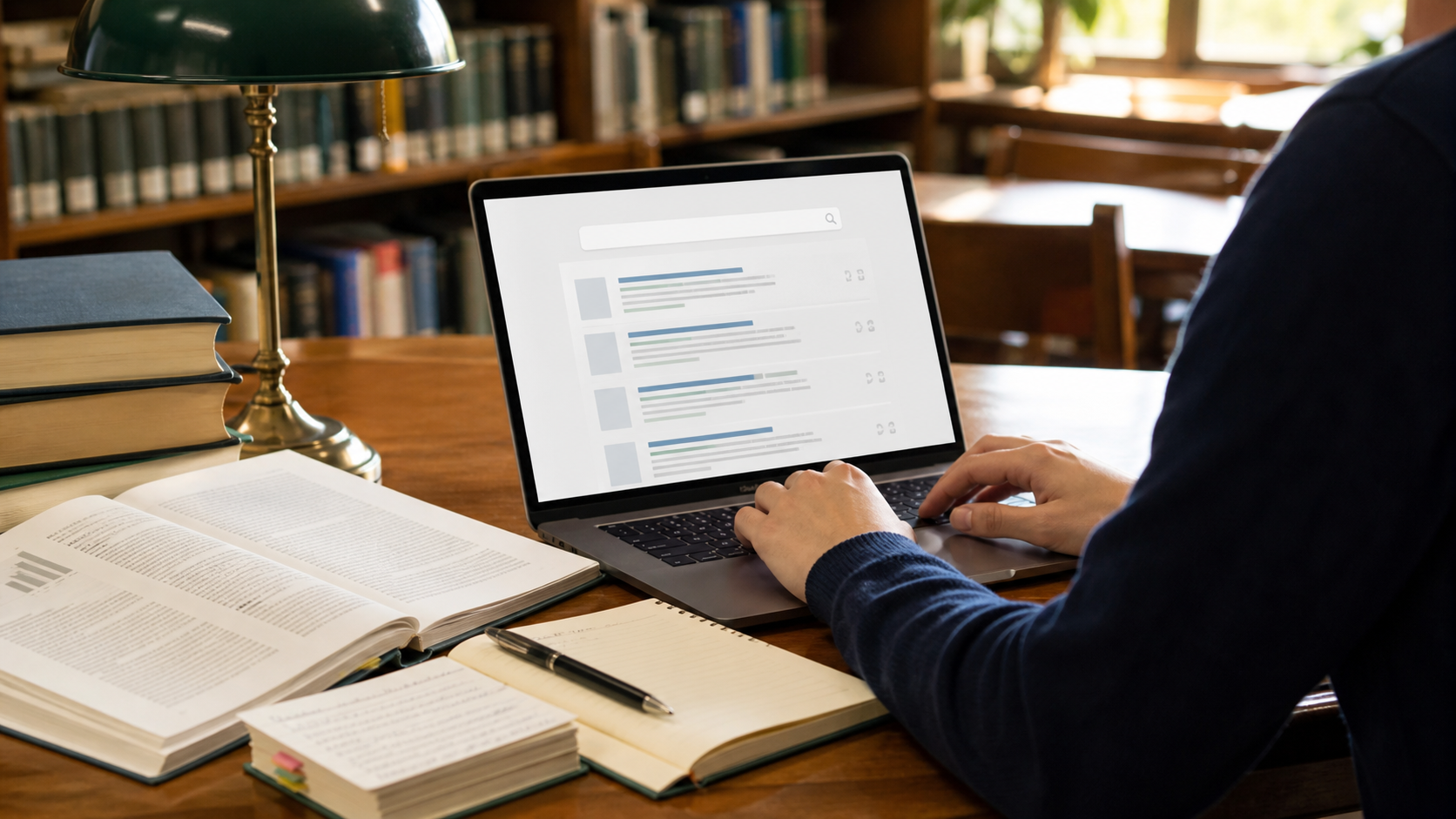
If you typed “google academico,” you are probably trying to reach Google Scholar in Spanish or Portuguese—not looking for a separate academic product, software download, or unofficial database. The spelling difference is small enough to cause confusing search results: Spanish uses Académico, Portuguese uses Acadêmico, and accent-free queries are common.
Google Académico is the Spanish name for Google Scholar; Google Acadêmico is the Portuguese name. The official service is at scholar.google.com. You can search without changing the language, but the interface and query terms are separate choices: set the display language you prefer, then search in the language or terminology used by the literature you want to find.
What Google Academico means
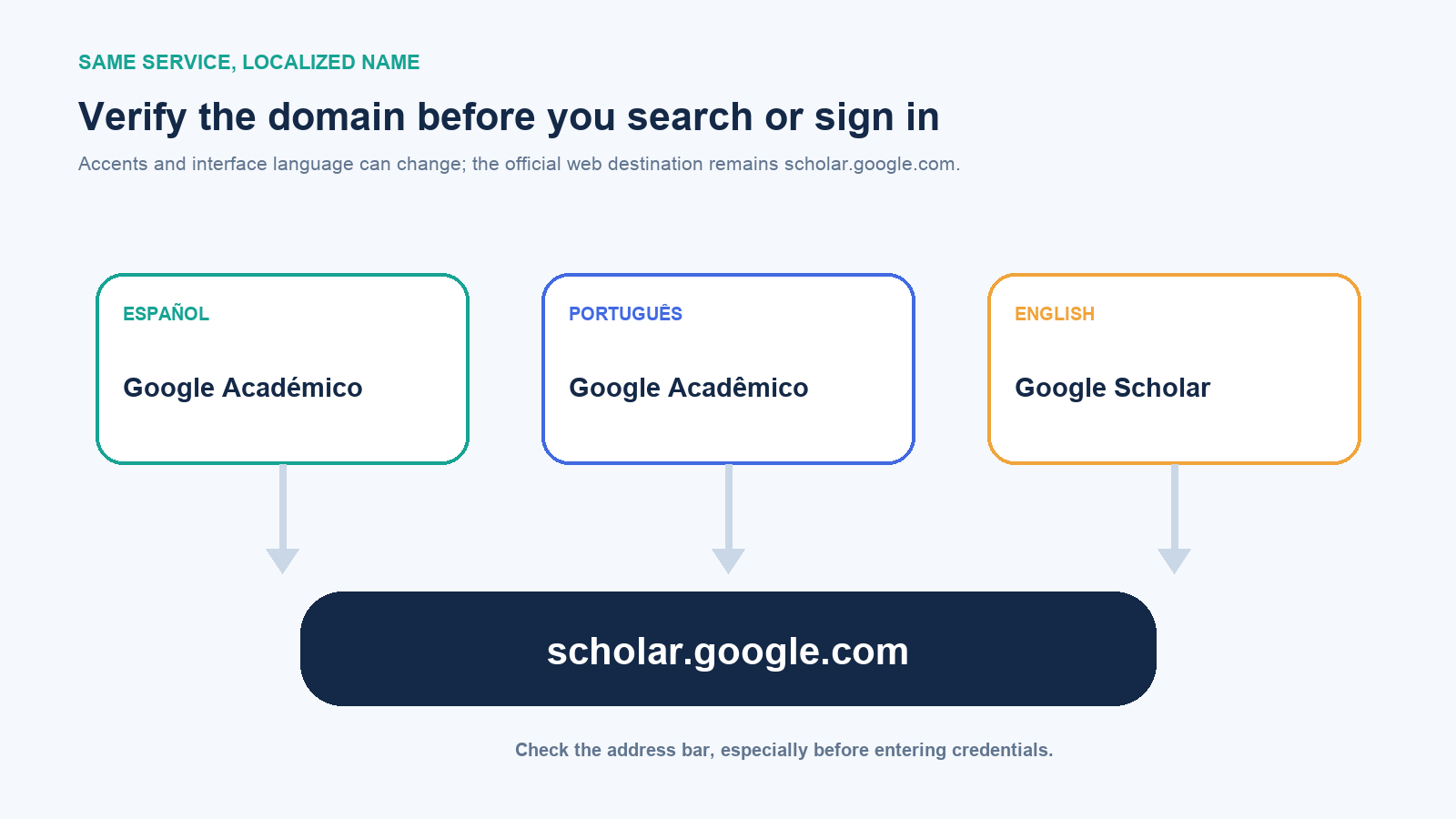
| Language | Common service name | Notes |
|---|---|---|
| Spanish | Google Académico | The acute accent appears over the second “e.” |
| Portuguese | Google Acadêmico | The circumflex appears over the second “e.” |
| English | Google Scholar | The underlying scholarly search service is the same. |
| Accent-free search | Google Academico | A common typed query, but not a different product. |
Google says Scholar includes journal and conference papers, theses and dissertations, academic books, preprints, abstracts, technical reports, court opinions and patents across fields and languages. That broad scope is useful for discovery, but the document types do not all carry the same review status or evidentiary weight.
Use the official address
Open https://scholar.google.com directly or use a trusted bookmark. Before entering a Google Account password, check that the hostname in the address bar is a Google domain and that the connection uses HTTPS. An article result can legitimately lead to a publisher, university repository or other host; the Scholar search page itself should not require you to install a browser extension or a “desktop Scholar” program.
Basic searching and result browsing do not require you to create a new Google Account. Account-linked features can make saved items, profiles and alert management more convenient. Google also documents that a search alert can use another email address, with a verification link when needed. Do not create a second account merely because the interface appears in an unfamiliar language.
Set Spanish, Portuguese, or English display language
The Scholar menu and Settings page can expose language controls, and an account’s preferred web language can also influence Google services. Google’s account-level route is myaccount.google.com/language: choose Language, edit the preference, select the desired language, then close and reopen the browser if the change does not appear immediately.
If you understand multiple languages, Google allows additional language preferences. On a shared or public computer, avoid changing someone else’s signed-in account settings. Use a private session or the local page controls where appropriate, then sign out when finished.
Changing language does not translate the research
Display language changes the labels around the search box; it does not translate the title, abstract or full text of indexed papers. It also does not guarantee that results are restricted to that language. Search terminology has a much larger effect on what you find.
For a multilingual literature search, build a small concept table before searching. A study of “remote work productivity” might require English terms plus Spanish variants such as teletrabajo and productividad, or Portuguese terms such as trabalho remoto and produtividade. Run the variants separately before combining them. Direct word-for-word translation can miss the standard term used by a discipline or country.
Record the exact query, date and filters for any systematic or reproducible search. Interface language alone is not enough to reconstruct the result set.
Run a useful search in five passes
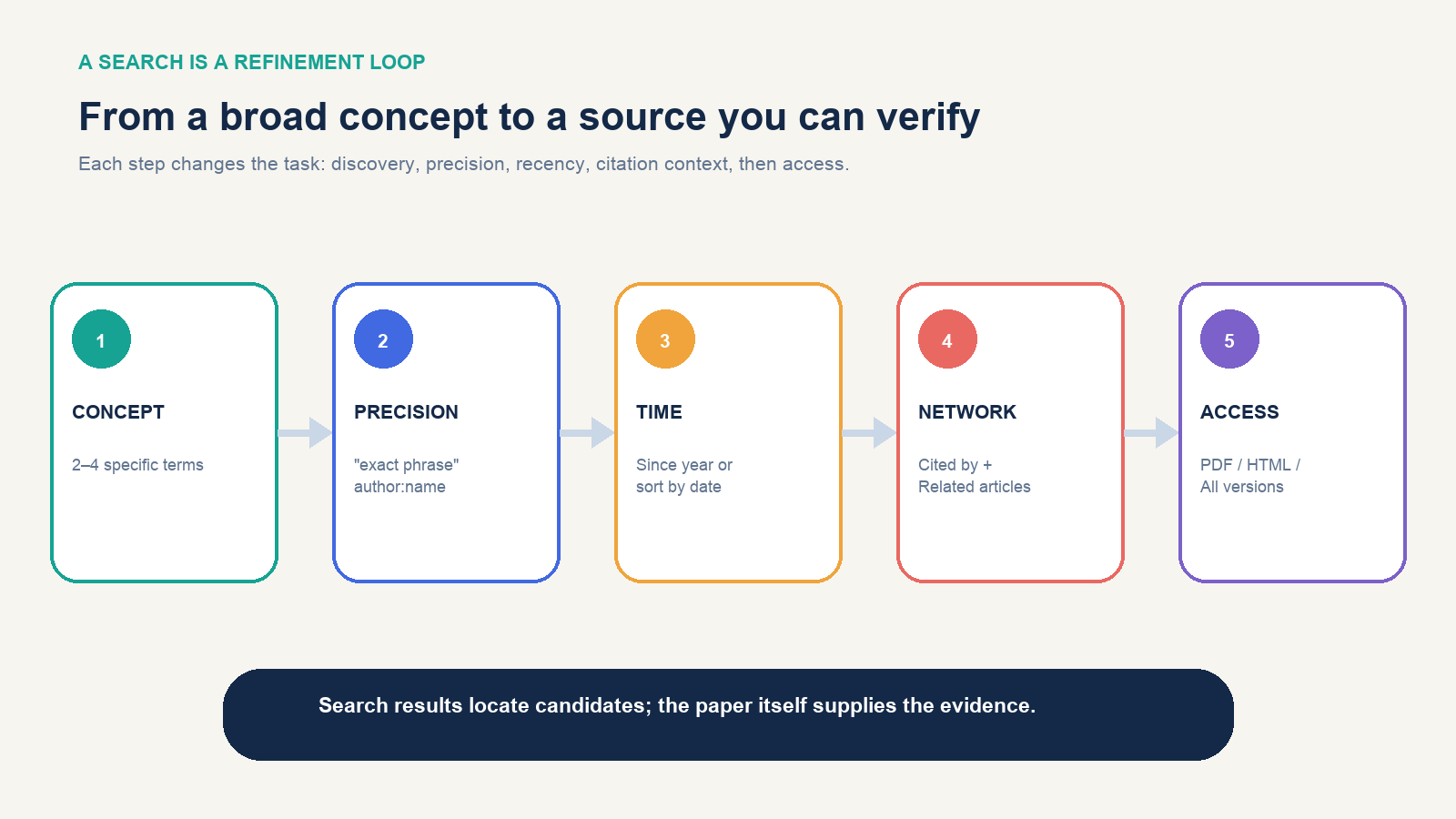
1. Start with specific concepts
Use two to four substantive terms rather than typing an entire assignment question. Include the population, intervention or phenomenon that makes the topic distinctive. A broad query such as education technology may help you learn vocabulary; a focused query such as adaptive tutoring mathematics secondary school is easier to screen.
2. Add precision only when you need it
Put a known title or fixed phrase in quotation marks. Use the author: operator for a named researcher, such as author:”surname initials”. Google’s Advanced Search, available from the side menu, can constrain author, title, publication and date fields. Add one constraint at a time so you can tell which one removed a relevant paper.
3. Control recency deliberately
Scholar normally sorts results by relevance. A “Since year” filter keeps relevance ordering within a recent period; “Sort by date” prioritizes the newest additions. These choices answer different questions. Use relevance when looking for established work and date sorting when monitoring emerging publications, then inspect both when recency and foundation matter.
4. Follow the citation network
Cited by leads to works that reference the result and often moves the search forward in time. Related articles finds similar records. The reference list inside the paper moves backward toward earlier foundations. This forward-and-backward path can reveal vocabulary and studies that a keyword query missed.
5. Separate discovery from access
A promising title is not yet a source you have read. Open the abstract or paper, verify the author, venue, year and version, then decide whether it answers the question. If the publisher copy is restricted, use the legitimate access sequence below rather than downloading from an unknown mirror.
Read the result before you click
A typical result contains a title link, authors, publication information, a snippet, and action links. Check for these signals:
- Title and metadata: Do the topic, author, venue and year match the work you expected?
- [PDF] or [HTML] link: Google may show a directly accessible version on the right.
- All versions: Multiple hosts or versions may be grouped under one work.
- Cited by: This is a citation-network path and count, not a quality certificate.
- Related articles: Use it to expand a good seed paper into a topic neighborhood.
- Save: Stores the record in My Library when the feature is available to your session.
- Cite: Offers formatted citations and export options, but generated metadata and punctuation still need verification against the source and required style.
Google explains that preliminary and published versions can be grouped and their citations combined. That can make the record more useful, but it also means you should identify which version you actually read and cite. A preprint and final journal article may differ.
Find a legitimate full-text copy
- Open the [PDF] or [HTML] link shown beside the result when the host is recognizable and appropriate.
- Choose All versions and inspect other publisher, repository or author-hosted copies.
- Use an institutional library link when it appears. If you are affiliated with a university but do not see one, ask the library about campus access, proxy setup or Scholar library-link configuration.
- Search the exact title in quotation marks on the publisher’s site or a trusted institutional repository.
- If access is still restricted, use interlibrary loan, contact the library, or request a copy from the author where lawful and appropriate.
Do not treat a random file-sharing site as equivalent to an author or repository copy. Confirm that the title, authors, date, pagination and document version match the record you intend to use.
Save, cite, and alert without losing context
When you save a record, add a label or note in your own research system that says why it matters. A folder containing 200 unannotated results is not a literature review. Record the research question, search terms, inclusion reason and version read.
Use the Cite action to copy or export a starting citation, then compare it with the paper’s first page, DOI record or publisher metadata. Check capitalization, author order, journal title, volume, issue, pages, year and DOI. Citation styles differ, and automated records can be incomplete or merge versions incorrectly.
For a continuing topic, run the refined query and create an email alert from the results page. Google says alerts are sent when new matching papers are added, usually several times per week. Treat the alert as an intake queue: screen each result before adding it to the evidence set.
What a Scholar result does not prove
Inclusion does not prove that a work is peer reviewed, current, methodologically sound or applicable to your context. Scholar’s stated coverage includes preprints, theses, books, reports, abstracts, patents and court opinions alongside journal and conference papers. Check the document type and publication venue rather than assuming every result is the same kind of scholarship.
Citation counts measure links in the indexed literature, not truth. Older papers have had more time to accumulate citations; controversial or flawed work can be cited; practices differ by field; and Scholar’s coverage changes as web content appears or disappears. Google says it cannot guarantee uninterrupted coverage of any particular source.
For health, law, policy, engineering safety or another high-stakes question, pair Scholar discovery with the field’s specialized databases, official guidance, systematic reviews and professional standards. For a formal systematic review, follow a documented protocol and search multiple databases rather than treating one search engine as complete.
If Scholar is blocked or the interface is unusable
First verify the official domain, network access, cookies and account language. Avoid rapid automated querying; Scholar is intended for human search, and unusual traffic can trigger access checks. A university library’s discovery service can often reach subscribed databases and may provide librarian support for a reproducible search.
If the topic needs controlled vocabulary or highly structured filters, move to a discipline-specific database recommended by your library. Keep Google Académico as a broad discovery and citation-chaining tool, but let the research question—not the familiar search box—determine the final search method.